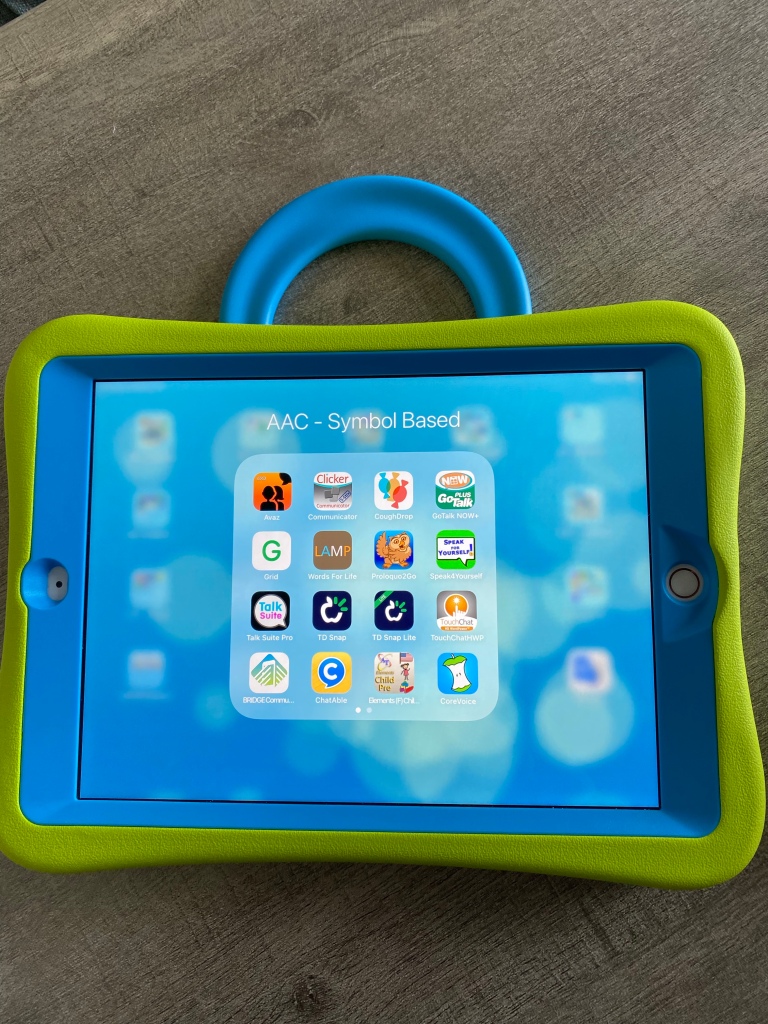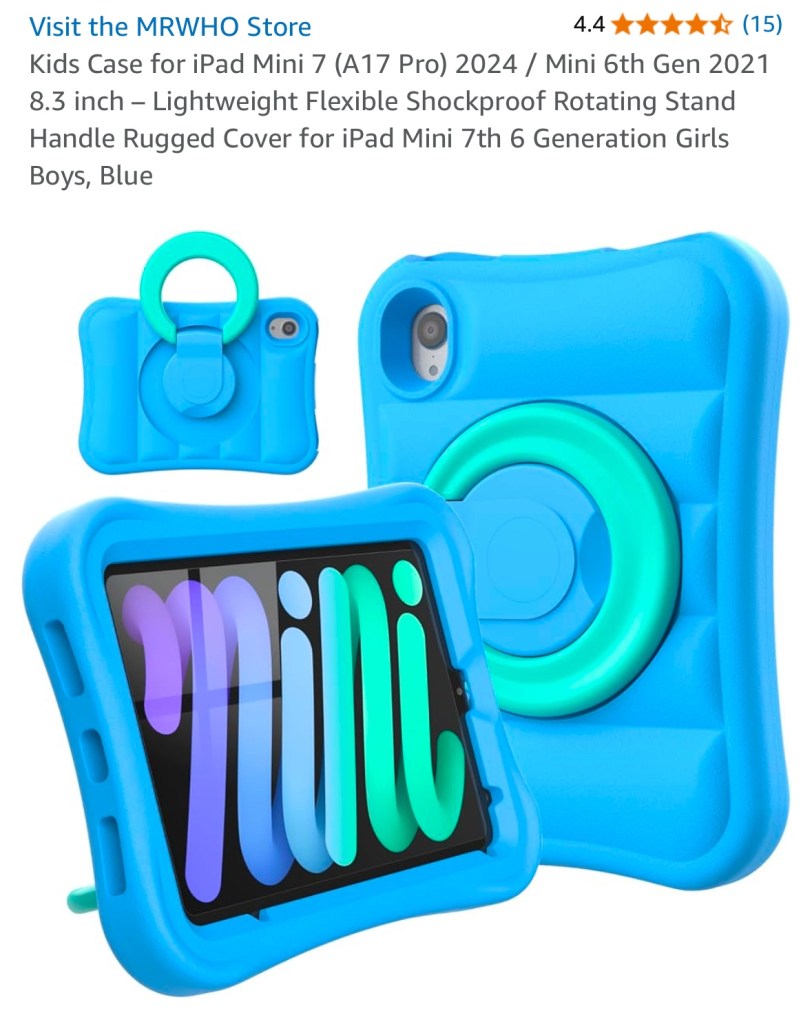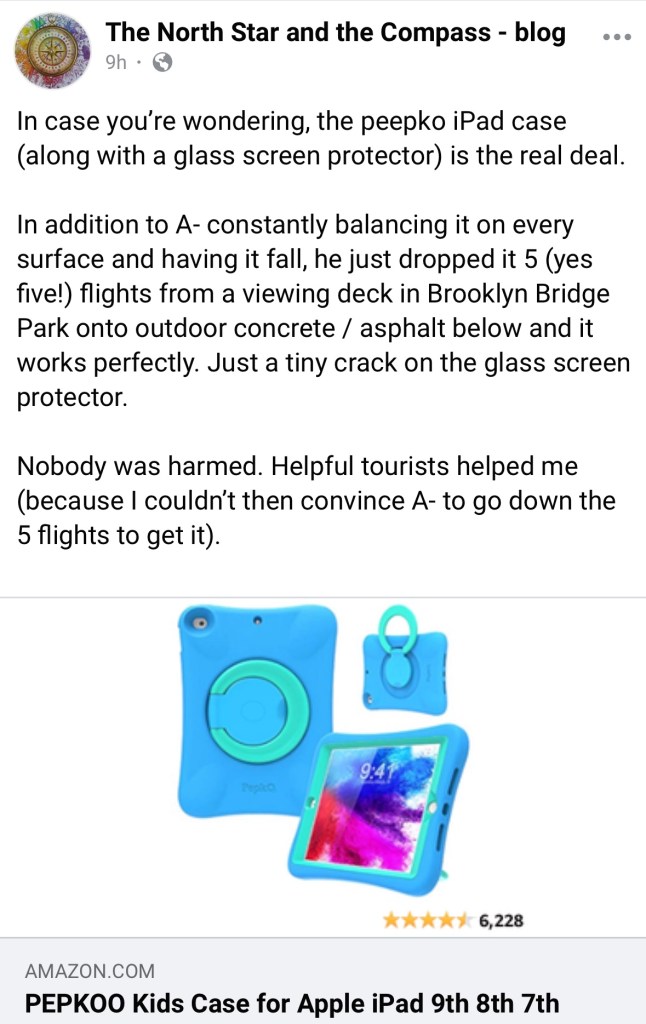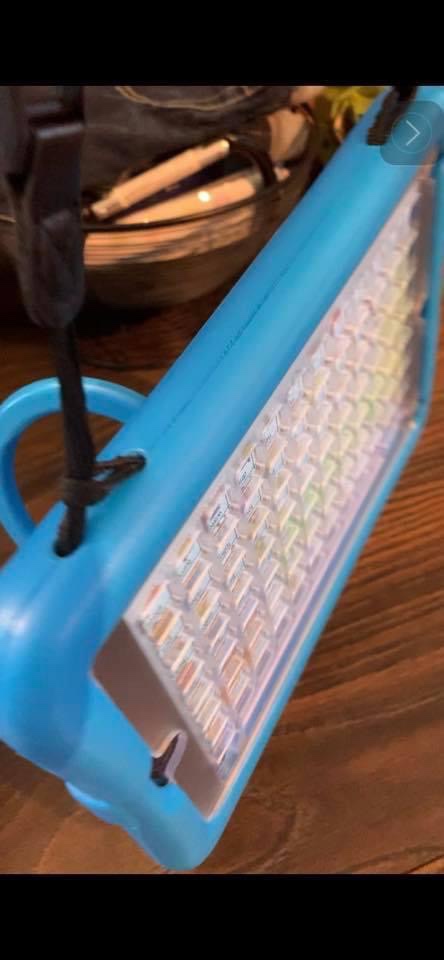
Angela Moorad, MS, CCC-SLP. Over 36 years experience in AAC. OMazing Kids AAC and app consulting. Creator of several AAC Feature Matching resources (https://omazingkidsllc.com/omazing-kids-aac-resource-links/). Includes info about unique features to support Gestalt Language Processors
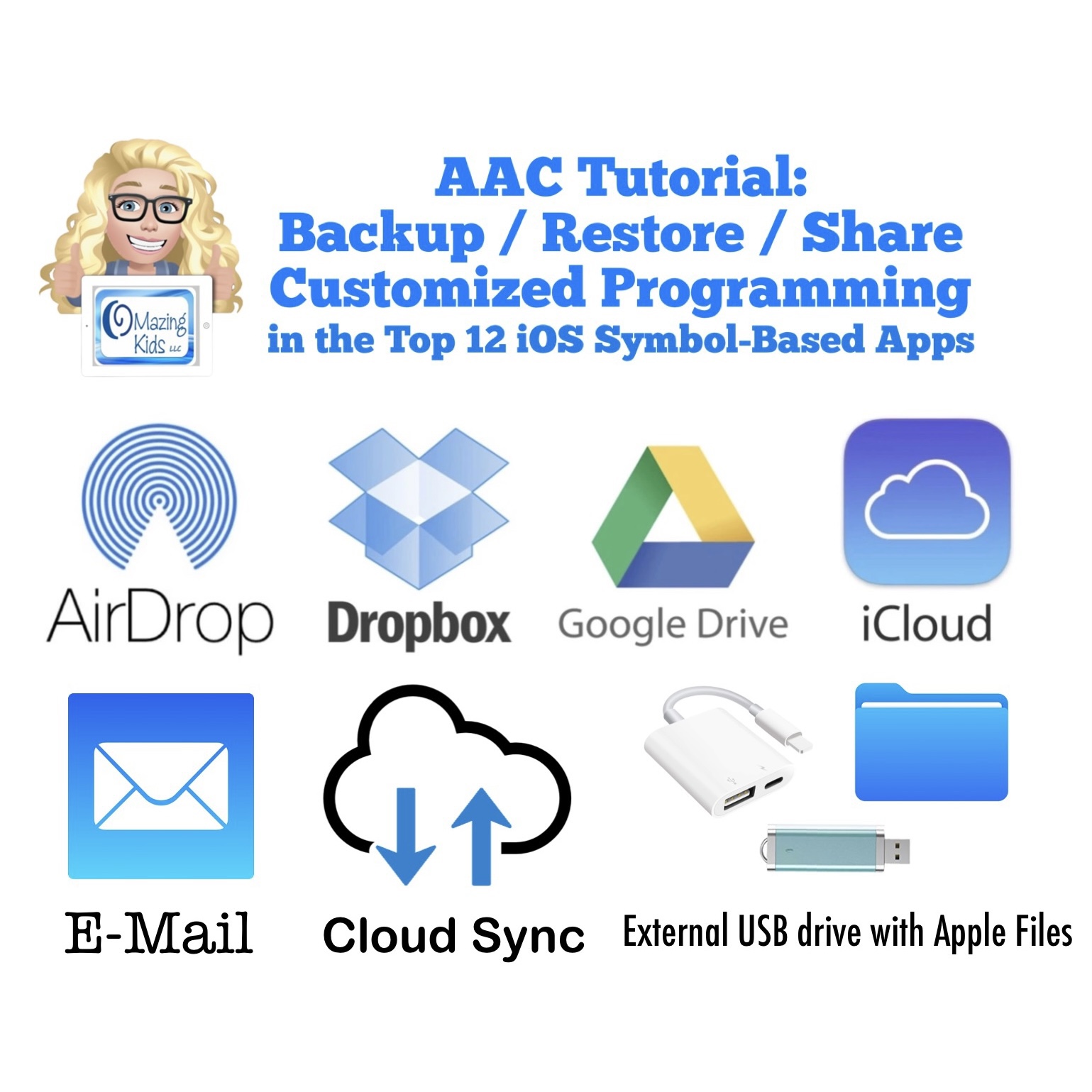
It’s critical to backup customized programming in any AAC apps. This includes making sure that you’ve backed it up in at least one way outside of the iPad. The options for doing this vary by app.
Here are links to where you can find the instructions for several AAC apps:
Alexicom (several apps): toggle on iCloud backup in Settings
Note: : I deactivated this resource on TPT on 11/2/23 when I learned that iOS 17 / iPadOS 17 made some significant changes to how AirDrop works. Prior to this you could AirDrop and the AAC file that you sent would go straight to that AAC app on the receiving device with a confirmation message to tap to import it. As of iOS 17/ iPadOS 17 this is no longer the case. One of the developers of Speak for Yourself shared the following information in a comment in the AAC for the SLP group: “AirDrop now uses the Files app to receive vocabulary. If it’s a managed device (through an MDM or third party insurance-covered device), it may have the files app removed. It’s going to affect any of the apps and any files that you’re trying to AirDrop. It’s doesn’t affect photos, only files.”
Info from Apple: https://developer.apple.com/forums/thread/737971?page=1#767265022 (On iOS 17, the behavior of saving an AirDropped file to the Downloads folder (and then launching Files.app) is intended. That is part of the effort to avoid directly passing a file to an app that declares itself as a handler of the file type but isn’t really the file handler that the user expects.)
At this point I’m going to see if AAC app developers come up with a work around or if Apple rolls back this process before deciding whether or not I will update this resource.
Five Feature Matching Resources for AAC Apps (comparing features in AAC apps) + several videos comparing AAC apps across platforms (iPad, Android, Amazon Fire, Windows): https://bit.ly/5aacFeatureMatchingResources
AAC Feature Matching Resource Bundle (includes all three, save 10%):https://bit.ly/aacFeatureMatchingBundle. If you are looking to purchase resources for several staff / team members, take a look at the Multiple Licenses discount (saves 20%)
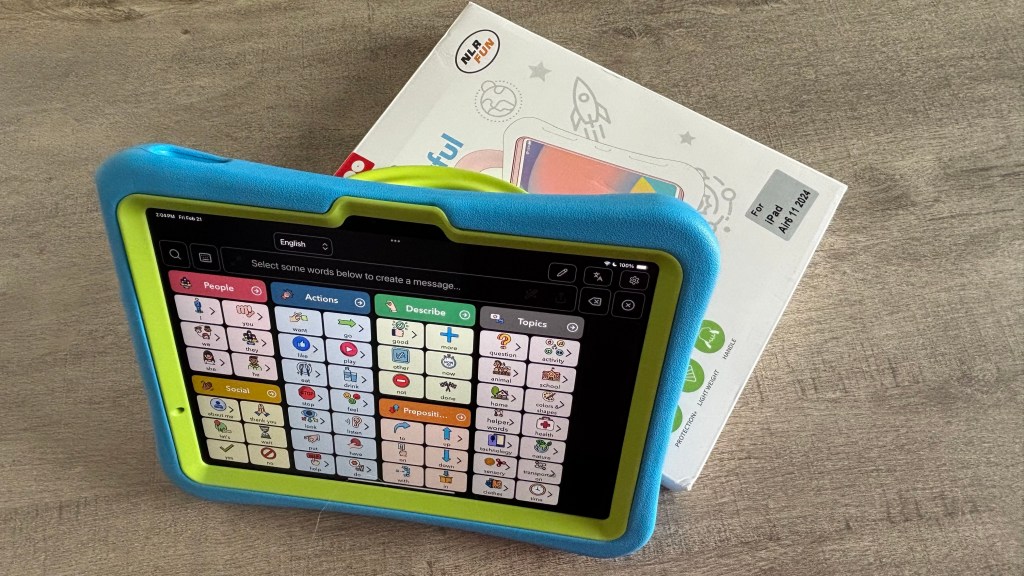
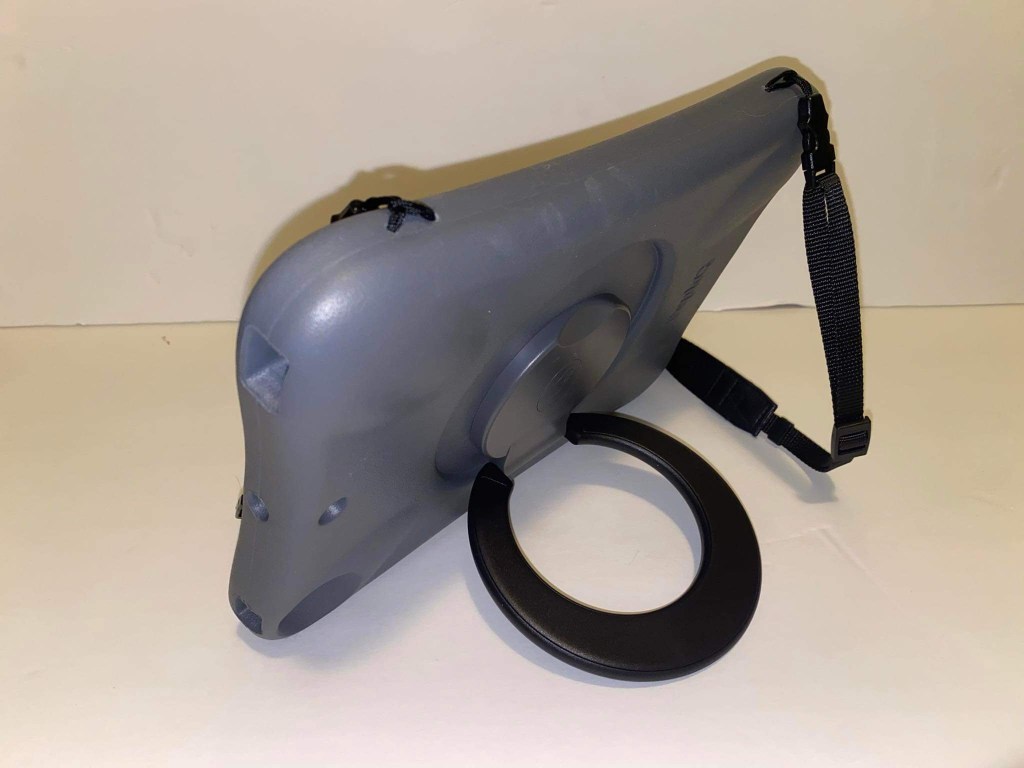
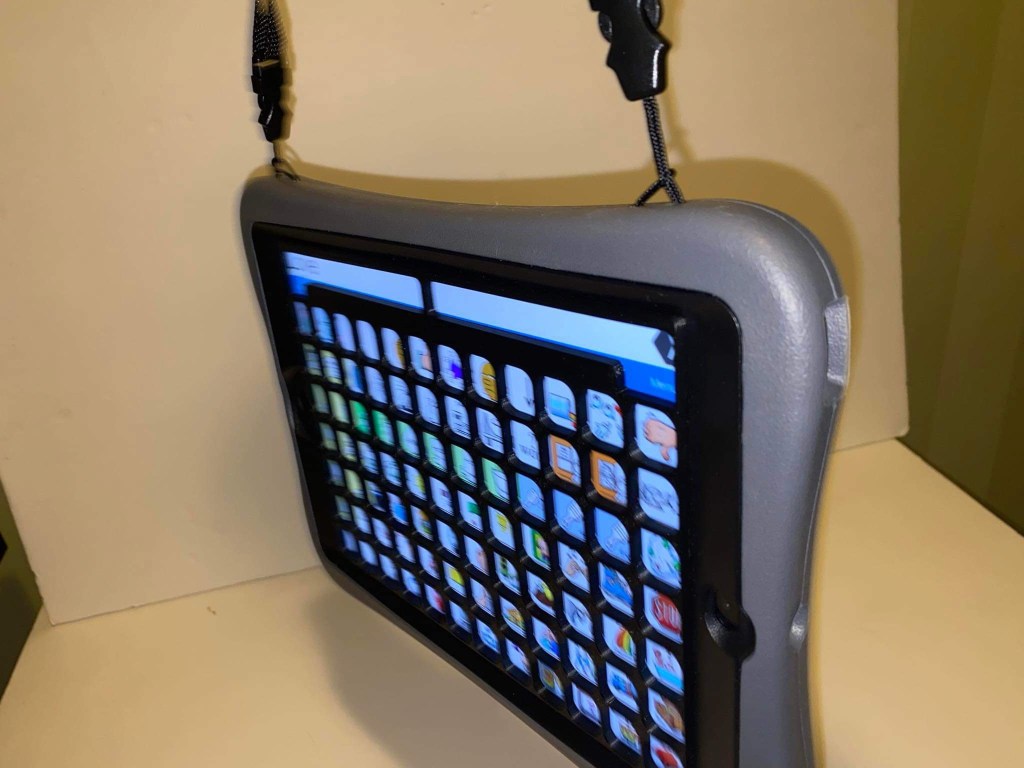
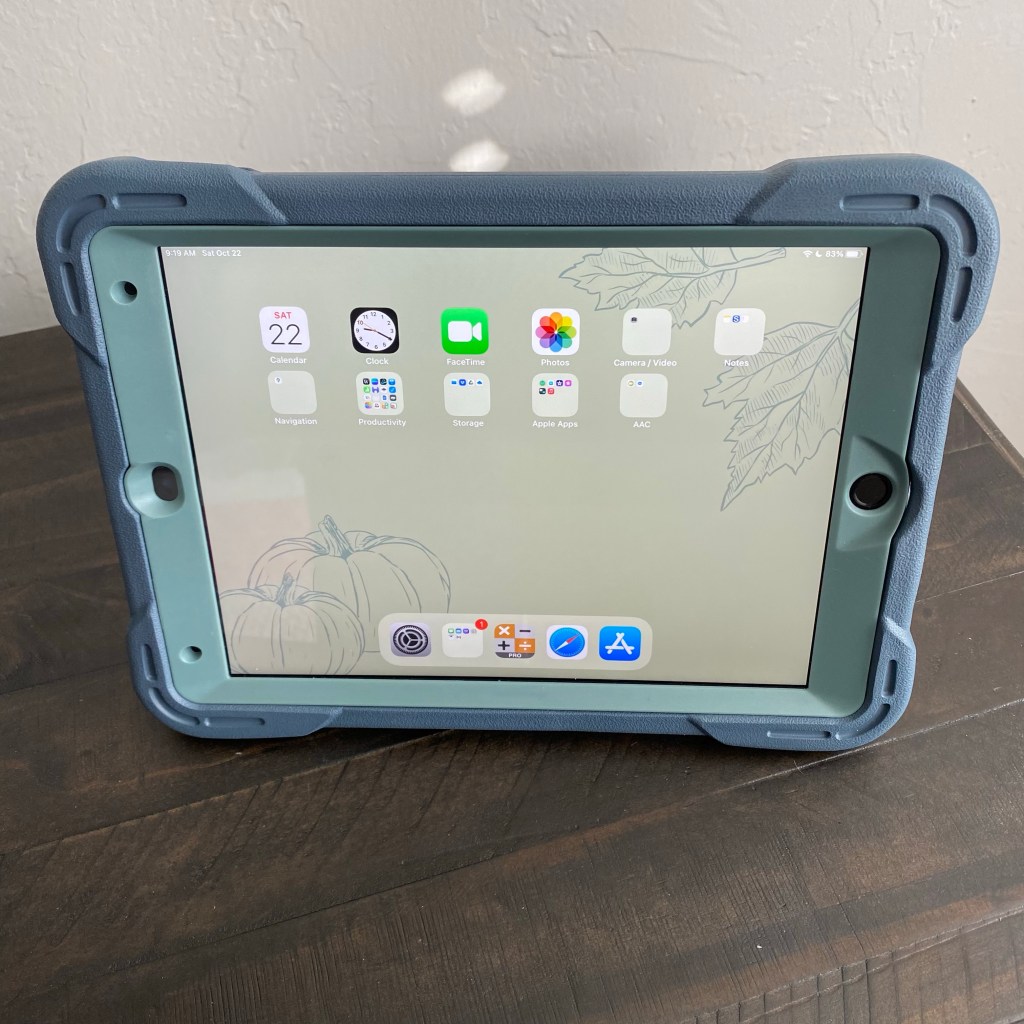
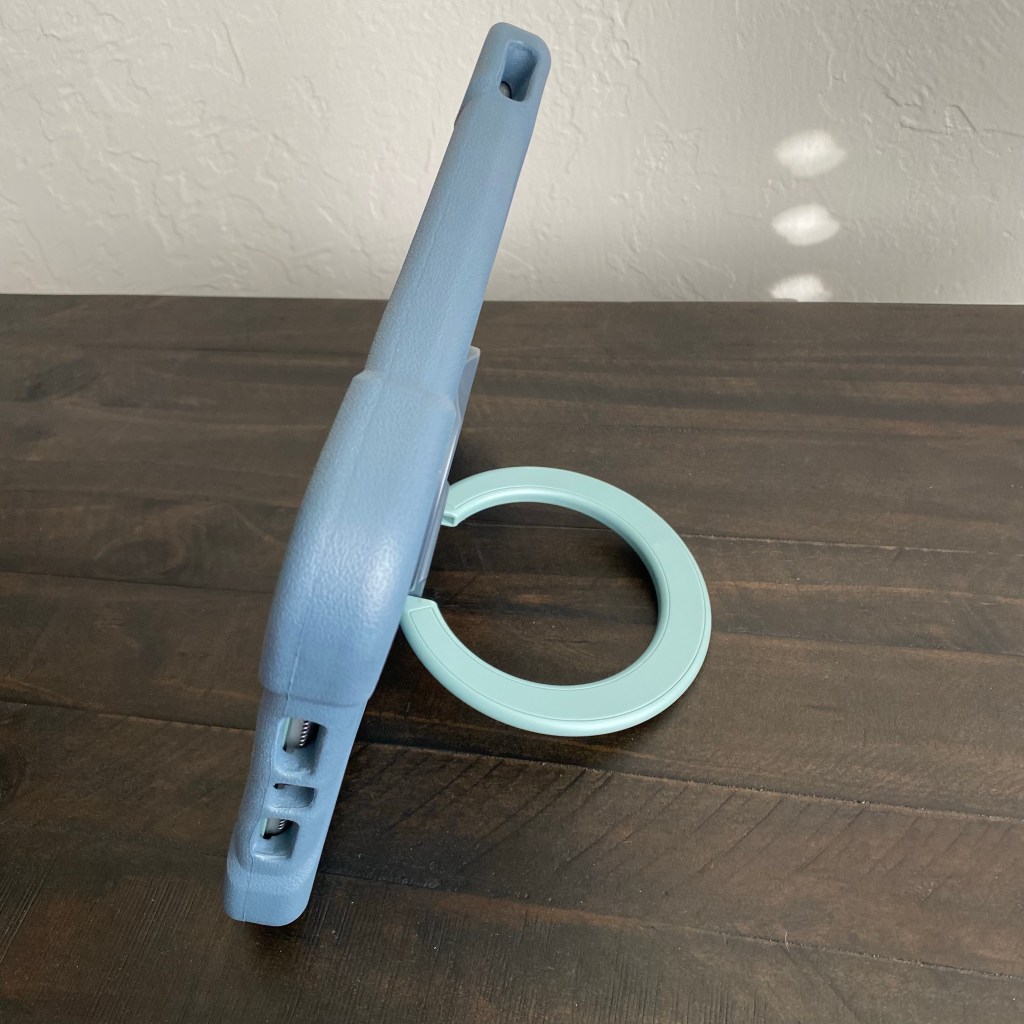
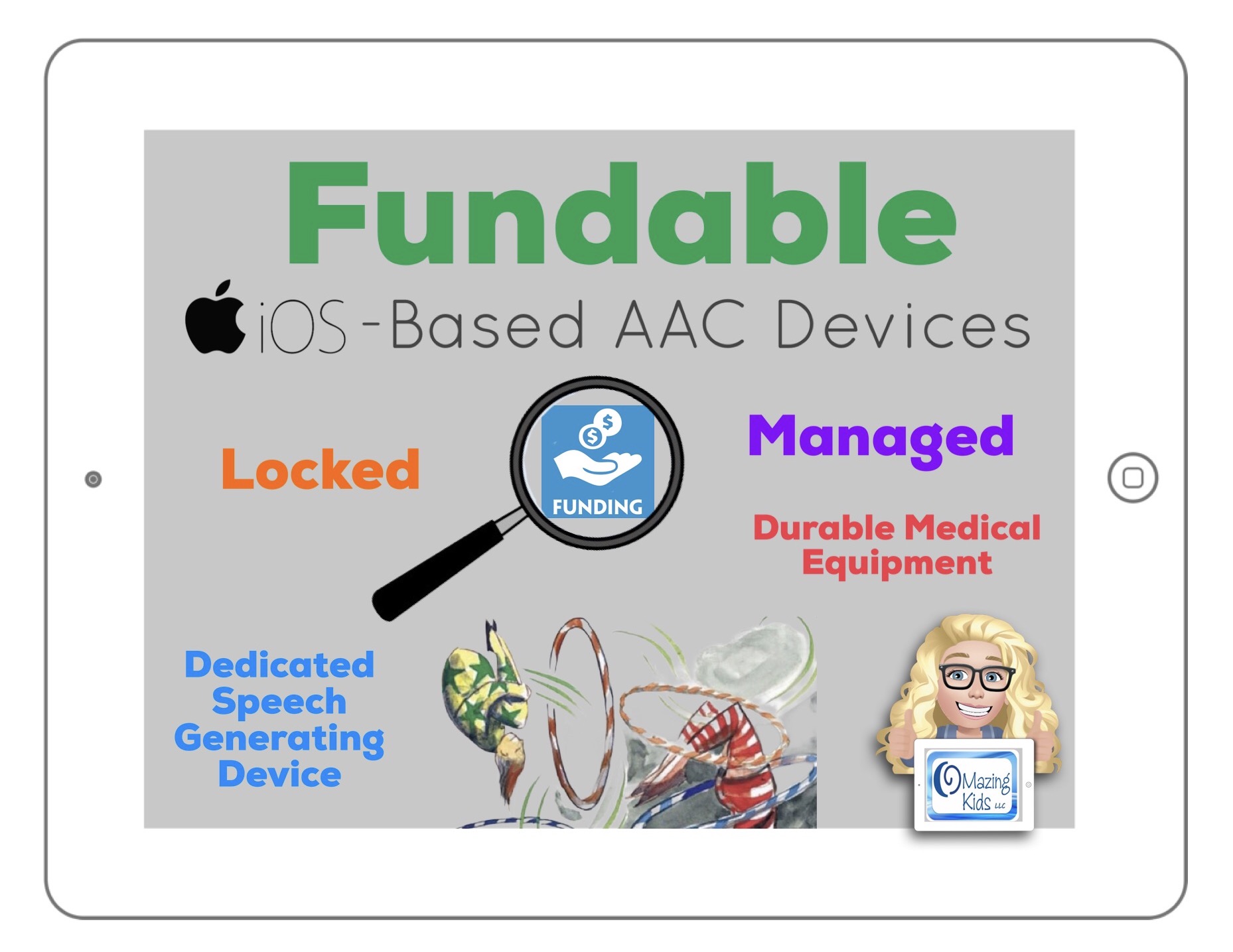
Wanting to get a bundled iPad with a robust AAC app in a durable case funded as a “dedicated” SGD (speech generating device) / DME (durable medical equipment) through Medicaid or insurance?
There are several companies that offer locked/managed/dedicated iOS based devices with a variety of iOS AAC apps as an option. You’ll need to contact each company’s funding department to find out if they are in-network for the funding sources that you are considering. This varies state-by-state:
See this announcement on 10/23/25 about Avaz joining the PRC-Saltillo community.Their blog post specifically answers the question about whether or not the app will now be available as an option on their SGDs: https://www.prc-saltillo.com/articles/avaz-acquisition?mode=view
“Will I be able to get the Avaz app on a Via/NovaChat device?” This will depend on what part of the world you are in! For example, Avaz will not be available on Via or NovaChat devices within the United States or the European Union due to certification requirements. Please check with your local representative for more specific information.“
(My note: I checked the EyeTech websiteon 10/23/25 and it still shows that the Android version of Avaz is available on their fundable Android-based EyeOn Go (direct access via touch) and EyeOn Air (eye tracking access) SGDs: https://eyetechds.com)
If you are considering TD Snap, Tobii Dynavox has the following information on their website (https://us.tobiidynavox.com/products/td-snap): “Tobii Dynavox cannot guarantee the compatibility of TD Snap with any other brand of hardware, and as such, Tobii Dynavox will not offer technical support for hardware compatibility issues related to TD Snap installed on non-Tobii Dynavox approved hardware, by non-licensed resellers. Downloads by individuals of TD Snap for individual use on personal devices is permitted pursuant to the TD Snap License Agreement for Download. TD Snap may only be downloaded for re-sale and re-distribution by Tobii Dynavox resellers with a specific license to do so. To download TD Snap for commercial use, re-sale, and re-distribution on non-Tobii Dynavox devices contact Tobii Dynavox directly at css@tobiidynavox.com in North America and order.eu@tobiidynavox.com in all other countries.”
For those wanting to make an app-only purchase, as of 5/21/24 the only option for *new app-only purchases* available to the general public to purchase TD Snap is via what was formerly called TD Snap Lite (renamed to TD Snap). There is a 30-day free trial and then a subscription is required. Separate additional subscriptions are required if you need PODD pagesets, Gateway pagesets or METACOM symbols. You can see the subscription prices in the description for this app in the App Store.
The “TD Snap AAC” app (full version that used to be available for $49.99) is no longer available for *new purchases*. Those who previously purchased it can find it in their purchases.
Organizations that have an Apple Business Manager or Apple School Manager account and meet the necessary Tobii Dynavox requirements can complete a form to submit a request to purchase the TD Snap Enterprise app for iPadOS. Once submitted, that request will be reviewed by Tobii Dynavox, and you should receive a response within 10 business days. The price for TD Snap Enterprise is $149.99. This comes with: Pageset editing, speech output + the PODD pagesets. Link: https://www.tobiidynavox.com/pages/td-snap-enterprise-allowlist
If a particular company has a waiting list to borrow a loaner device to trial then you may want to also check with the AT Lending Program in your state.
All states in the USA are supposed to have an Assistive Technology Lending Library program where parents & professionals can borrow AAC devices, iPads with AAC apps & other AT for short-term trial. It’s a great way to try various options out before making purchasing decisions. Find the AT Lending Library in your state:https://www.at3center.net/stateprogram
Even if your state’s program isn’t loaning out equipment due to the pandemic they might have the option to do a short term loan of the software/app.
Another “bundled” option is the Talk Tablet. Based on my experience, that app is not very intuitive to program or to use but I am sharing the info here in case anyone is looking for a less expensive alternative in situations where a funding source isn’t available. Their website is geared towards private pay but be sure to compare the cost of what they offer vs. just putting together your own by buying an iPad, AAC app & case: https://gusinc.com. The iOS version of the app: https://apps.apple.com/us/app/talktablet-pro-autism-aphasia/id1436382584 (+ extra cost of adding a high quality voice via in-app purchase)
We are fortunate in Oklahoma that SoonerCare / Medicaid will consider funding an iPad with a robust AAC app in a durable case as a SGD / DME but they require us to try the full version of the app in order to do a complete feature-match, submit a video of the patient using it and extensive justification as to why that particular option us being recommended. Here in Oklahoma, we can typically only get funding once every 5 years for AAC (with very rare exceptions) so it’s very important to be able to get a good match for that individual’s needs. See details here: https://www.okabletech.org/community/soonercare-provider-for-speech-generating-devices/
{Note: This video is a couple of years old so be sure to check with Oklahoma AbleTech about the current process and requirements}
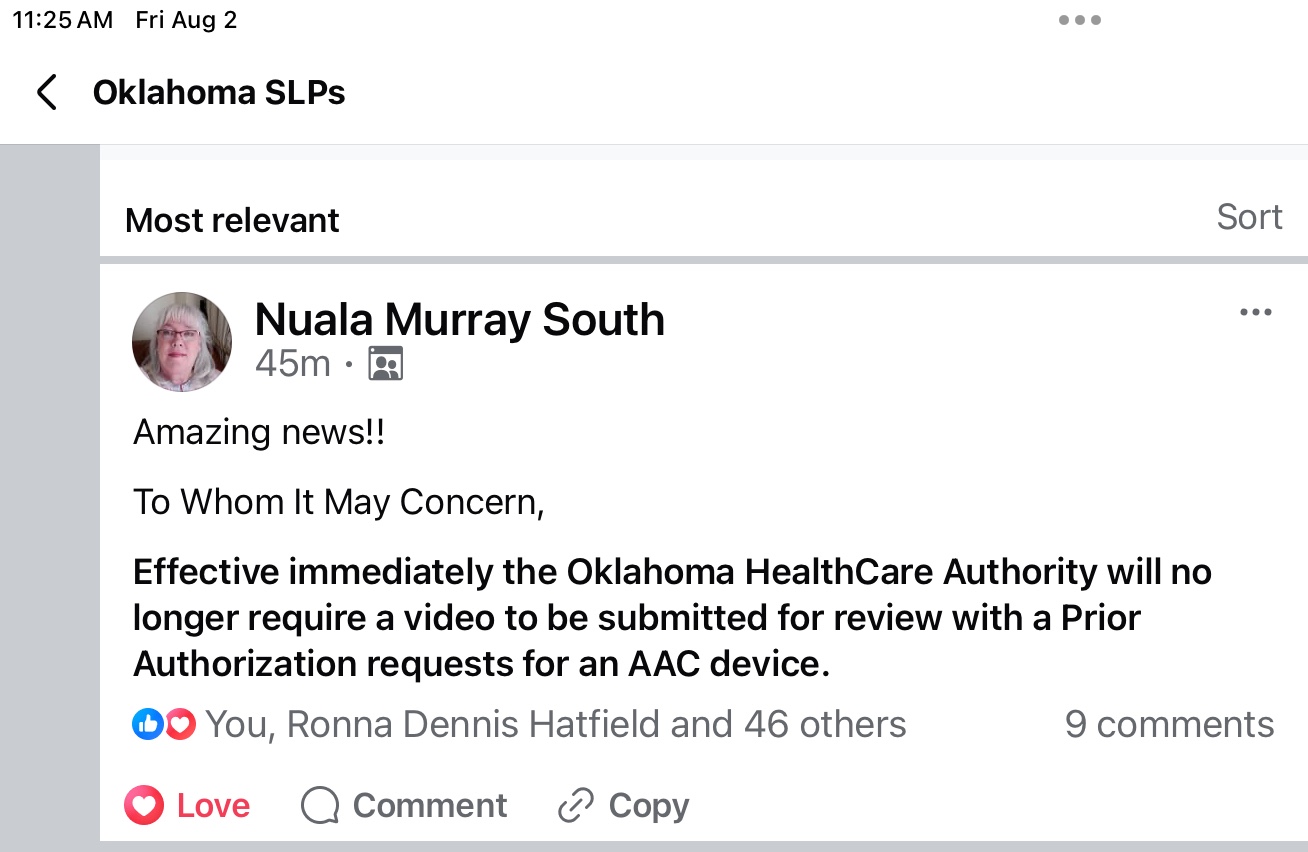
Update 8/2/24: I just saw a post from our Tobii Dynavox rep in Oklahoma:
Amazing news!!
To Whom It May Concern,
Effective immediately the Oklahoma HealthCare Authority will no longer require a video to be submitted for review with a Prior Authorization requests for an AAC device.
Another source that I’ve had good success with for funding an iPad with a robust AAC app in a durable case here in Oklahoma is the New Voices grant through Ability Connections Oklahoma:https://www.acok.org (the funding comes and goes on this grant. See their Facebook page for updates: https://www.facebook.com/abilityconnectionoklahoma/).
If you are in Oklahoma, also check out the AAC Funding Guide: https://www.okabletech.org/resources/at-funding-guide/ (those outside of Oklahoma should ask the AT Lending Program in your state if they have a similar resource)
It is best practice to do an AAC eval, feature matching & trial of options. It is important to try out any device and app with the potential user before making a purchasing recommendation or decision. This is also important when using any extra hardware (keyguards, switches, switch interfaces, carrying straps, stands, mounts, etc…) to support AAC use. Many funding sources require documentation regarding a certain number of options being considered and trialed. It is wise to get as much information as you can before you start the process.
The funding department for the company selling the devices should provide info regarding what’s needed. Read through the definition of “medical necessity” and all the required elements for purchase of a speech generating device (SGD) as durable medical equipment (DME) for that insurance company and/or Medicaid in your state. This will give you both verbiage to include in your report and a checklist of all the bases you need to cover.
Once you start the funding process you have to be willing to do what it takes under very short timeframes when they request additional video or ask for an addendum for additional information. If you don’t meet their very short timeframes then the request may automatically be denied and you may have to start all over. If you get a denial, find out why and submit an appeal.
There are many reasons why one would consider a traditional SGD vs. an iPad or any other tablet with an app: durability, warranty, tech support, built-in switch ports for scanning, eye gaze access, etc… (see more info at: https://bit.ly/3sUNINw)
But there are many folks who may not have a funding source for a traditional SGD. And there are things about having AAC on an iPad or iPhone that make it a great option for particular users.
There are situations where you may need to consider an Android tablet instead of an iPad. I recently received info about that platform having many more voice options compared to the iOS voices or voices within AAC apps on an iPad. In some instances an Android tablet may be the only option for voice output in a particular language. An example of this is Vietnamese. Which explains why the Vietnamese version of Avaz & Talk Tablet are only offered on that platform. CoughDrop can be translated into that language but only has access to a Vietnamese voice on the Android platform. (Updated 1/30/23: iOS 16 added voices for several more languages including Vietnamese). See info about Android AAC apps on this post: https://omazingkidsllc.com/2020/12/01/android-aac-apps/
Disclaimer: I assume no liability for device or app purchases and am not making patient-specific recommendations.
The best way to reach me with any questions is via messaging on the OMazing Kids Facebook page: https://www.facebook.com/OMazingKidsAAC/. That way AAC related messages don’t get lost among the spam in my e-mail
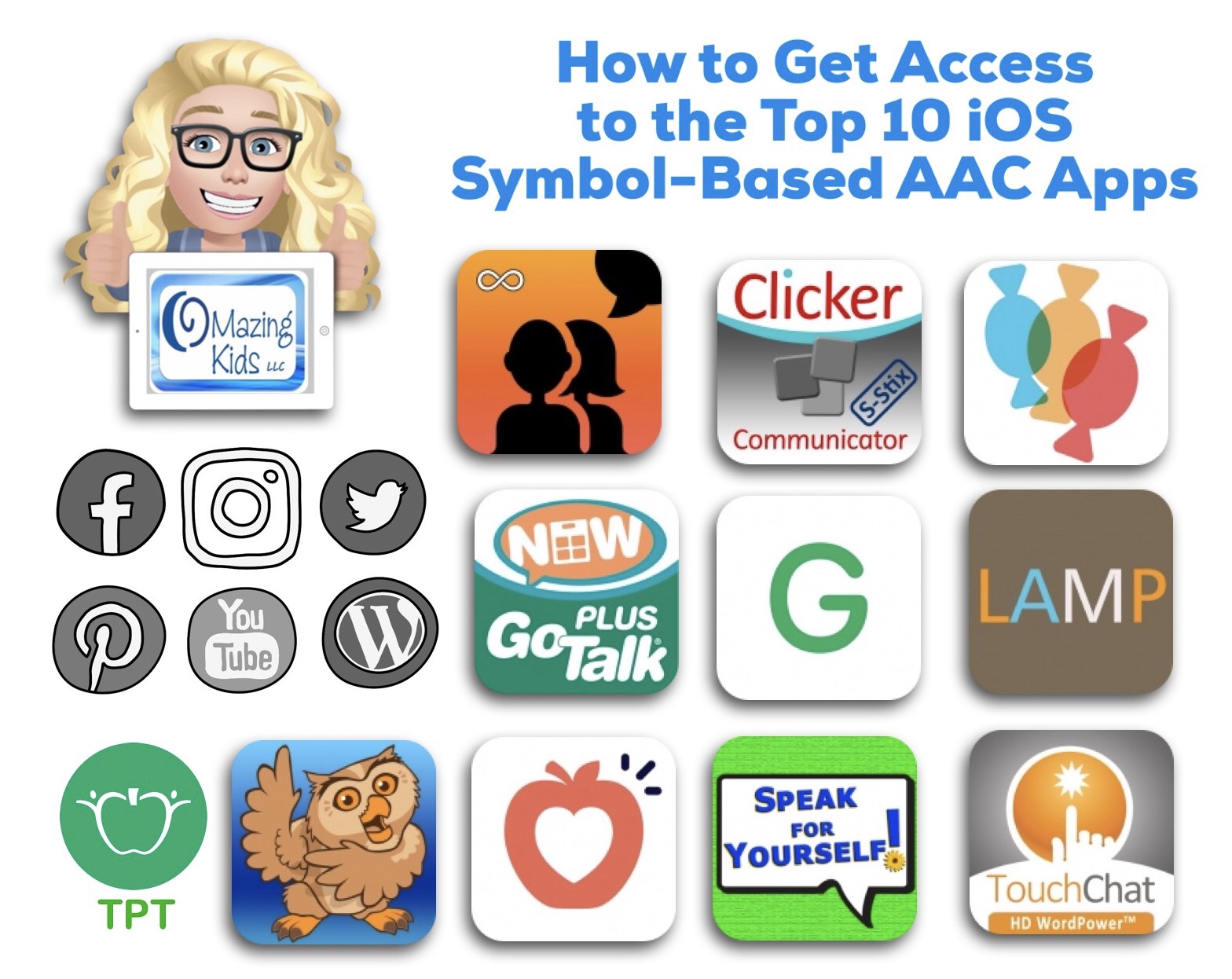
Inclusion in the “Top 10” was based on features, long term availability in the App Store, good history of being updated, having patients who benefited from using the app, gathering data from app recommendations from SLPs who have expertise in AAC, etc. The list was purposefully limited to the top 10 in order to keep it manageable for updates as apps continue to add features in the future. I plan on maintaining and updating the chart for the foreseeable future to help meet the need for current and comprehensive info to be used in feature matching. Inclusion of particular apps is subject to change based on features and an ongoing track record of support and updates. The purpose of this chart isn’t to name a “best” app since the “best” AAC for that individual is the combination of options (variety of apps, SGDs, no-tech, etc.) that meets their needs at that moment in time. This chart is not intended to imply that any app not on this list is not well designed or serve a very important function.
You may not copy any part of this document (including the content, layout, format, ideas or design) and reproduce it or distribute it as your own work.
Please do not copy/paste this info onto other blogs or save this PDF in any online groups or files. Instead, feel free to share the post from my blog or social media sites or the link to my TPT store.
I assume no liability for app purchases and am not making patient-specific recommendations.
Personal Professional Facebook Page (linked to OMazing Kids): https://www.facebook.com/angela.moorad (adding“friends” who have a direct role in AAC or Assistive Technology – AAC / AT app or product developers, AAC / AT consultants, SLPs who specialize in AAC, other professionals who specialize in AAC or AT, etc.)
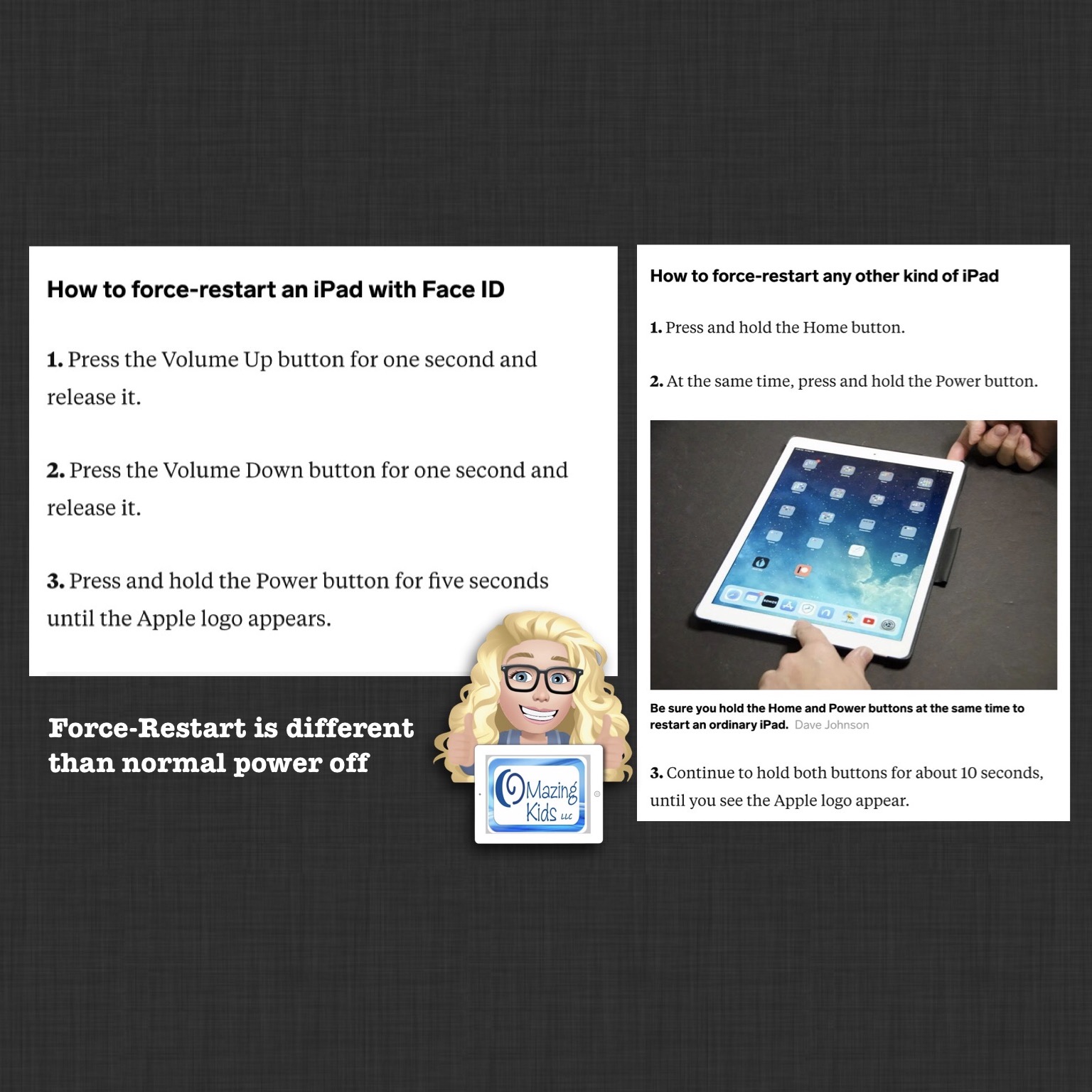
Did you know that a “force-restart” (aka “hard reboot”) is different than the normal process of turning off an iPad? It’s similar to the difference between restarting vs powering off a computer. When an app is acting glitchy a “force-restart” will often resolve this issue. Just to be safe, be sure to backup any customized programming in an AAC app BEFORE doing a force-restart
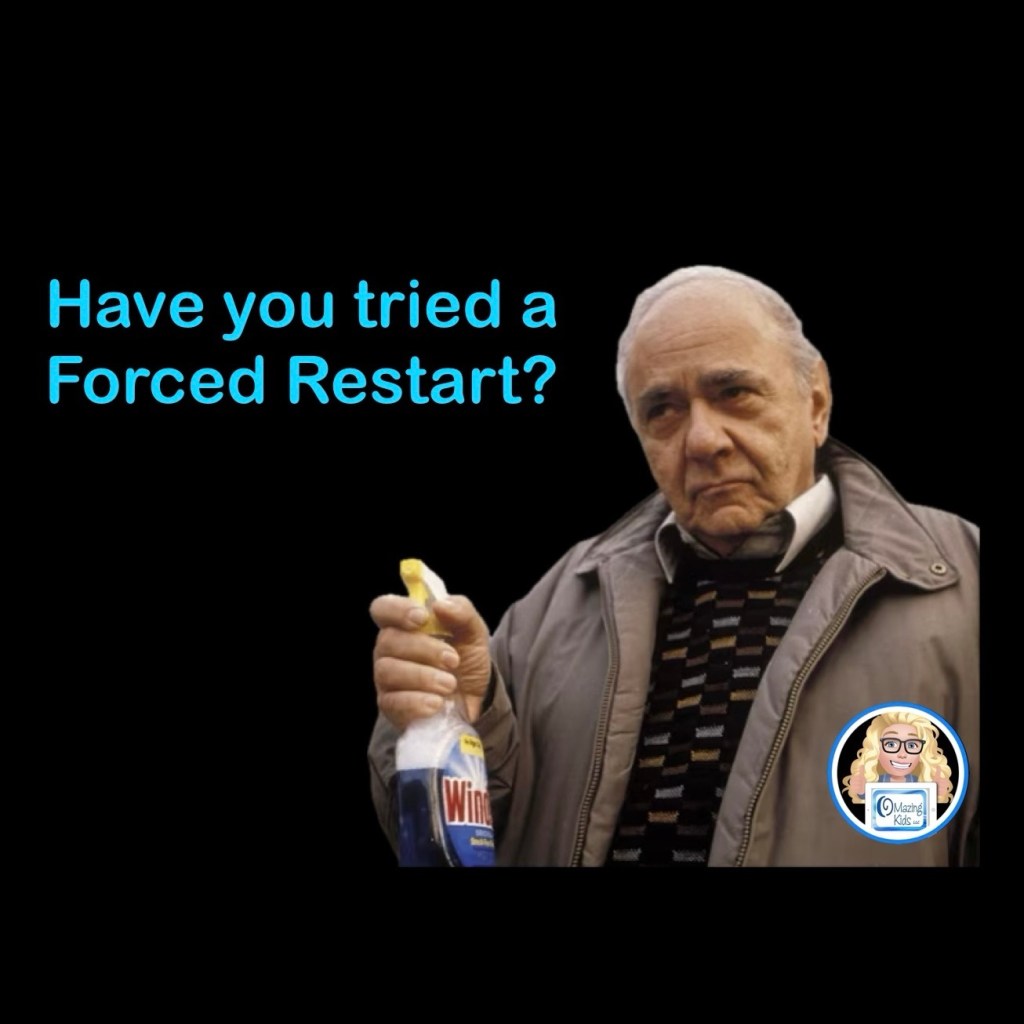
A “Forced Restart” is the blue Windex of the iPad world. I’ve had a Forced Restart fix all sorts of things from sound problems, missing symbols, app crashes, etc… (in case you haven’t seen the movie My Big Fat Greek Wedding, blue Windex is her father’s solution for every ailment 😂).
How to use Apple iOS Voice Control to do a Forced Restart (Reboot Device) without having to use the Side Buttons
How to force-restart an iPad with Face ID
1.Press the Volume Up button for one second and release it.
2.Press the Volume Down button for one second and release it.
3.Press and hold the Power button for five seconds until the Apple logo appears.
How to force-restart any other kind of iPad
1.Press and hold the Home button.
2.At the same time, press and hold the Power button.
3.Continue to hold both buttons for about 10 seconds, until you see the Apple logo appear.
This simple process often resolves the issue.
If not, there are other things to try. It’s best to look on Apple’s website for that info since the process varies based on the model of iPad & the version of iOS it is running.
Looking for in-depth AAC feature matching resources? See this blog post: https://bit.ly/5aacFeatureMatchingResources. That post also includes videos comparing the best AAC apps on various devices on various platforms.
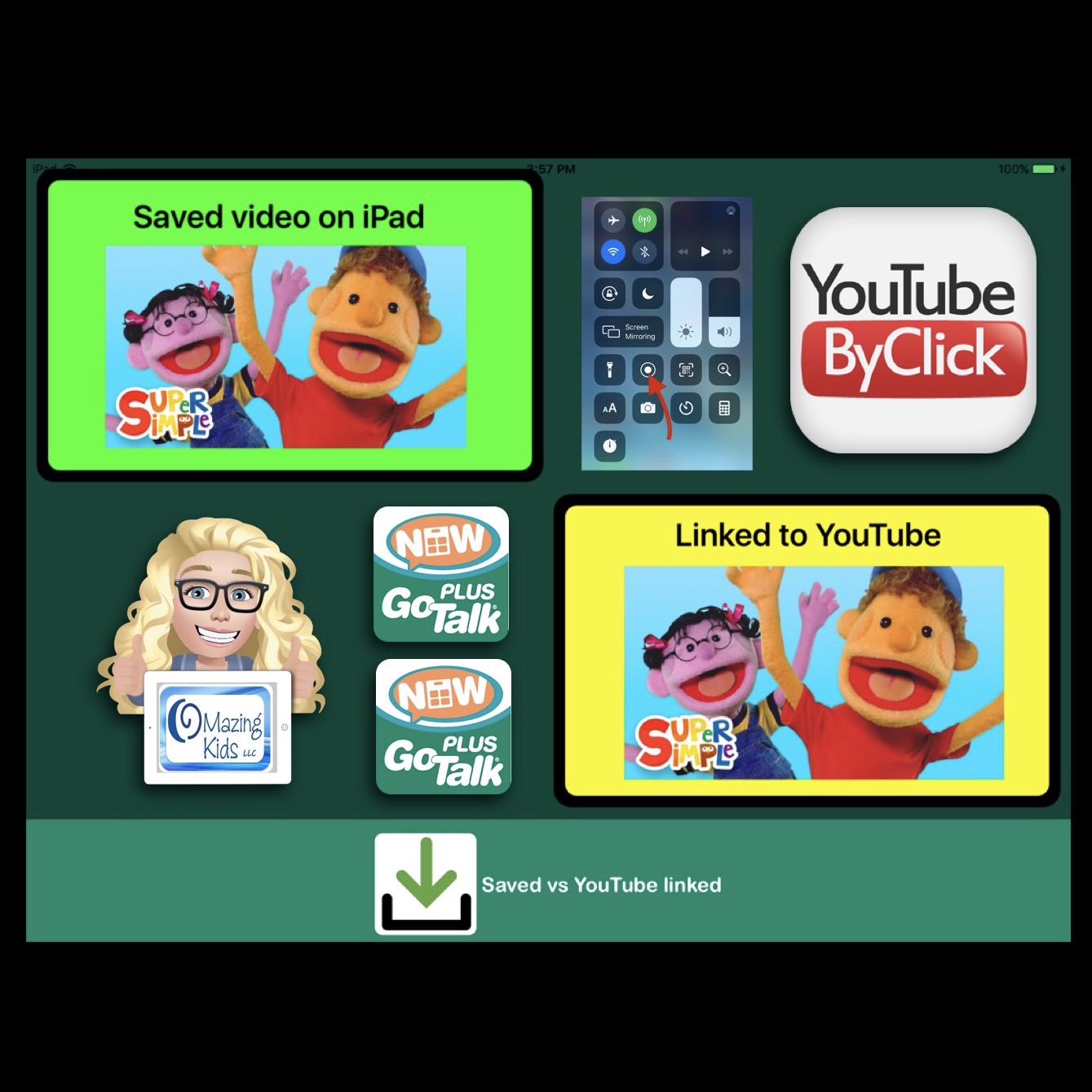
Why I prefer to save videos to the iPad vs. linking to YouTube when using the GoTalk Now app:
I had too many patients’ highly preferred videos disappear from YouTube. That typically triggered a meltdown or they lost interest as I attempted to find a different version of it on YouTube.
Saved videos play immediately (no delay = immediate reinforcement of that request). I had several patients who had been seen multiple times by various SLPs over the years at the facility where I worked and they never appeared to understand cause/effect or be motivated to communicate when in fact the issue was the reinforcement wasn’t immediate enough for them to form that connection.
See a side by side comparison in this video.
Also added the video to YouTube:
I used the Screen Recording feature in the iPhone Control Center to take a screencast video while I was playing the YouTube video to save it. Then I edited the video to crop off a little at the beginning and end. My iPad Pro running iOS 10.3.3 doesn’t have a Screen Recording option in the Control Center. My iPad Mini 2 running iOS 12.4.8 could record but didn’t have sound. I was able to do this via my iPhone 11 running iOS 13.5.1 and then used AirDrop to send it to my iPad Pro to use in the GoTalk Now Plus app. My guess is an iPad running at least iOS 13 would have sound in the screen recording but have no way to know for sure 🤷🏼♀️
Update 12/15/20: It is also possible to play saved and play linked YouTube videos within the TouchChat AAC app.
Here’s some differences between playing a “linked” YouTube video in GoTalk Now vs. playing a “linked” YouTube video in TouchChat:
In GoTalk Now, a button programmed to link to a YouTube video exits the app and takes you to YouTube on Safari (that would be blocked if using Guided Access or on a managed dedicated iOS based device). It would be difficult for most AAC users to get back to the GoTalk Now app (have to tap a tiny thing in top left corner of screen and if they play other videos that might disappear).
In TouchChat, a button programmed to link to a YouTube video opens it on a screen within the TouchChat app. It’s easy to tap “done” to return to the previous TouchChat screen. The linked YouTube video will play within TouchChat even when Guided Access is active. But you’d still have issues if YouTube is down or that linked video disappears from YouTube. I’ve used “linked” videos in both of those apps if it’s something I wanted to program on the fly in the middle of a session. If it turned out to be a highly preferred video then I went through the process of saving it to the camera roll and then programming to open it that way 😊
When using either app for this purpose I consider this to fall under the category of “Assistive Technology for Adapted Leisure”. So this is giving them an adapted means of accessing videos. I also use it as an adapted means of accessing music.
An alternative to using Screen Recording is to download free software onto your laptop that will allow you to download and save videos from YouTube and several other sources. I just tried out the YouTube ByClick software and it worked very well. The resulting video was a little larger on the screen than the one made via screen recording. But it involves having to use your laptop to download the video, e-mailing the video to your iPad and then saving that video to the Camera Roll. https://www.youtubebyclick.com.
Update 11/5/20: Here’s another option that worked directly on my iPhone: https://qdownloader.io
Update 11/4/21: Here’s an option that Lauren Enders shared: YT1s YouTube Downloader, https://yt1s.com/en65
[Note: Many of these websites or app disappear pretty quickly so that’s why I just use screen recording on my iPad instead. ]
I can see using YouTube ByClick when I want to save several videos ahead of time to prep for a session. But the Screen Recording method would be my “go to” for the convenience.
In a pinch you could even just use the iPad to video a YouTube video being played on a computer or TV. I’ve done that before. The quality isn’t nearly as good but the patient still enjoyed watching it.
Reminder: GoTalk Now & GoTalk Now Plus are both on sale through the end of October 2020. Extremely rare sale so if you’ve been wanting either of these apps NOW is the time to get it.
Update 9/30/21 – GoTalk Now Facebook Group – informal networking via the “GoTalk Now AAC App – Ideas and Sharing” group that I started on 9/29/21: https://bit.ly/GoTalkNowAACappGroup
**** Archived **** See newer blog post linked above ⬆️
If you will be using an iPad with kids, then Guided Access and Screen Time are your new BFEs (Best. Features. Ever!). They can be used to disable the home button (or swiping to exit on devices without a home button), lock the child into an app, prevent access to specific apps, etc.. Especially critical if you will be using the iPad as an AAC device or using it in therapy with kids with poor impulse control.
Let the battery drain. When it gets low enough Guided Access *should* turn off
Additional possible hacks can be found in this post. Number 3 looks interesting. I haven’t tried it yet but I’m guessing that it would only work if Location Services and Find My are both toggled on and set up: https://convergeddevices.net/iphone-stuck-in-guided-access-mode/
And there are a few important settings to adjust in order to prevent the AAC app (or any other apps) from being deleted. This is also where you need to toggle off the ability to download apps and the ability to make in-app purchases. Be sure to set a strong password.
Use Screen Time alongside Guided Access to provide even more control.
Nice tutorial from The TalkLink Trust about Screen Time. It’s more complicated that Guided Access but not hard to do once you get the hang of it. https://youtu.be/8EWNVcWWWVM
If you have a Samsung Android tablet, also look at Samsung Kids as a way to create a secured area where you can add any combination of apps: https://youtu.be/9154zJmOxis. Can use the included My Camera to take pictures and videos and then view them within My Gallery. The included Bobby’s Canvas app has a fun drawing area. Exiting Samsung Kids is secured with a PIN. More info: https://www.samsung.com/us/apps/samsung-kids/
The YouTube Kids app (https://bit.ly/3O0FpIT) or the Video Collections app (https://bit.ly/3zEuW1k or on Samsung Galaxy Store: https://bit.ly/3zGG7q7 ) can be used as a way to save links to specific YouTube videos or channels. Adding one of these apps within the secured Samsung Kids area would allow Gestalt Language Processors to access videos as part of their communication system in a secured way.
Windows: Set up a single-app kiosk on Windows 10/11: https://bit.ly/3Ocxdo3 (applicable for Windows 10 Pro, Enterprise, and Education & Windows 11. Unfortunately you can not set Kiosk mode for Windows 10 Home edition (the operating system on my AWOW AiBook 10 Windows tablet / mini laptop: https://bit.ly/3IJRBf8).
Important Note: Decisions about when and how to secure devices need to be made based on individual needs, age of the user, how long they have been using AAC, etc… The needs of a young child first learning how to use AAC are very different than the needs of an older teen or adult who uses tech to multitask.
I would never hand a young child a totally unlocked / unsecured iPad or tablet that then could access all of the internet. There are several reasons why that could be very risky.
You also need to consider financial risks. Several years ago I had a patient who had run up over $1,000 in credit card charges making app purchases and in-app purchases on an unsecured iPad. Fortunately they were eventually able to get it refunded but that’s not always the case.
As you can see above there are ways to choose how secure a device needs to be by using a combo of options. It doesn’t have to be “all or nothing”.
Personal Professional Facebook Page (linked to OMazing Kids): https://www.facebook.com/angela.moorad (adding “friends” who have a direct role in AAC or Assistive Technology – AAC / AT app or product developers, AAC / AT consultants, SLPs who specialize in AAC, other professionals who specialize in AAC or AT, etc.)
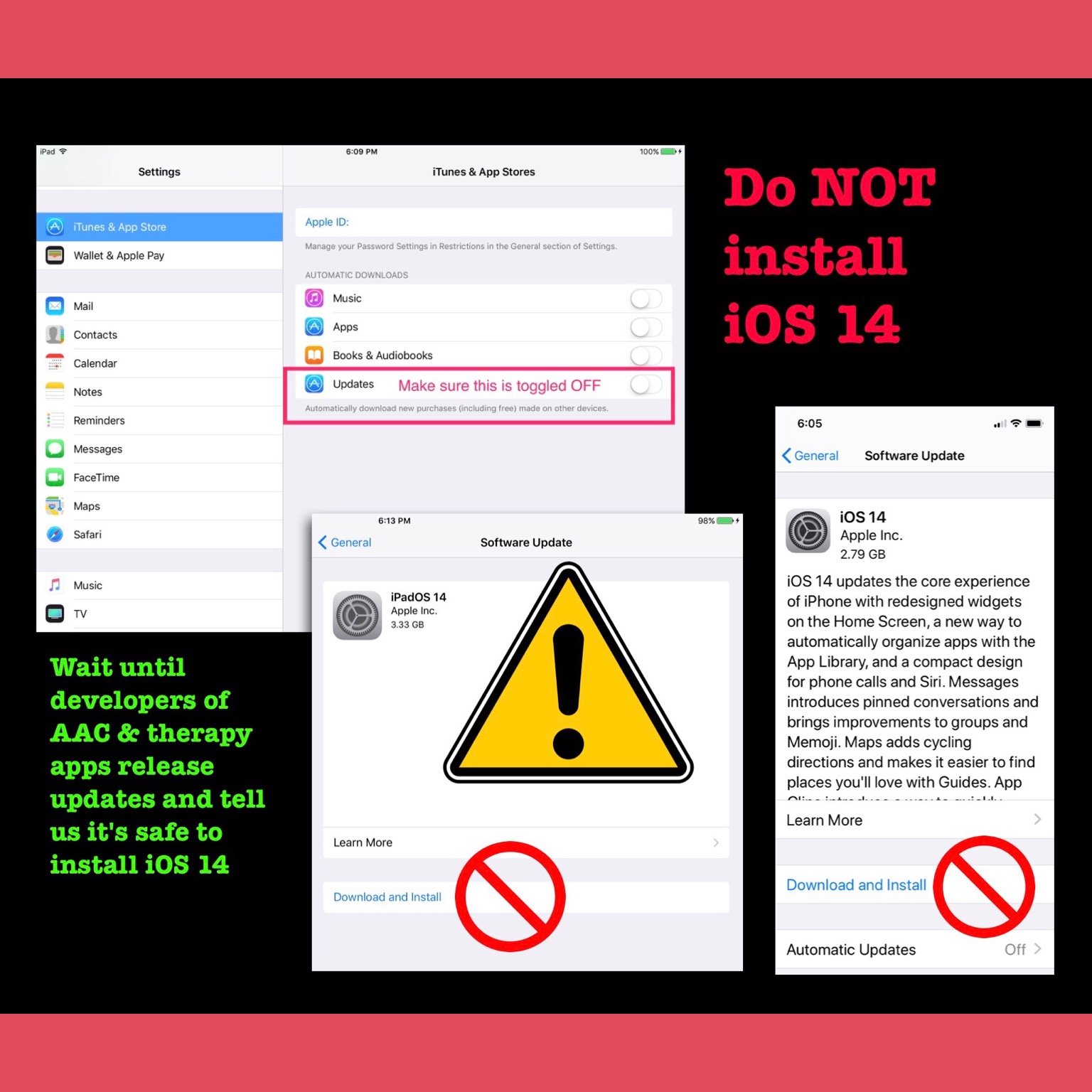
⚠️ Important Warning: iOS 14 was released today. It is NEVER a good idea to install a new iOS when it first comes out. 🛑 There are always glitches…. sometimes big ones that cause devices to “brick” or ones that cause glitches in apps where they either crash or don’t work as expected. The developers of AAC and therapy apps need time to release updates.
Please wait until the developers of those apps announce that it’s safe to download iOS 14. Depending on how complex an app is that may take a few weeks to a few months.
I always keep automatic installation of iOS updates and automatic installation of app updates both toggled OFF.
Make sure your devices are backing up to iCloud and for AAC apps to make sure you back up any programming before installing any updates to those apps or to the iOS.
Be sure to toggle off the setting that automatically offloads apps to free up space. There is a trend in app developers switching to a subscription model and removing older apps.
I know most of us have to rotate apps on/off our devices due to storage issues. Before deciding to delete an app, it’s wise to check to make sure it is still available in the App Store and to read through the descriptions on recent updates to make sure nothing significant has changed (like it switching to a subscription based app). If an app hasn’t been updated in quite awhile that’s a red flag that it may no longer work when a new iOS is rolled out and if you have several apps like that you may want to consider purposefully keeping a device running an older iOS in order not to lose apps. I’m very glad I did that several years ago and still have an iPad running iOS 10.3.3.
Also posted this on Facebook, Instagram & Twitter to spread the word. Please share with anyone you know using an iPad, iPhone or iPod Touch for AAC, therapy or learning.
One of my favorite books for this time of year is “There Was An Old Lady Who Swallowed Some Leaves”. If you want free printable story props see this post: https://bit.ly/2FFaRy2.
Want a super simple way to make an interactive activity to use on your iPad or to print? Check out the iESLp app by Irmgard Raubenheimer, https://apps.apple.com/us/app/ieslp/id912953895, iPad only, iOS 8.3 or later. A bargain for $19.99 (no subscription required & the app includes a huge library of SymbolStix symbols).
I didn’t see an “Old Lady” symbol that would work for feeding the items so I exported one from LessonPix in PNG format (transparent background), saved it to my Camera Roll and then imported it into iESLp. LessonPix working on mobile devices is a game changer (https://lessonpix.com).
I also imported a PNG “Achoo!” clip art that I found online.
Here’s a quick video to show what the finished activity looks like in use.
See this post for a video screencast showing how to export a picture from LessonPix:
There were two “iPad only” apps that require iOS 13 that were free last month. But neither of my iPads are running iOS 13. My iPad Mini 2 can’t be updated and I have chosen not to update my iPad Pro beyond iOS 10.3.3 in order to not lose a bunch of older apps that were never updated to be compatible with iOS 11.
.
So I tried out the workaround from this article on my Windows laptop and it worked. Woo Hoo! I have to admit I did a tech-geeky happy dance 💃🏼💻
.
Now those apps are in my “purchased” area in iTunes and available to download when I eventually get a new iPad.
.
I’m sharing this as a workaround for those who may not have an iPad yet or may not have access to it in the midst of the COVID-19 / Coronavirus pandemic.
.
Angela Moorad, MS, CCC-SLP, Founder of OMazing Kids, LLC