Angela Moorad, MS, CCC-SLP. Over 36 years experience in AAC. OMazing Kids AAC and app consulting. Creator of several AAC Feature Matching resources (https://omazingkidsllc.com/omazing-kids-aac-resource-links/). Includes info about unique features to support Gestalt Language Processors
They have several fabulous FREE apps: https://tech.beitissie.org.il/en/our-apps/. Watch their webinar for in-depth info and fun implementation ideas. Info about IssieDocs starts at 42:43 in the webinar (note: the webinar was recorded prior to English being added to the app but use and editing info is the same)
See this blog post for another example of using Split Screen: Gestalt Language Processing & Using Google Maps to Communicate: https://bit.ly/AACandGoogleMaps.
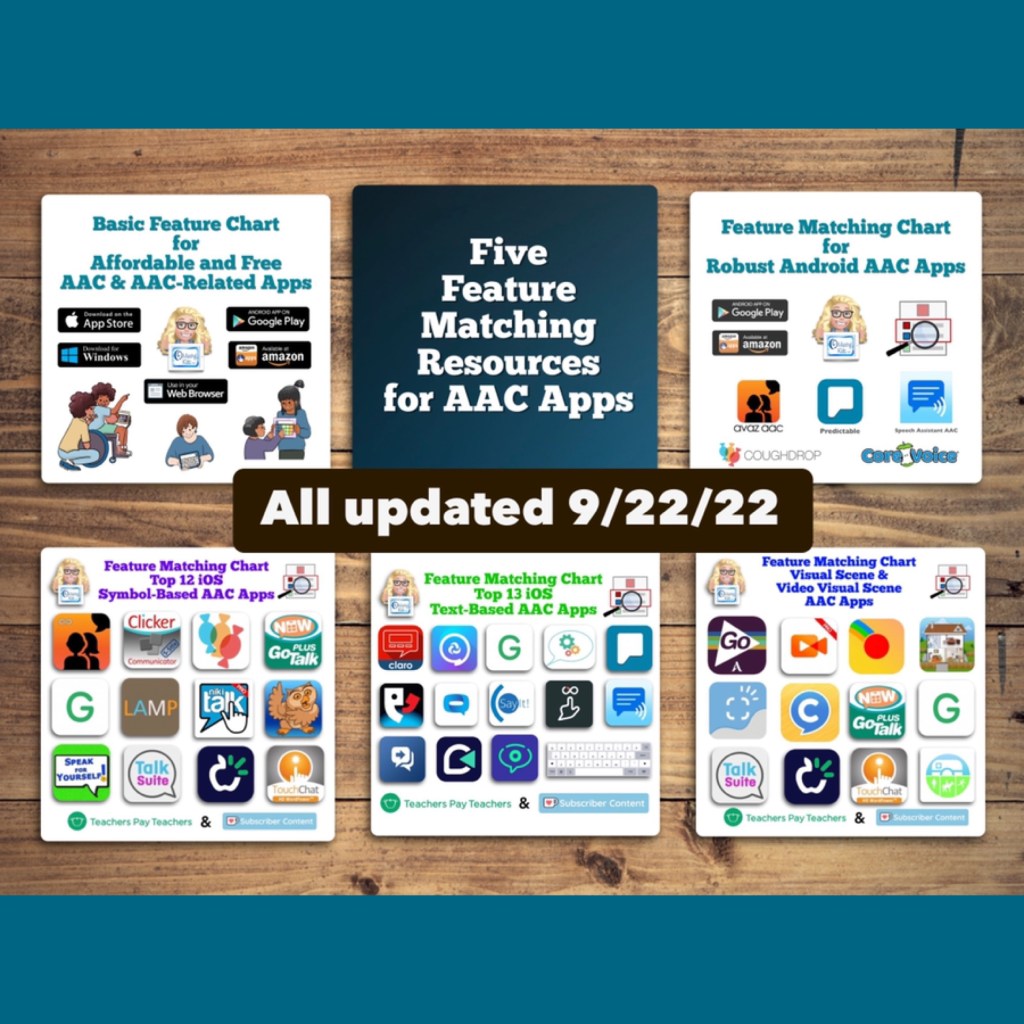
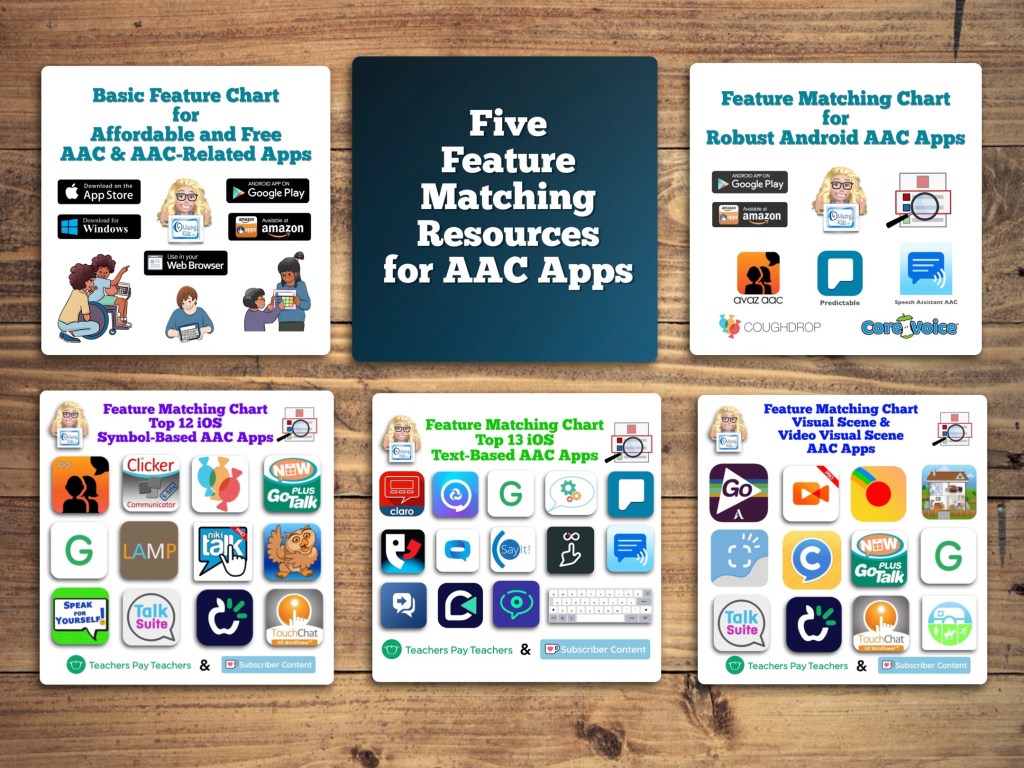
Want to know which other AAC apps support use of Split Screen? I’m adding that info to my in-depth and up to date AAC feature matching resources: https://bit.ly/5aacFeatureMatchingResources
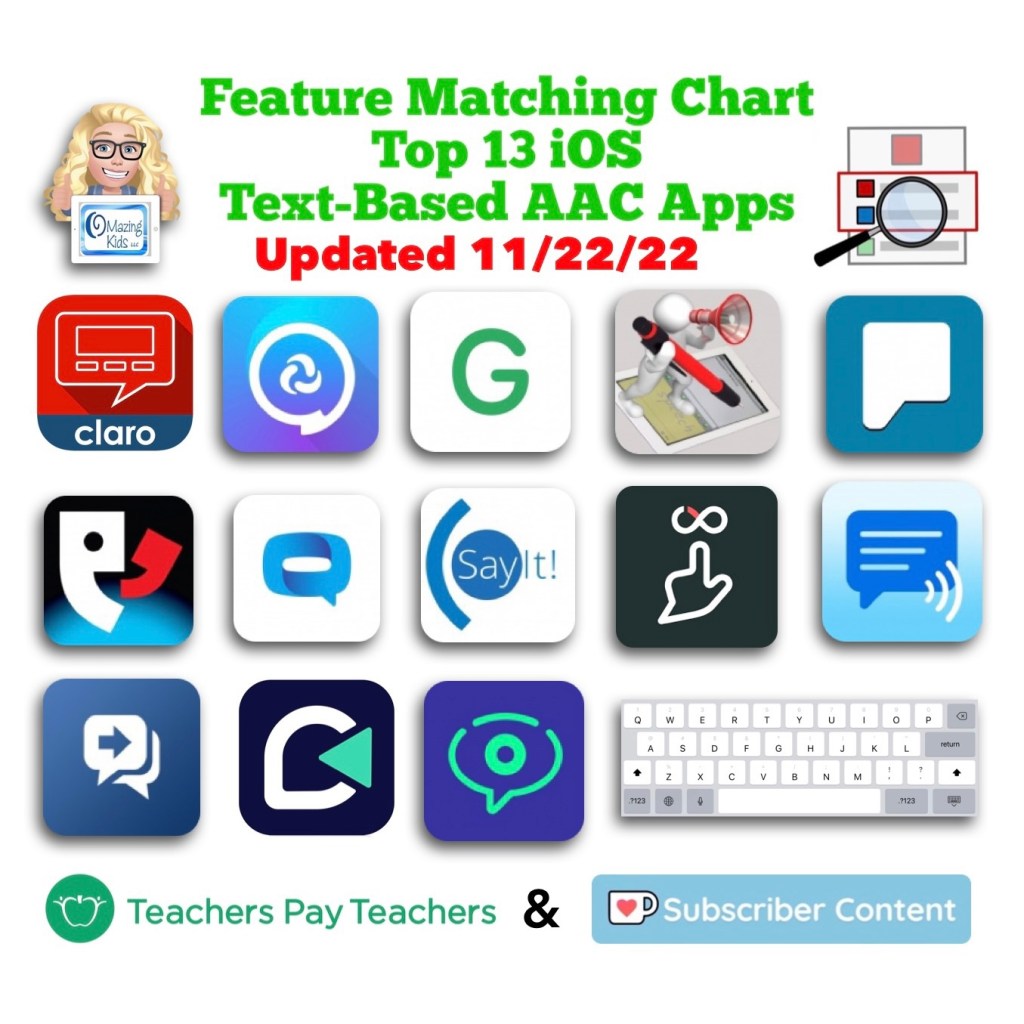
This resource has been updated. The PAROL+ app was removed since it has totally disappeared from the App Store. The HandySpeech app was added in its place. I get pretty frequent requests for info about handwriting-to-text-to-speech AAC so it made sense to add this app. The SayIt! Easy AAC app changed to a “freenium” pricing model. So if you already had this app be sure to tap “Restore Purchases” to get full access without having to pay a subscription or be charged for the much higher app price.
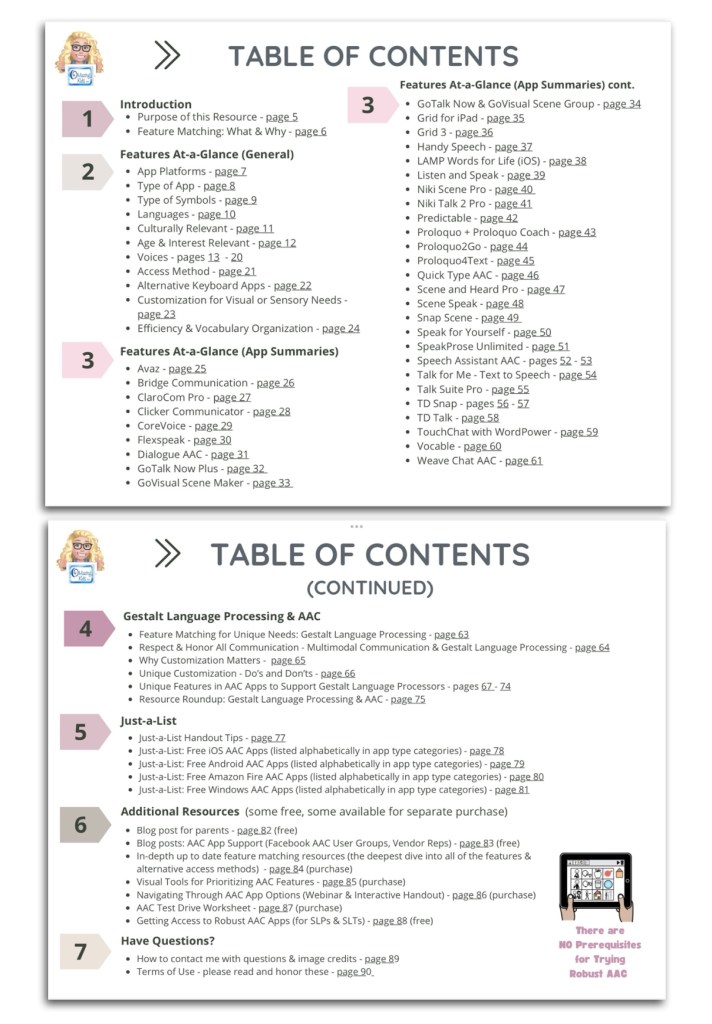
This 90 page PDF resource was inspired by the numerous requests that I’ve received for simple “at a glance” info about features in AAC apps and single page handouts that could be used with parents, caregivers and anyone involved in the AAC decision making process.
A Preview Sample PDF is available for this resource on TPT. It includes the Table of Contents and a few sample pages.
This resource includes:
• A hyperlinked Table of Contents to jump straight to a page. Tap in the top left corner to jump back to the Table of Contents (when being used digitally)
• 11 Features At-a-Glance Handouts
• 36 AAC App Summary At-a-Glance Handouts (see Table of Contents for a list)
• 12 Gestalt Language Processing & AAC Handouts
• 4 Just-a-List Lists of Free AAC apps Handouts
• 2 unlisted videos (5 min demo of how to view 2 pages side-by-side using Split View & a 20 min Resource Overview)
• Links to additional resources
• How to contact me with questions (includes my email address exclusive to TPT)
These will be helpful on either side of an AAC evaluation that involves feature matching and trials of a few options:
• Beforehand to help simplify the process of knowing which apps and/or features you might want to consider during an AAC eval
• Afterwards to place at-a-glance sheets side by side as a reminder of apps that were included in the trials and help simplify the process of deciding which ones warrant a longer term trial or which one might be selected for submission in a funding request.
• These can also be helpful during the feature matching process to help provide simple explanations about some of the features and why they might be important.
It would be impossible to include all of the features in a particular AAC app on a single page handout. These are just “highlights”. These handouts should be used alongside (not instead of) in-depth up to date feature matching resources.
This resource is optimized for both printed and digital use:
Printed:
• Print a single page first to see if you need to choose “shrink to fit” on your printer. Print pages and place them side-by-side to compare features or apps.
• In order to keep the aesthetic of single page handouts the pages are not numbered. If you want to add page numbers, either write them or use a PDF editing app to add them.
Digital:
• The Table of Contents has hyperlinks to tap a page number to jump straight to that page. Tap the top left corner on any page to return to the Table of Contents.
• There a few other underlined hyperlinks in this resource to take you straight to additional information. I purposefully did not include App Store links since those can vary by country and aren’t always redirected.
• There are several options to view two pages side-by-side to compare features or apps:
• Use two iPads or tablets or open on two windows on a laptop.
• On iPadOS 13.0 or later, save the PDF in two different PDF viewer apps and use Split View to view them. The demo video included in the resource shows how.
• The PDF Expert and GoodNotes 5 apps offer a way to view two documents side-by-side within that one app
Looking for in-depth info about features AAC apps? Check out these resources:
• AAC Feature Matching Resource Bundle (includes all three, save 10%): https://bit.ly/aacFeatureMatchingBundle. If you are looking to purchase resources for several staff / team members, take a look at the Multiple Licenses discount (saves 20%)
• Affordable and Free AAC apps & AAC-Related Apps (iOS, Android, Amazon Fire, Windows & a few web-based options): https://bit.ly/BasicAffordableAACchart
Have questions? The best way to reach me with any questions is via messaging on the OMazing Kids Facebook page: https://www.facebook.com/OMazingKidsAAC/. That way AAC related messages don’t get lost among the spam in my e-mail.
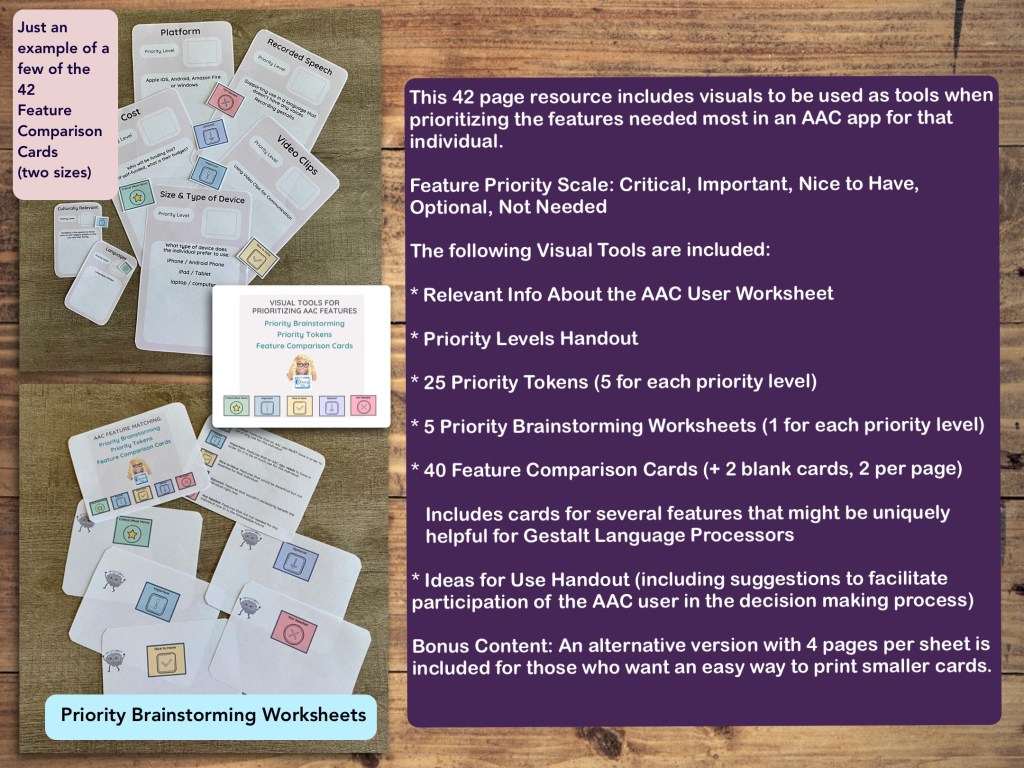
This 42 page PDF includes visuals and worksheets to be used as tools when prioritizing the features needed most in an AAC app for that individual.
TPT Preview video:
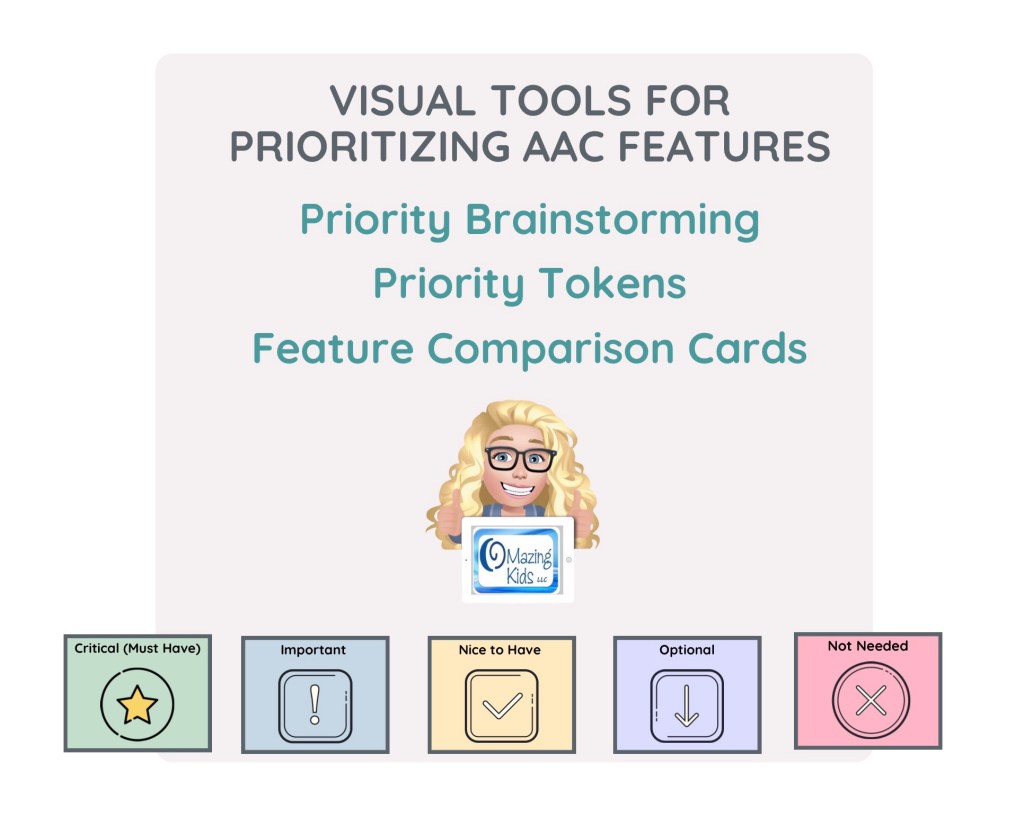
AAC app features are prioritized using the following scale:
• Critical: Features that an AAC app MUST have in order to be of any use for this individual
• Important: Features that an AAC app needs to have in order for it to be of much use for this individual
• Nice to Have: Features that would be beneficial but not essential for that individual
• Optional: Features that wouldn’t necessarily benefit the individual right now
• Not Needed: Features that are not needed for this individual now or in the foreseeable future
The following visual tools and worksheets are included:
• Relevant Info About the AAC User worksheet
• Priority Levels handout
• 25 Priority Tokens (a page with 25 token, 5 for each priority level)
• 5 Priority Brainstorming worksheets (5 pages, 1 for each priority level)
• 42 Feature Comparison Cards (40 features + 2 blank cards, 2 per page. Includes cards for several features that might be uniquely helpful for Gestalt Language Processors)
• Ideas for Use handout (including suggestions to facilitate participation of the AAC user in the decision making process)
Bonus Content: An alternative version with 4 pages per sheet is included as Bonus Content in this resource for those who want an easy way to print smaller cards.
Ideas for Use:
• Print, cut out & laminate to create a reusable tool. Write on it with a fine tip dry erase marker. The priority token can just be laid on a card or you could use Velcro.
• Print in black/white or grayscale, cut out and use as worksheets to write on. Use a glue stick to attach the priority token to each card.
• The last two cards are blank to use for any additional features that may be significant for that individual AAC user.
• Etc…
This resource was designed to be printable. If you want to use it digitally you can save the PDF on an iPad or tablet and annotate it in the free Xodo or iLovePDF apps or another PDF app of your choice. Note: The priority tokens are NOT moveable when the PDF is viewed. Instead I would annotate the priority level on the cards.
• AAC Feature Matching Resource Bundle (includes all three, save 10%): https://bit.ly/aacFeatureMatchingBundle. If you are looking to purchase resources for several staff / team members, take a look at the Multiple Licenses discount (saves 20%)
• Affordable and Free AAC apps & AAC-Related Apps (iOS, Android, Amazon Fire, Windows & a few web-based options): https://bit.ly/BasicAffordableAACchart
Have questions? The best way to reach me with any questions is via messaging on the OMazing Kids Facebook page: https://www.facebook.com/OMazingKidsAAC/. That way AAC related messages don’t get lost among the spam in my e-mail.
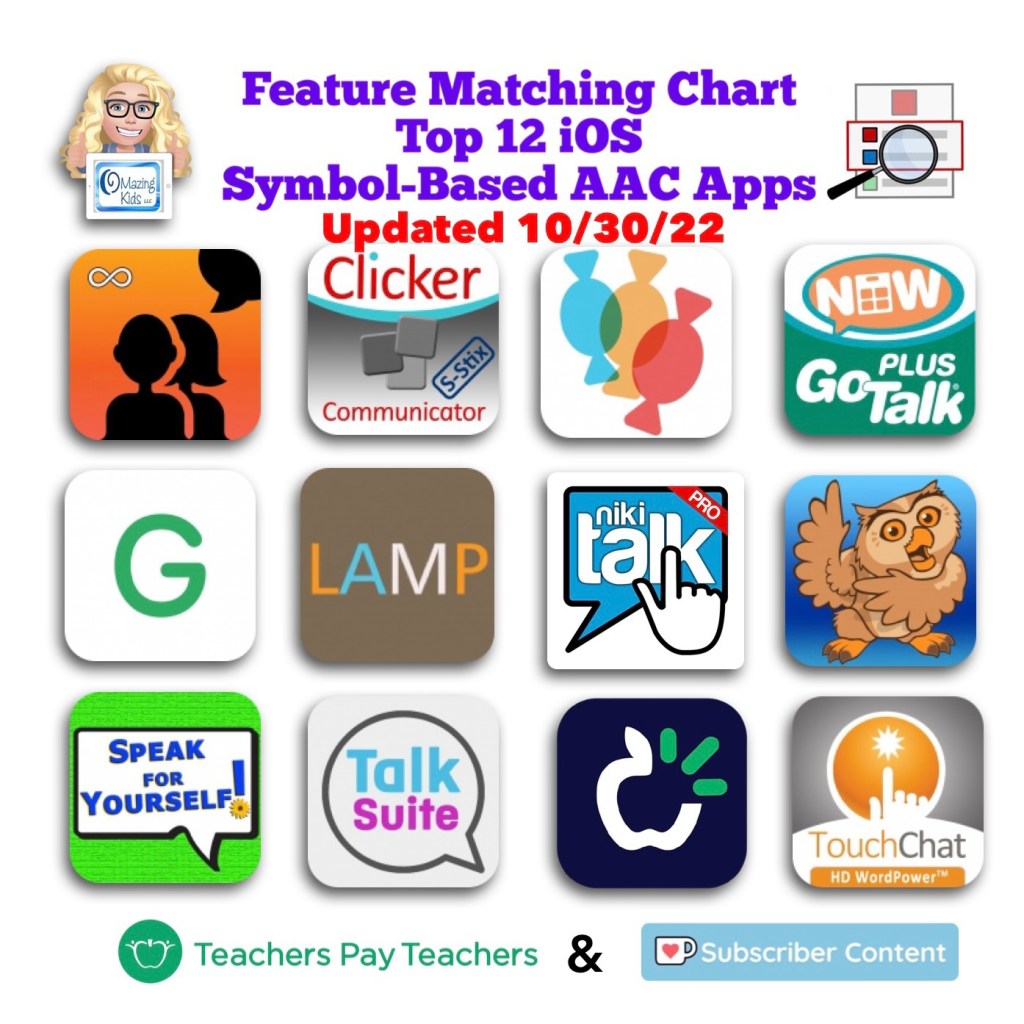
The Feature Matching Chart for the Top 12 Robust iOS Symbol-Based AAC Apps has been updated to add new rows related to the new iOS 16/iPadOS 16 child and adult voices, use of Google Maps to communicate, apps that can be used in Split View, updated features in these apps over the past month, etc…
Jennifer from N of 1 recently shared a story in a Facebook group about how a child used Google Maps to communicate. Mind blown 🤯 I had several students/patients/clients who LOVED maps, addresses, countries and flags. At the time I knew that those served a purpose for self-regulation and pleasure. It makes my heart sad though to think that I may have missed communication via what they were looking up on Google Maps or Google Earth. There are definitely times I wish I had a time portal to go back with knowledge that I have now.
After sharing this on my OMazing Kids AAC Consulting Facebook page and subsequent shares on other pages and groups, I’ve seen LOTS of parents & SLPs share stories about their kids doing this to communicate very specific things. Totally amazing!
This got me digging through all of my AAC apps to see which ones either have a button action or opening a website URL to allow Google Maps to be opened within the app and/or that app supports use of Split View or Slide Over to allow this. If you have a specific model of iPad Pro or iPad Air with M1 chip you might also be able to use othermultitasking options in Stage Manager (my iPad Pro 9.7” is still on iOS 10.3 so that’s too old for the most current versions of most AAC apps or to use Stage Manager)
CoughDrop (in the app: via URL; used in Safari browser: could also use Split Screen)
Dialogue AAC (specific button action for this or via Split Screen)
GoTalk Now (via URL)
LAMP Words for Life (specific button action for this)
Niki Talk 2 Pro (via URL)
Proloquo2Go (via Split Screen)
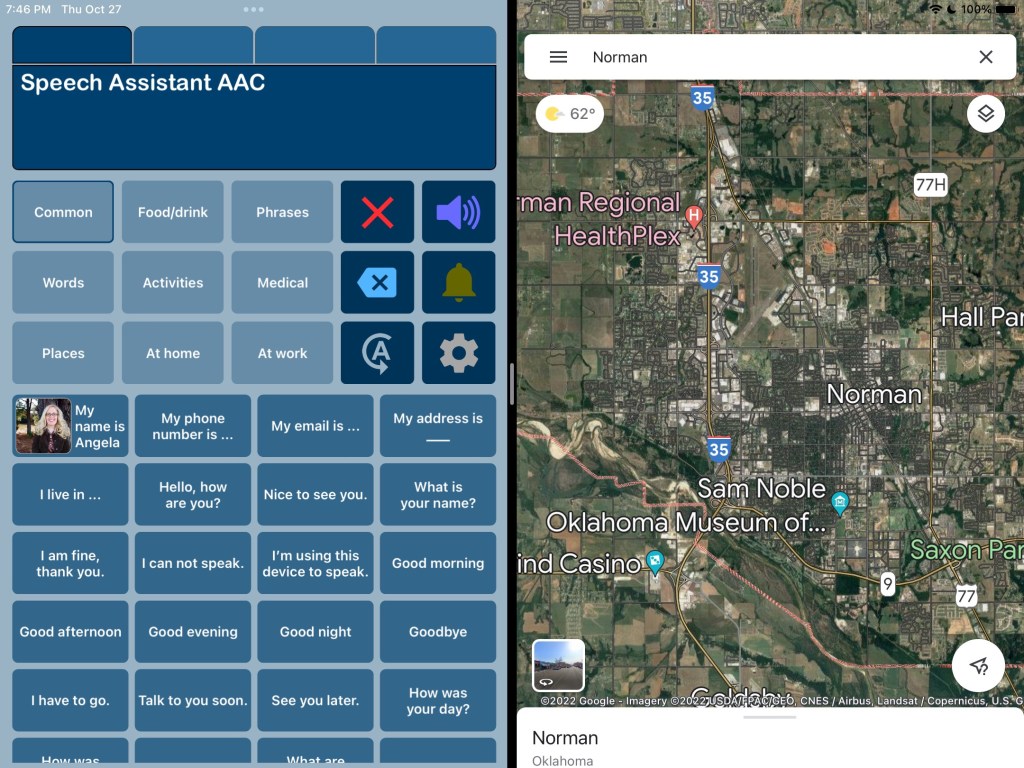
Speech Assistant AAC (via Split Screen)
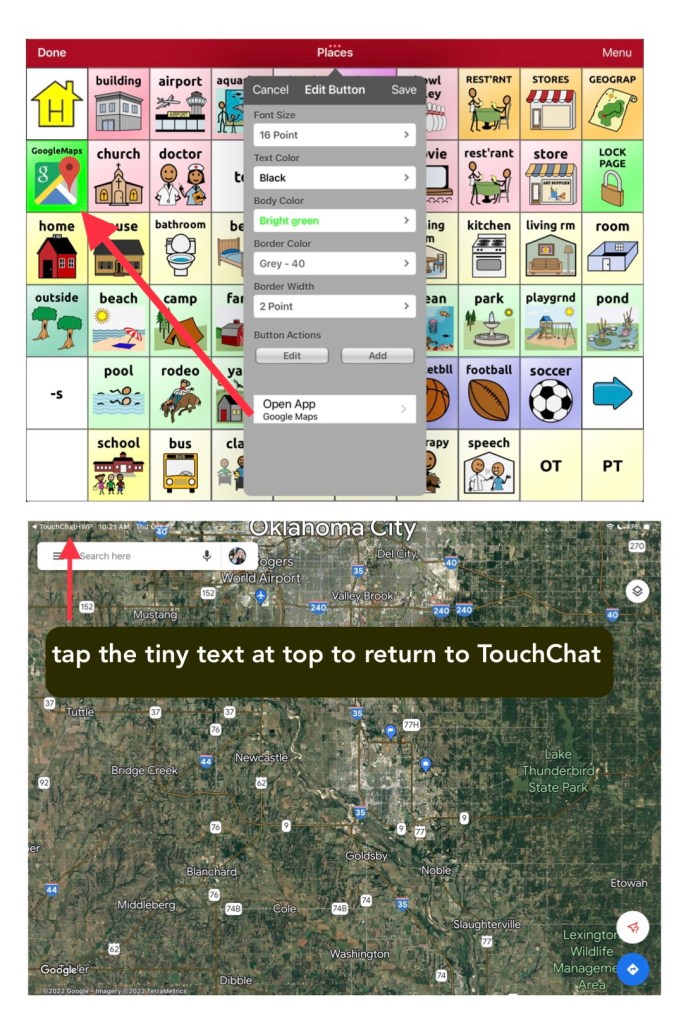
TouchChat with WordPower (specific button action for this or via Split Screen)
Etc…
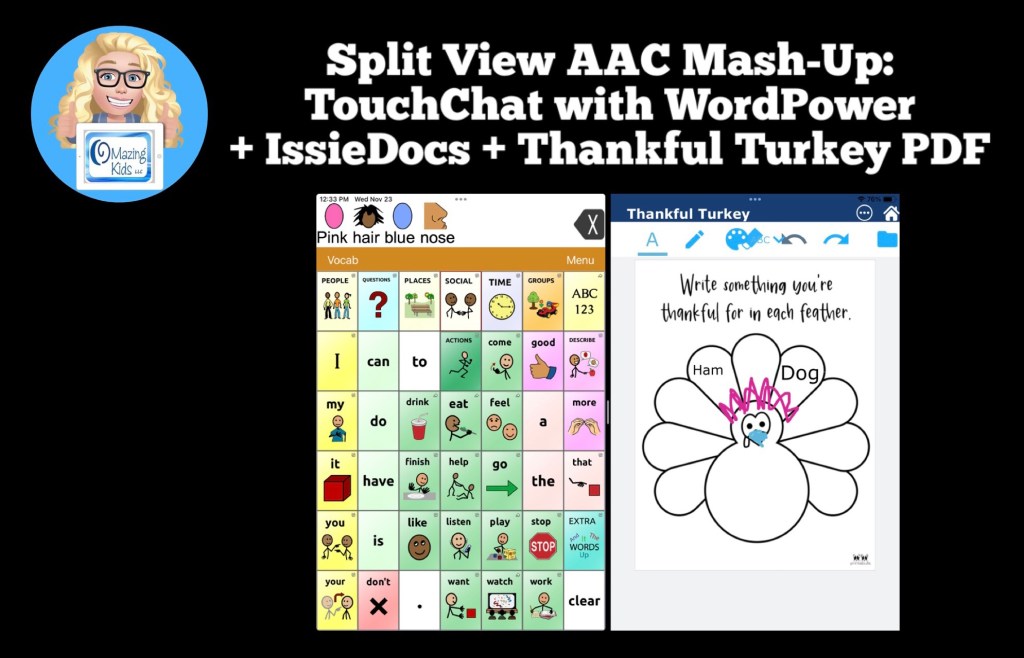
Here are screenshots showing the two different ways to do this in TouchChat with WordPower:
TouchChat with WordPower (WP60 Basic) in Split View with Google MapsTouchChat with WordPower (WP60 Basic) where I added a button for Google Maps under Places and used the specific button action to open the Google Maps app.Speech Assistant AAC in Split View with Google Maps
The easiest option was Split Screen and it allows Google Maps and the AAC app to be on the screen at the same time but only a few AAC apps support use of Split Screen. Split Screen will alter the size of the buttons in that AAC app so it might be tricky when using large grid sizes.
The second easiest option was the specific button action within the three AAC apps by PRC-Saltillo.
Apps that allow you to program a button to open a website URL were a bit finicky / tricky to get it to work. I’ll be adding tips in the feature matching resources.
Another alternative is to use a second iPad or tablet or laptop with Google Maps / Google Earth that can be viewed alongside their AAC device or iPad or tablet being used for AAC.
In-depth details about this will be coming soon. I’m working on this month’s update for my AAC feature matching resources and am adding that info in two new rows. So be watching for it in a few days.
Important Notes:
I’m exploring these as ways to supplement (not replace) how an individual is already using Google Maps. It’s likely that a Gestalt Language Processor already has a well established “gestalt” for how they like to do that but it’s likely that adding this to their AAC system might be something that would spark interest and resonate with them.
I’d only explore this for individuals who have an interest in this. There is no “one size fits all” to anything about AAC. I’m NOT suggesting that we need to add access to Google Maps for every AAC user or even for every GLP who uses AAC.
Guided Access will likely block these methods of using more than one app on an iPad.
AAC Feature Matching Resource Bundle (includes all three, save 10%): https://bit.ly/aacFeatureMatchingBundle. If you are looking to purchase resources for several staff / team members, take a look at the Multiple Licenses discount (saves 20%)
Super excited to be beta testing the new Motor Plan pagesets (Motor Plan 30 & Motor Plan 66) for TD Snap. The two main designers behind it at Tobii Dynavox contacted me and asked if I’d like to see it. So I got my first peek at it during a video conference call over Teams on Thursday (10/20/22) and then received the beta files on Friday (10/21/22). I promised not to share those files but they were fine with me posting on social media about it.
So here are my first videos. I’m sure I’ll be sharing more as I continue to explore it. Very impressed with what I’m seeing.
These new pagesets will be coming to the UK in November 2022 and then coming to the USA in January / February 2023).
Videos (watch this area, I’ll be adding more videos as I explore features. Note: What you see in these videos may not match the final version of these pagesets. I’m sure they will continue to tweak things. That’s what “beta testing” is for 😊):
Motor Plan 30 & Motor Plan 66 pagesets
Setting up a new user for the Motor Plan 30 or Motor Plan 66 pageset. These new pagesets will be an addition to (not replacing) those already available. TD Snap is like a “library” and the pagesets are like “books” available within it.
AAC Feature Matching Resource Bundle (includes all three, save 10%): https://bit.ly/aacFeatureMatchingBundle. If you are looking to purchase resources for several staff / team members, take a look at the Multiple Licenses discount (saves 20%)
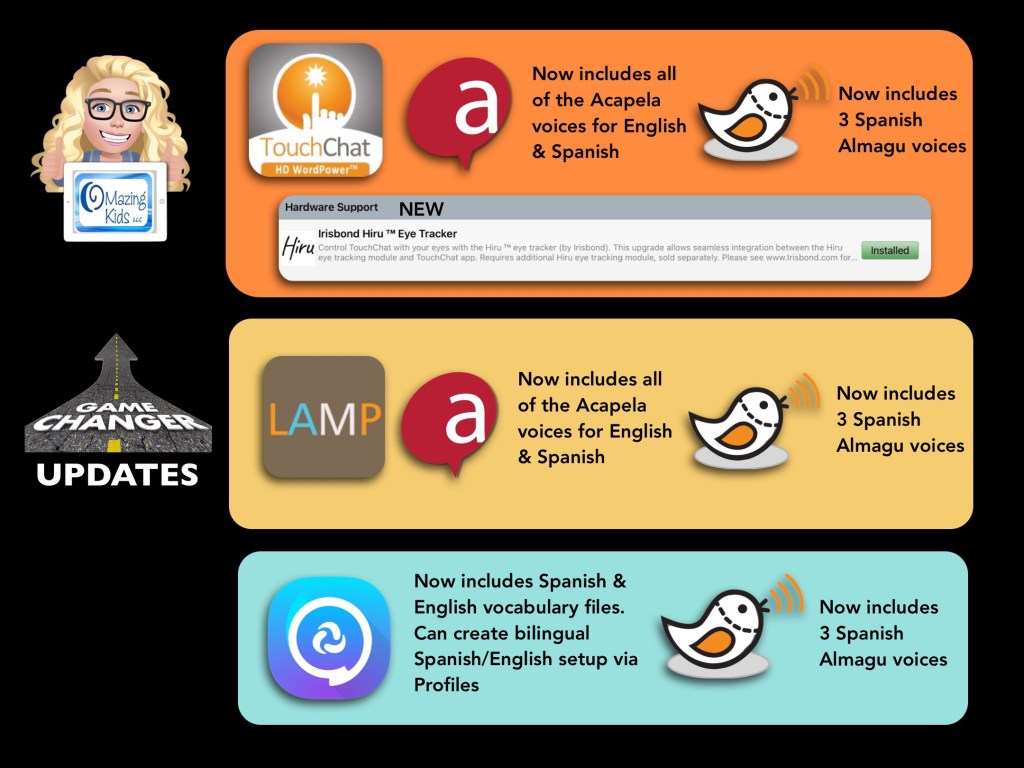
TouchChat with WordPower: All of the English & Spanish high quality Acapela voices that used to require in-app purchases are now included. This is a huge game changer since schools, state run facilities and many funding sources had difficulty with the in-app purchasing process. It was especially problematic for entities using a MDM (mobile device management) system.
*** Note: There are still currently IAPs for premium voices for other languages besides English & Spanish *** I’ll update this post if they eventually end up including the voices for more languages
TouchChat with WordPower: New Hardware Support for the Irisbond Hiru Eye Tracker
LAMP Words for Life: All of the English & Spanish high quality Acapela voices that used to require in-app purchases are now included. This is a huge game changer since schools, state run facilities and many funding sources had difficulty with the in-app purchasing process. It was especially problematic for entities using a MDM (mobile device management) system.
Dialogue AAC: Spanish vocab files have been added. Three Spanish Almagu voices are now available. You can create a bilingual Spanish/English setup by setting up profiles.
See more info in the video from PRC-Saltillo about Update 2.38:
Reminder: It is always wise to back up customized programming in at least two ways outside of the iPad BEFORE installing an app update.
(8/24/22 Edited to add: I just saw a comment over in the LAMP WFL Users Facebook group indicating: “With the last update the voices that come with the app have changed. New app purchases will have access to Acapela and Almagu voices. Apps that were purchased earlier than the release of version 2.38 will keep access to Ivona voices even after the update.”
The issue that the person posting relayed was her daughter was accustomed to the Ivona “Ivy” voice on the app on their iPad at home & the school had just purchased the app for use on their iPad and Ivy wasn’t an option. I don’t know if there is any work around for this. I’ll update this section if I hear anything.
In addition to creating communication boards, flip books and true object based icons for non-tech AAC, I look at using whatever tech an individual has and finding a good affordable option to put on that so they have something to use immediately.
These can be helpful to use until an AAC eval can be completed, until a more robust option can be purchased, to meet a short term need or as a secondary tool to offer features that might not be available in their main AAC device, etc.
Or this may be what they use long term. Unfortunately not everyone has access to getting an AAC eval or options for funding more robust AAC so there are individuals who may rely on these affordable devices and apps as their only option.
It is also a reality that not everyone can afford an iPad so that’s why this blog post covers the three main app stores.
This is intended to give you a *general* idea of the overall cost of purchasing AAC for use on Amazon Fire vs. Android vs. iPad.
Total cost of a good model of tablet + good case with a rotating stand + a robust symbol-based AAC app:
• Amazon Fire: $310.00
• Android: $480.00
• iPad: $520.00
Prices would be $100 less if purchasing the app during a 50% off sale (typically in April and October). Additional savings if purchasing a tablet or iPad during a sale. These prices don’t include any extras like in-app purchases for premium symbols, premium voices, extra pagesets / vocab files, Apple Care, a screen protector or a extremely protective case, etc…
This is a cost comparison based on prices of devices and cases that I purchased and is just a general comparison. Avaz and CoughDrop are used in this comparison since they are the most robust symbol-based AAC apps available across all three platforms. Prices will vary based on the AAC app and whether or not you wait to purchase during sales.
Amazon Fire Tablet:
Amazon Fire HD 8 Tablet (2020 release): https://a.co/d/j0doVDO, $89.99 ($44.99 during Amazon Prime Days Sale)
Total: $108.98 ($63.98 during Amazon Prime Days Sale)
Robust symbol-based AAC app options:
• Avaz (Free app, 2 week free trial, then subscription ($9.99/mo or $99.99/yr) or a one time $199.99 purchase), side loaded from Google Play App Store
• CoughDrop (Free app, 2 month free trial, then subscription ($6/mo) or one-time purchase ($200). More info about their other subscription options: https://bit.ly/3h8aEC1)
• CoreVoice: $49.99
Total cost of tablet + case + robust symbol-based AAC app:
~ $158.97 – $308.98 (or as low as $113.97 – $163.98 if you get the tablet on sale and get Avaz or CoughDrop when they are 50% off – typically in April & in October).
Android Tablet:
Samsung Galaxy Tab S6 Lite 10.4″, 64GB: https://a.co/d/07JEMhI, $249.99 (the price has gone down since I purchased mine for $299)
Case with rotating stand (similar to the Pepkoo). I ended up purchasing one on eBay (https://www.ebay.com/itm/374088538546. Sadly that case is out of stock. I contacted the seller on eBay and they won’t be getting any more). It’s difficult to find cases with this type of rotating stand for the Samsung Galaxy Tab S6 Lite 10.4” Android tablet. I found this one but haven’t seen it in person: https://www.ebay.com/itm/114920453285, $28.99
Total: ~ $278.98
Updated 9/20/22: Looking for an affordable option for pocket-sized AAC? Many users prefer to just add an app to their iPhone or Android phone but some settings don’t allow phones (or it would be a battle to get an exception). The iPod Touch used to be my “go to” option for this. Since the iPod Touch was discontinued I purchased an Android Samsung Galaxy A03s (prepaid TracFone that has NOT been activated for cellular service) on Amazon. Shout out to Karen Erickson for sharing that idea in a comment in the AAC for the SLP group. It was only $59.88 and essentially gives me an Android equivalent to an iPod Touch (which Apple has discontinued) for pocket-sized AAC. I added a $12.99 case that has a tiny ring stand and sliding cover for the camera. So for $72.87 (+ the cost of the app) I have a very affordable pocket-sized AAC device:https://omazingkidsllc.com/2022/09/20/affordable-pocket-sized-android-aac/
Robust symbol-based AAC app options:
• Avaz (Free app, 2 week free trial, then subscription ($9.99/mo or $99.99/yr) or a one time $199.99 purchase)
• CoughDrop (Free app, 2 month free trial, then subscription ($6/mo) or one-time purchase ($200). More info about their other subscription options: https://bit.ly/3h8aEC1)
• CoreVoice: $49.99
Total cost of tablet + case + robust symbol-based AAC app:
~ $328.97 – $478.98 (or $378.98 if you get Avaz or CoughDrop when they are 50% off – typically in April & in October)
If you also need a shoulder carrying strap look at the Pepkoo Triple Shockproof Case: https://a.co/d/0RyWDMz, $26.99
Total: ~ $319.99 – $325.99
Robust symbol-based AAC app options:
• Avaz: Free app, 2 week free trial, then $9.99/mo or $99.99/yr subscription or $199.99 one time purchase
• Clicker Communicator: $199.99
• CoreVoice: $49.99
• CoughDrop: Free app, 2 month free trial, then $6/mo subscription or $200 one time purchase. More info about their other subscription options: https://bit.ly/3h8aEC1
• GoTalk Now / GoTalk Now Plus: $99.99 / $169.99
• Grid for iPad: free version with 30 day free trial, then $10.99/mo subscription or $399.99 one time purchase
• LAMP Words for Life: $299.99
• Niki Talk 2 Pro: $89.99
• Proloquo + Proloquo Coach: free app, 30 day free trial, then $9.99/mo or $99.99/yr subscription
• Proloquo2Go: $249.99
• Speak for Yourself: free version with 30 day free trial, then $299.99 one time purchase
• Talk Suite Pro: $199.99
• TD Snap: free version with 60 day free trial, then $49.99 one time purchase
• TouchChat with WordPower: free version with 30 day free trial, then $299.99 one time purchase
Total cost of iPad + case + robust symbol-based AAC app:
~ $369.98 – $725.98 (varies depending on the app, some of these apps are ~50% off twice a year. As a comparison to the Amazon & Android versions, the total if you got Avaz or CoughDrop for 50% off = ~ $419.99
Apple launched the iPad 10th gen today (10/18/22). Unfortunately they changed the size. It’s 10.9” instead of 10.2”.
Which means the cases that we have been using/recommending for the 7th gen/8th gen/9th gen iPads won’t fit the 10th gen.
It might be awhile before case manufacturers get good cases for the 10th gen on the market. Especially cases with the features that we want for AAC users.
Apple also raised the price by $120.
10th gen, 64GB: $449
9th gen, 64G: $329
Amazon currently has the 9th gen, 64GB iPad on sale for $269: Limited-time deal: 2021 Apple 10.2-inch iPad (Wi-Fi, 64GB) – Silver https://a.co/7YHiqTO
<< sigh >> 😢
I had hoped that Apple would continue to leave that base model iPad at the same size and price since we had been having a good multi-year run of Apple leaving the base model iPad specs alone. So on the verge of a recession they decided that it’s time for a $120 price jump and put stress on case manufacturers with the size change. This is why we have lost so many great case options over the years (GripCase, LifeProof Nüüd, etc..). Apple claims to care about accessibility but then is this clueless 🙄😢
If you know someone who was thinking about getting an iPad for AAC, I’d let them know so they can get a good price on the 9th gen before those are no longer available
Windows: The cost would vary greatly depending on the type of tablet or laptop purchased. The Windows tablet that I purchased would not be durable enough for primary use for AAC.
This post is not implying that price should be the sole factor when choosing AAC but it is acknowledging that in real life many folks have to purchase this on their own and price is a factor.
Tips: If you are using an Android tablet & an Amazon Fire Tablet with the Google Play App Store side loaded, be sure to toggle on Family Sharing before making app purchases & make the purchases from the Google Play App Store on your Amazon Fire Tablet. Those have been recognized by Google Play on my Android tablet. The reverse was hit and miss (likely due to the side loading).









 OMazing Kids AAC Consulting