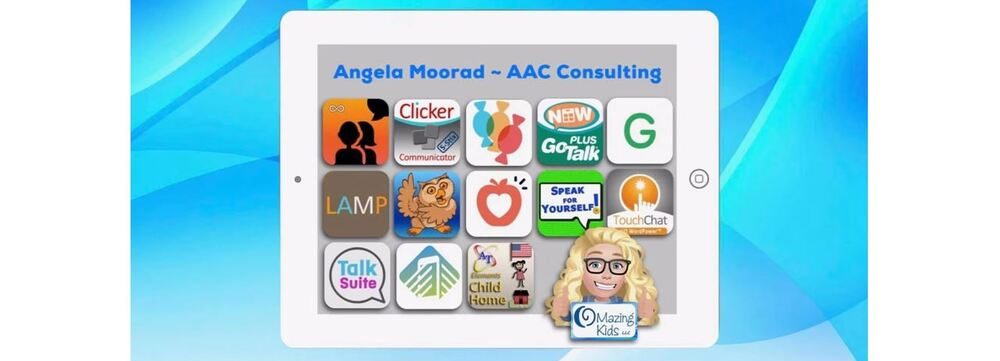
Angela Moorad, MS, CCC-SLP. Over 37 years experience in AAC. OMazing Kids AAC and app consulting. Creator of several AAC Feature Matching resources (https://omazingkidsllc.com/omazing-kids-aac-resource-links/). Includes info about unique features to support Gestalt Language Processors
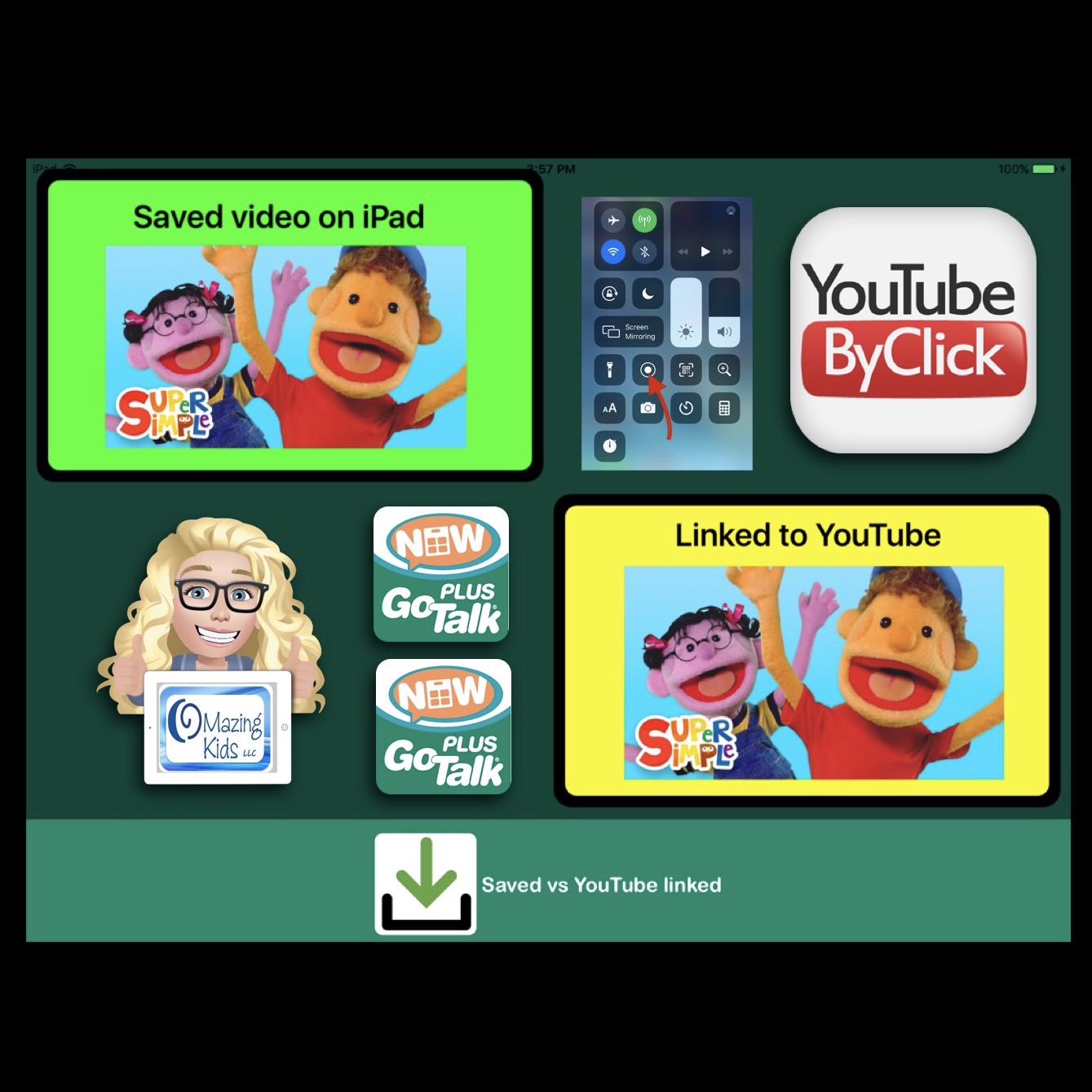
Why I prefer to save videos to the iPad vs. linking to YouTube when using the GoTalk Now app:
I had too many patients’ highly preferred videos disappear from YouTube. That typically triggered a meltdown or they lost interest as I attempted to find a different version of it on YouTube.
Saved videos play immediately (no delay = immediate reinforcement of that request). I had several patients who had been seen multiple times by various SLPs over the years at the facility where I worked and they never appeared to understand cause/effect or be motivated to communicate when in fact the issue was the reinforcement wasn’t immediate enough for them to form that connection.
See a side by side comparison in this video.
Also added the video to YouTube:
I used the Screen Recording feature in the iPhone Control Center to take a screencast video while I was playing the YouTube video to save it. Then I edited the video to crop off a little at the beginning and end. My iPad Pro running iOS 10.3.3 doesn’t have a Screen Recording option in the Control Center. My iPad Mini 2 running iOS 12.4.8 could record but didn’t have sound. I was able to do this via my iPhone 11 running iOS 13.5.1 and then used AirDrop to send it to my iPad Pro to use in the GoTalk Now Plus app. My guess is an iPad running at least iOS 13 would have sound in the screen recording but have no way to know for sure 🤷🏼♀️
Update 12/15/20: It is also possible to play saved and play linked YouTube videos within the TouchChat AAC app.
Here’s some differences between playing a “linked” YouTube video in GoTalk Now vs. playing a “linked” YouTube video in TouchChat:
In GoTalk Now, a button programmed to link to a YouTube video exits the app and takes you to YouTube on Safari (that would be blocked if using Guided Access or on a managed dedicated iOS based device). It would be difficult for most AAC users to get back to the GoTalk Now app (have to tap a tiny thing in top left corner of screen and if they play other videos that might disappear).
In TouchChat, a button programmed to link to a YouTube video opens it on a screen within the TouchChat app. It’s easy to tap “done” to return to the previous TouchChat screen. The linked YouTube video will play within TouchChat even when Guided Access is active. But you’d still have issues if YouTube is down or that linked video disappears from YouTube. I’ve used “linked” videos in both of those apps if it’s something I wanted to program on the fly in the middle of a session. If it turned out to be a highly preferred video then I went through the process of saving it to the camera roll and then programming to open it that way 😊
When using either app for this purpose I consider this to fall under the category of “Assistive Technology for Adapted Leisure”. So this is giving them an adapted means of accessing videos. I also use it as an adapted means of accessing music.
An alternative to using Screen Recording is to download free software onto your laptop that will allow you to download and save videos from YouTube and several other sources. I just tried out the YouTube ByClick software and it worked very well. The resulting video was a little larger on the screen than the one made via screen recording. But it involves having to use your laptop to download the video, e-mailing the video to your iPad and then saving that video to the Camera Roll. https://www.youtubebyclick.com.
Update 11/5/20: Here’s another option that worked directly on my iPhone: https://qdownloader.io
Update 11/4/21: Here’s an option that Lauren Enders shared: YT1s YouTube Downloader, https://yt1s.com/en65
[Note: Many of these websites or app disappear pretty quickly so that’s why I just use screen recording on my iPad instead. ]
I can see using YouTube ByClick when I want to save several videos ahead of time to prep for a session. But the Screen Recording method would be my “go to” for the convenience.
In a pinch you could even just use the iPad to video a YouTube video being played on a computer or TV. I’ve done that before. The quality isn’t nearly as good but the patient still enjoyed watching it.
Reminder: GoTalk Now & GoTalk Now Plus are both on sale through the end of October 2020. Extremely rare sale so if you’ve been wanting either of these apps NOW is the time to get it.
Update 9/30/21 – GoTalk Now Facebook Group – informal networking via the “GoTalk Now AAC App – Ideas and Sharing” group that I started on 9/29/21: https://bit.ly/GoTalkNowAACappGroup
Visual supports with voice output for the “win”! I attended a presentation by Kari Dunn Buron, coauthor of The Incredible 5 Point Scale, at the Oklahoma Autism Conference offered by the Oklahoma Autism Network in 2017 and was inspired to make this for a patient who had been having a particularly difficult time and exhibiting a significant increase in aggressive behaviors. I watched for very subtle signs of increased agitation and modeled use of this to both talk about emotional states and offered choices to help calm before he got beyond a “Level 3”. He showed understanding of it the very first day and smiled when I acknowledged that he was struggling. He chose “go for a walk outside” and “go back to the house and rest”. The next day he spontaneously tapped “go for a walk outside” before he got beyond a “Level 2” and a huge smile washed over his face as we exited the sensory overload inside the building into the brisk air and total peace outside. I was often totally overstimulated by all the “Christmassy” stuff at our facility too so we ended up taking lots of walks outside 😉.
A video showing several boards including this one:
Thanks again Attainment Company, Inc. for making such a versatile app and giving me access to the most full featured version as well as several extras within it to help the patients at the nonprofit facility where I worked for the last half of my career. I was able to show this to his mother and she was very impressed with how easy this app is to program and to use for AAC and visual supports.
This app is definitely in the top 5 most used apps on my iPad. I saved this to the Online Gallery. Those who have either the GoTalk Now or GoTalk Now Plus versions of the app should be able to find everything that I have uploaded to the public Online Gallery by searching by my last name (Moorad)or a word in the title. See page 23 in the in-app Users Guide for info on how to find it.
There are several versions of the app with varying levels of features:
Updated 4/3/22 to add: Encouraging Emotional Conversations in Children With Complex Communication Needs: An Observational Case Study (free access to the full research article & supplementary materials): https://www.frontiersin.org/articles/10.3389/fpsyg.2021.674755/full. The AAC app in the article is TD Snap but the concepts could be used when adding this type of vocabulary to any AAC system. If you have access to Grid for iPad / Grid 3, take a look at some nice preprogrammed content in the Voco Chat grid set.
Wow! AAC news flash….. Attainment Company, Inc. announced a GoTalk AAC app sale (10/16 – 10/31/20) 👏🏼 I just checked pricing history on the AppSliced website and this is the lowest price on GoTalk NOW since 2012 and the lowest price ever on GoTalk NOW PLUS. ✅ So if either of these have been on your wish list NOW is the time to get them. ✅ (Tip: It’s wise to get apps at least a day before a sale ends to insure you don’t miss it)
GoTalk NOW by Attainment Company, https://apps.apple.com/us/app/gotalk-now/id454176457, iPad only, iOS 9.0 or later. They recently added Core Vocabulary Communication Pages and GoTalk NOW Curriculum Pages to the app. The Core Vocabulary pages are easy to find in Downloads – Core Words – options for 4, 9, 16, 25 and 36 locations. The Curriculum Pages are trickier to find. Those are free downloads from their Online Gallery (see page 23 in the in-app guide for details on how to find that). More info about the features: https://www.attainmentcompany.com/gotalk-now. Usually $99.99 -> on sale for $49.99
GoTalk NOW PLUS by Attainment Company, https://apps.apple.com/us/app/gotalk-now-plus/id742150885, iPad only, iOS 9.0 or later. This is the version that I have. This version has everything in GoTalk Now and adds a SymbolStix symbol library, a premade Ready-Set-Communicate book, and Acapela text-to-speech English voices. Usually $169.99 -> on sale for $119.99
Here are posts that I have done showing examples of how you can use this app:
***** Those who have either of these versions of the app can find everything that I have uploaded to the public Online Gallery by searching by my last name (Moorad). See page 23 in the in-app guide for details on how to find that *****
PCS & PCS Thinline symbols are also available as IAPs
The GoVisual Scene Maker app is also on sale in case you missed it being on sale back in May. GoVisual Scene Maker by Attainment Company, https://apps.apple.com/us/app/govisual-scene-maker/id1324635847, iOS Universal, iOS 13.0 or later. More info: https://www.attainmentcompany.com/govisual
(I’m not affiliated with the company and am not being paid to do this post nor do I make anything off ads that may pop up. This is a free blog so I don’t have any control over ads)
Found another FREE hidden gem in the App Store! Names of Animal Sounds by Pioneer Logics, https://apps.apple.com/us/app/names-of-animal-sounds/id1351844864 (2 word phrase (animal name + verb of the sound they make, ex: Lion roars) while showing short video of it, 61 animals organized alphabetically and can swipe to choose specific one).
List of what’s included… a few of the names of the sounds seem a little off but when I researched names of animal sounds some had several listed or varied between sources:
Antelope snotes (snorts?)
Bear growls
Bison grunts
Cat meows
Cheetah chirrups
Cockatoo squawks
Cow moos
Crocodile bleats (bellows?)
Crow caws
Cuckoo clocks (coos or cuckoos?)
Deer bleats
Dog barks
Dolphin clicks
Donkey brays
Duck quacks
Eagle screeches
Elephant trumpets
Flamingo squawks
Frog croaks
Giraffe bleats
Goat bleats
Gorilla growls
Hen clucks
Hippo growls
Horse neighs
Hyena laughs
Ibis chirrups
Kangaroo grunts (chortles?)
Koala wails
Koel clocks (?)
Lemur gibbers (?)
Leopard snarls
Lion roars
Mockingbird chirrups
Monkey gibbers
Moose bellows
Mouse squeaks
Owl hoots
Panda bleats
Parrot squawks
Peacock screams
Pelican chirrups
Penguin honks
Pig grunts
Pigeon coos
Polar bear growls
Raven croaks
Robin chirrups
Rooster crows
Seagull squawks
Seal barks
Snake hisses
Sparrow twitters
Swan cries
Tiger growls
Toucan squawks
Turtle grunts
Wolf howls
Woodpecker chirps
Yak grunts
Zebra clicks (neigh or whinny?)
I had a couple of patients with Autism who had a high interest in animals that would have LOVED this app!
In particular I remember one who had a very driven passion for animals so we got to see a peek into his amazing skills when we tapped into that high interest. I used the I Read – Animals (Reading Comprehension for Kids) app by Nerea Sanchez Dominguez (https://apps.apple.com/us/app/i-read-animals-reading-comprehension-for-kids/id940688959) & the First Nouns app by KIS Publishing LLC (https://apps.apple.com/us/app/first-nouns/id930990828, before it switched to only being accessible to their online school) and was blown away by his ability to type and spell animal names. Ended up taking video to prove it to the rest of the team and immediately went through the process to get him an iPad with a robust AAC app. Speak For Yourself ended up being a great match for him since it has only 1-2 hits to get to any word and uses the native iOS keyboard. I think about him often and wonder how he’s doing 😊
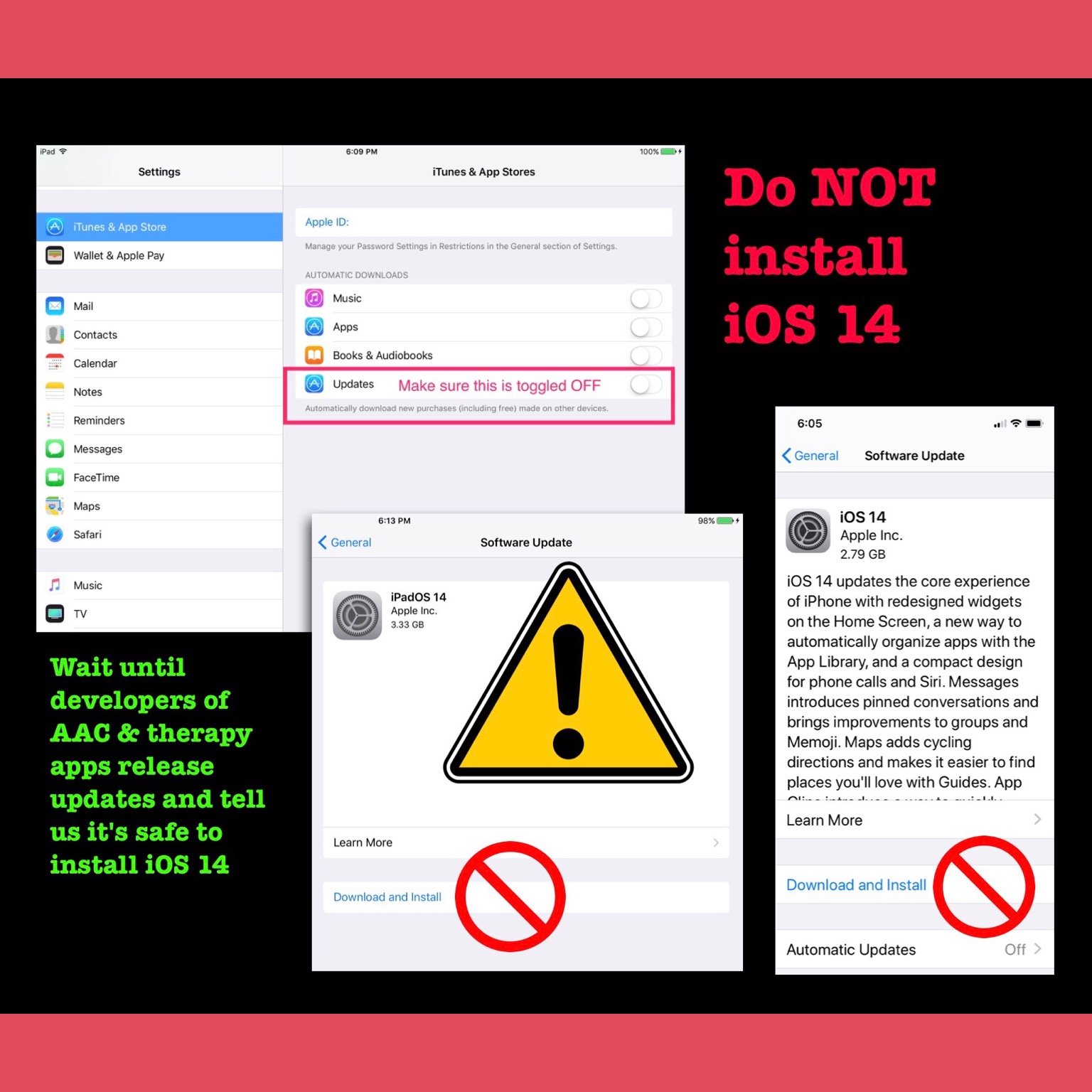
⚠️ Important Warning: iOS 14 was released today. It is NEVER a good idea to install a new iOS when it first comes out. 🛑 There are always glitches…. sometimes big ones that cause devices to “brick” or ones that cause glitches in apps where they either crash or don’t work as expected. The developers of AAC and therapy apps need time to release updates.
Please wait until the developers of those apps announce that it’s safe to download iOS 14. Depending on how complex an app is that may take a few weeks to a few months.
I always keep automatic installation of iOS updates and automatic installation of app updates both toggled OFF.
Make sure your devices are backing up to iCloud and for AAC apps to make sure you back up any programming before installing any updates to those apps or to the iOS.
Be sure to toggle off the setting that automatically offloads apps to free up space. There is a trend in app developers switching to a subscription model and removing older apps.
I know most of us have to rotate apps on/off our devices due to storage issues. Before deciding to delete an app, it’s wise to check to make sure it is still available in the App Store and to read through the descriptions on recent updates to make sure nothing significant has changed (like it switching to a subscription based app). If an app hasn’t been updated in quite awhile that’s a red flag that it may no longer work when a new iOS is rolled out and if you have several apps like that you may want to consider purposefully keeping a device running an older iOS in order not to lose apps. I’m very glad I did that several years ago and still have an iPad running iOS 10.3.3.
Also posted this on Facebook, Instagram & Twitter to spread the word. Please share with anyone you know using an iPad, iPhone or iPod Touch for AAC, therapy or learning.
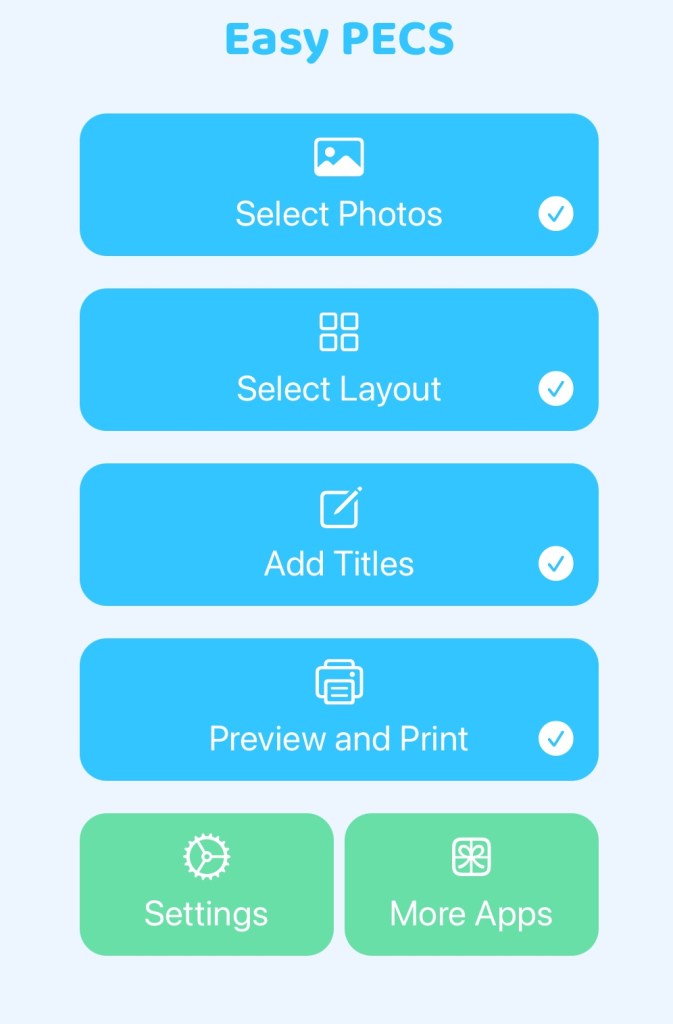
This post is dedicated to iOS apps and mobile-friendly websites that can be used to make printable communication boards, communication symbols, pictures for visual schedules, visual supports, therapy materials, etc… I’ve also included info about Android options but since I don’t own any Android devices I can’t comment on how well they work on that platform.
It’s 2022… we are all busier than ever and need to be able to make these printable items all from the convenience of our iPad or iPhone (not having to sit at a computer). Imagine creating things in the middle of a therapy session and then being able to email them to a parent or sending them wirelessly to a printer. It’s a common request that I see from busy SLPs especially during the pandemic so this post was inspired by you.
Looking for a web-based option that CAN be used on an iPad or iPhone? (or any device on any platform)
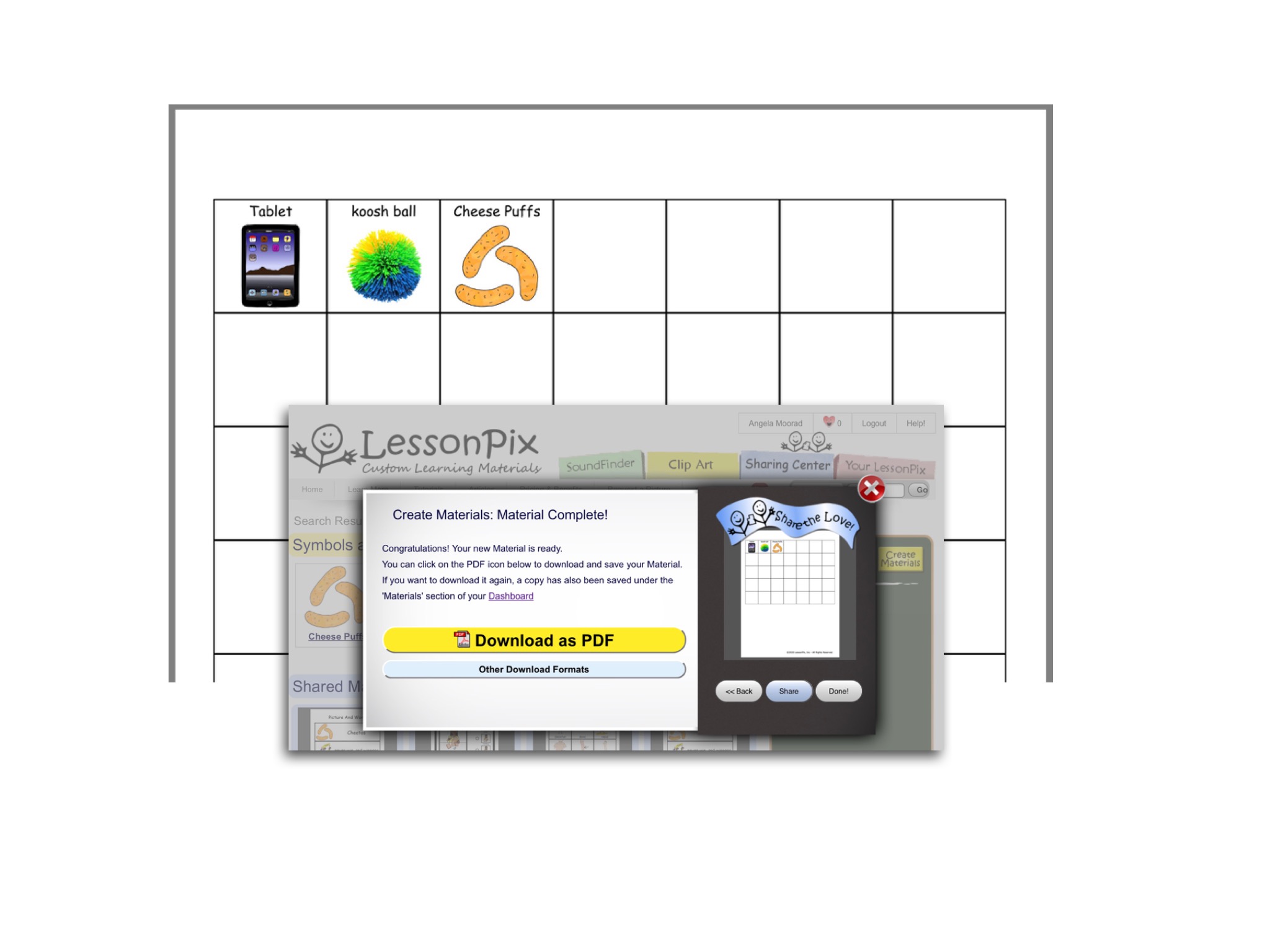
LessonPix has recently updated their website to be mobile-friendly and are frequently adding features SLPs are needing for teletherapy / distance learning (https://lessonpix.com/m/). It’s so cool to be able to create things from my iPad or iPhone! Since it is web based it can be used on any device regardless of the platform.
Hundreds of templates to make custom materials (https://lessonpix.com/articles/4/Articles/Custom+Materials). It’s especially handy to make materials to adapt commonly used games such as Cranium Cariboo, Guess Who?, Headbandz & Zingo.
Vector images that can be scaled to any size without pixelating or becoming grainy.
Images are available in color, stencil or outline (black & white).
SLPs will especially LOVE the Sound Finder, Letter Finder, Pattern Finder (find words for specific syllable shapes – CVC, CV, VC, etc), Number of Syllables, Rhymes With and Minimal Pairs options
Save your image tray as a collection to easily reuse later.
LessonPix add-ins for Microsoft Word and PowerPoint. Don’t have a new enough version of MS Office or work in a setting where your IT department blocks add-ins? You can copy and paste items from LessonPix into these documents. The moveable game pieces, spinner and dice in PowerPoint looks really helpful for those doing distance learning / teletherapy.
New Play Tools side bar. The “Play” tab on their PowerPoint add-in has been a huge hit, allowing SLPs and teachers to share custom Dice, Spinners, Draw a Card and more with their remote clients. Those of you not using PowerPoint need the same tools… so they just added a stand-alone version of the Play Tools that you can launch as a separate window. That means it will work with ANY platform you’re using. See this video for details:
Can be used in Google Slides and Jamboard.
Sharing Center with access to lots of items other folks have created and shared. Love how it’s organized.
This is just a brief overview of what you get with LessonPix. I’m totally hooked after trying it for several days. I can definitely see why so many SLPs love LessonPix!
So I hope you add LessonPix to your therapy toolbox. But you may need a few more tools. What about situations where you may not have internet access or need other types of symbols? Keep reading…. there are several iOS apps that are affordable (some are even free):
Here’s one that’s easy to use and very affordable:
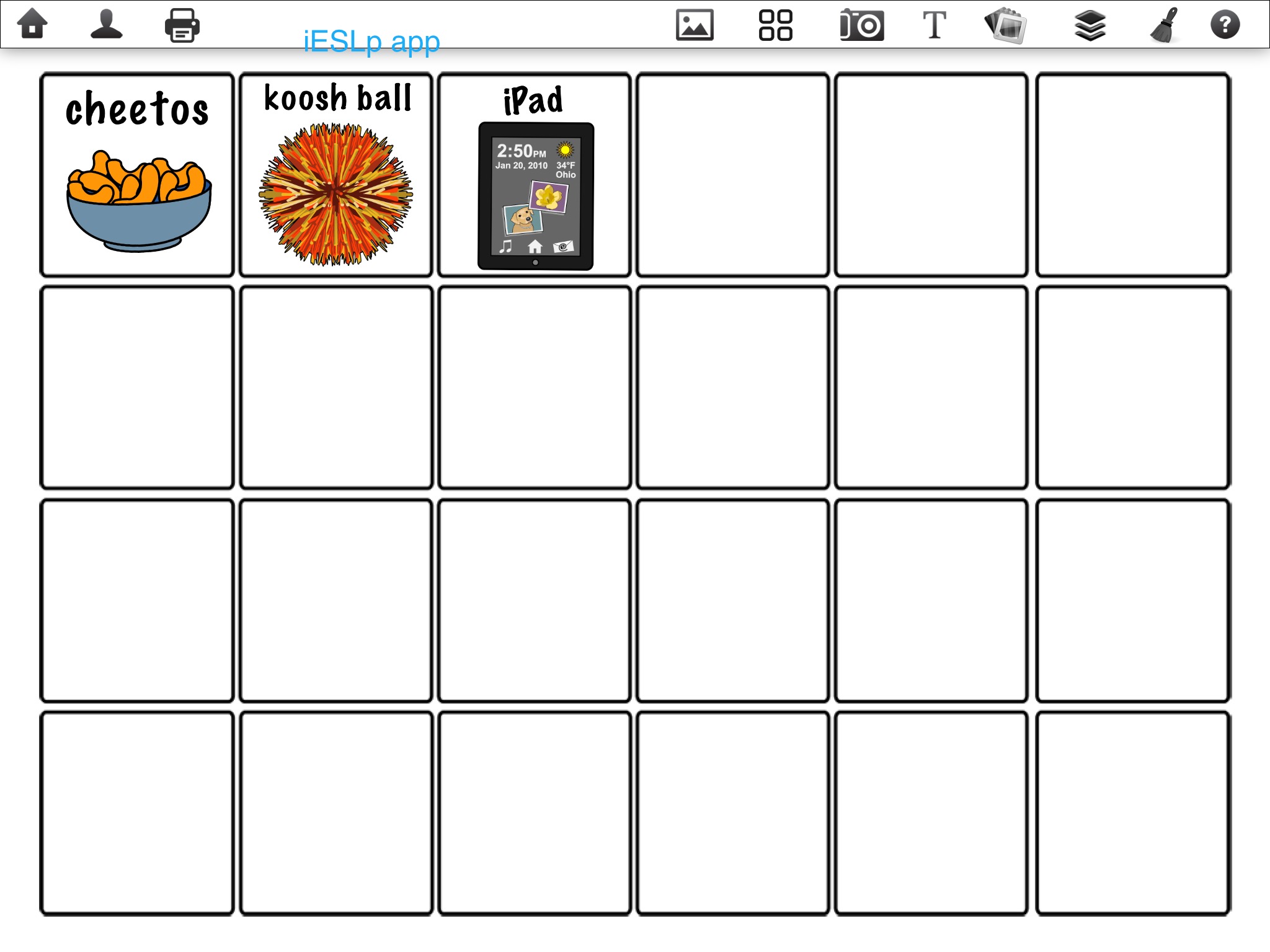
iESLp by Irmgard Raubenheimer, https://apps.apple.com/us/app/ieslp/id912953895, iPad only, iOS 8.3 or later, $19.99 (Updated 6/9/22: The app developer is in the process of updating the app to be compatible with iOS 15). Includes over 20,000 SymbolStix symbols plus you can import photos from your Camera Roll or use the in app camera. Can change the font, font size and font color. Has lots of templates for boards, game boards, grid templates and visual systems to choose from plus you can use several of them on one page and resize them. Pics can be any size you want. You can print from within the app or send the board as .jpg image attachment via e-mail. Can backup/restore via Dropbox. Unique in that you can also make interactive activities to use on your iPad and you can add recorded voice output. See my review: https://omazingkidsllc.com/2016/11/24/50-off-the-amazing-ieslp-app-create-your-own-interactive-and-printable-activities-visual-supports/. More info: https://ieslp.wordpress.com. Plus check out their Facebook page for several videos with creative ways to use the app: https://www.facebook.com/ieslpapp/.
Here’s one that’s also easy to use and has more robust features specifically for building communication board grids. It’s more expensive but well worth the price and a very affordable way to access PCS Symbols:
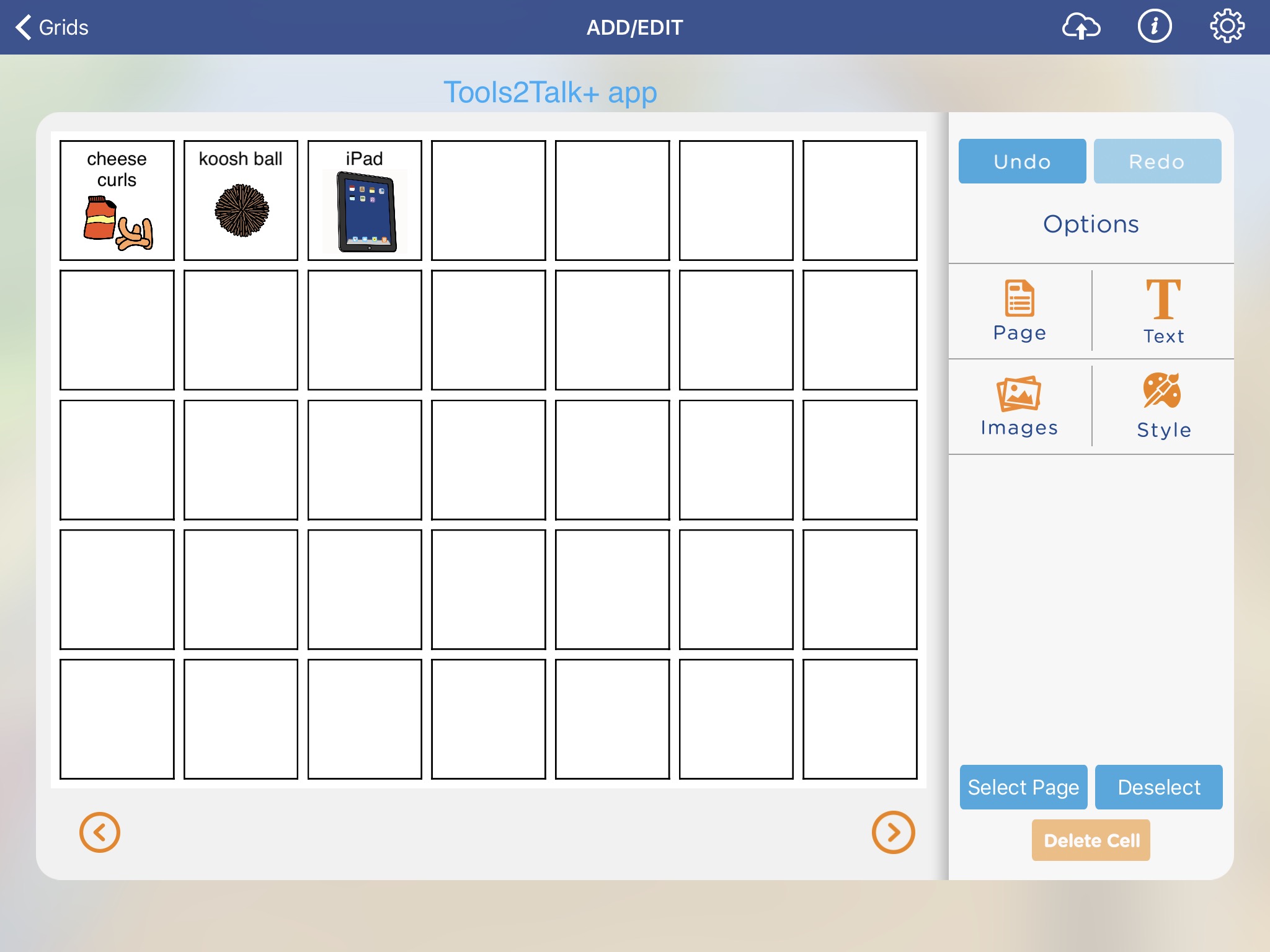
Tools2Talk+ Create your own communication aids and chat by Scope (Aust) Ltd, https://apps.apple.com/us/app/tools2talk-create-your-own-communication-aids-and-chat/id1074982035, iPad only, iOS 8.0 or later, $47.99 (Updated 6/9/22: This app is not currently available). Includes over 20,000 PCS symbols (PCS classic core symbols, PCS ThinLine (sets 1 & 2), PCS classic addenda, as well as PCS Australia and PCS New Zealand.) If you work with adults, look for the ThinLine symbols that have a more adult look to them. Also includes Compic symbols. Plus you can import photos from your Camera Roll or use the in app camera. Has several templates to choose from (ABC board, calendar, chores chart, communication book cover, communication book 1, communication book 2, daily timetable, first-then, personal communication dictionary cover, personal communication dictionary, personal history, phrase list, QWERTY, shopping list, weekly timetable, who’s here today). You can choose any grid combination using a row-column picker from 1-9, you can set a default font, font size and font color. You can print from within the app or send the board as a PDF attachment via e-mail. Unique in that you can also use these boards with text-to-speech voice output. This app is quite affordable compared to the price of Boardmaker software (Boardmaker v.6 for Windows: $399.00 + PCS Classic: 2000-2012 Addendum Bundle: $125.00 + PCS ThinLine Set 1 & 2: $260 = $784) or a Boardmaker Online subscription (Personal: $9.99 per month or $99.00 per year; Professional: $19.99 per month or $199.00 per year) and allows you to make things from the convenience of an iPad (this is a huge plus…. especially since Mayer Johnson has indicated that they are still not going to have iPad compatibility when they launch Boardmaker 7) and is much easier to use than the Snap Core First hack outlined below. See my review: https://omazingkidsllc.com/2016/06/19/app-review-tools2talk-an-affordable-way-to-access-pcs-symbols. More info: https://shop.scopeaust.org.au/shop/tools2talk-app/. Video overviews: https://youtu.be/YH6EBU96G6U & https://youtu.be/dzoUyxbtrBE (from the developer at TherapyBox). A longer video tutorial: https://youtu.be/cIDa5xUrdHQ. An archived webinar: https://www.callscotland.org.uk/professional-learning/webinars/WEB112/.
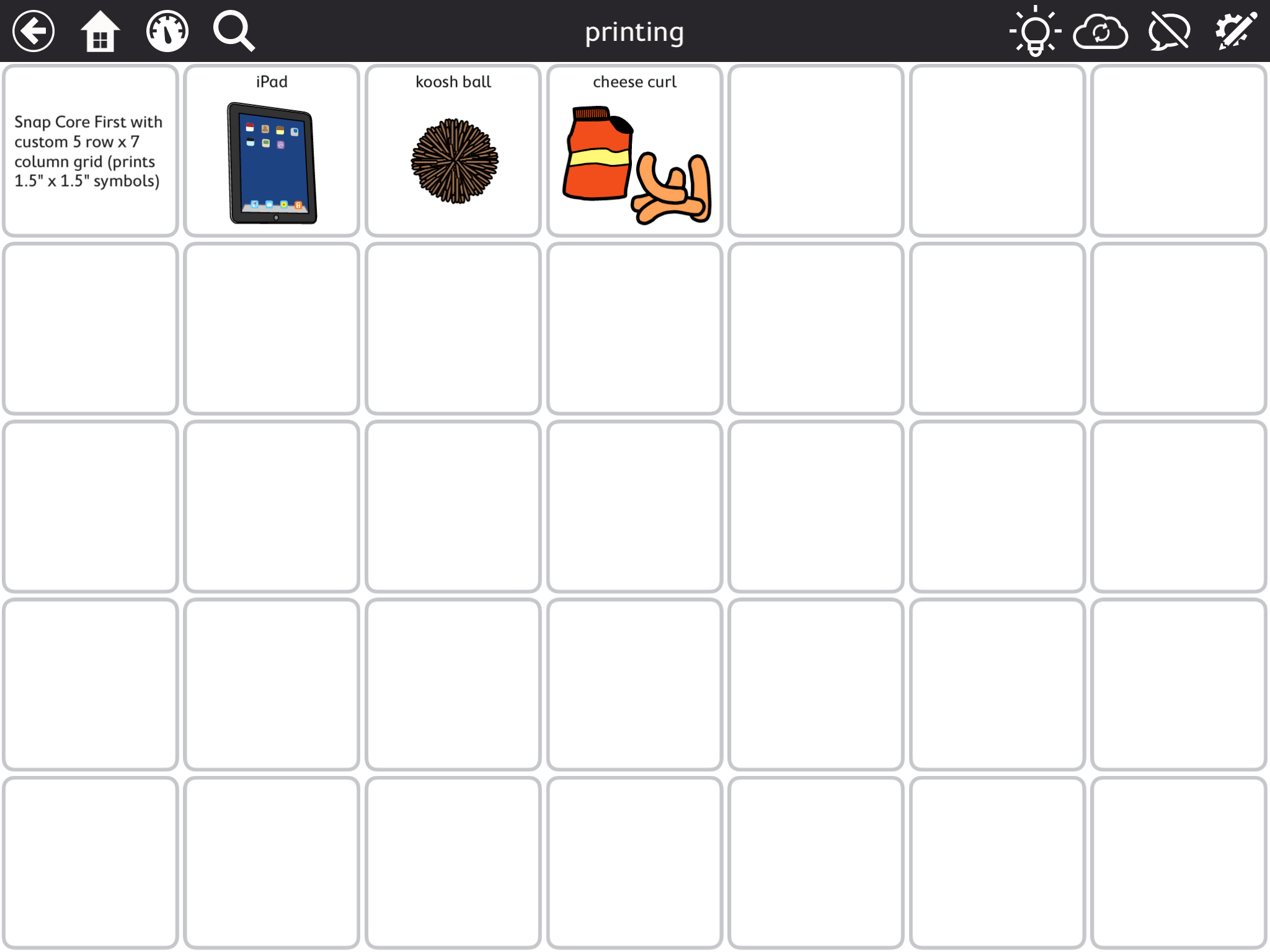
Thinking Outside of the Box: Two Creative Uses for Snap Core First:
Idea # 1: Use this free app as a tool to access PCS symbols to use in another app (especially helpful if you need the PCS High Contrast symbols).
Idea #2: Use this free app as a tool to make printed communication boards, personalized core boards, PECS cards, symbol label cards, cards for visual schedules, visual sequences, story props and other visuals.
Here’s an option to consider if you want lots of templates for overlays for several mid-tech AAC devices as well as grids, game boards, etc. and would use it enough to be worth the cost of a subscription:
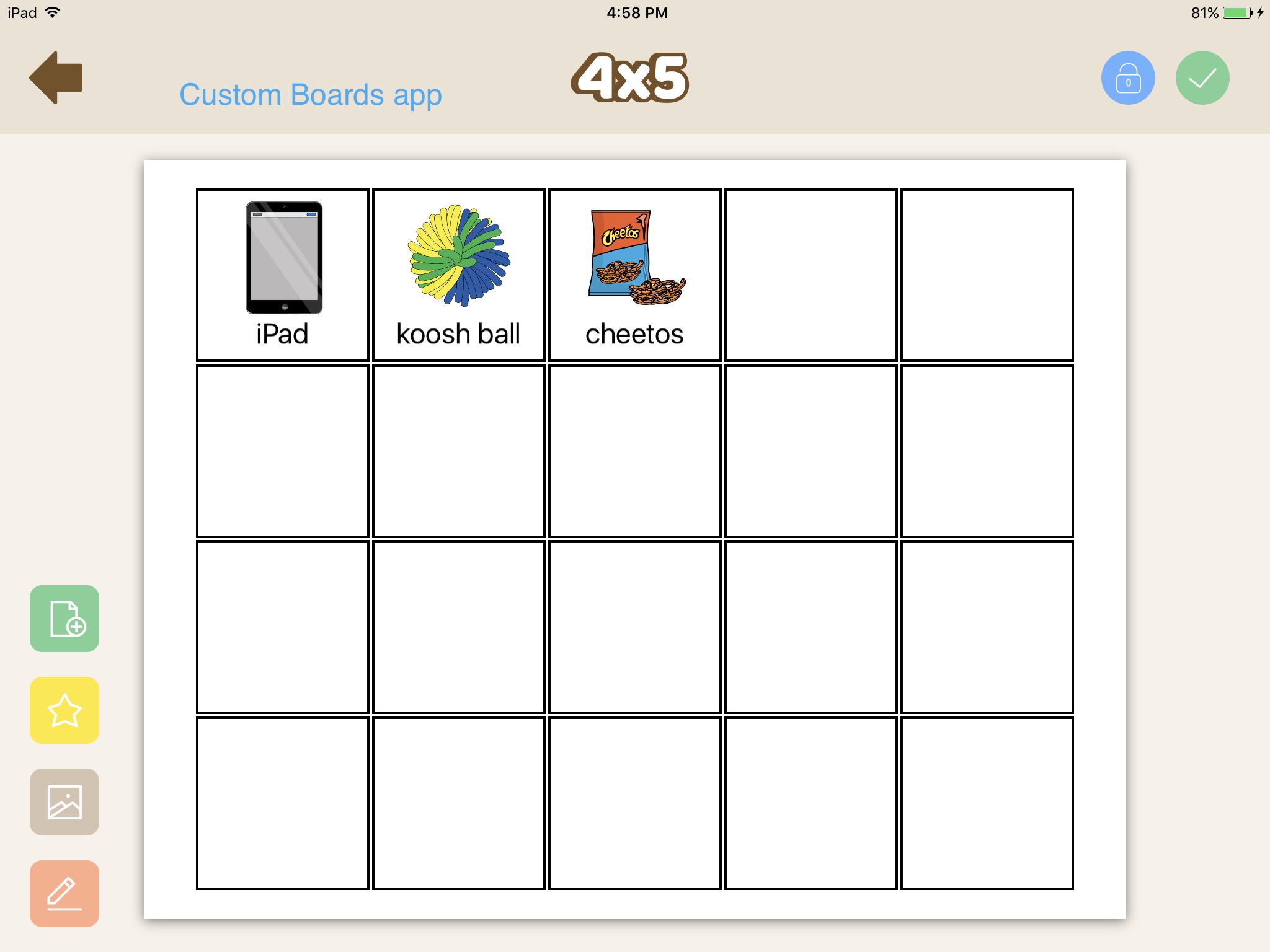
Custom Boards Elite by Smarty Ears, https://apps.apple.com/us/app/custom-boards-elite/id489935586, iPad only, iOS 10.0 or later. The app is free and has a 7 day free trial. After that ends, it requires a subscription via IAP ($9.99 per month, $49.99 per six months (= $8.33 per month) or $59.99 per year (= $4.99 per month). That’s similar to the cost of a subscription to their online Smarty Symbols website which is designed to work on a computer (not an iPad). See my review: https://omazingkidsllc.com/2016/12/14/review-smarty-symbols-image-club/). The description in the App Store shows other IAPs so watch for those. The app includes over 20,000 Smarty Symbols plus you can import photos from your Camera Roll or use the in app camera. More info: https://www.smartyearsapps.com/custom-boards/. Video tutorial: https://youtu.be/fTDKw44rK3c Smarty Ears used to offer a fully paid version of the app that didn’t require a subscription (Custom Boards – Premium, https://itunes.apple.com/us/app/custom-boards-premium/id463344117?mt=8) but it is no longer available for purchase. I own that app so I was able to compare it to the subscription version. The subscription version contains the same templates but offers more symbols (often with various skin tones and hair styles). Tip for finding symbols quickly: Instead of leaving it at the default “All-All-All”, pick a “All-Initial- and then the first letter in the word you are searching for.
Just looking for a very basic free option? There are several free AAC apps that aren’t specifically designed to make printable boards or symbol cards but can easily be used to do so. All involve taking a screenshot of the page and then printing that so I’m only suggesting ones that won’t take tons of ink to print and don’t have extra things besides buttons or those where that can be easily cropped off. Be sure to crop your screenshot before printing to save on ink.
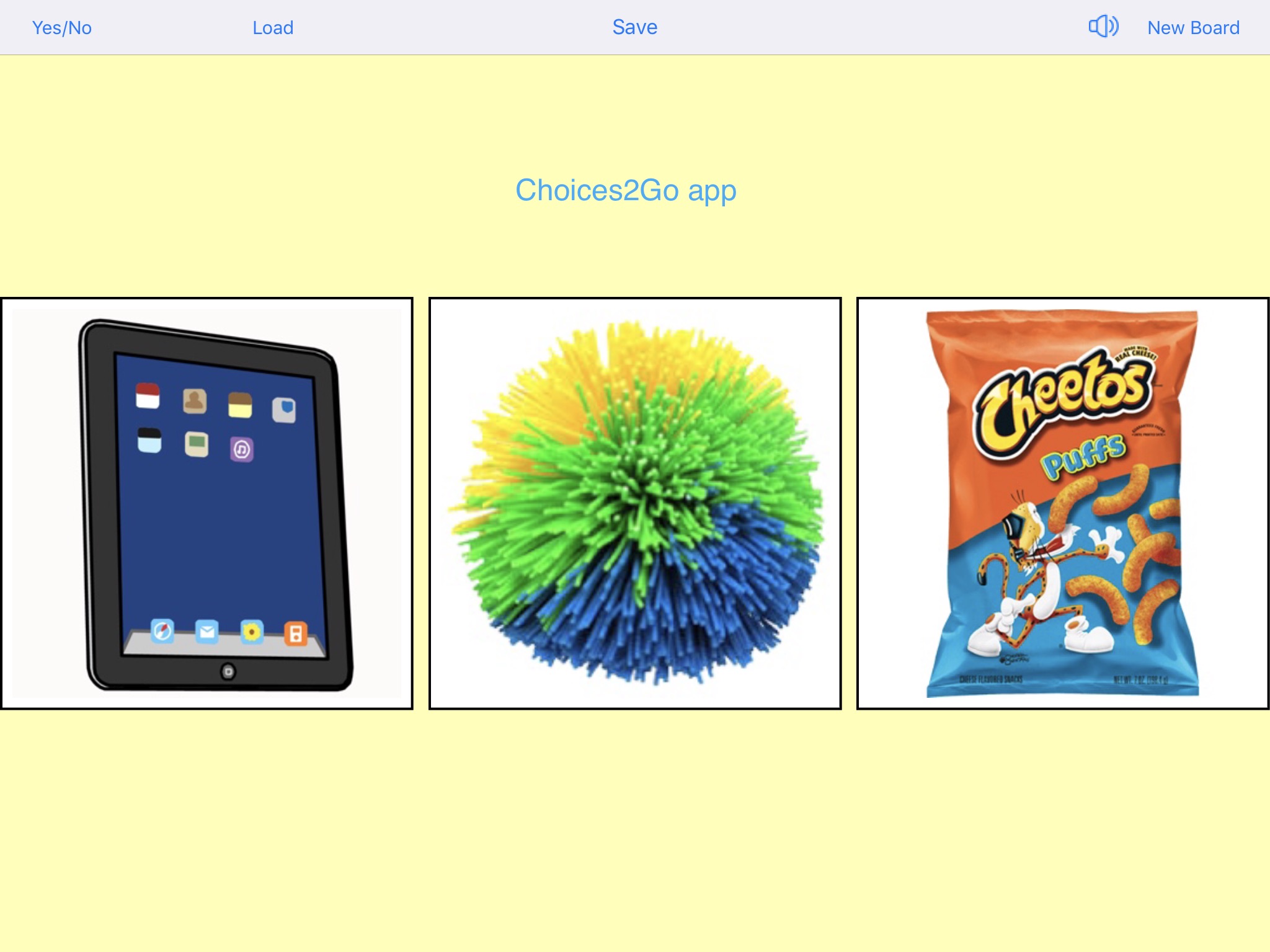
Choices2Go by University of Victoria, https://apps.apple.com/us/app/choices2go/id1182138316, iPad only, iOS 9.0 or later, FREE. You create boards by importing pics from an album on your Camera Roll. The number of pictures you select determines the picture size and number of pics on a grid (1, 2, 3, 4, 5 or 6). No way to add text to the buttons or to change the background color on the page (pale yellow). Take a screenshot, crop and print that.
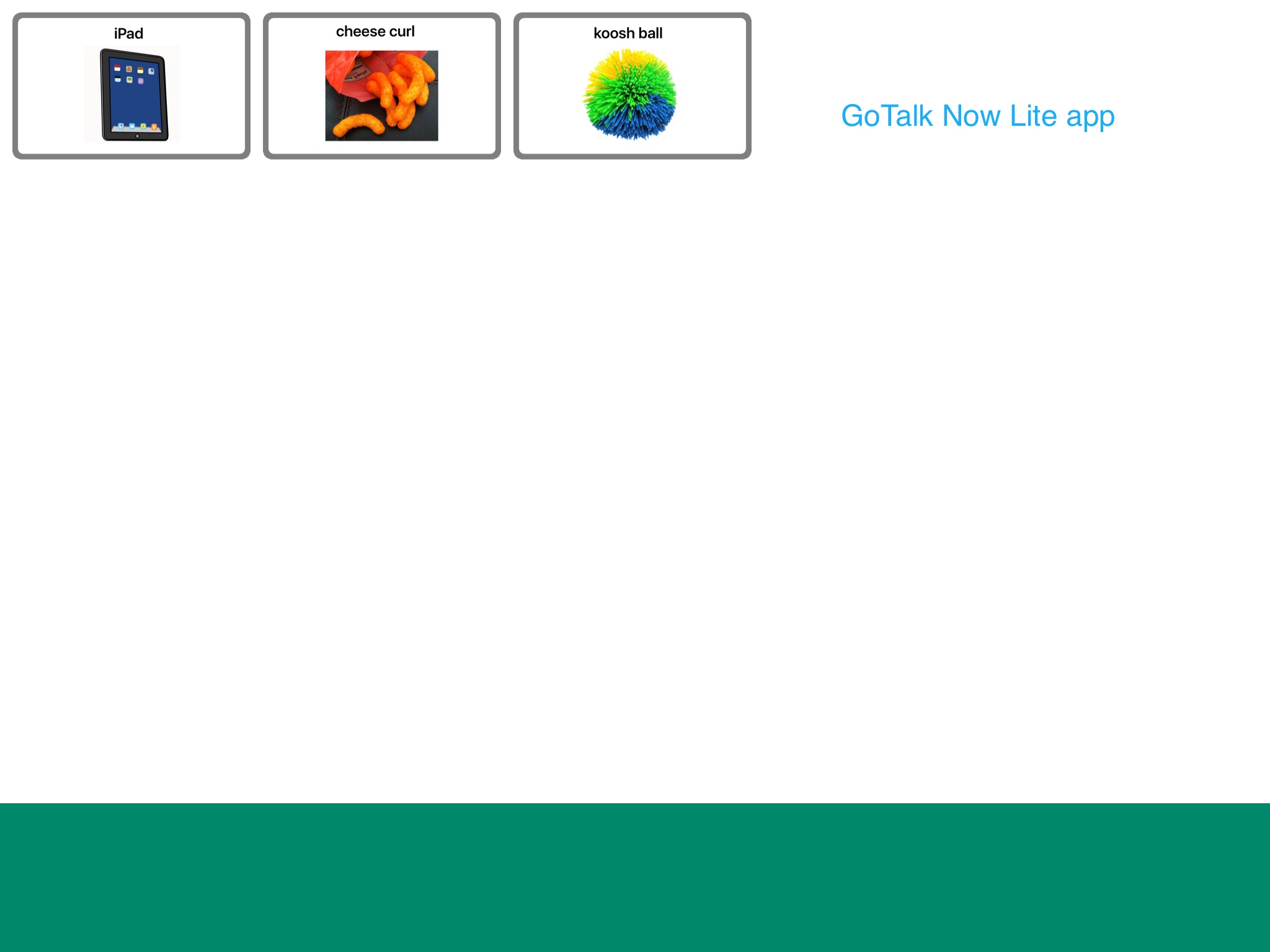
GoTalk NOW LITE by Attainment Company, Inc., https://apps.apple.com/us/app/gotalk-now-lite/id953164338, iPad only, iOS 9.0 or later, FREE. You can create one communication book with up to five pages and can have 1, 2, 4, 9, 16, 25, 36 or 49 buttons per page. This app is super easy to use. You can use images from their free library, do an internet search from within the app, take a photo from within the app and/or import pictures from your Camera Roll. You can change the border color on each button and change the font, font size and font color. This free lite version doesn’t have a way to export a PDF to print so I take a screenshot of a page, crop and print it. Works best if you set the page background and button background both to white to save ink when printing. I know there’s a GoTalk Start version that looks tempting since it’s priced at $19.99 but it doesn’t add the ability to export a PDF. I own the GoTalk NOW PLUS version of this app (https://apps.apple.com/us/app/gotalk-now-plus/id742150885) so I also have access to SymbolStix and PCS symbols and have used it frequently to make printable boards and symbol cards.
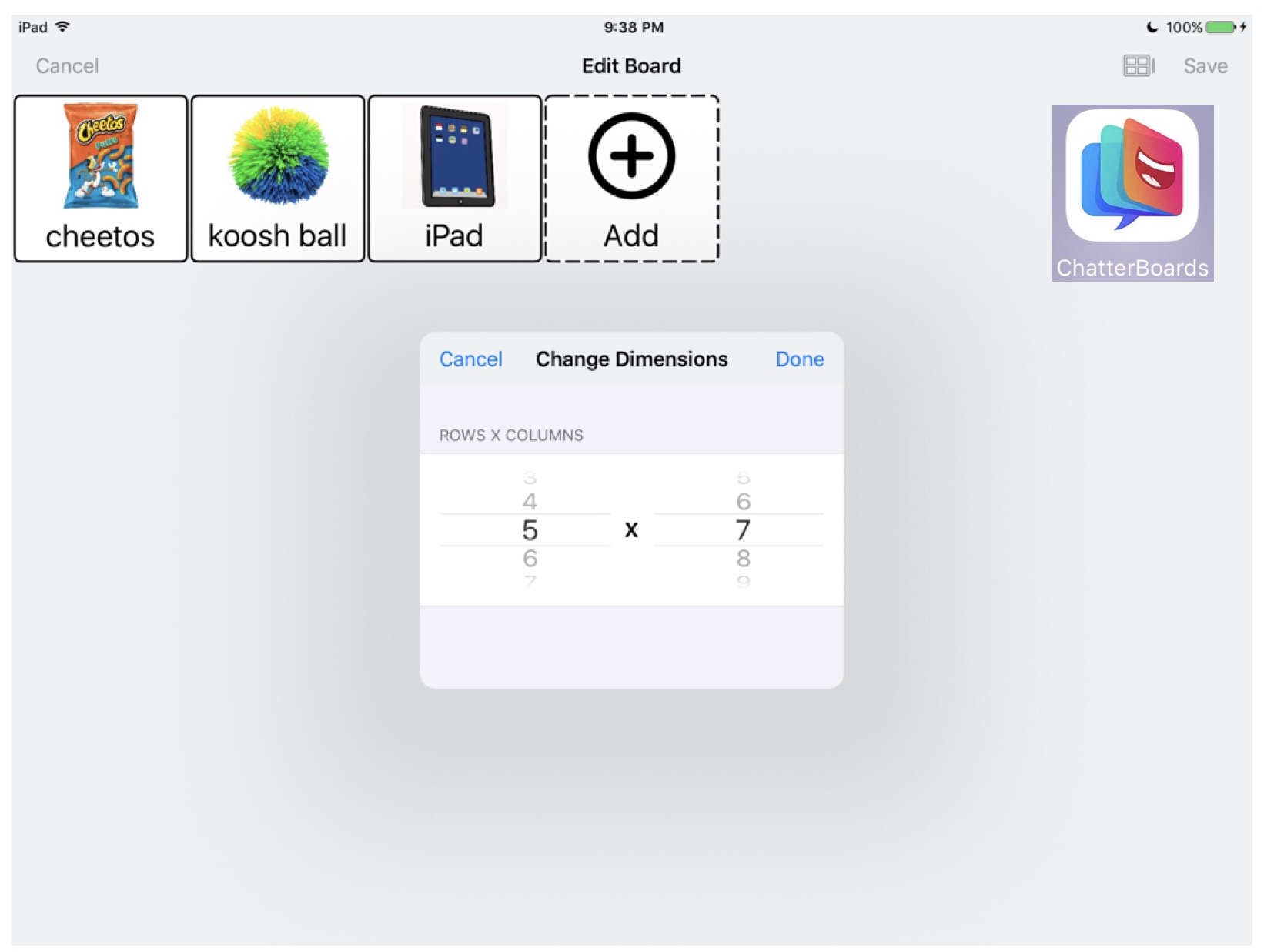
MyTalkTools Mobile Lite by 2nd Half Enterprises LLC, https://apps.apple.com/us/app/mytalktools-mobile-lite/id376401959, iOS Universal, iOS 9.3 or later, FREE. The app includes 6 pre-made boards (Adult Male lite, Adult Female lite, Child Male lite, Child Female lite, Hospital Rehab & Basic Starter) that can all be edited plus a Blank Board (up to 20 buttons – build what you want from scratch). Add/delete rows and columns on a page to get grid size you want. Import your own pictures. Take a screenshot, crop and print that.
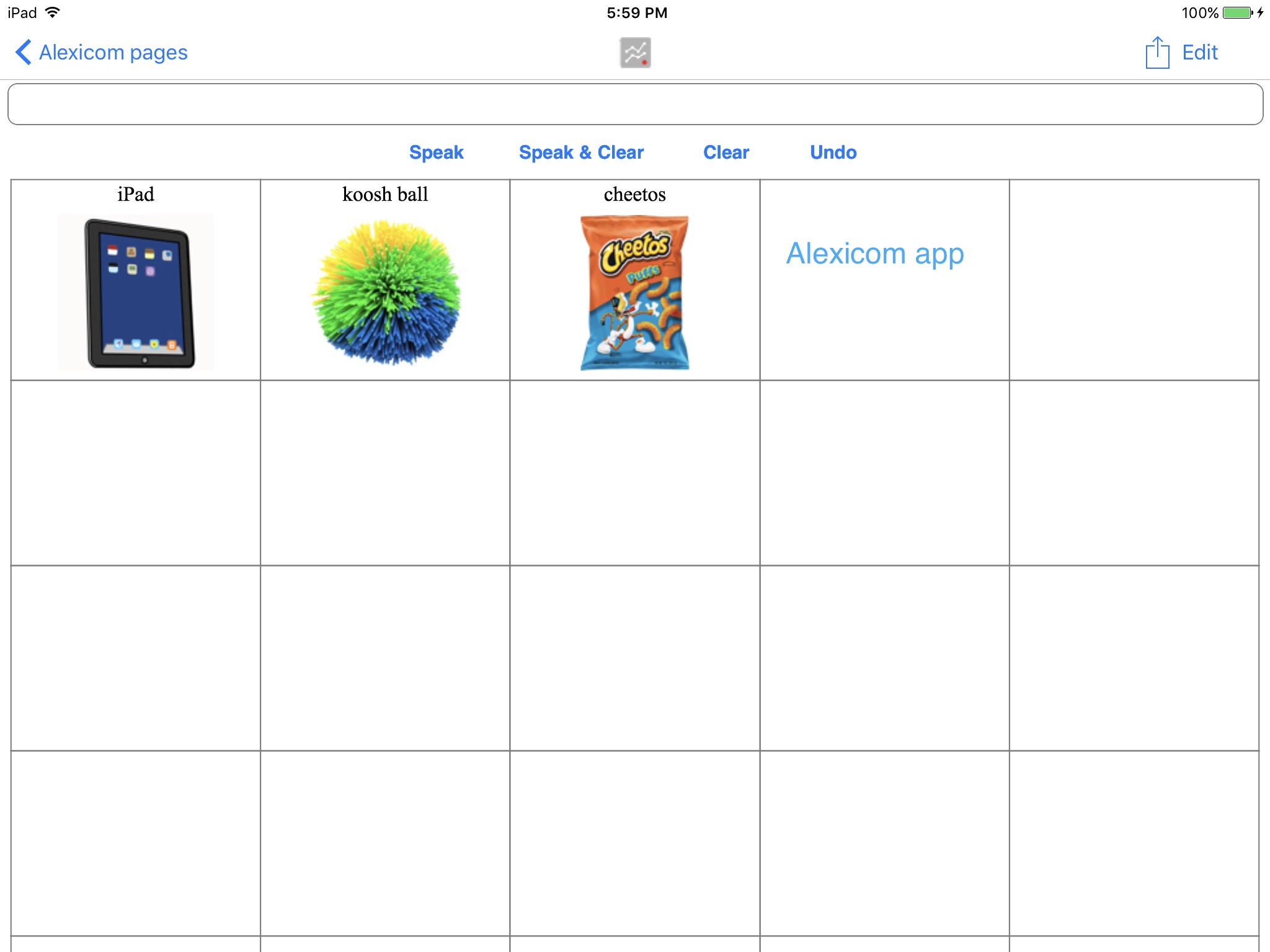
Alexicom AAC by Alexicom Tech LLC, https://apps.apple.com/us/app/alexicom-aac/id395122088, iOS Universal, iOS 14.0 or later, $0.99. Has content included or you can build your own board from scratch. You can create new pages and set the number of rows, number of columns & pic width. FYI…. if you tap on the “info” area and scroll all the way to the bottom there is a list of “pic width” numbers that work best with various combinations of rows & columns. This app developer also has several apps specifically designed for adults in medical situations. Those are all currently free and could also be used to make boards to print (https://www.alexicomaac.com/elements-apps). Take a screenshot, crop and print that.
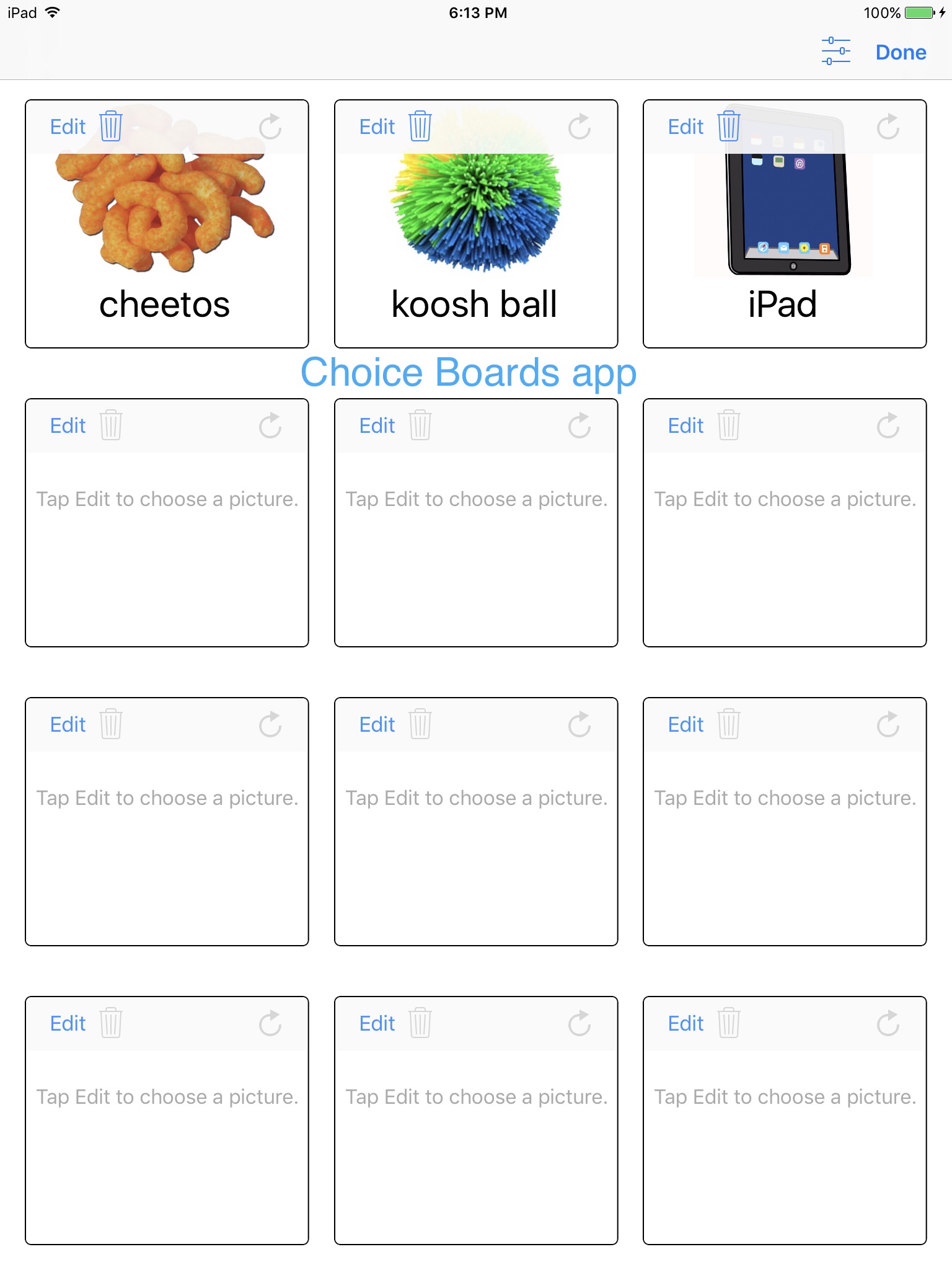
Choice Boards by Lukasz Wroczynski, https://apps.apple.com/us/app/choice-boards/id1059544273, iPad only, iOS 9.3 or later, FREE. Grid options are 6 or 12, only in Portrait orientation. No way to make larger pictures but you can choose to leave cells empty and that leaves blank space. Take a screenshot, crop and print that.
CoughDrop is an affordable web-based AAC open source option that can be used in a web browser online and works in apps across multiple platforms – iOS, Android, Amazon Kindle, Windows: https://www.mycoughdrop.com. They offer a free 2-month trial. After that it’s either a monthly subscription (currently $6.00 per month).
Info about pricing options: https://www.mycoughdrop.com/pricing. They often offer a 50% off discount on the Lifetime Subscription fee in April (Autism Acceptance month) & October (AAC Awareness month).
Coughdrop has Open Source symbols, has PCS symbols and SymbolStix available as a separate purchases and can be linked to a LessonPix account.
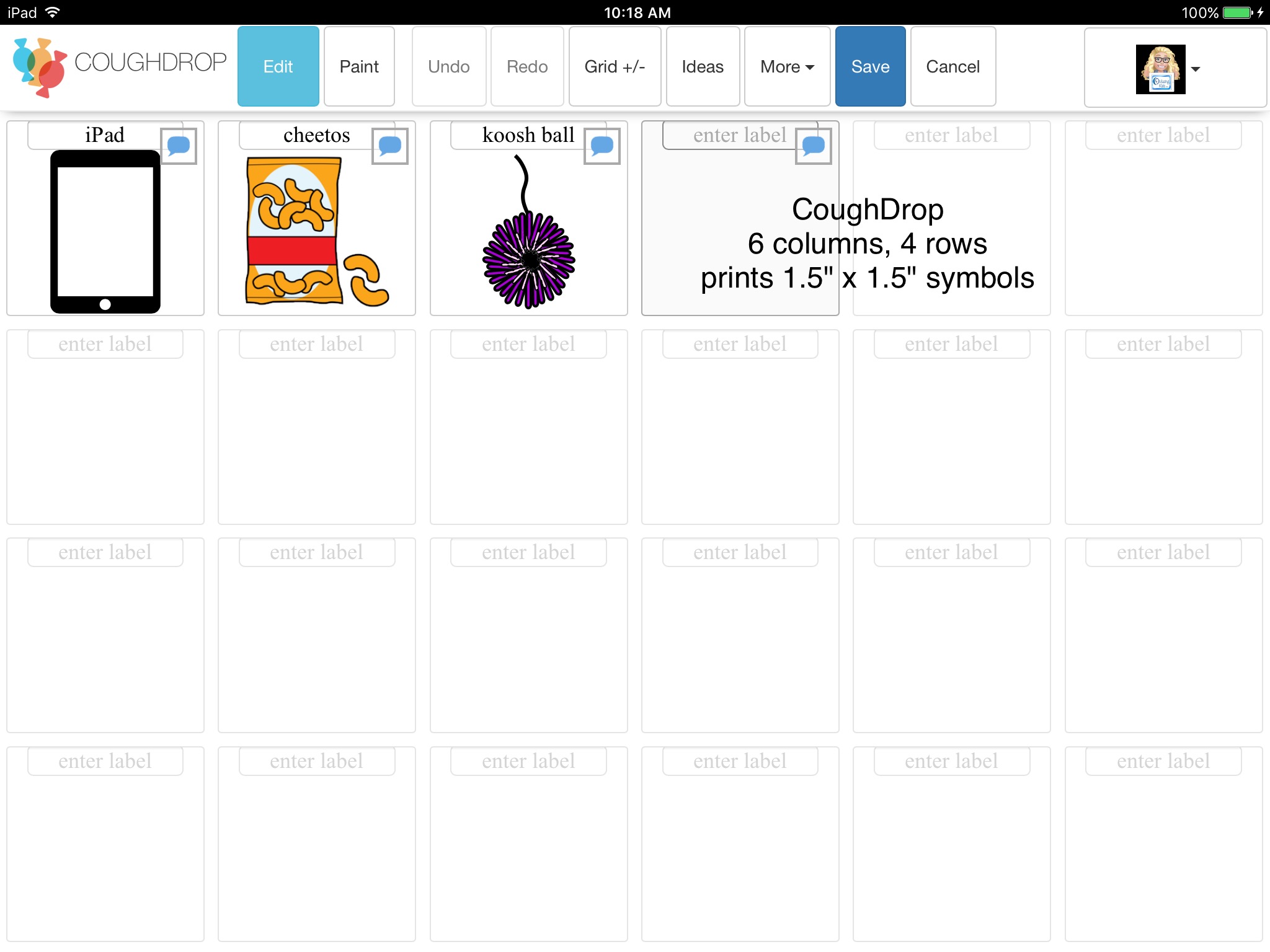
Like Snap Core First, the printing feature was designed as a means to print a no-tech copy of a user’s board. After some trial and error and test prints, I settled on a 6 column x 4 row grid as being really close to 1.5″ x 1.5″ symbols when printed. Be sure to test print a blank grid to make sure you like the size before adding symbols to save on ink.
Web Browser: CoughDrop is a web-first application, and should work with many modern web browsers.
There are a couple of other free apps specifically designed for creating and printing communication symbols but I don’t find them nearly as easy to use and how well they work depends on the version of iOS running on that device:
PictoMaker by Les Applications C, Inc, https://apps.apple.com/us/app/pictomaker/id1477449329, iOS Universal, iOS 10.0 or later (but the app crashes when trying to print if using anything older than iOS 11. Worked fine on my iPhone running iOS 13.5.1), FREE. There’s a +/- button on the app to make the pictures bigger or smaller and thus also changing the grid size.
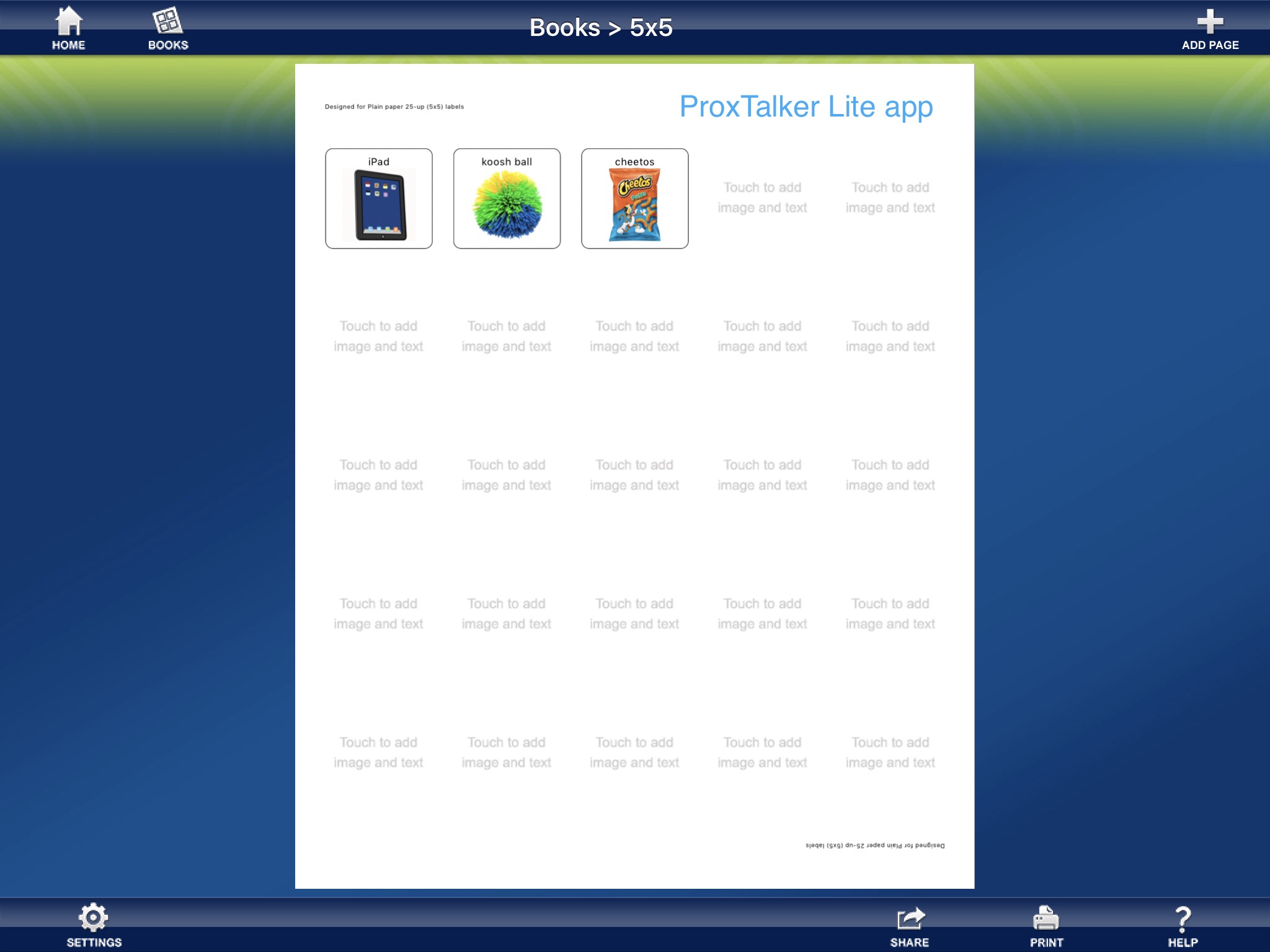
ProxTalker® App – Lite by ProxTalker.com LLC, https://apps.apple.com/us/app/proxtalker-app-lite/id593099176, iOS Universal, iOS 8.0 or later (pictures are not showing up when trying to print if using anything older than iOS 11 but you can still take a screenshot and then print it), FREE. This free lite version includes a few of their symbols (most of those seem more appropriate for kids) but you can import photos from your Camera Roll.
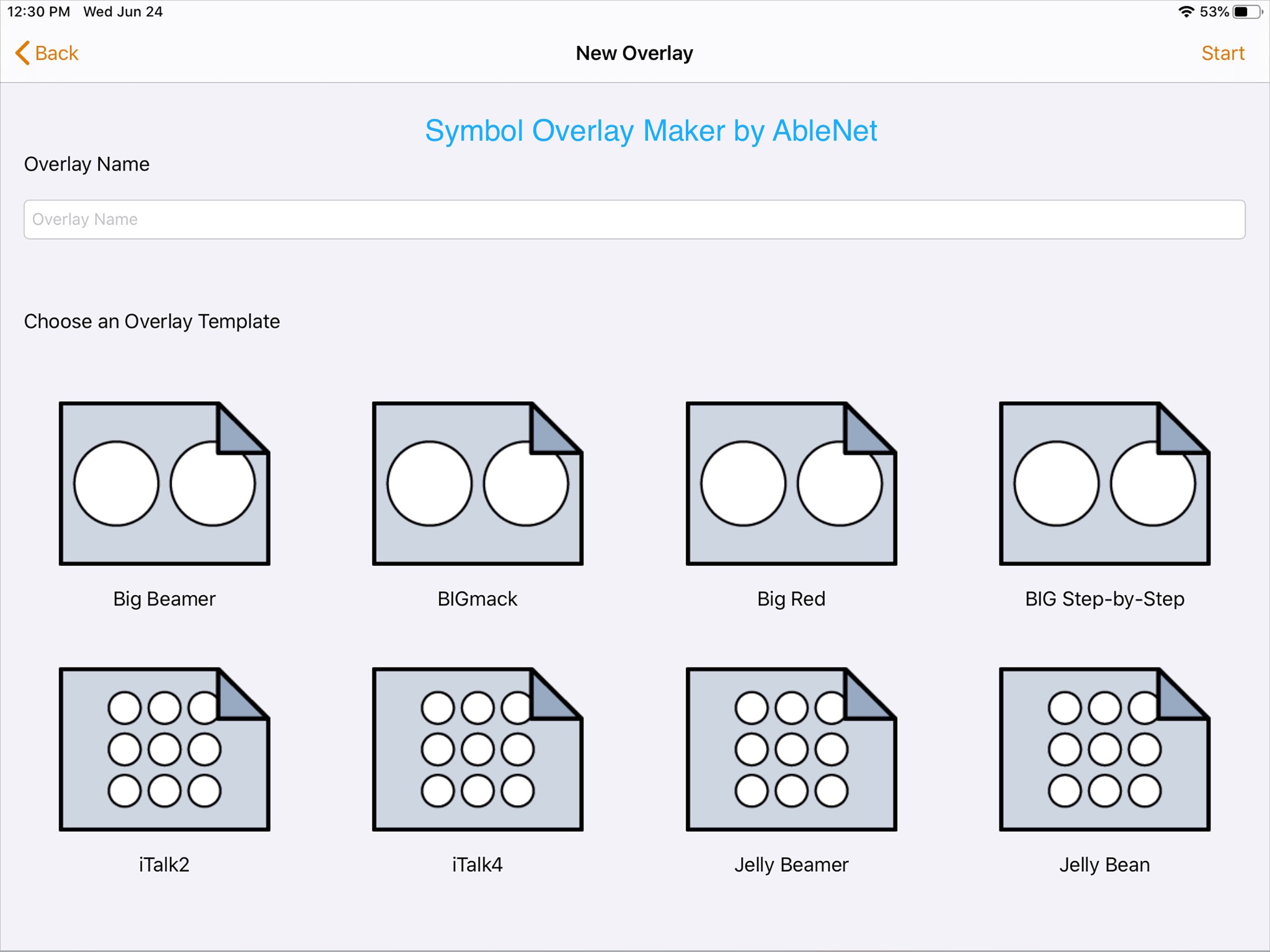
Other apps that can be used to make printable overlays for specific mid-tech AAC devices:
LessonPix is web based and works on any platform and any size screen. See info above.
CoughDrop is an affordable web-based AAC open source option that can be used in a web browser online and works in apps across multiple platforms – iOS, Android, Amazon Kindle, Windows. See info above.
If you want real photos, many of the apps offer the option to use an in-app camera. Or you can search and save images from the internet to the Camera Roll on your iPad. Tips: Look to see what shape of pictures work best in the app(s) you will be using. Most work best with square pictures so I crop them and then organize them in folders to be able to find them quickly later.
📥 Want to suggest iOS apps or mobile-friendly website to be added to this post? The best way to reach me is via Facebook messaging over on my OMazing Kids page.
If it’s a free iOS app or website, please include the link in your message so I can try it out. If it’s a paid iOS app and you are the app developer, please send the link from the USA App Store so I can look at the info before you send a promo code. I want to make sure that one of my iPads or iPhone is compatible in order to try it out.
It took quite a bit of time to compile this list so please mention OMazing Kids when sharing it on social media and do not copy/paste it onto other blogs or documents or upload the post to servers. I have it available here on my blog and plan on keeping my blog up for the foreseeable future.
Review & Comparison of Features in Digital PODD iPad apps (simPODD, Grid for iPad and PODD with Compass) …. plus new PODD resources
I just updated my comprehensive blog post about PODD AAC to add several new resources and an in-depth review and comparison of features in all of the digital PODD iPad apps currently available in the USA App Store: simPODD, Grid for iPad and PODD with Compass. Rather than doing it in a separate post I decided to add it to that post to keep everything PODD related in one spot.
Updated info is highlighted throughout that post and I tested all links and updated those. Scroll down towards the bottom of the post until you see the same pic that is on this post to find the app reviews and comparisons of features:
Updated 11/10/20: Tobii Dynavox just released Snap PODD as an ad-on within the Snap Core First app. See this post on Facebook for details: https://www.facebook.com/174264525957894/posts/3622621321122180/. I’ll be updating my big PODD blog post to add it to the comparisons once I test it out.
. Want to suggest PODD resources or info to be added to that post? The best way to reach me is via Facebook messaging over on my OMazing Kids page. If you are an app developer and would like to have me review a new digital PODD app for the iPad or PODD that was added to an existing app via IAP, please send the link from the USA App Store so I can look at the info before you send a promo code. I want to make sure that one of my iPads is compatible in order to try it out.
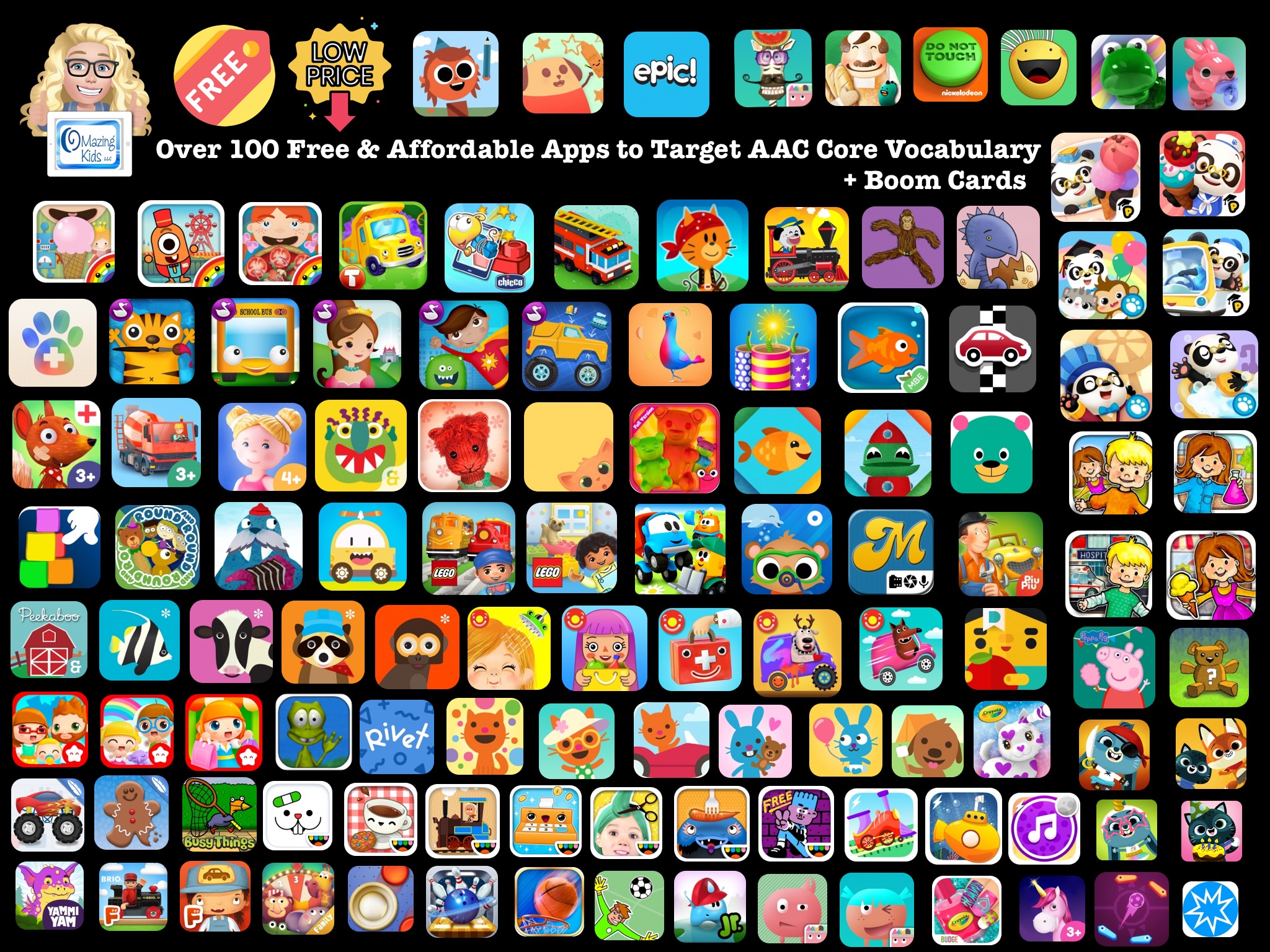
Over 100 Free & Affordable Apps + Boom Cards to Target AAC Core Vocabulary
The main thing I look for when searching for apps to use for targeting core vocabulary for AAC users are open-ended play, book or sticker apps that are intuitive, have large engaging graphics, are ad-free, have the option to toggle off any background music or it is very subtle (not over stimulating) while still leaving on any sound effects or voiceovers and any outside links are well hidden behind a parental gate. You can use these apps to target the same core vocabulary that you would with a “real” toy or activity. Think of it as the “virtual” version of that. Lock the “play” iPad into the app that you have selected by enabling Guided Access. If the child is using an iPad as their “talker”, then it is also locked into their AAC app via Guided Access.
Prices, availability & device/iOS compatibility were all checked in the USA App Store and website links were all working at the time this post was written (5:00pm CST on 7/22/20). Prices may vary outside the USA based on the exchange rate.
Some of these apps may not be available for download on your device if you are not running the minimum required iOS.
Many of these apps are “iOS Universal”. Those can be used on an iPad, iPhone or iPod Touch.
Some apps have IAPs (in-app purchases) for additional items. So after you have installed those apps and purchased anything that you wanted be sure to adjust the settings on your iPad to prevent unintended purchases.
All of the apps on this list were priced at $3.99 or less at the time of this post… and a lot of them are FREE:
Eat Bird Eat by Hamba Studio Ltd., https://apps.apple.com/us/app/eat-bird-eat/id1505275863, iOS Universal, iOS 9.0 or later, FREE. Simple tapping game. Avoid the rocks and bombs. The rocks make the bird’s belly shrink and the bombs make it fall over. Reminds me a little of avoiding bombs in Fruit Ninja. The goal is to make the bird eat until it’s full. Each round is short, nice vivid colors and there isn’t any background music or sounds. Would be fun to target Core Vocabulary (eat, go, stop, big, my turn, wait, fast, slow, etc…).
LEGO® DUPLO® WORLD by StoryToys Entertainment Limited, https://apps.apple.com/us/app/lego-duplo-world/id1458749093, iOS Universal, iOS 9.3.5 or later, FREE (includes the Number Train & Creative Building areas, has several IAPs for additional content but enough free content is included and is well designed)
Rivet: Better Reading Practice by Area 120 by Google, https://apps.apple.com/us/app/rivet-better-reading-practice/id1405632917, iOS Universal, iOS 11 or later (can use on older iOS if previously purchased it), FREE. Lots of great early readers with opportunities to target Core Vocabulary. I love that you can tap on a word to see a simple definition & record yourself saying the word. The speech recognition capabilities appear to be accurate so SLPs will enjoy trying it out. More advanced readers are available and books are available in English & Spanish. I also like that it saves books to “read again” and you can tap a star to save a book to your “favorites”. I’m finding this app much easier to search, navigate and use than Epic…. and it’s always FREE. See more info: https://rivet.area120.com. Android: https://play.google.com/store/apps/details?id=com.area120.studybuddy.sagaflutter, Amazon: https://www.amazon.com/gp/product/B07V7GYNCK. They are also working on a web-based version but it is still in beta… not full featured yet and crashed several times when I tried to use it in Safari on my iPad. So I’d stick with the app. update 3/12/23: missing from the App Store
Spark Speech – Core Verbs by Jesse Emling https://apps.apple.com/us/app/spark-speech-core-verbs/id1534629064, iPad only, iOS 12 or later, $1.99 (9 mini books targeting the following verbs: go, stop, turn, push, pull, make, open, close, play; there are no voiceovers)
Super Hen Hunt – Maze for Kids by Busy Things Limited, https://apps.apple.com/us/app/super-hen-hunt-maze-for-kids/id1269053210, iOS Universal, iOS 8.0 or later, $1.99. Fun way to target Core Vocabulary (go, turn, look, open, help, open, etc…) plus directional concepts (forward, back, right, left).
2. Install the free app on your iPad. Boom Cards by Omega Labs, https://apps.apple.com/us/app/boom-cards/id1041141473, iOS Universal, iOS 10.0 or later, FREE). If you use an Android tablet look for the app in the Google Play App Store.
3. Then start searching through their store for Boom Card decks. There are lots of great free ones. Every Friday you can search by “flashfridayfreebie” and find several. But you can find others just by looking through the store. It’s kind of like Teachers Pay Teachers in that many of the creators have at least one free item. The “paid” ones are on a point system. Many of the sellers over on TPT also have Boom Cards there. When you download one there it will contain a link to unlock the deck over on the Boom Learning site.
4. I haven’t tried creating my own Boom Card decks yet so I don’t know how easy it is… I just recently started looking at them to see what all the buzz was about.
5. If you’ve followed my page for many years and have used lots of apps, Boom Cards seem to be the fad right now (like when apps first came out). But even the best Boom Card decks that I’ve seen aren’t anywhere near the quality of a well designed app. It will be interesting to see how sustainable Boom Cards will be since most of the folks are looking for free decks.
Looking for apps to target other goals?
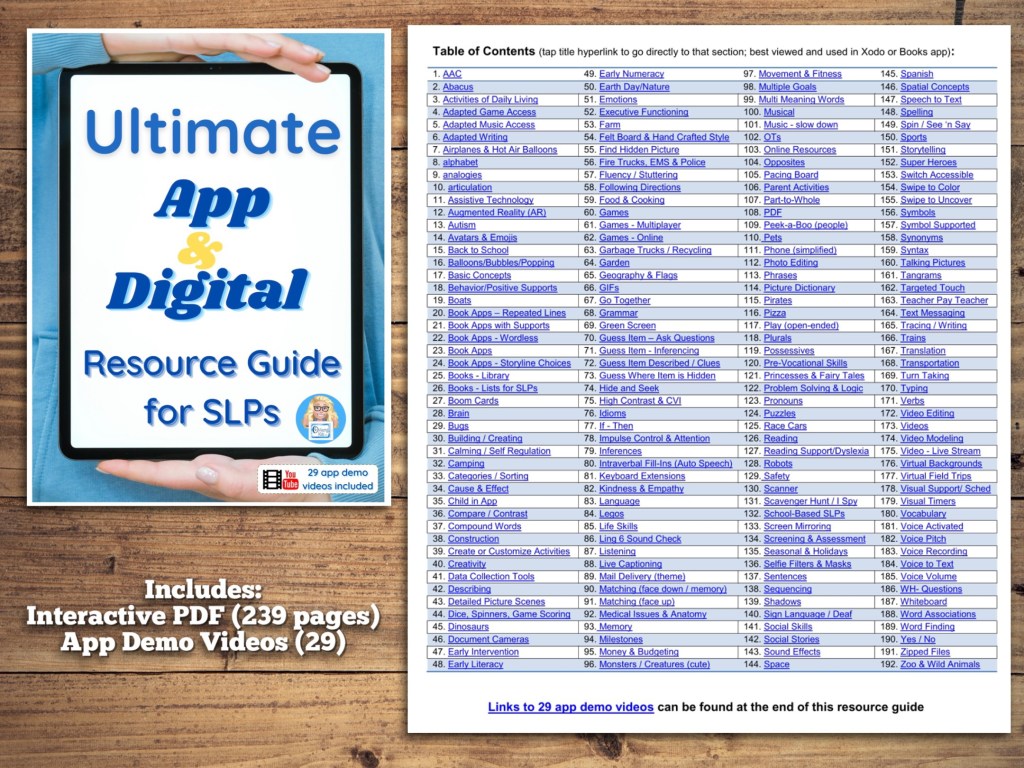
See the Ultimate App and Digital Resource Guide for SLPs(I’ll be working on doing the 2023 update for that soon. Anyone who has previously purchased it will be able to download the updated version when it’s available:https://bit.ly/UltimateAppDigitalResourceGuideSLP.
Interactive PDF(256 pages with linked Table of Contents) full of lists of hundreds of apps and digital resources organized by SLP goal areas and themes
App demo videos(links to 29 unlisted YouTube videos)
It took me quite a bit of time to compile this list so please mention OMazing Kids when sharing it on social media and do not copy/paste it onto other blogs or documents or upload it to servers. I have it available here on my blog and plan on keeping my blog up for the foreseeable future.
updated 3/12/23:
Looking for in-depth AAC feature matching resources?See this blog post:https://bit.ly/5aacFeatureMatchingResources. That post also includes videos comparing AAC apps on various devices on various platforms.