Angela Moorad, MS, CCC-SLP. Over 36 years experience in AAC. OMazing Kids AAC and app consulting. Creator of several AAC Feature Matching resources (https://omazingkidsllc.com/omazing-kids-aac-resource-links/). Includes info about unique features to support Gestalt Language Processors
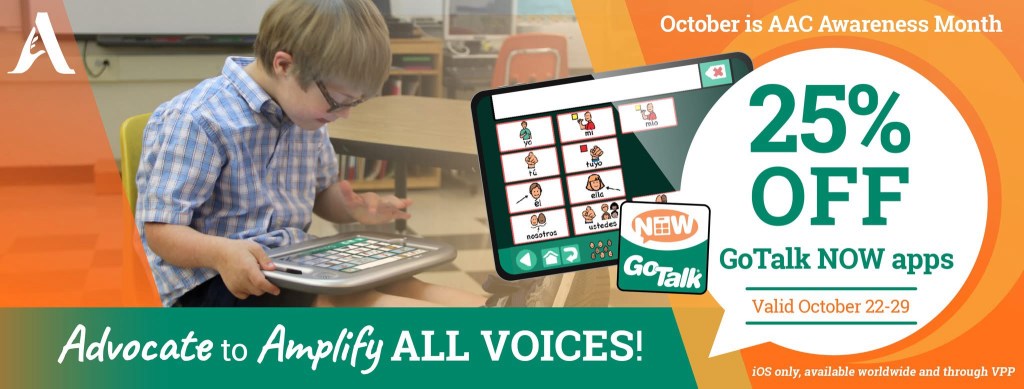
If you are looking for an AAC option that will reliably and easily include videos and music files stored on that iPad that have been linked to play on a button then GoTalk Now is a tool that you should consider adding to your AAC toolkit.
When you export a Communication Book from GoTalk Now (or GoTalk Now Plus) using the “Share Compressed Book” option it fully embeds and includes all videos, music files, recorded audio, photos, etc.. and reliably includes those when backing up and sharing.
That’s why I recommend GoTalk Now (or GoTalk Now Plus) as a supplemental tool in the AAC toolbox for those who will be using lots of video clips or music.
Note: The free GoTalk Now Lite and inexpensive GoTalk Start versions of this app do not have a way to backup or share.
Feel free to join my GoTalk Now AAC & GoVisual Visual Scene Apps – Ideas and Sharing Facebook Group:https://bit.ly/GoTalkNowAACappGroup. There are now two staff from Attainment Company, Inc. in the group.
Be sure to answer the questions when requesting to join and if you invite folks to join be sure they answer the questions. That’s how I keep the group secure from spammers.
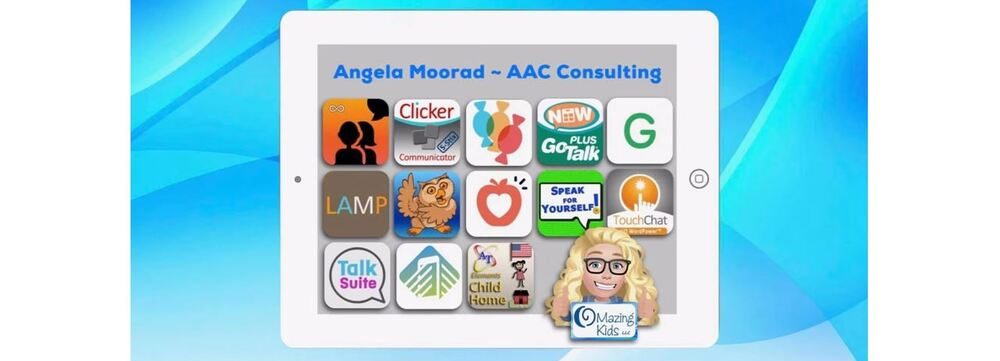
Looking for in-depth AAC feature matching resources? See this blog post: https://bit.ly/5aacFeatureMatchingResources. That post also includes videos comparing the best AAC apps on various devices on various platforms.
Jennifer from N of 1 recently shared a story in a Facebook group about how a child used Google Maps to communicate. Mind blown 🤯 I had several students/patients/clients who LOVED maps, addresses, countries and flags. At the time I knew that those served a purpose for self-regulation and pleasure. It makes my heart sad though to think that I may have missed communication via what they were looking up on Google Maps or Google Earth. There are definitely times I wish I had a time portal to go back with knowledge that I have now.
After sharing this on my OMazing Kids AAC Consulting Facebook page and subsequent shares on other pages and groups, I’ve seen LOTS of parents & SLPs share stories about their kids doing this to communicate very specific things. Totally amazing!
This got me digging through all of my AAC apps to see which ones either have a button action or opening a website URL to allow Google Maps to be opened within the app and/or that app supports use of Split View or Slide Over to allow this. If you have a specific model of iPad Pro or iPad Air with M1 chip you might also be able to use othermultitasking options in Stage Manager (my iPad Pro 9.7” is still on iOS 10.3 so that’s too old for the most current versions of most AAC apps or to use Stage Manager)
CoughDrop (in the app: via URL; used in Safari browser: could also use Split Screen)
Dialogue AAC (specific button action for this or via Split Screen)
GoTalk Now (via URL)
LAMP Words for Life (specific button action for this)
Niki Talk 2 Pro (via URL)
Proloquo2Go (via Split Screen)
Speech Assistant AAC (via Split Screen)
TouchChat with WordPower (specific button action for this or via Split Screen)
Etc…
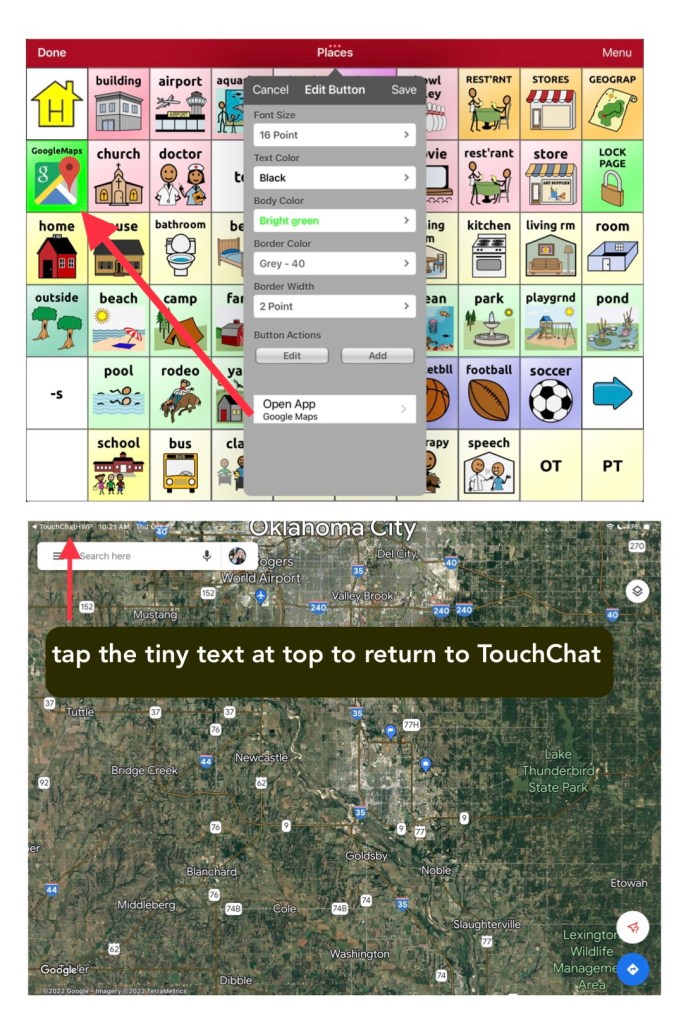
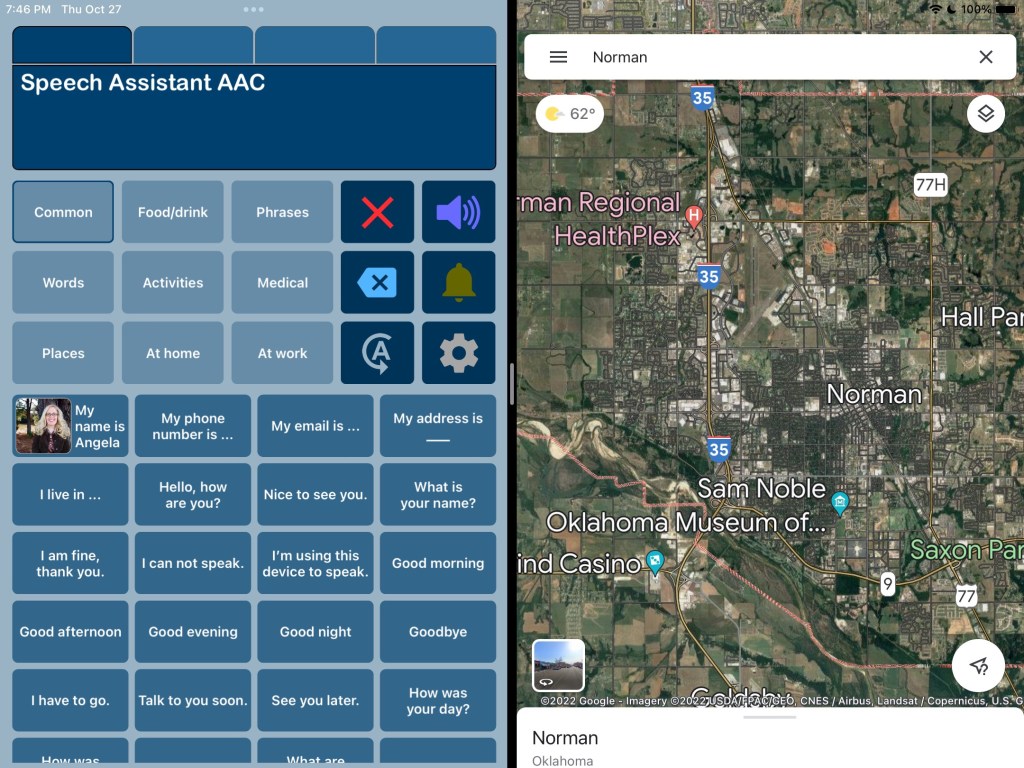
Here are screenshots showing the two different ways to do this in TouchChat with WordPower:
TouchChat with WordPower (WP60 Basic) in Split View with Google MapsTouchChat with WordPower (WP60 Basic) where I added a button for Google Maps under Places and used the specific button action to open the Google Maps app.Speech Assistant AAC in Split View with Google Maps
The easiest option was Split Screen and it allows Google Maps and the AAC app to be on the screen at the same time but only a few AAC apps support use of Split Screen. Split Screen will alter the size of the buttons in that AAC app so it might be tricky when using large grid sizes.
The second easiest option was the specific button action within the three AAC apps by PRC-Saltillo.
Apps that allow you to program a button to open a website URL were a bit finicky / tricky to get it to work. I’ll be adding tips in the feature matching resources.
Another alternative is to use a second iPad or tablet or laptop with Google Maps / Google Earth that can be viewed alongside their AAC device or iPad or tablet being used for AAC.
In-depth details about this will be coming soon. I’m working on this month’s update for my AAC feature matching resources and am adding that info in two new rows. So be watching for it in a few days.
Important Notes:
I’m exploring these as ways to supplement (not replace) how an individual is already using Google Maps. It’s likely that a Gestalt Language Processor already has a well established “gestalt” for how they like to do that but it’s likely that adding this to their AAC system might be something that would spark interest and resonate with them.
I’d only explore this for individuals who have an interest in this. There is no “one size fits all” to anything about AAC. I’m NOT suggesting that we need to add access to Google Maps for every AAC user or even for every GLP who uses AAC.
Guided Access will likely block these methods of using more than one app on an iPad.
AAC Feature Matching Resource Bundle (includes all three, save 10%): https://bit.ly/aacFeatureMatchingBundle. If you are looking to purchase resources for several staff / team members, take a look at the Multiple Licenses discount (saves 20%)
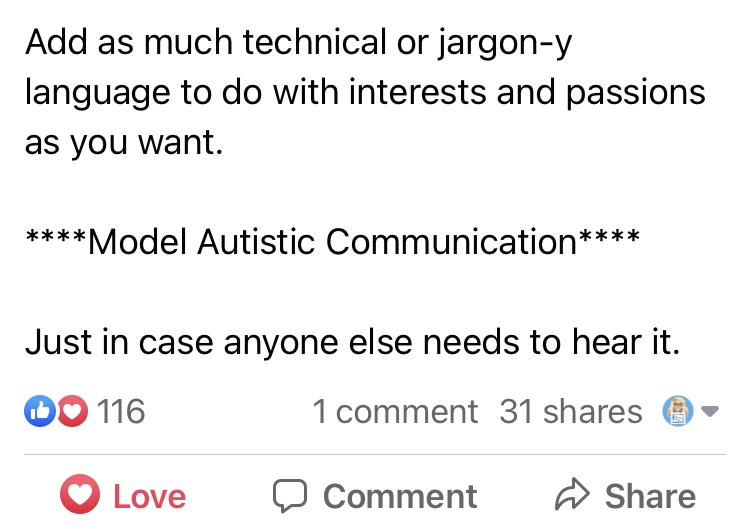
The power of truly embracing and incorporating individual interests into an AAC system and AAC implementation plus customizing for unique needs cannot be overstated.
It is a respectful neurodiversity affirming practice that
builds connections
fosters AAC ownership
resonates with them
allows for authentic communication
AAC systems and many AAC implementation strategies were designed with Analytic Language Learners in mind.
There are things that can be done to personalize an AAC user’s device that don’t involve changing any of the layout. I’ve seen way too many kids, teens and young adults who were deemed “unable” or “not ready” to use AAC or who showed little to no interest in using it until we involved them in choosing and in customizing an AAC system that resonated with them. What sparks that interest and joy is highly individualized but when you experience that it’s magical.
While we don’t yet have “scientific research” related to AAC for Gestalt Language Processors, we do have Clinical Expertise and Client/Patient/Caregiver Perspectives.
Combine good AAC practices (presume potential, form authentic connections, engage in fun child-led activities based on their unique interests, accommodate sensory needs, model AAC use without demands, etc.) with a Natural Language Acquisition approach.
And read this The North Star and the Compass Facebook post with Canva links: A year in the life of one creative communicator (Speak for Yourself, Pictello, Spotify, Proloquo2Go as AAC). How do you truly follow a kid’s lead when they do unexpected things with their AAC?
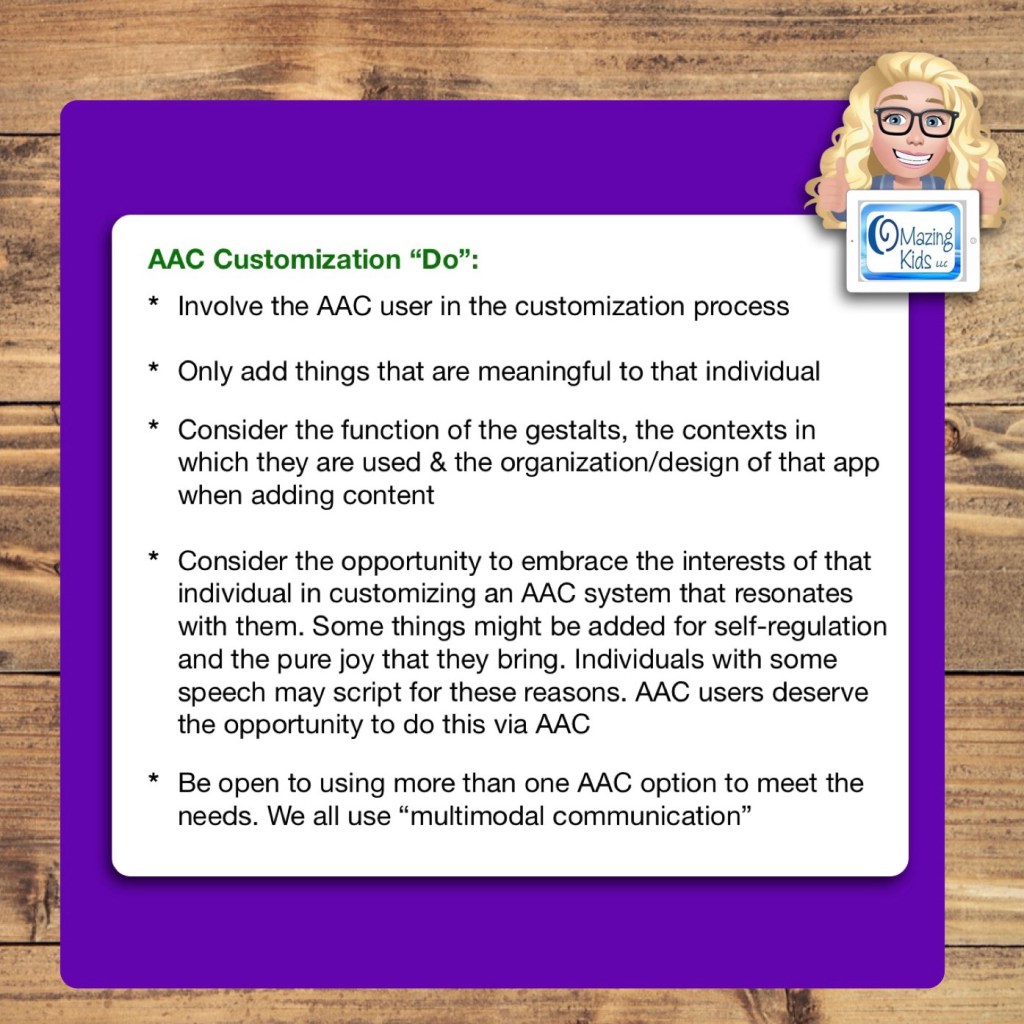
Only add things that are meaningful to that individual
Consider the function of the gestalts, the contexts in which they are used & the organization/design of that app when adding content
Consider the opportunity to embrace the interests of that individual in customizing an AAC system that resonates with them. Some things might be added for self-regulation and the pure joy that they bring. Individuals with some speech may script for these reasons. AAC users deserve the opportunity to do this via AAC
Be open to using more than one AAC option to meet the needs. We all use “multimodal communication”
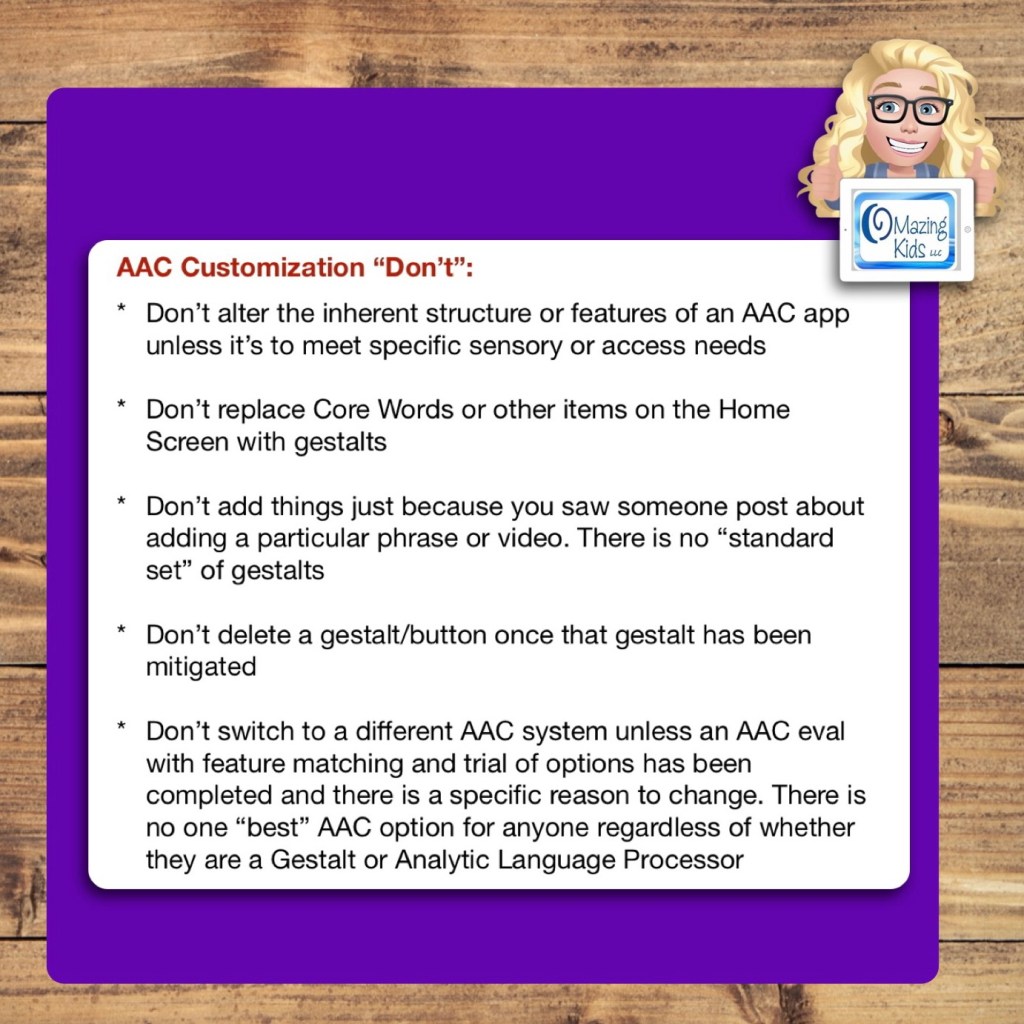
AAC Customization “Don’t”:
Don’t alter the inherent structure or features of an AAC app unless it’s to meet specific sensory or access needs
Don’t replace Core Words or other items on the Home Screen with gestalts
Don’t add things just because you saw someone post about adding a particular phrase or video. There is no “standard set” of gestalts
Don’t delete a gestalt/button once that gestalt has been mitigated
Don’t switch to a different AAC system unless an AAC eval with feature matching and trial of options has been completed and there is a specific reason to change. There is no one “best” AAC option for anyone regardless of whether they are a Gestalt or Analytic Language Processor
Want to learn more about AAC feature matching (comparing features and matching them to an individual’s needs)? Check out the three feature matching resources: https://bit.ly/3aacFeatureMatchingResources. The feature matching resource for the symbol-based AAC apps includes a free supplemental handout “Unique Features in Symbol-Based AAC Apps to Support Gestalt Language Processors”. It has info related to all 12 apps + additional info about features in 8 free and affordable symbol-based AAC apps (mainly iOS, some Android and a couple of Windows) priced $2.99 or less.
Looking for a customizable non-tech printable AAC flip book? See my resource “TD Snap: a visual guide to getting started”. It includes free Bonus Content: access to a 10 page printable AAC flip book specifically designed with Gestalt Language Processors in Stage 1 – Stage 2 of the Natural Language Acquisition (NLA) process in mind + the option to request an editable version in TD Snap. The free bonus handout includes instructions for printing, cutting out and assembling + a video): https://www.teacherspayteachers.com/Product/TD-Snap-a-visual-guide-to-getting-started-more-bonus-AAC-flipbook-7445593
Looking for in-depth AAC feature matching resources? See this blog post: https://bit.ly/5aacFeatureMatchingResources. That post also includes videos comparing AAC apps on various devices on various platforms.





 OMazing Kids AAC Consulting