Angela Moorad, MS, CCC-SLP. Over 36 years experience in AAC. OMazing Kids AAC and app consulting. Creator of several AAC Feature Matching resources (https://omazingkidsllc.com/omazing-kids-aac-resource-links/). Includes info about unique features to support Gestalt Language Processors
One of my favorite books for this time of year is “There Was An Old Lady Who Swallowed Some Leaves”. If you want free printable story props see this post: https://bit.ly/2FFaRy2.
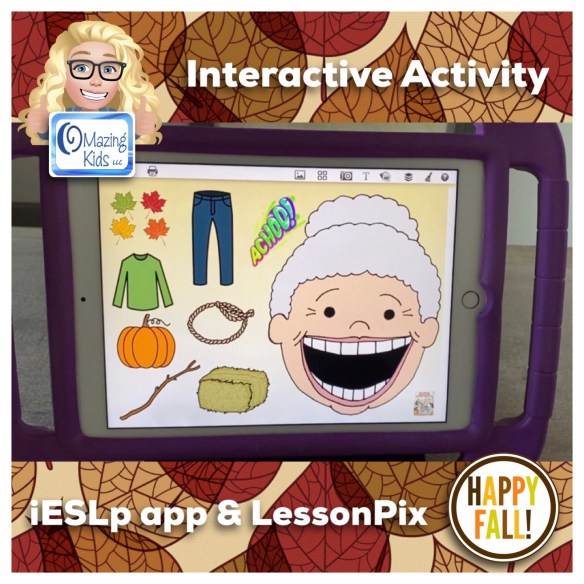
Want a super simple way to make an interactive activity to use on your iPad or to print? Check out the iESLp app by Irmgard Raubenheimer, https://apps.apple.com/us/app/ieslp/id912953895, iPad only, iOS 8.3 or later. A bargain for $19.99 (no subscription required & the app includes a huge library of SymbolStix symbols).
I didn’t see an “Old Lady” symbol that would work for feeding the items so I exported one from LessonPix in PNG format (transparent background), saved it to my Camera Roll and then imported it into iESLp. LessonPix working on mobile devices is a game changer (https://lessonpix.com).
I also imported a PNG “Achoo!” clip art that I found online.
Here’s a quick video to show what the finished activity looks like in use.
See this post for a video screencast showing how to export a picture from LessonPix:
Here’s the next section that’s finished in my new list of apps for SLPs list by goal areas. Like all of my app lists… this is a curated list of apps that I have personally used. I’m going ahead and sharing it now since 2020 has been especially uncertain and stressful.
– These apps are intended to be used as tools alongside other off-device strategies. Feel free to look through the archives here on my blog and the albums on my OMazing Kids Facebook page. I have shared lots of ideas over the years 😊.
– It is important to be mindful of individual needs, sensory issues and history of previous trauma when choosing any tool and to collaborate with other professionals on that child’s team.
– Availability and links were all checked at the time this post was written (6:45pm CST, 8/28/20; updated 11:00am CST 9/18/23)
– Availability may vary outside of the USA. You can check iOS requirements for each app in the descriptions in the App Store. Some older apps may not work on newer devices and newer apps may not work on older devices.
– This post includes a mix of free & paid apps.
– I worked with kids, teens and young adults ages birth to 21 years so I have a wide range of apps on this list. Please choose apps that will fit the age and needs of the patients / students you serve.
– If you have an Android device, the easiest way to see if one of these is available on that platform is to copy the name from this list and do a search on the Google Play app store.
Wellbeyond Meditation for Kids by Wellbeyond Inc., https://apps.apple.com/us/app/wellbeyond-meditation-for-kids/id1082891966. Very nicely done! Great hand painted illustrations, short guided relaxations with pleasant voiceovers & gentle music. It is worth its weight in gold! I used it with several patients who had limited means of self regulating and they immediately calmed down and stopped self-injurious behaviors.
There will be a separate section on the big blog post for Social Skills & Emotions.
Want to suggest an iOS app to be added to this post? The best way to reach me is via Facebook messaging over on my OMazing Kids page.
If it’s a free app, please send the link from the USA App Store so I can download and try it out. If it’s a paid app and you are the app developer, please send the link from the USA App Store so I can look at the info before you send a promo code. I want to make sure that one of my iPads or iPhone is compatible in order to try it out.
Please do not copy/paste this list onto other blogs or documents. I have it available here on my blog and plan on keeping my blog up for the foreseeable future.
This post is dedicated to iOS apps and mobile-friendly websites that can be used to make printable communication boards, communication symbols, pictures for visual schedules, visual supports, therapy materials, etc… I’ve also included info about Android options but since I don’t own any Android devices I can’t comment on how well they work on that platform.
It’s 2022… we are all busier than ever and need to be able to make these printable items all from the convenience of our iPad or iPhone (not having to sit at a computer). Imagine creating things in the middle of a therapy session and then being able to email them to a parent or sending them wirelessly to a printer. It’s a common request that I see from busy SLPs especially during the pandemic so this post was inspired by you.
Looking for a web-based option that CAN be used on an iPad or iPhone? (or any device on any platform)
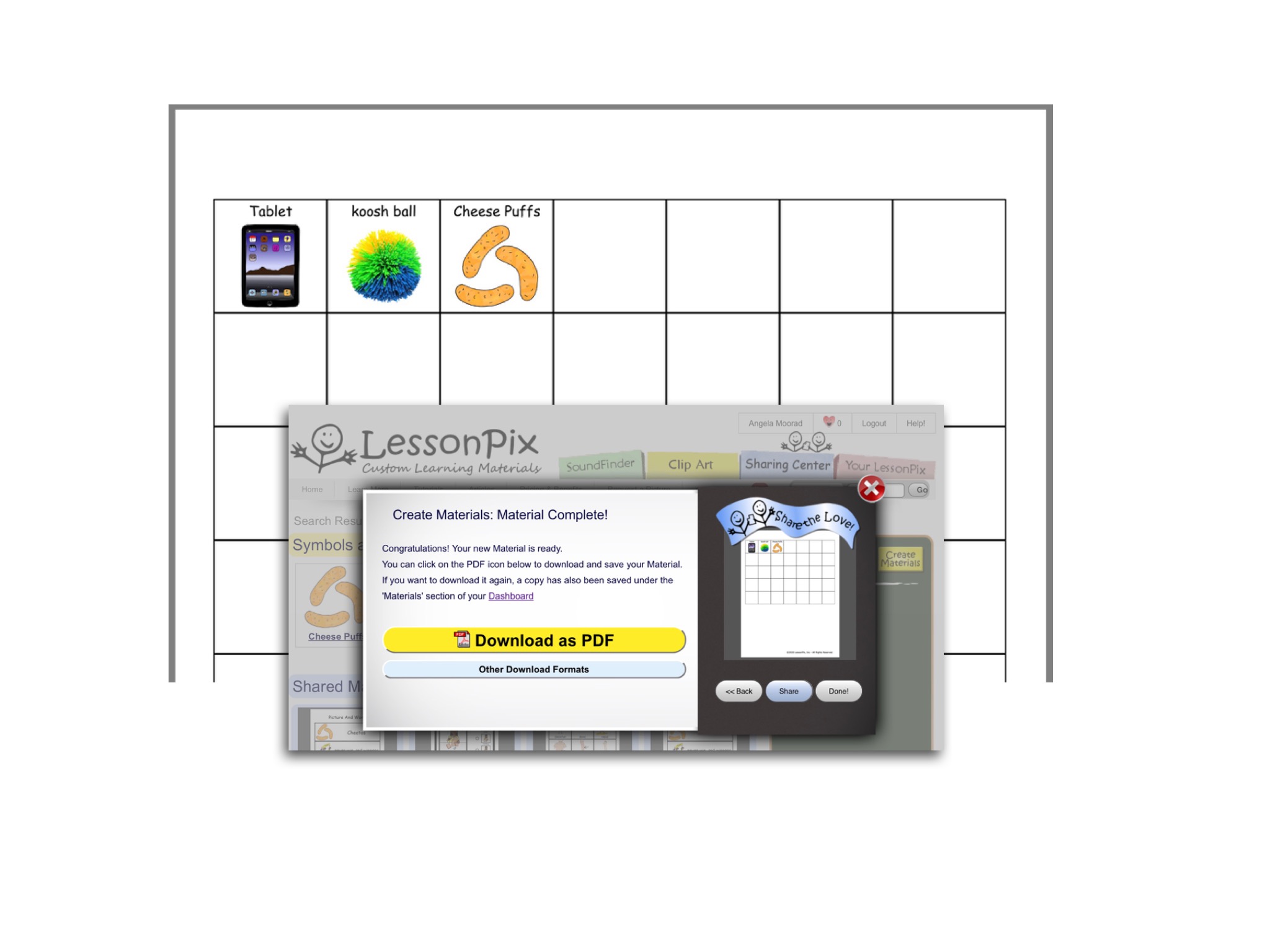
LessonPix has recently updated their website to be mobile-friendly and are frequently adding features SLPs are needing for teletherapy / distance learning (https://lessonpix.com/m/). It’s so cool to be able to create things from my iPad or iPhone! Since it is web based it can be used on any device regardless of the platform.
Hundreds of templates to make custom materials (https://lessonpix.com/articles/4/Articles/Custom+Materials). It’s especially handy to make materials to adapt commonly used games such as Cranium Cariboo, Guess Who?, Headbandz & Zingo.
Vector images that can be scaled to any size without pixelating or becoming grainy.
Images are available in color, stencil or outline (black & white).
SLPs will especially LOVE the Sound Finder, Letter Finder, Pattern Finder (find words for specific syllable shapes – CVC, CV, VC, etc), Number of Syllables, Rhymes With and Minimal Pairs options
Save your image tray as a collection to easily reuse later.
LessonPix add-ins for Microsoft Word and PowerPoint. Don’t have a new enough version of MS Office or work in a setting where your IT department blocks add-ins? You can copy and paste items from LessonPix into these documents. The moveable game pieces, spinner and dice in PowerPoint looks really helpful for those doing distance learning / teletherapy.
New Play Tools side bar. The “Play” tab on their PowerPoint add-in has been a huge hit, allowing SLPs and teachers to share custom Dice, Spinners, Draw a Card and more with their remote clients. Those of you not using PowerPoint need the same tools… so they just added a stand-alone version of the Play Tools that you can launch as a separate window. That means it will work with ANY platform you’re using. See this video for details:
Can be used in Google Slides and Jamboard.
Sharing Center with access to lots of items other folks have created and shared. Love how it’s organized.
This is just a brief overview of what you get with LessonPix. I’m totally hooked after trying it for several days. I can definitely see why so many SLPs love LessonPix!
So I hope you add LessonPix to your therapy toolbox. But you may need a few more tools. What about situations where you may not have internet access or need other types of symbols? Keep reading…. there are several iOS apps that are affordable (some are even free):
Here’s one that’s easy to use and very affordable:
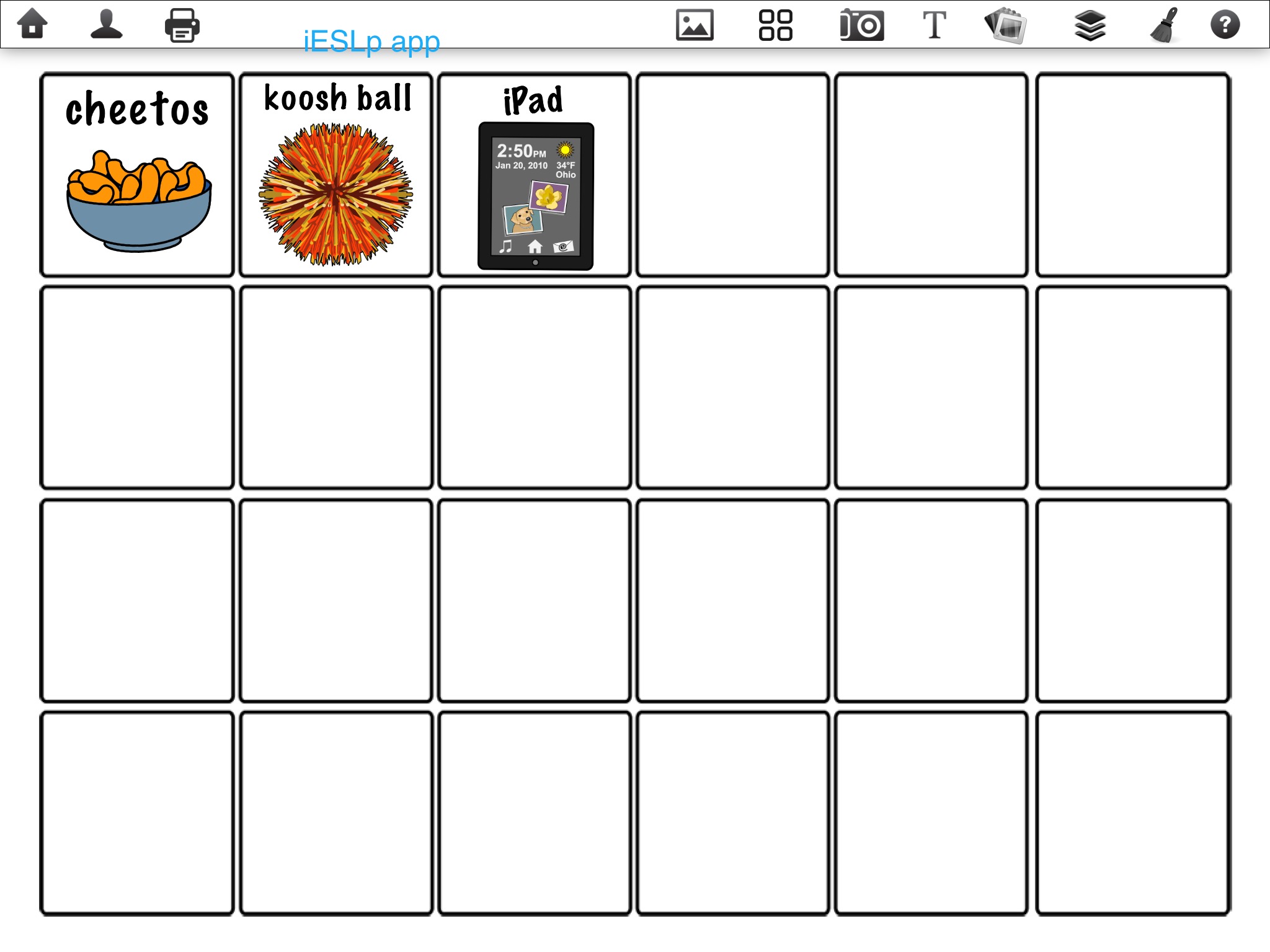
iESLp by Irmgard Raubenheimer, https://apps.apple.com/us/app/ieslp/id912953895, iPad only, iOS 8.3 or later, $19.99 (Updated 6/9/22: The app developer is in the process of updating the app to be compatible with iOS 15). Includes over 20,000 SymbolStix symbols plus you can import photos from your Camera Roll or use the in app camera. Can change the font, font size and font color. Has lots of templates for boards, game boards, grid templates and visual systems to choose from plus you can use several of them on one page and resize them. Pics can be any size you want. You can print from within the app or send the board as .jpg image attachment via e-mail. Can backup/restore via Dropbox. Unique in that you can also make interactive activities to use on your iPad and you can add recorded voice output. See my review: https://omazingkidsllc.com/2016/11/24/50-off-the-amazing-ieslp-app-create-your-own-interactive-and-printable-activities-visual-supports/. More info: https://ieslp.wordpress.com. Plus check out their Facebook page for several videos with creative ways to use the app: https://www.facebook.com/ieslpapp/.
Here’s one that’s also easy to use and has more robust features specifically for building communication board grids. It’s more expensive but well worth the price and a very affordable way to access PCS Symbols:
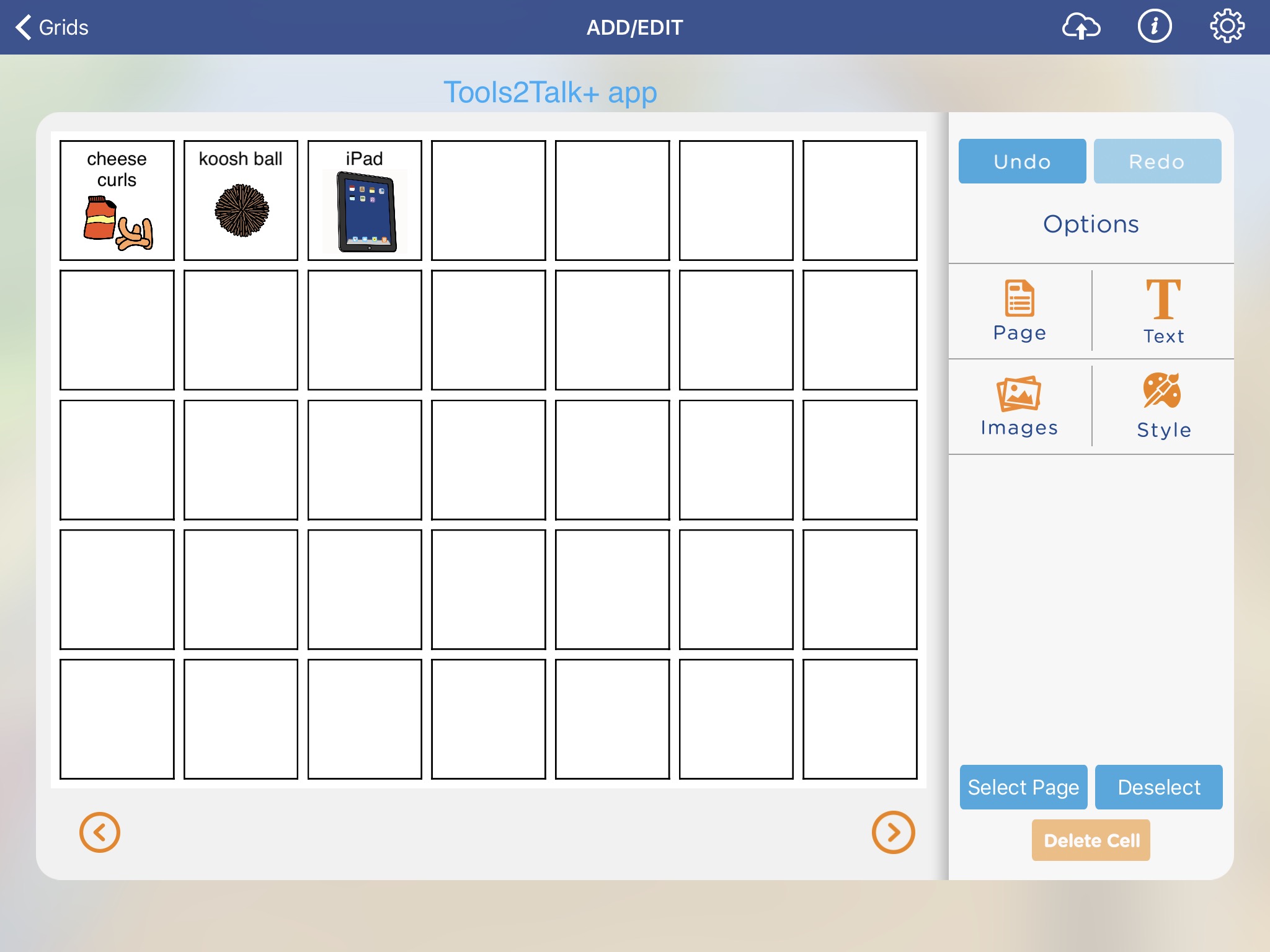
Tools2Talk+ Create your own communication aids and chat by Scope (Aust) Ltd, https://apps.apple.com/us/app/tools2talk-create-your-own-communication-aids-and-chat/id1074982035, iPad only, iOS 8.0 or later, $47.99 (Updated 6/9/22: This app is not currently available). Includes over 20,000 PCS symbols (PCS classic core symbols, PCS ThinLine (sets 1 & 2), PCS classic addenda, as well as PCS Australia and PCS New Zealand.) If you work with adults, look for the ThinLine symbols that have a more adult look to them. Also includes Compic symbols. Plus you can import photos from your Camera Roll or use the in app camera. Has several templates to choose from (ABC board, calendar, chores chart, communication book cover, communication book 1, communication book 2, daily timetable, first-then, personal communication dictionary cover, personal communication dictionary, personal history, phrase list, QWERTY, shopping list, weekly timetable, who’s here today). You can choose any grid combination using a row-column picker from 1-9, you can set a default font, font size and font color. You can print from within the app or send the board as a PDF attachment via e-mail. Unique in that you can also use these boards with text-to-speech voice output. This app is quite affordable compared to the price of Boardmaker software (Boardmaker v.6 for Windows: $399.00 + PCS Classic: 2000-2012 Addendum Bundle: $125.00 + PCS ThinLine Set 1 & 2: $260 = $784) or a Boardmaker Online subscription (Personal: $9.99 per month or $99.00 per year; Professional: $19.99 per month or $199.00 per year) and allows you to make things from the convenience of an iPad (this is a huge plus…. especially since Mayer Johnson has indicated that they are still not going to have iPad compatibility when they launch Boardmaker 7) and is much easier to use than the Snap Core First hack outlined below. See my review: https://omazingkidsllc.com/2016/06/19/app-review-tools2talk-an-affordable-way-to-access-pcs-symbols. More info: https://shop.scopeaust.org.au/shop/tools2talk-app/. Video overviews: https://youtu.be/YH6EBU96G6U & https://youtu.be/dzoUyxbtrBE (from the developer at TherapyBox). A longer video tutorial: https://youtu.be/cIDa5xUrdHQ. An archived webinar: https://www.callscotland.org.uk/professional-learning/webinars/WEB112/.
Thinking Outside of the Box: Two Creative Uses for Snap Core First:
Idea # 1: Use this free app as a tool to access PCS symbols to use in another app (especially helpful if you need the PCS High Contrast symbols).
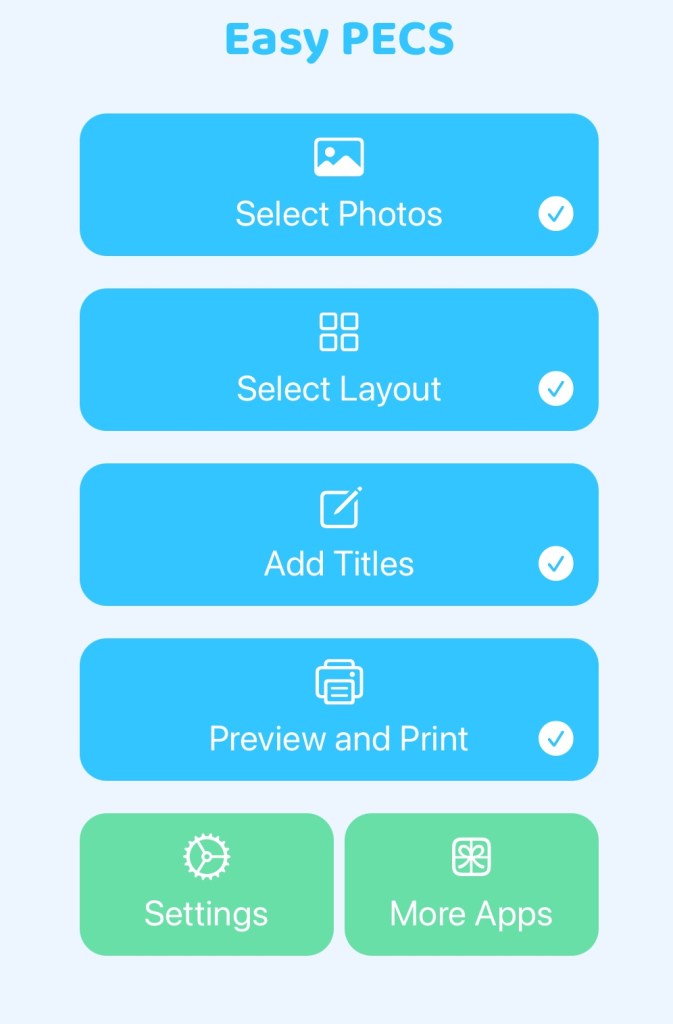
Idea #2: Use this free app as a tool to make printed communication boards, personalized core boards, PECS cards, symbol label cards, cards for visual schedules, visual sequences, story props and other visuals.
Here’s an option to consider if you want lots of templates for overlays for several mid-tech AAC devices as well as grids, game boards, etc. and would use it enough to be worth the cost of a subscription:
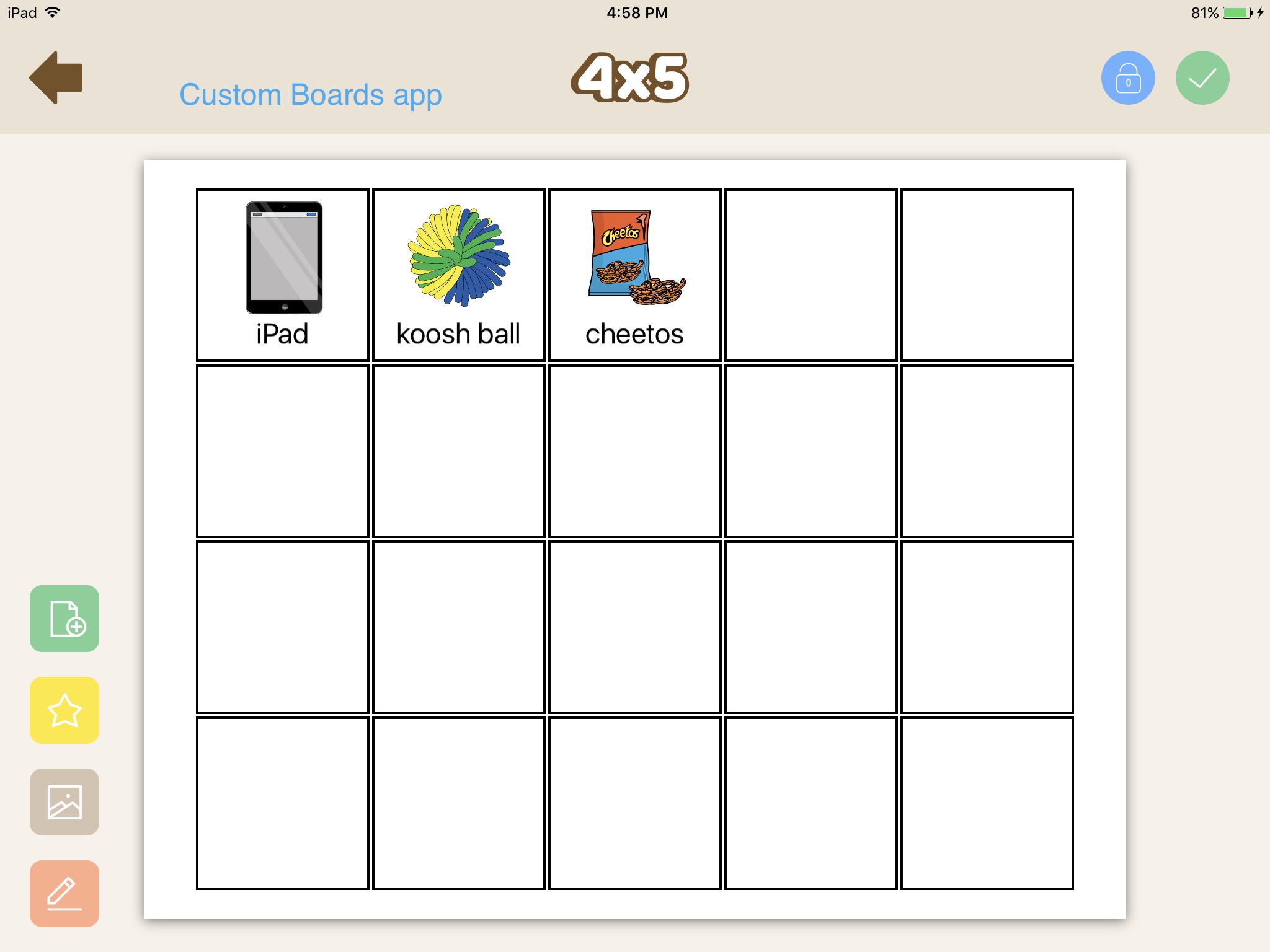
Custom Boards Elite by Smarty Ears, https://apps.apple.com/us/app/custom-boards-elite/id489935586, iPad only, iOS 10.0 or later. The app is free and has a 7 day free trial. After that ends, it requires a subscription via IAP ($9.99 per month, $49.99 per six months (= $8.33 per month) or $59.99 per year (= $4.99 per month). That’s similar to the cost of a subscription to their online Smarty Symbols website which is designed to work on a computer (not an iPad). See my review: https://omazingkidsllc.com/2016/12/14/review-smarty-symbols-image-club/). The description in the App Store shows other IAPs so watch for those. The app includes over 20,000 Smarty Symbols plus you can import photos from your Camera Roll or use the in app camera. More info: https://www.smartyearsapps.com/custom-boards/. Video tutorial: https://youtu.be/fTDKw44rK3c Smarty Ears used to offer a fully paid version of the app that didn’t require a subscription (Custom Boards – Premium, https://itunes.apple.com/us/app/custom-boards-premium/id463344117?mt=8) but it is no longer available for purchase. I own that app so I was able to compare it to the subscription version. The subscription version contains the same templates but offers more symbols (often with various skin tones and hair styles). Tip for finding symbols quickly: Instead of leaving it at the default “All-All-All”, pick a “All-Initial- and then the first letter in the word you are searching for.
Just looking for a very basic free option? There are several free AAC apps that aren’t specifically designed to make printable boards or symbol cards but can easily be used to do so. All involve taking a screenshot of the page and then printing that so I’m only suggesting ones that won’t take tons of ink to print and don’t have extra things besides buttons or those where that can be easily cropped off. Be sure to crop your screenshot before printing to save on ink.
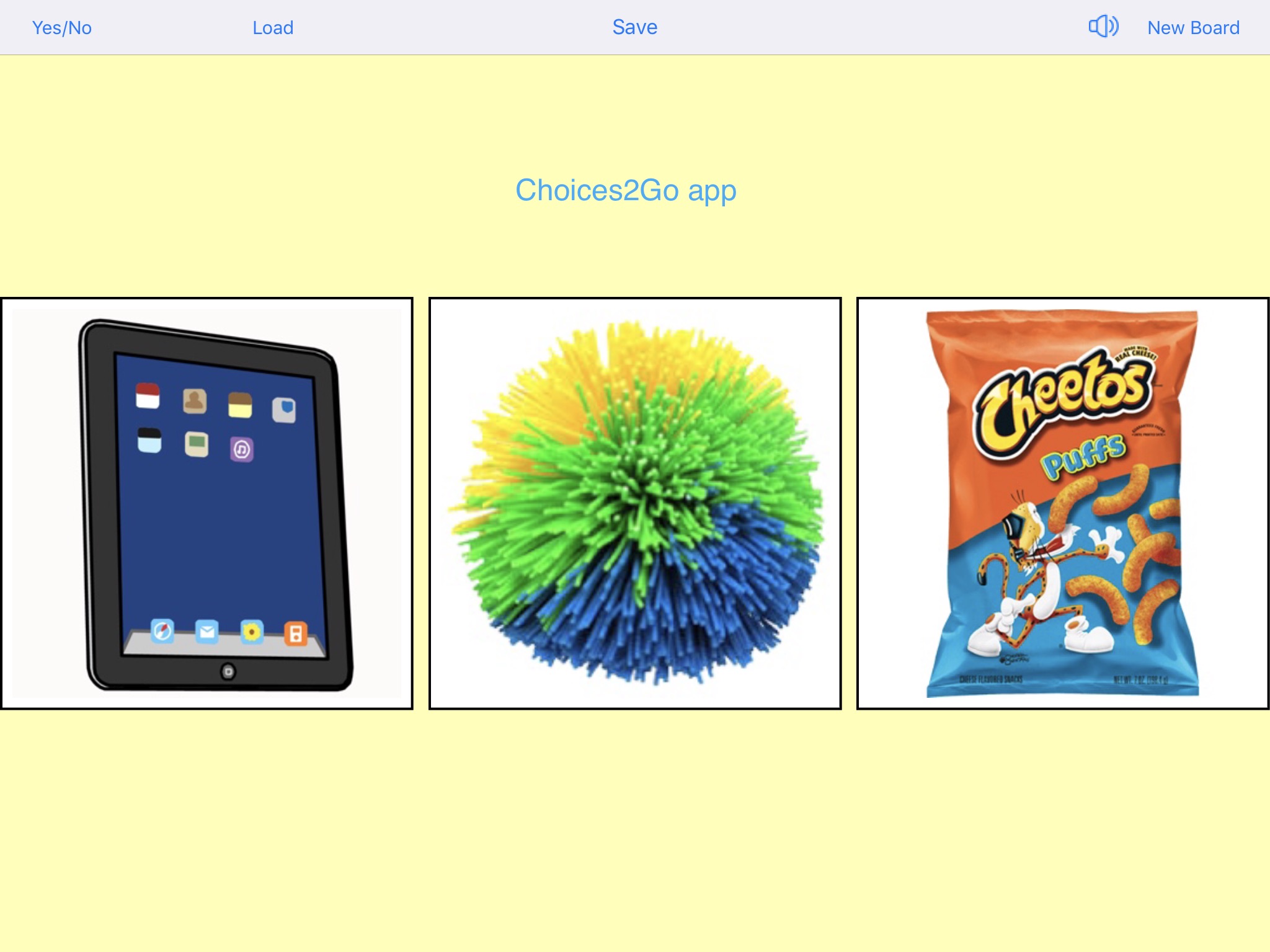
Choices2Go by University of Victoria, https://apps.apple.com/us/app/choices2go/id1182138316, iPad only, iOS 9.0 or later, FREE. You create boards by importing pics from an album on your Camera Roll. The number of pictures you select determines the picture size and number of pics on a grid (1, 2, 3, 4, 5 or 6). No way to add text to the buttons or to change the background color on the page (pale yellow). Take a screenshot, crop and print that.
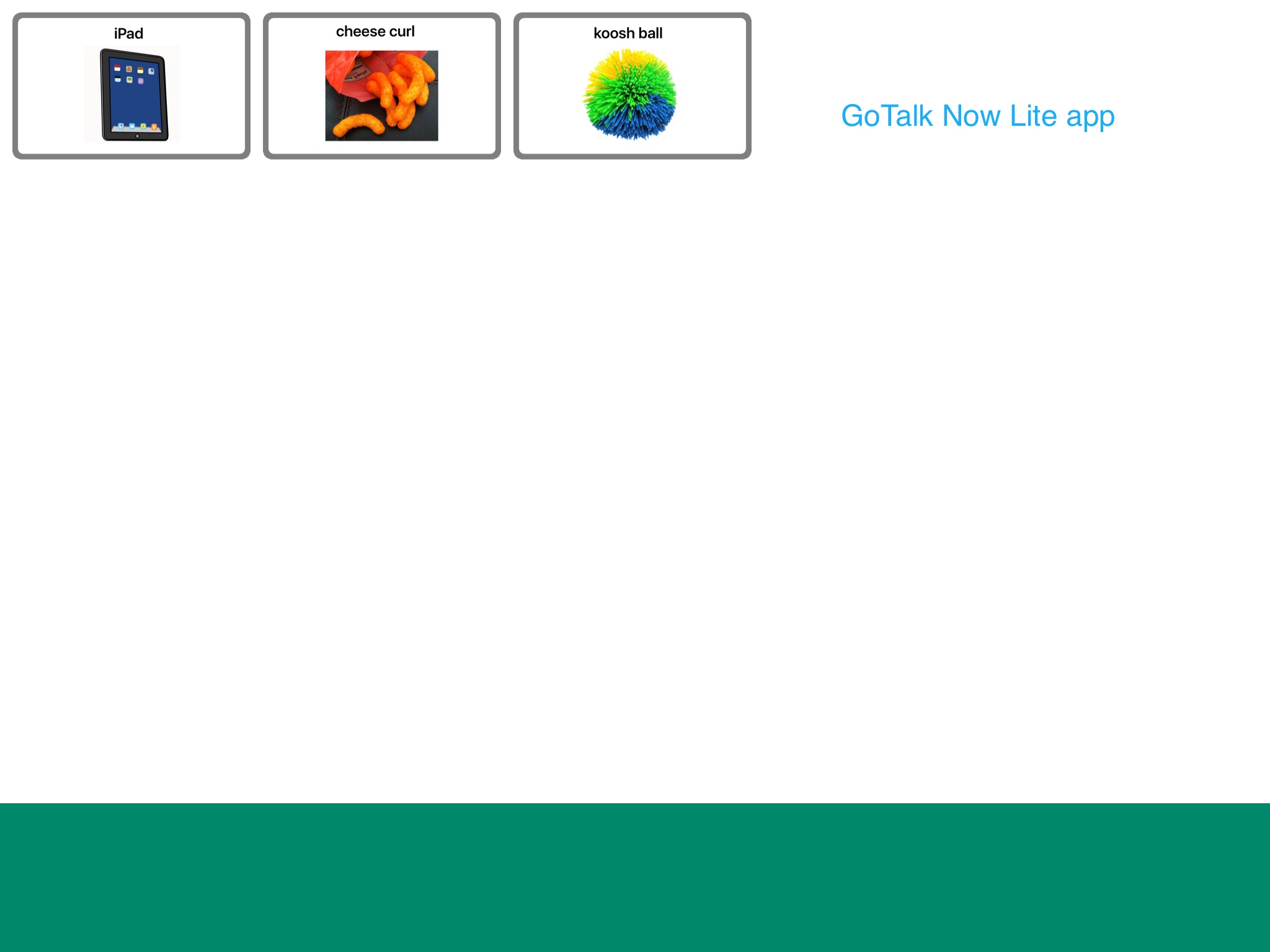
GoTalk NOW LITE by Attainment Company, Inc., https://apps.apple.com/us/app/gotalk-now-lite/id953164338, iPad only, iOS 9.0 or later, FREE. You can create one communication book with up to five pages and can have 1, 2, 4, 9, 16, 25, 36 or 49 buttons per page. This app is super easy to use. You can use images from their free library, do an internet search from within the app, take a photo from within the app and/or import pictures from your Camera Roll. You can change the border color on each button and change the font, font size and font color. This free lite version doesn’t have a way to export a PDF to print so I take a screenshot of a page, crop and print it. Works best if you set the page background and button background both to white to save ink when printing. I know there’s a GoTalk Start version that looks tempting since it’s priced at $19.99 but it doesn’t add the ability to export a PDF. I own the GoTalk NOW PLUS version of this app (https://apps.apple.com/us/app/gotalk-now-plus/id742150885) so I also have access to SymbolStix and PCS symbols and have used it frequently to make printable boards and symbol cards.
MyTalkTools Mobile Lite by 2nd Half Enterprises LLC, https://apps.apple.com/us/app/mytalktools-mobile-lite/id376401959, iOS Universal, iOS 9.3 or later, FREE. The app includes 6 pre-made boards (Adult Male lite, Adult Female lite, Child Male lite, Child Female lite, Hospital Rehab & Basic Starter) that can all be edited plus a Blank Board (up to 20 buttons – build what you want from scratch). Add/delete rows and columns on a page to get grid size you want. Import your own pictures. Take a screenshot, crop and print that.
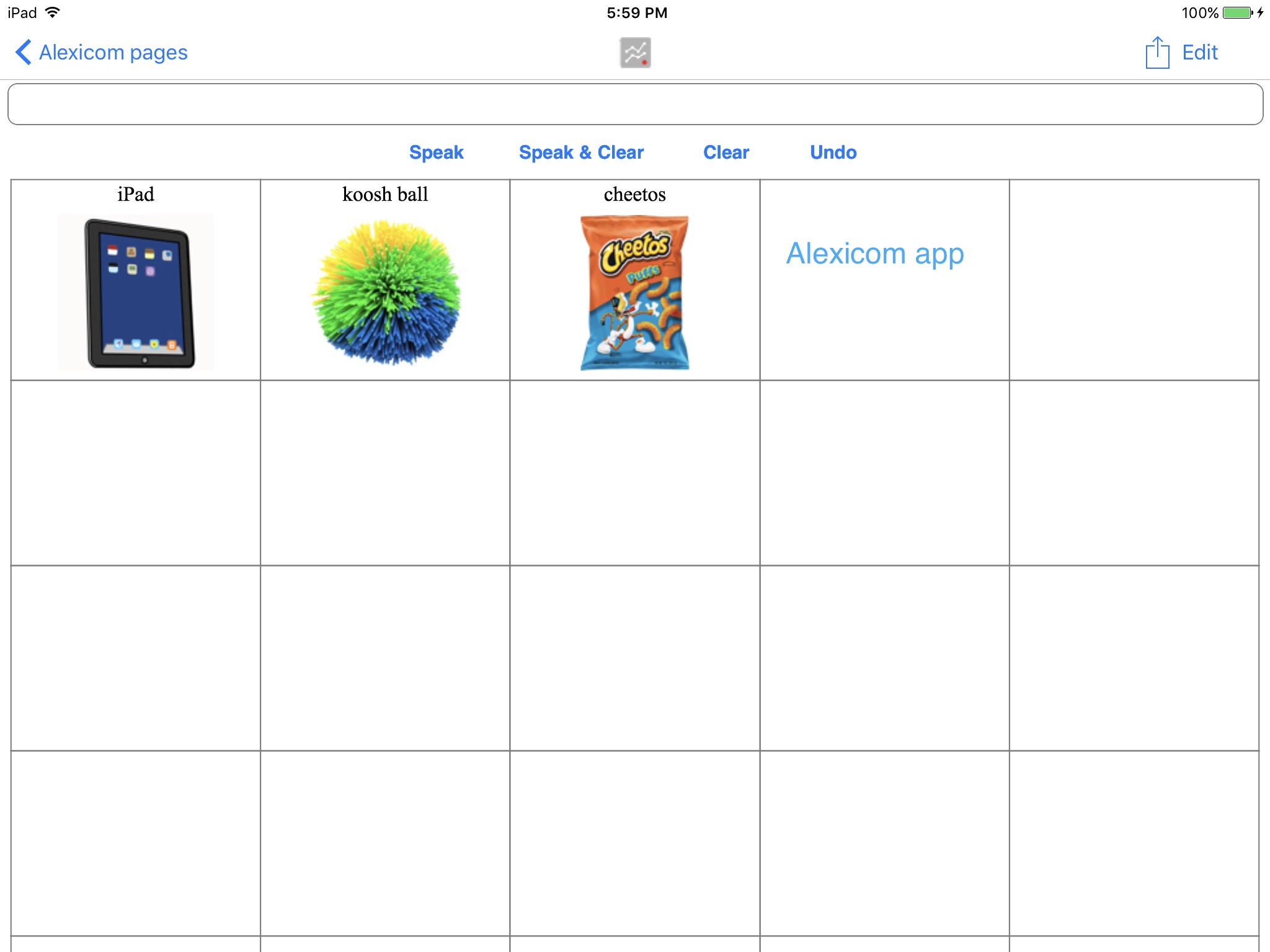
Alexicom AAC by Alexicom Tech LLC, https://apps.apple.com/us/app/alexicom-aac/id395122088, iOS Universal, iOS 14.0 or later, $0.99. Has content included or you can build your own board from scratch. You can create new pages and set the number of rows, number of columns & pic width. FYI…. if you tap on the “info” area and scroll all the way to the bottom there is a list of “pic width” numbers that work best with various combinations of rows & columns. This app developer also has several apps specifically designed for adults in medical situations. Those are all currently free and could also be used to make boards to print (https://www.alexicomaac.com/elements-apps). Take a screenshot, crop and print that.
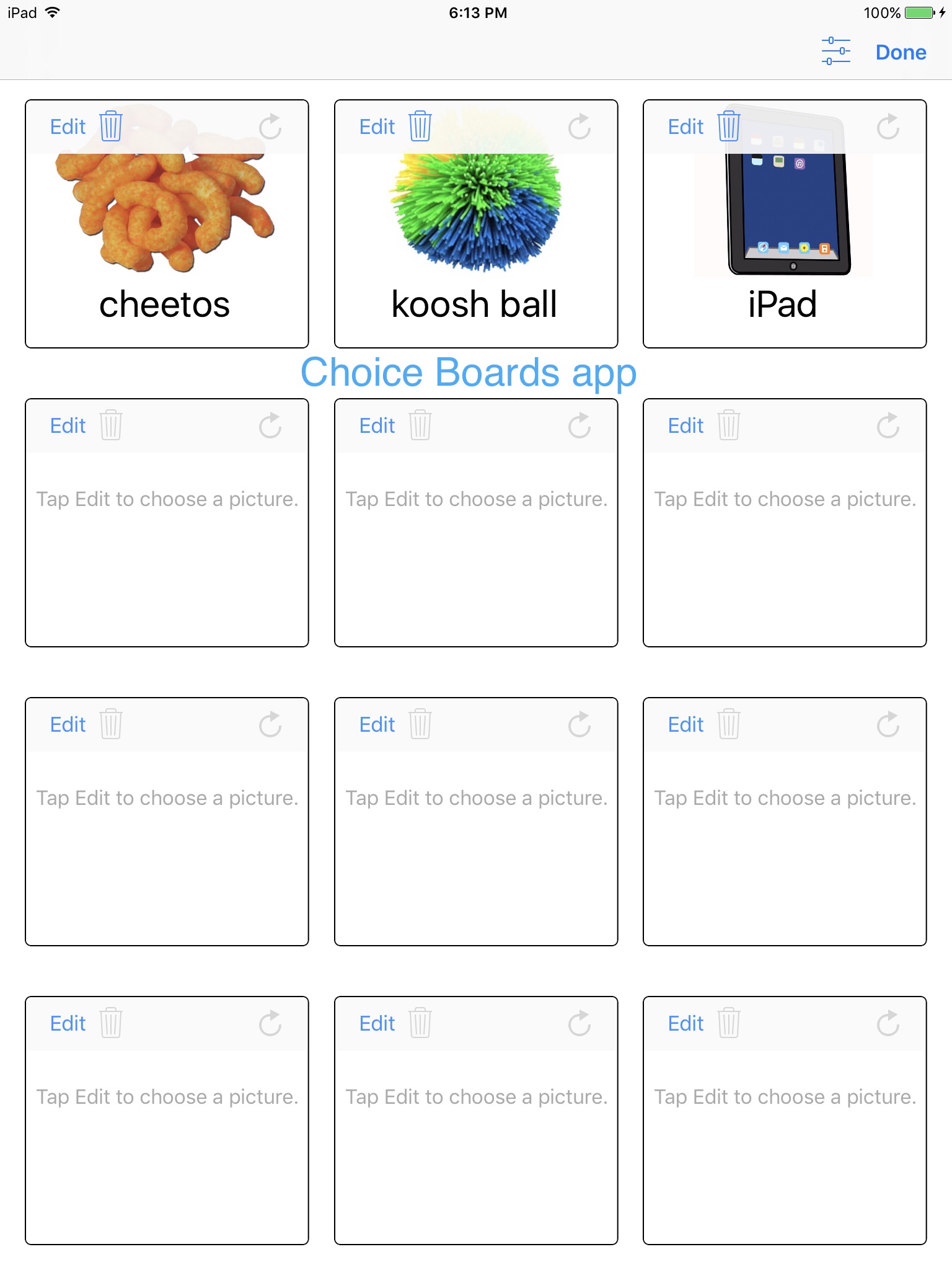
Choice Boards by Lukasz Wroczynski, https://apps.apple.com/us/app/choice-boards/id1059544273, iPad only, iOS 9.3 or later, FREE. Grid options are 6 or 12, only in Portrait orientation. No way to make larger pictures but you can choose to leave cells empty and that leaves blank space. Take a screenshot, crop and print that.
CoughDrop is an affordable web-based AAC open source option that can be used in a web browser online and works in apps across multiple platforms – iOS, Android, Amazon Kindle, Windows: https://www.mycoughdrop.com. They offer a free 2-month trial. After that it’s either a monthly subscription (currently $6.00 per month).
Info about pricing options: https://www.mycoughdrop.com/pricing. They often offer a 50% off discount on the Lifetime Subscription fee in April (Autism Acceptance month) & October (AAC Awareness month).
Coughdrop has Open Source symbols, has PCS symbols and SymbolStix available as a separate purchases and can be linked to a LessonPix account.
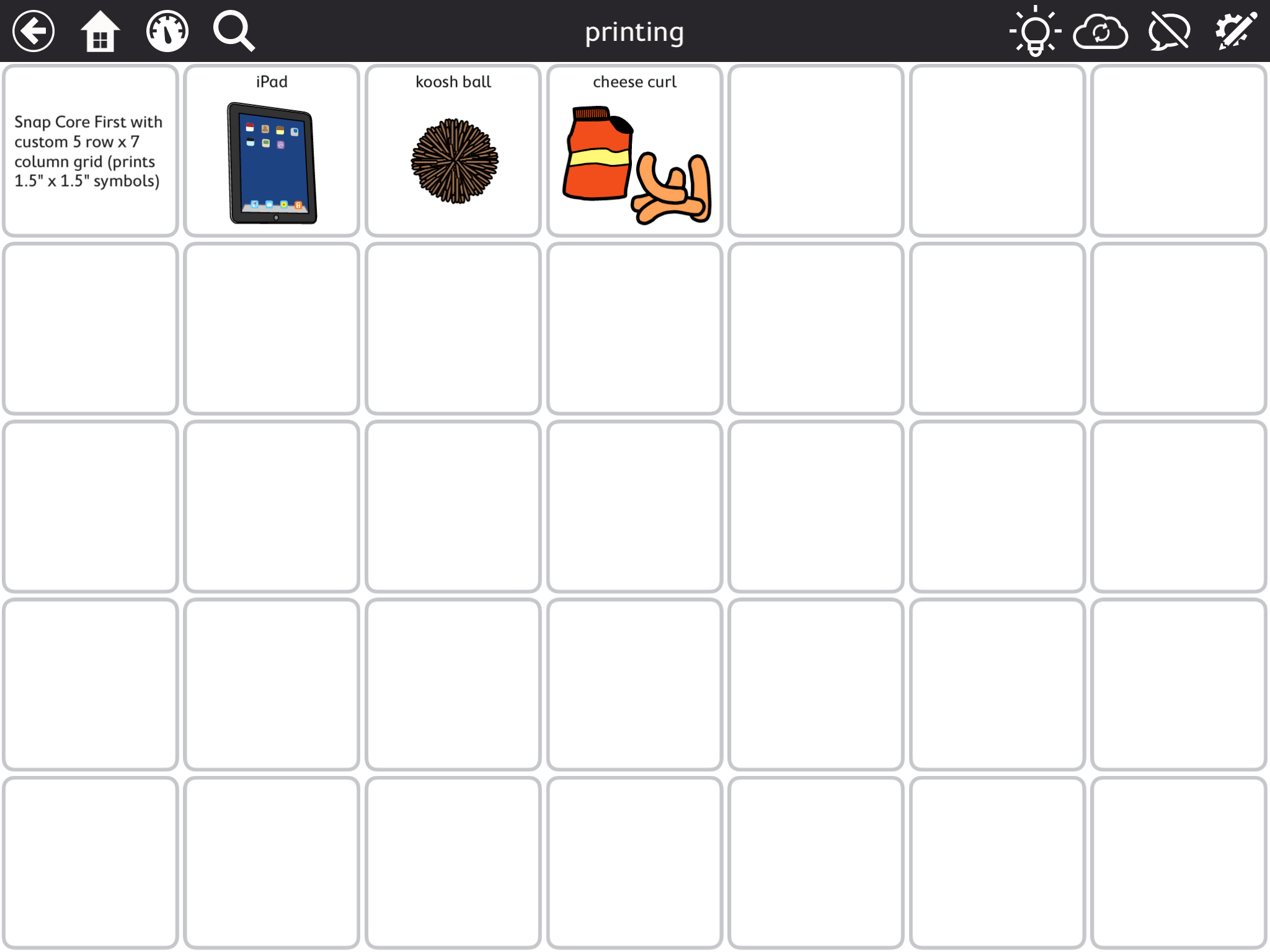
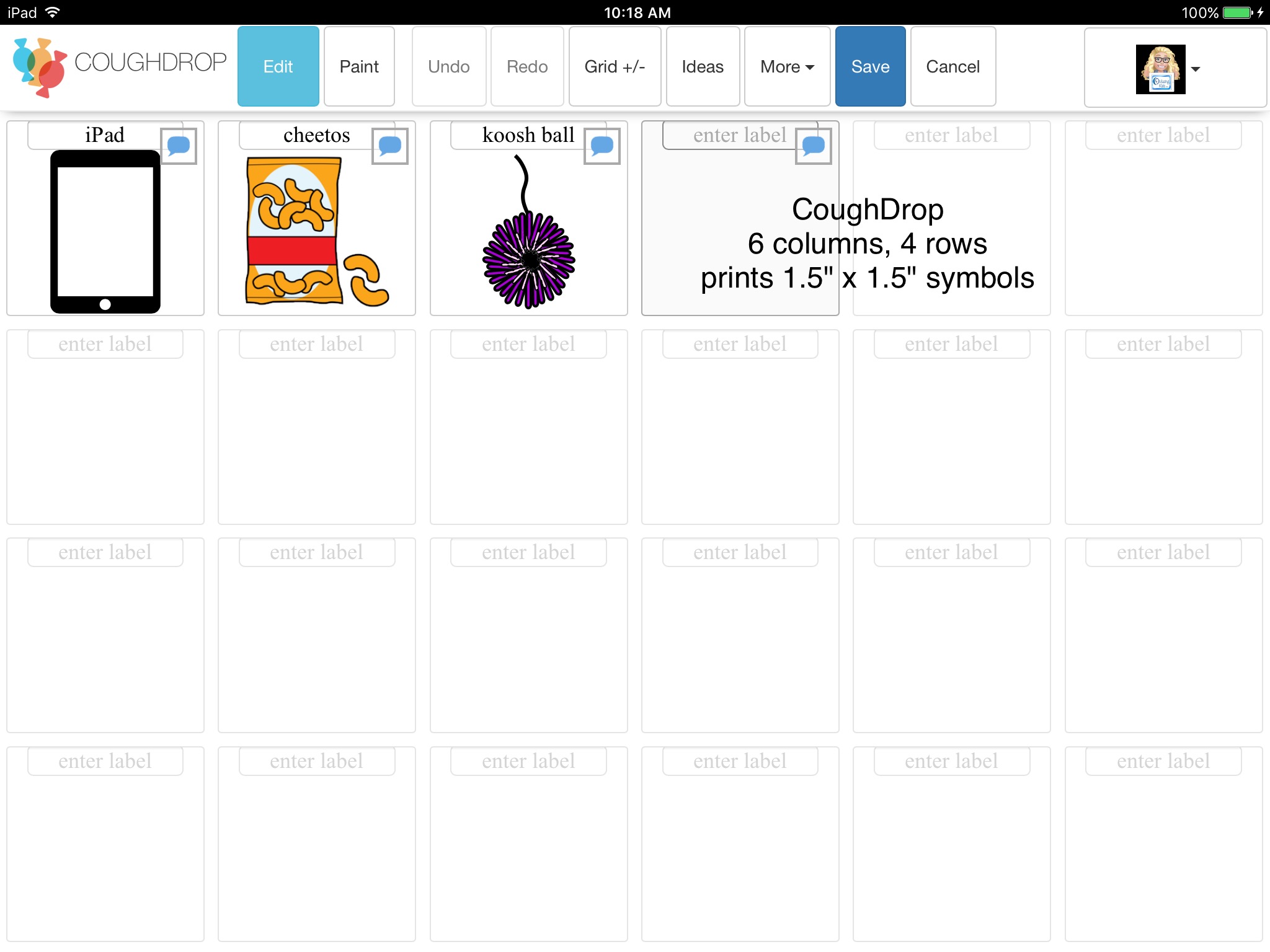
Like Snap Core First, the printing feature was designed as a means to print a no-tech copy of a user’s board. After some trial and error and test prints, I settled on a 6 column x 4 row grid as being really close to 1.5″ x 1.5″ symbols when printed. Be sure to test print a blank grid to make sure you like the size before adding symbols to save on ink.
Web Browser: CoughDrop is a web-first application, and should work with many modern web browsers.
There are a couple of other free apps specifically designed for creating and printing communication symbols but I don’t find them nearly as easy to use and how well they work depends on the version of iOS running on that device:
PictoMaker by Les Applications C, Inc, https://apps.apple.com/us/app/pictomaker/id1477449329, iOS Universal, iOS 10.0 or later (but the app crashes when trying to print if using anything older than iOS 11. Worked fine on my iPhone running iOS 13.5.1), FREE. There’s a +/- button on the app to make the pictures bigger or smaller and thus also changing the grid size.
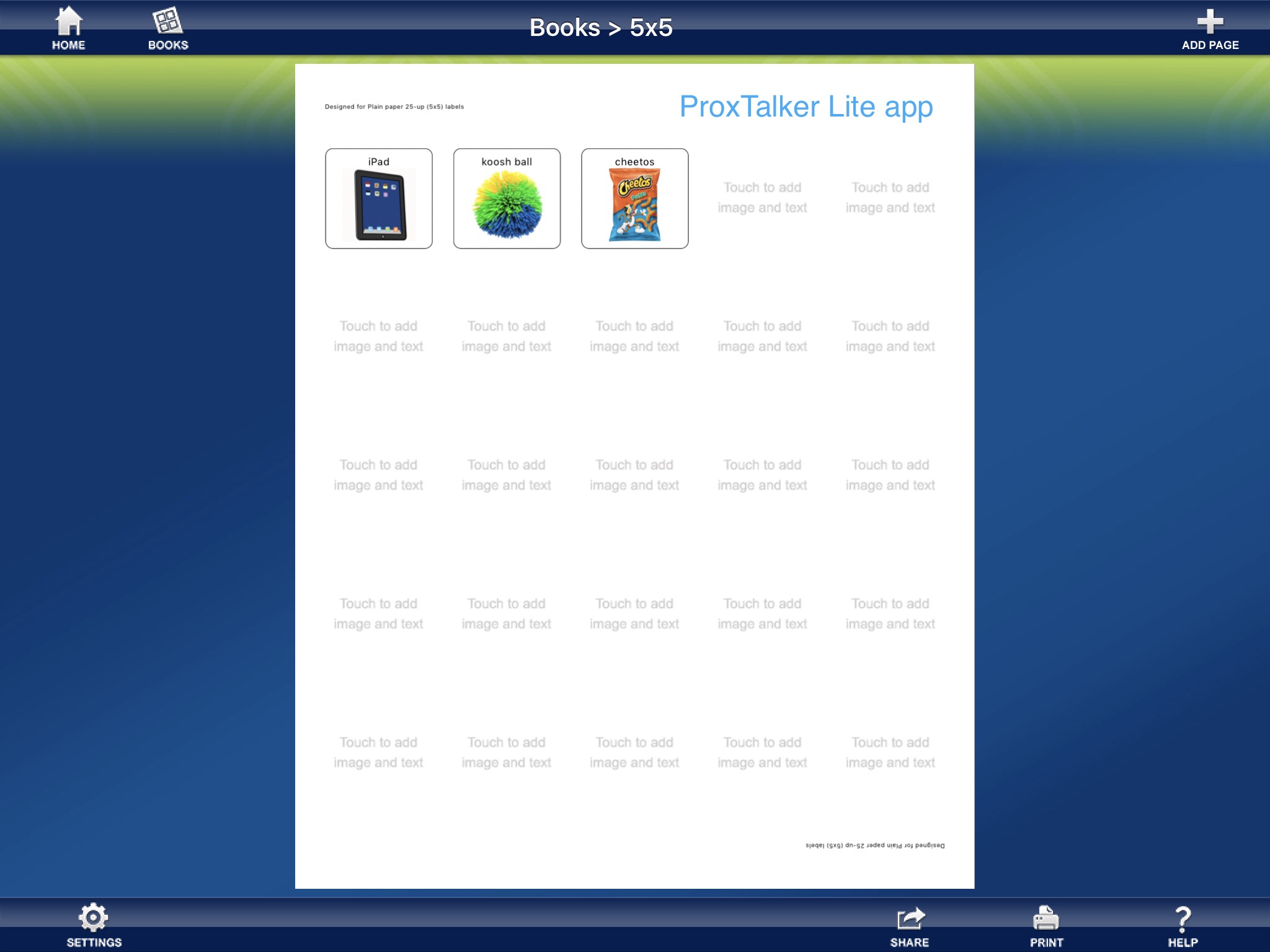
ProxTalker® App – Lite by ProxTalker.com LLC, https://apps.apple.com/us/app/proxtalker-app-lite/id593099176, iOS Universal, iOS 8.0 or later (pictures are not showing up when trying to print if using anything older than iOS 11 but you can still take a screenshot and then print it), FREE. This free lite version includes a few of their symbols (most of those seem more appropriate for kids) but you can import photos from your Camera Roll.
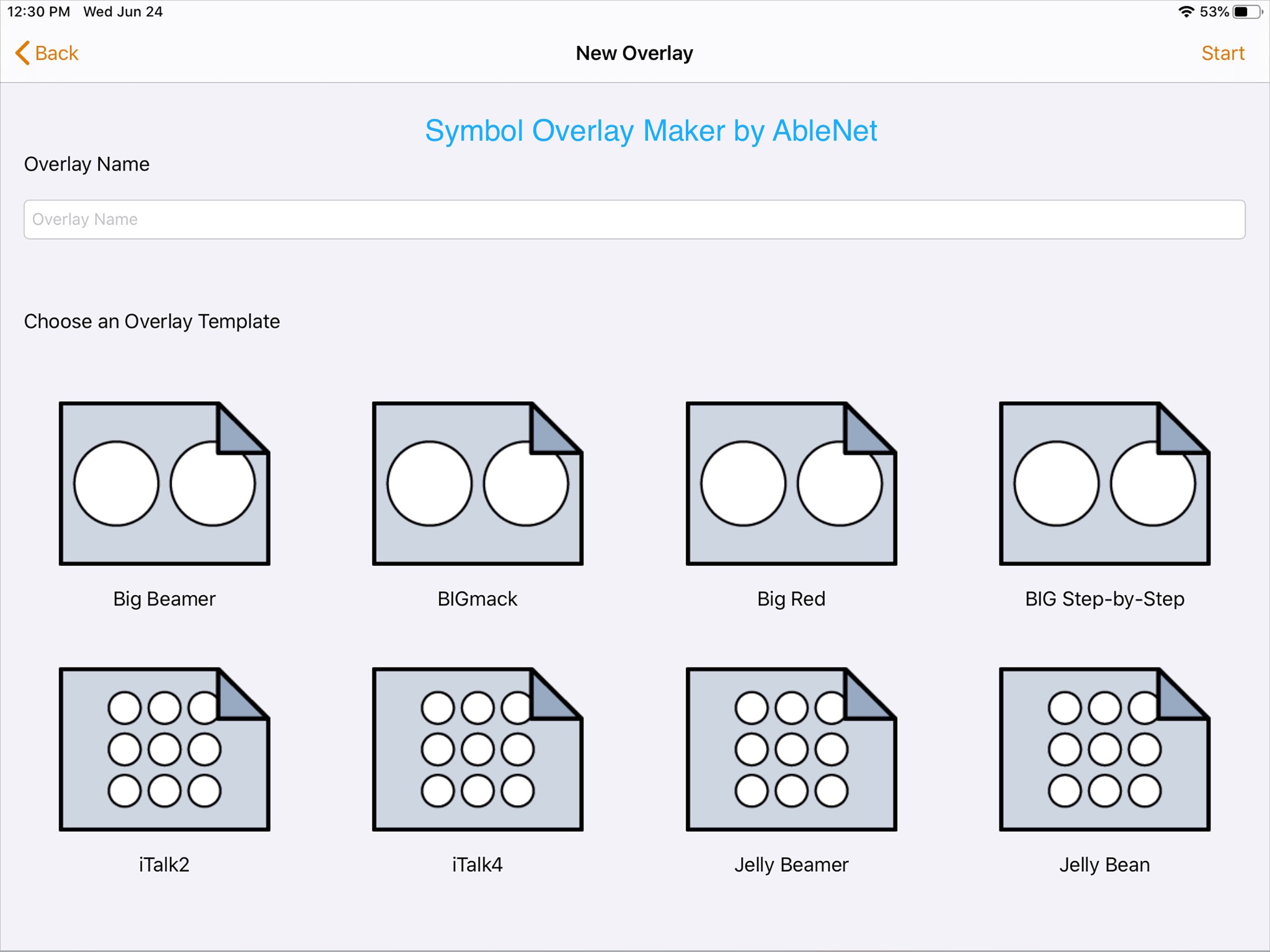
Other apps that can be used to make printable overlays for specific mid-tech AAC devices:
LessonPix is web based and works on any platform and any size screen. See info above.
CoughDrop is an affordable web-based AAC open source option that can be used in a web browser online and works in apps across multiple platforms – iOS, Android, Amazon Kindle, Windows. See info above.
If you want real photos, many of the apps offer the option to use an in-app camera. Or you can search and save images from the internet to the Camera Roll on your iPad. Tips: Look to see what shape of pictures work best in the app(s) you will be using. Most work best with square pictures so I crop them and then organize them in folders to be able to find them quickly later.
📥 Want to suggest iOS apps or mobile-friendly website to be added to this post? The best way to reach me is via Facebook messaging over on my OMazing Kids page.
If it’s a free iOS app or website, please include the link in your message so I can try it out. If it’s a paid iOS app and you are the app developer, please send the link from the USA App Store so I can look at the info before you send a promo code. I want to make sure that one of my iPads or iPhone is compatible in order to try it out.
It took quite a bit of time to compile this list so please mention OMazing Kids when sharing it on social media and do not copy/paste it onto other blogs or documents or upload the post to servers. I have it available here on my blog and plan on keeping my blog up for the foreseeable future.
This version of the app does NOT have voice output unless you either activate it via IAP or are an ASHA certified SLP who has set up a free MyTobiiDynavox account and gone through the steps to verify your status (https://www.mytobiidynavox.com/#/morestuff/professionals).
For these two creative uses you don’t need to worry about activating voice output. These should also work for those who own the paid version of this app but I don’t have that version so I can’t verify that.
Idea # 1: Use this free app as a tool to access PCS symbols to use in another app (especially helpful if you need the PCS High Contrast symbols).
Set up a new User using the emergent communicator 1×1 grid size.
On the Supported Navigation page, tap on one of the “Your Topic” buttons.
Tap the pencil gear icon in the top right corner to go into Edit Mode.
Tap on the button.
Then tap on the “Button” tool at the bottom of the screen.
Tap on “Style” to choose the Button Background Color (use black for High Contrast symbols), Button Border Color (use one to match the color of your button background), Button Label Color (the best color may vary based on that child’s visual needs…. I often use yellow or red when creating High Contrast buttons), the Font, Font Size and Button Layout (choose “Image Only” if you will be using the symbol in another app unless you want the image to have a label).
Tap on “Content”
Type in the name of the symbol you want in the “Label” area Then tap on the magnifying glass and swipe to see all of the image options. Tap on an image and “done” to select it.
If you like how it looks, take a screenshot and crop the picture. I typically crop them into a square since many apps do better with that.
I set up folders on my iPad Camera Roll to organize symbols so I can find them quickly later.
Idea #2: Use this free app as a tool to make printed communication boards, personalized core boards, communication cards, symbol label cards, cards for visual schedules, visual sequences, story props and other visuals.
I recently discovered that you can create your own custom grid size to print. Keep in mind the printing feature in this app was designed to be an easy way to print a no-tech version of that user’s vocabulary to use as a backup so there will be some work involved to set it up to print other things. But since it’s free it may be worth it to some folks who specifically want PCS / Boardmaker symbols. If that’s you…. continue reading the steps outlined below. It took a lot of trial and error to figure out the easiest way to do that so I’m sharing a few tips:
Set up a new user using one of the emergent communicator grid sizes (1×1, 1×2, 2×2, 2×3) since these all have the navigation buttons, message bar and toolbar hidden. The home page in these smaller grid sets is “Supported Navigation”.
Tap on one of the “Your Topic” buttons.
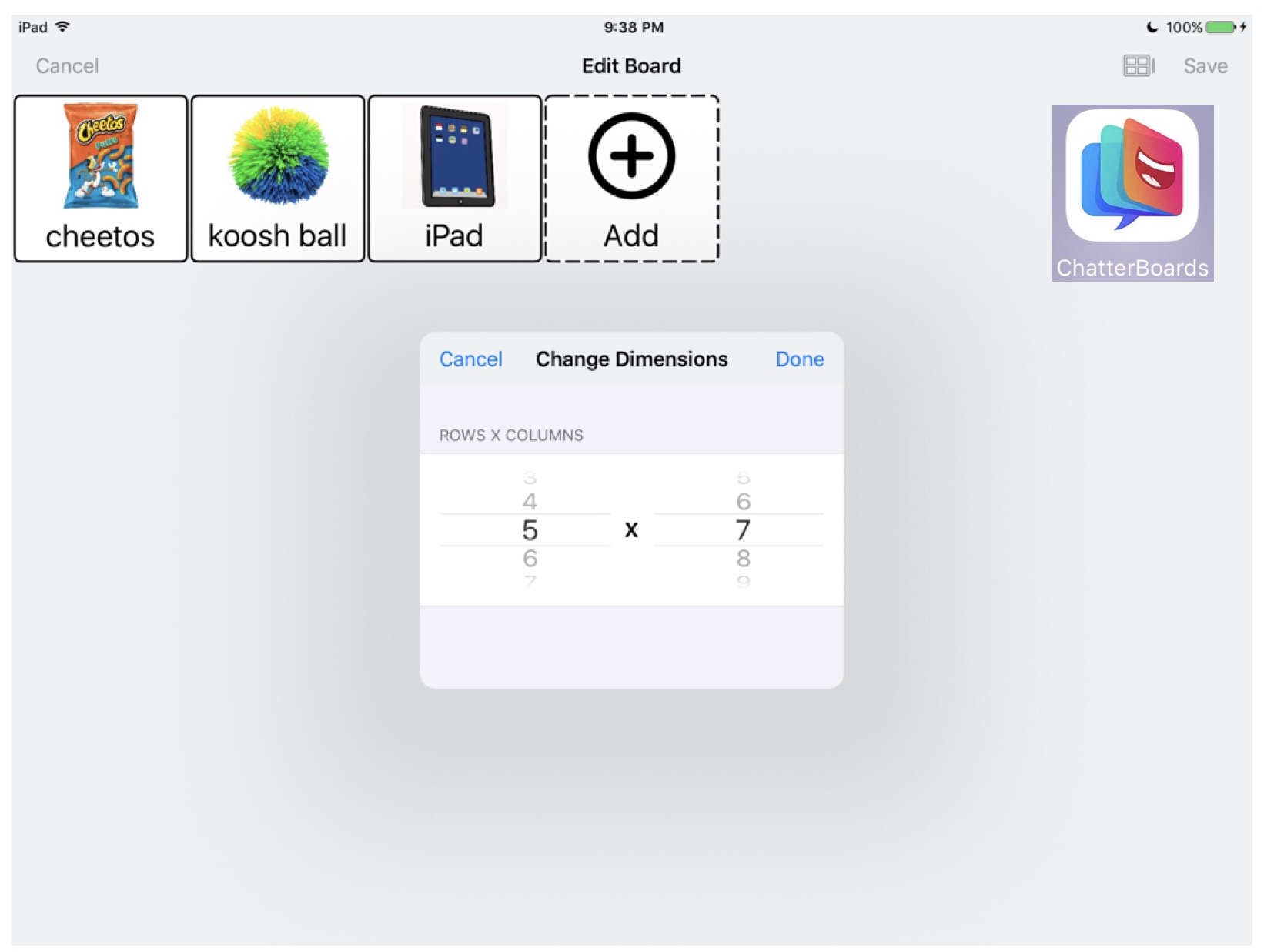
Tap on Page – Grid Size – toggle off Match Page Set. Then tap Grid Size – Custom Grid Size. After trying several combinations, I ended up with a setting of Rows: 5 & Columns: 7 to get a grid that when printed has 1.5” x 1.5” symbol cards (a size I commonly used when printing PECS symbols). If you are creating a visual support for steps in a sequence, think about how many steps you want depicted and then choose the number of columns to match that (or rows to match that if you are doing a top to bottom vertical visual schedule). If you are creating big symbol labels, then choose a size with bigger buttons. As you try various combinations to see what will best suit your needs, I highly suggest just having one button with a light grey border (no symbol) to test print before moving on to the rest of the steps.
Next go to “Page Set” to set several global settings so you won’t have to set them for each button (font, font size, label top/image bottom, “very small” grid margins, “clear” page background color)
Tap on “Page” again. Delete the “Topic Words” and “Supports” buttons and then swipe down and delete all of the buttons you don’t plan on filling with symbols. Be sure to swipe down to the second and third pages and delete those as well since the default seems to be three pages and they will all print unless you either delete the buttons (there isn’t an option to set what pages you want printed when it pulls up your AirPrint printer)
Tap on “Button”. If you want a full grid of buttons, use the “Select All” tool to select all buttons and then adjust the color of the button background, button border and button text. I used “Clear” for the Button background and “Ash” gray Button border to avoid wasting ink. Choose “Black” for the background if you are creating High Contrast symbols. There is also a “Multiselect” tool that’s helpful when wanting to easily adjust these settings for multiple buttons (but not wanting a full grid).
To print, turn on your AirPrint capable printer.
While in edit mode, tap the “Page” button – Print Pages – Print – Next – toggle off all of those items – Print – Select Printer – tap the name of your printer – you’ll see a preview of what will print (this is how I figured out the extra buttons on pages 2 & 3 that I needed to delete) and you’ll have the option to toggle on Black and White or leave it on default of Color and how many copies you want – then tap Print. Unfortunately I couldn’t find a way to toggle off the black header strip so that will waste some ink.
Note: These ideas are only being shared as creative ways to use an app that you have to create items to help YOUR patients/students. You should NOT use symbols from any apps or websites in items that you plan to sell or share on sites like Teachers Pay Teachers, Boom Cards, SeeSaw, etc… You should purchase clip art or a subscription to a website offering a Commercial License for those purposes.
Have other creative ways that you use this app or other apps? I’d love to hear from you. The best way to reach me is via Facebook messaging over on my OMazing Kids page.
{The iPad & the SLP in 2020}: Articulation Apps for SLPs (listed by category)
I’m working on a big updated blog post “{The iPad & the SLP in 2020} App List for SLPs ~ sorted by goal area” that will be a new version of my original post from late December 2016 (https://bit.ly/3iHLB8r). Lots of great apps have disappeared from the App Store since I wrote that. One of the most prominent examples is the beloved Speech with Milo apps that are all missing from the App Store (not even available for redownload from your “Purchased” area. See this blog post with details: https://bit.ly/34aOLO4). Milo has a HUGE fan base… beloved by SLPs and kids everywhere. See these posts: https://bit.ly/3gbxmaa & https://bit.ly/2YfpQoO.
Rather than updating that post I’m writing a new one. The previous post will be left up as a “time capsule” of apps that existed in an era I think of as the “golden age of apps” plus it helps me know what to search for in my “purchased” area on the App Store (apps are sometimes still available there even when there are no longer available for purchase but it can be tricky to find them if you are an app hoarder).
This post is just focused on these five full featured artic apps to help SLPs make informed purchasing decisions.The attached interactive PDF includes details about current app sales. It’s helpful to have an updated look at these apps since all apps change quickly as updates are released over the years. (FYI… I’ll have all of the specialty artic and apraxia apps included in the much larger update post I’m working on for apps for SLPs listed by goal areas. If you are just looking for free and affordable artic apps, check out this post: https://omazingkidsllc.com/2020/08/06/free-and-affordable-articulation-apps-interactive-infographic-created-by-angela-moorad-ms-ccc-slp-at-omazing-kids/)
Get the Interactive PDF for the Top 5 All Purpose Articulation Apps for SLPs in 2020: (removed 5/24/21. See updated blog post above)
Tips:
This PDF is meant to be an “interactive” document and is not formatted to be printable.
Due to the number of links in this PDF and it being on one long page, it is best viewed within the iBooks (also known as Books) app on your iPad or iPhone where you can zoom in, scroll and tap on links to head directly to those apps.
The links provided are directly from the USA Apple App Store and will be the quickest way to find the apps (links are provided to be helpful… these are NOT affiliate links).
—————– How To Mirror Your iPad for Teletherapy: http://www.littlebeespeech.com/blog/how-to-mirror-your-ipad-for-teletherapy/
——————
It took quite a bit of time to compile this list so please mention OMazing Kids when sharing it on social media and do not copy/paste it onto other blogs or documents or upload the post or PDF to servers. I have it available here on my blog and plan on keeping my blog up for the foreseeable future.
* Start by searching through their store for Boom Card decks. There are lots of free ones. Every Friday you can search by “flashfridayfreebie” and find several (https://wow.boomlearning.com/search?collection=Decks&keyword=flashfridayfreebie&sort=publishDate&order=-1). But you can find others just by looking through the store. It’s kind of like Teachers Pay Teachers in that many of the creators have at least one free item. The “paid” ones are on a point system.
I haven’t tried creating my own Boom Card decks yet so I don’t know how easy it is… I just recently started looking at them to see what all the buzz was about. If you’ve followed my blog page or social media sites for many years and have used lots of apps, Boom Cards seem to be the fad right now (like when apps first came out). But even the best Boom Card decks that I’ve seen aren’t anywhere near the quality of a well designed app. However I can see the appeal of the fast pin and data tracking features for those doing distance learning / teletherapy in the midst of the pandemic.
It will be interesting to see how sustainable Boom Cards will be since most of the folks are looking for free decks.
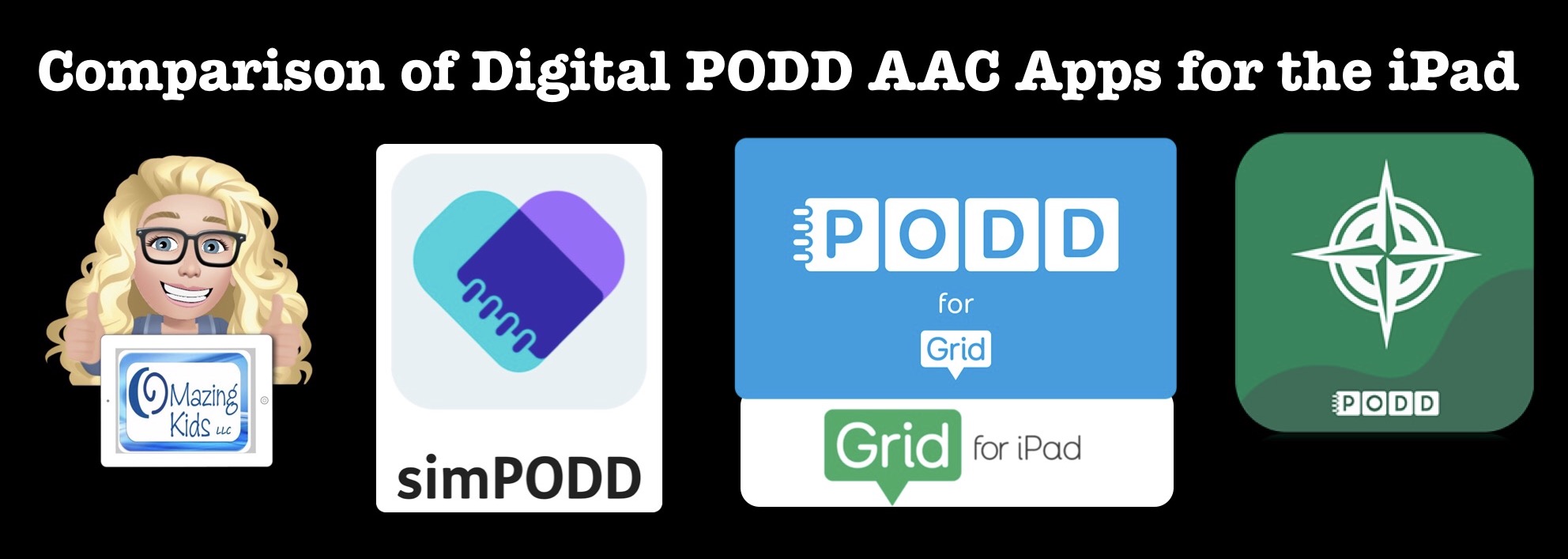
Review & Comparison of Features in Digital PODD iPad apps (simPODD, Grid for iPad and PODD with Compass) …. plus new PODD resources
I just updated my comprehensive blog post about PODD AAC to add several new resources and an in-depth review and comparison of features in all of the digital PODD iPad apps currently available in the USA App Store: simPODD, Grid for iPad and PODD with Compass. Rather than doing it in a separate post I decided to add it to that post to keep everything PODD related in one spot.
Updated info is highlighted throughout that post and I tested all links and updated those. Scroll down towards the bottom of the post until you see the same pic that is on this post to find the app reviews and comparisons of features:
Updated 11/10/20: Tobii Dynavox just released Snap PODD as an ad-on within the Snap Core First app. See this post on Facebook for details: https://www.facebook.com/174264525957894/posts/3622621321122180/. I’ll be updating my big PODD blog post to add it to the comparisons once I test it out.
. Want to suggest PODD resources or info to be added to that post? The best way to reach me is via Facebook messaging over on my OMazing Kids page. If you are an app developer and would like to have me review a new digital PODD app for the iPad or PODD that was added to an existing app via IAP, please send the link from the USA App Store so I can look at the info before you send a promo code. I want to make sure that one of my iPads is compatible in order to try it out.
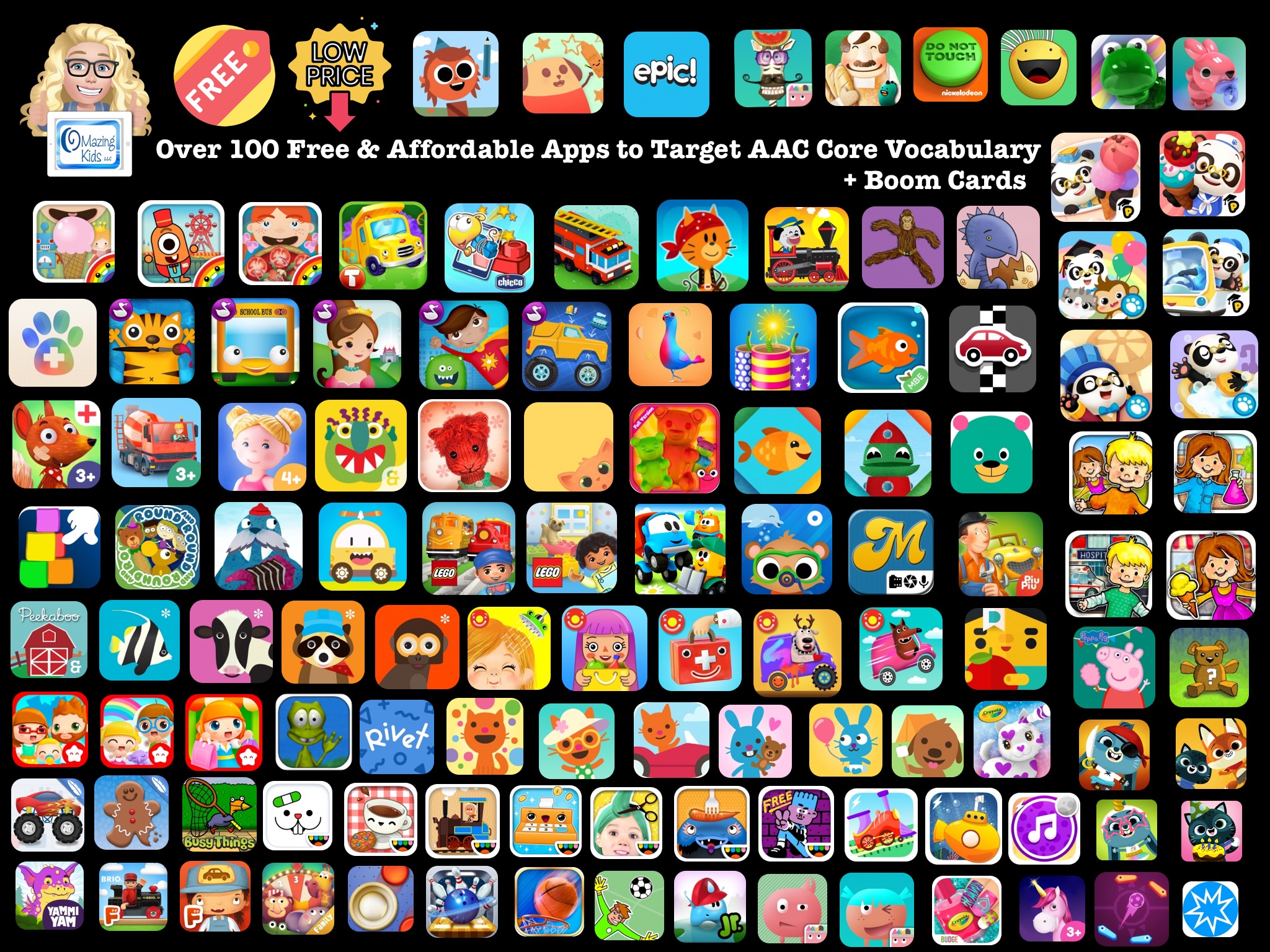
Over 100 Free & Affordable Apps + Boom Cards to Target AAC Core Vocabulary
The main thing I look for when searching for apps to use for targeting core vocabulary for AAC users are open-ended play, book or sticker apps that are intuitive, have large engaging graphics, are ad-free, have the option to toggle off any background music or it is very subtle (not over stimulating) while still leaving on any sound effects or voiceovers and any outside links are well hidden behind a parental gate. You can use these apps to target the same core vocabulary that you would with a “real” toy or activity. Think of it as the “virtual” version of that. Lock the “play” iPad into the app that you have selected by enabling Guided Access. If the child is using an iPad as their “talker”, then it is also locked into their AAC app via Guided Access.
Prices, availability & device/iOS compatibility were all checked in the USA App Store and website links were all working at the time this post was written (5:00pm CST on 7/22/20). Prices may vary outside the USA based on the exchange rate.
Some of these apps may not be available for download on your device if you are not running the minimum required iOS.
Many of these apps are “iOS Universal”. Those can be used on an iPad, iPhone or iPod Touch.
Some apps have IAPs (in-app purchases) for additional items. So after you have installed those apps and purchased anything that you wanted be sure to adjust the settings on your iPad to prevent unintended purchases.
All of the apps on this list were priced at $3.99 or less at the time of this post… and a lot of them are FREE:
Eat Bird Eat by Hamba Studio Ltd., https://apps.apple.com/us/app/eat-bird-eat/id1505275863, iOS Universal, iOS 9.0 or later, FREE. Simple tapping game. Avoid the rocks and bombs. The rocks make the bird’s belly shrink and the bombs make it fall over. Reminds me a little of avoiding bombs in Fruit Ninja. The goal is to make the bird eat until it’s full. Each round is short, nice vivid colors and there isn’t any background music or sounds. Would be fun to target Core Vocabulary (eat, go, stop, big, my turn, wait, fast, slow, etc…).
LEGO® DUPLO® WORLD by StoryToys Entertainment Limited, https://apps.apple.com/us/app/lego-duplo-world/id1458749093, iOS Universal, iOS 9.3.5 or later, FREE (includes the Number Train & Creative Building areas, has several IAPs for additional content but enough free content is included and is well designed)
Rivet: Better Reading Practice by Area 120 by Google, https://apps.apple.com/us/app/rivet-better-reading-practice/id1405632917, iOS Universal, iOS 11 or later (can use on older iOS if previously purchased it), FREE. Lots of great early readers with opportunities to target Core Vocabulary. I love that you can tap on a word to see a simple definition & record yourself saying the word. The speech recognition capabilities appear to be accurate so SLPs will enjoy trying it out. More advanced readers are available and books are available in English & Spanish. I also like that it saves books to “read again” and you can tap a star to save a book to your “favorites”. I’m finding this app much easier to search, navigate and use than Epic…. and it’s always FREE. See more info: https://rivet.area120.com. Android: https://play.google.com/store/apps/details?id=com.area120.studybuddy.sagaflutter, Amazon: https://www.amazon.com/gp/product/B07V7GYNCK. They are also working on a web-based version but it is still in beta… not full featured yet and crashed several times when I tried to use it in Safari on my iPad. So I’d stick with the app. update 3/12/23: missing from the App Store
Spark Speech – Core Verbs by Jesse Emling https://apps.apple.com/us/app/spark-speech-core-verbs/id1534629064, iPad only, iOS 12 or later, $1.99 (9 mini books targeting the following verbs: go, stop, turn, push, pull, make, open, close, play; there are no voiceovers)
Super Hen Hunt – Maze for Kids by Busy Things Limited, https://apps.apple.com/us/app/super-hen-hunt-maze-for-kids/id1269053210, iOS Universal, iOS 8.0 or later, $1.99. Fun way to target Core Vocabulary (go, turn, look, open, help, open, etc…) plus directional concepts (forward, back, right, left).
2. Install the free app on your iPad. Boom Cards by Omega Labs, https://apps.apple.com/us/app/boom-cards/id1041141473, iOS Universal, iOS 10.0 or later, FREE). If you use an Android tablet look for the app in the Google Play App Store.
3. Then start searching through their store for Boom Card decks. There are lots of great free ones. Every Friday you can search by “flashfridayfreebie” and find several. But you can find others just by looking through the store. It’s kind of like Teachers Pay Teachers in that many of the creators have at least one free item. The “paid” ones are on a point system. Many of the sellers over on TPT also have Boom Cards there. When you download one there it will contain a link to unlock the deck over on the Boom Learning site.
4. I haven’t tried creating my own Boom Card decks yet so I don’t know how easy it is… I just recently started looking at them to see what all the buzz was about.
5. If you’ve followed my page for many years and have used lots of apps, Boom Cards seem to be the fad right now (like when apps first came out). But even the best Boom Card decks that I’ve seen aren’t anywhere near the quality of a well designed app. It will be interesting to see how sustainable Boom Cards will be since most of the folks are looking for free decks.
Looking for apps to target other goals?
See the Ultimate App and Digital Resource Guide for SLPs(I’ll be working on doing the 2023 update for that soon. Anyone who has previously purchased it will be able to download the updated version when it’s available:https://bit.ly/UltimateAppDigitalResourceGuideSLP.
Interactive PDF(256 pages with linked Table of Contents) full of lists of hundreds of apps and digital resources organized by SLP goal areas and themes
App demo videos(links to 29 unlisted YouTube videos)
It took me quite a bit of time to compile this list so please mention OMazing Kids when sharing it on social media and do not copy/paste it onto other blogs or documents or upload it to servers. I have it available here on my blog and plan on keeping my blog up for the foreseeable future.
updated 3/12/23:
Looking for in-depth AAC feature matching resources?See this blog post:https://bit.ly/5aacFeatureMatchingResources. That post also includes videos comparing AAC apps on various devices on various platforms.







 Thinking Outside of the Box: Two Creative Uses for Snap Core First


 OMazing Kids AAC Consulting