Angela Moorad, MS, CCC-SLP. Over 36 years experience in AAC. OMazing Kids AAC and app consulting. Creator of several AAC Feature Matching resources (https://omazingkidsllc.com/omazing-kids-aac-resource-links/). Includes info about unique features to support Gestalt Language Processors
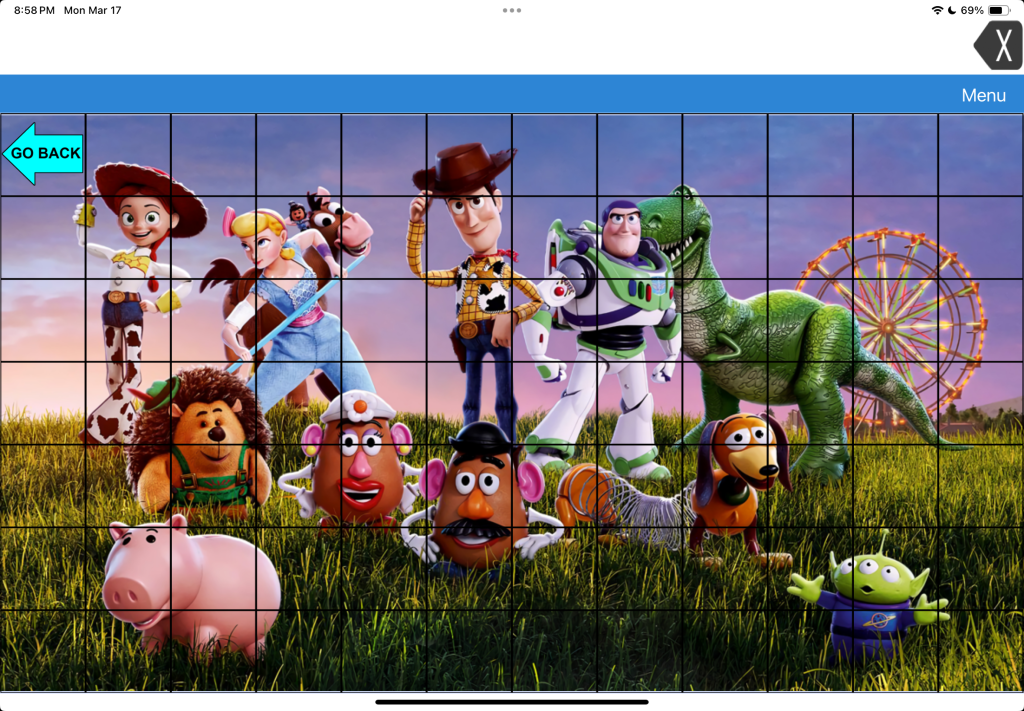
LAMP Words for Life doesn’t “officially” offer a way to add Visual Scenes like the company’s TouchChat app does. So this is an “off label” hack.
LAMP Words for Life doesn’t have any premade Visual Scene pages like TouchChat (both premade hybrid visual scenes and a way to create visual scenes with hotspots on a picture) and doesn’t have all of the same editing options (can’t resize individual buttons, can’t resize the grid).
But in LAMP Words for Life you canimport a photo onto a page background and create transparent buttons to be hot spots. Each of the buttons have to be set to Transparent in order for the background photo to be visible.
It’s a bit trickier to place the hotspots since you can’t resize the grid or the individual buttons.
These hotspot buttons could play recorded audio and could even use the Open Website button action to open a URL to a specific YouTube video. Or any other button action available.
If the individual is still learning the motor plans to individual words then I likely wouldn’t add phrase buttons on a Visual Scene in it.
But I might add character names or audio clips if that’s highly interesting to that individual.
I would only add something like this to LAMP if it’s something that will spark joy and interest in using it, the user wants it added and we would do it in a mindful way to not disrupt the integral design or motor plans in this app.
👀 Looking for in-depth AAC feature matching resources? See this blog post: https://bit.ly/5aacFeatureMatchingResources. That post also includes videos comparing AAC apps on various devices on various platforms.
A voice is a very personal thing. It represents the essence of who we are and how we are heard. All AAC users should have the opportunity to be involved in choosing a voice for their AAC system, adjusting it (rate, pitch and volume), adding intonation or tone, and choosing different voices for different situations.
Watch the preview video:
The 34 page printable PDF includes:
Basic info about why this is important.
Options for custom personalized voices and ways to add intonation and tone of voice.
Use of unique accents.
Visual supports for choosing the age of voice, speed, pitch & volume.
Visual supports for choosing child, teen and adult USA English voices (Acapela, Almagu, Cereproc, Ivona & iOS). Includes all voice choices on one page for each age category and larger cards that can be cut apart and used on choice boards.
Visual support for choosing another type of English voice for those who may prefer a unique voice with a UK, Australian or Canadian accent.
Tips for use + a link to a 6 minute unlisted YouTube video where I do an overview of the resource and give additional ideas for involving AAC users.
Notes: This resource is specifically about voices and options available for USA English in robust iOS AAC apps available in the USA App Store. This printable resource does NOT contain any sound or voice output. It is intended to be used as a visual support alongside an AAC device or AAC app as you explore voice options and voice customization settings with that AAC user. Please keep that individual’s preferences in mind as to whether or not visuals would be helpful.
Looking in-depth AAC feature matching resources? See this blog post: https://bit.ly/5aacFeatureMatchingResources. That post also includes videos comparing the best AAC apps on various devices on various platforms.
Looking for in-depth AAC feature matching resources? See this blog post: https://bit.ly/5aacFeatureMatchingResources. That post also includes videos comparing the best AAC apps on various devices on various platforms.
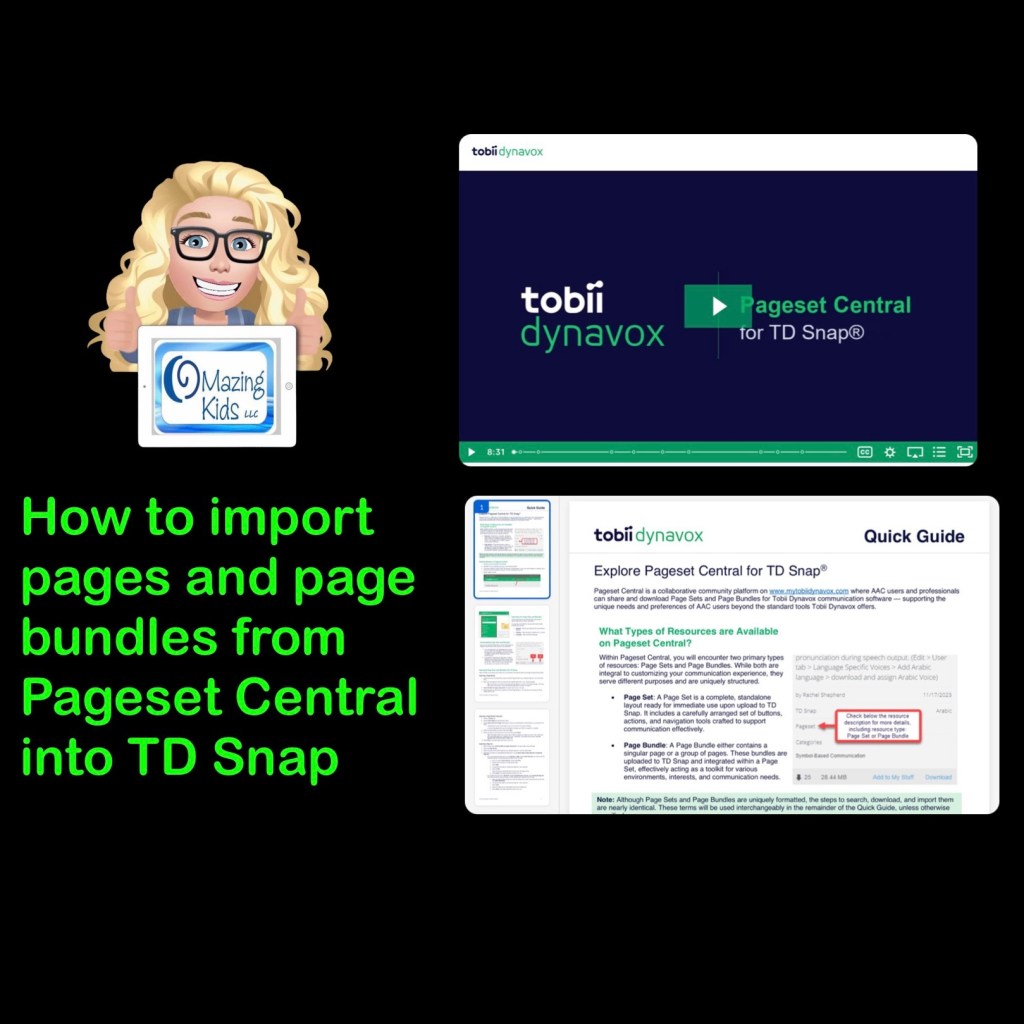
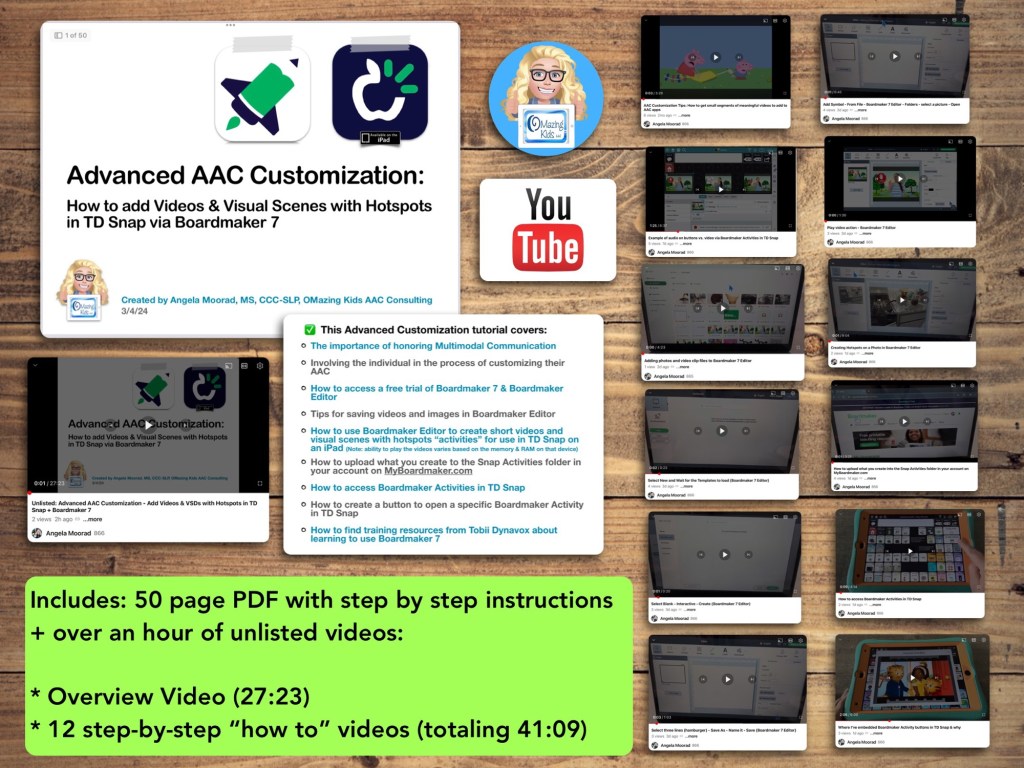
Are you looking for a way to add short videos that can be viewed offline and visual scenes with hotspots to TD Snap? Come learn how to use Boardmaker 7 to create these and then use them in the integrated Boardmaker Activities. Don’t have a Boardmaker 7 subscription? No worries… you’ll also learn how to sign up for a free trial to create what you want.
• The importance of honoring Multimodal Communication
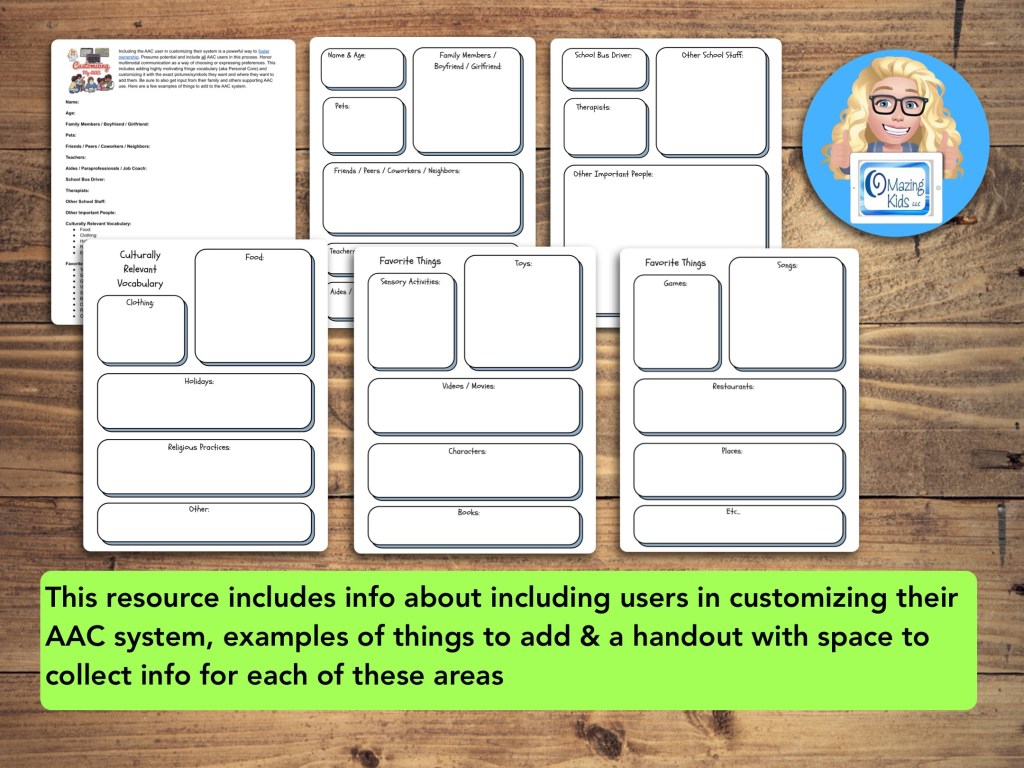
• Involving the individual in the process of customizing their AAC
• How to access a free trial of Boardmaker 7 / Boardmaker 7 Editor
• Tips for saving videos and images in Boardmaker 7 Editor
• How to use Boardmaker 7 Editor to create short videos and visual scenes with hotspots “activities” for use in TD Snap on an iPad
• How to upload what you create to the Snap Activities folder in your account on myBoardmaker
• How to access Boardmaker Activities in TD Snap
• How to create a button to open a specific Boardmaker Activity in TD Snap
• How to find training resources from Tobii Dynavox about learning to use Boardmaker 7
Note: This resource was updated on 5/29/24 to reflect changes that Tobii Dynavox made to TD Snap. As of 5/21/24, they no longer offer the general public the option to do a 1x app-only purchase of this app. It switched to a subscription-based model. The 1.35.1 app update for TD Snap on 12/4/24 added an integrated YouTube player. This is a nice option for teens and adults who need the alternative access of their Speech Generating Device to play YouTube videos for leisure. Playing YouTube videos requires an internet connection and that player is not secured. This is very different from those who want to use short video clips for communication and/or self regulation and need a way to play them reliably offline in a secure way. For those purposes creating Boardmaker Activities will continue to be the best solution at this point in time
Notes:
Boardmaker 7 Editor can only be used to create these Boardmaker Activities on a Chromebook, Windows computer or tablet, or a Mac. Unfortunately there is NOT a way to use Boardmaker 7 Editor to create activities on an iPad (there’s no Boardmaker 7 Editor iOS app and it won’t work in a browser on an iPad). See this website for device compatibility: https://goboardmaker.com/pages/boardmaker-7-help?tab=1.
You must be connected to WiFi in order to initially load a Boardmaker Activity in TD Snap. Then you’ll have the option to toggle on Offline Use for each activity. Offline activities are downloaded per device. If the Page Set is synced or shared to a different device, the download process must be repeated on that device to make the activities available offline.
My demo shows these being added in the Motor Plan 66 pageset in TD Snap. You can add buttons to open a Boardmaker Activity in any of the pagesets within that app.
My demo videos are Boardmaker 7 Editor on my Pixelbook Chromebook and TD Snap on my iPad 9th gen. If you are using a Mac or Windows device what you see on your screen may be a bit different than mine.
The ability to play the videos may vary based on the available memory & RAM on that device.
This research article has helpful considerations for selecting media for use in Visual Scenes and Video Visual Scenes: “Visual Scene Displays for Children and Adults: Using Case Studies to Bridge Research and Clinical Practice”, https://pubs.asha.org/doi/10.1044/2022_PERSP-22-00162
Looking for in-depth AAC feature matching resources? See this blog post: https://bit.ly/5aacFeatureMatchingResources. That post also includes videos comparing AAC apps on various devices on various platforms.
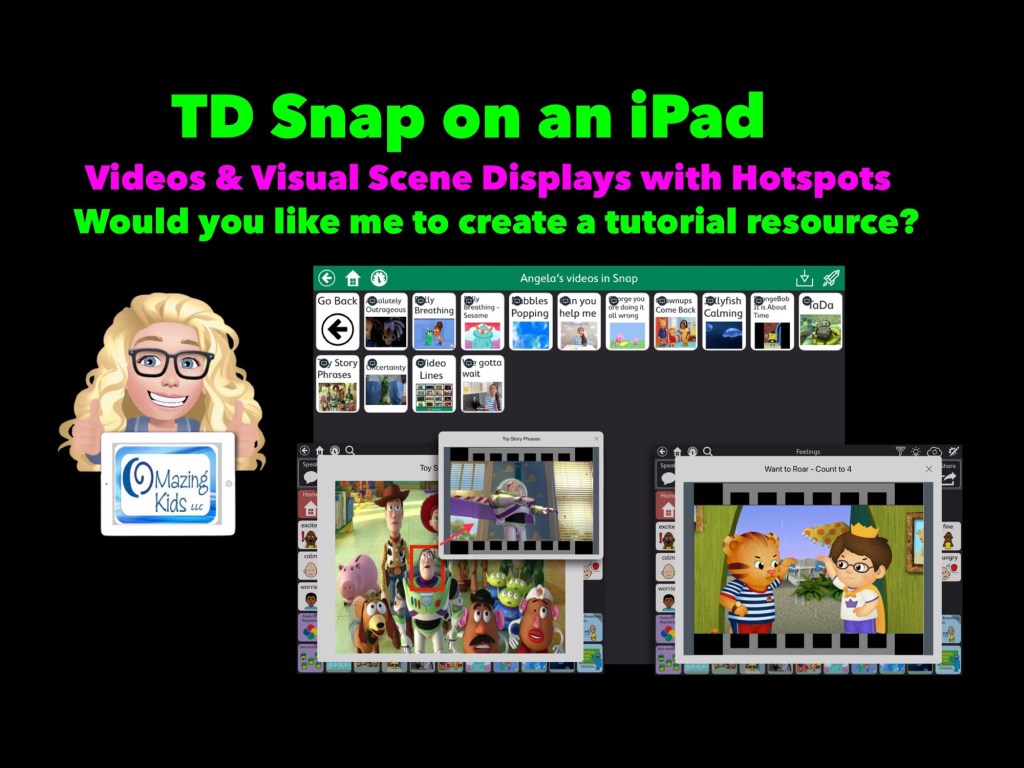
Let me know if you would like me to create a tutorial resource showing the exact steps for creating these using Boardmaker Editor in Boardmaker 7 for use in the TD Snap AAC app by Tobii Dynavox on an iPad.
Here’s a new video with a look at short video clips and visual scenes with hotspots that I’ve added in TD Snap on my iPad via the Boardmaker Activities integration: https://youtu.be/j192ff2f00M?si=h0u45-2HLhAiqs4A
I’ll be leaving the comments open on my video for a few weeks so folks can comment there.
For those who want just a quick peek at two of the examples of a Visual Scene + Video & a video, check out this very short video:
Being able to create these Boardmaker Activities with video clips or visual scene displays with hotspots requires access to Boardmaker Editor in Boardmaker 7.
I wasn’t able to figure out a way to do this with my Boardmaker v6 CD. I’m on my personal iPad that’s not on any type of device management system. If you are using a managed/locked iPad or SGD this may not work.
This works reliably in TD Snap AAC on my iPad. It was unreliable in TD Snap AAC on my Windows tablet (a Microsoft Surface Go 2). My best guess is it *might* work on a more expensive Microsoft Surface Pro with at least 8GB of RAM and larger storage. I have no way to know if this will work in TD Snap on one of the SGDs from Tobii Dynavox (it might require unlocking the device?)
Looking for in-depth AAC feature matching resources? See this blog post: https://bit.ly/5aacFeatureMatchingResources. That post also includes videos comparing AAC apps on various devices on various platforms.
Basic Feature Chart for Affordable and Free AAC apps & AAC-Related Apps (iOS, Android Google Play, Amazon Fire, Windows + a few Web-Based options): https://bit.ly/BasicAffordableAACchart
The perfect companion to supplement these in-depth resources are the “AAC Apps and Features At-a-Glance (Single Page Handouts)”: https://bit.ly/AAC-At-a-Glance
I’ve received quite a few requests for info about using AAC to clarify spoken communication and for info about “communication repair” ideas for AAC users.
First thing to consider is it doesn’t necessarily have to be an AAC app. They could use Live Speech on an iPhone (or iPad… but most are likely going to prefer a phone since it’s more portable and it fits in with peers)
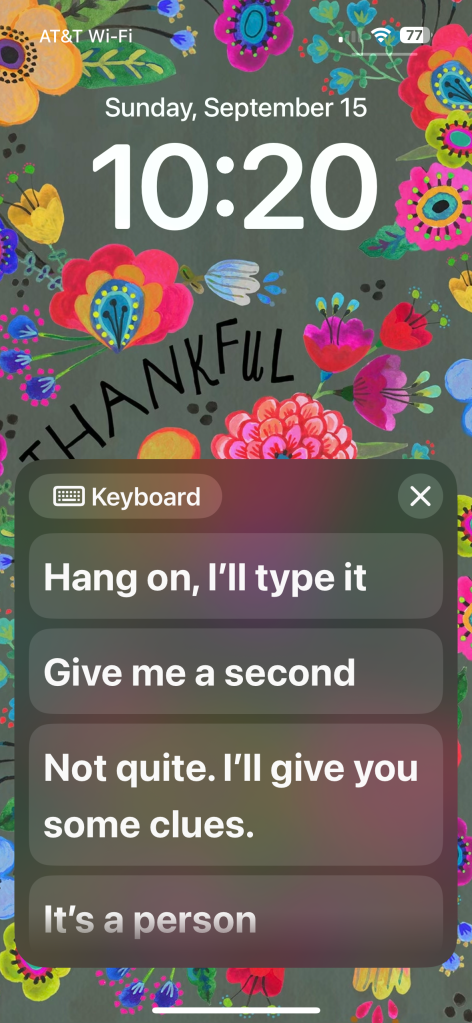
Live Speech is a free option included in iOS 17 or later (found under Accessibility – Speech). I set it to open immediately via a double tap under Back Tap. This allows me to have immediate access to typing and a few saved phrases even on the Lock Screen and it can use my Apple Personal Voice. (https://support.apple.com/en-us/105018)
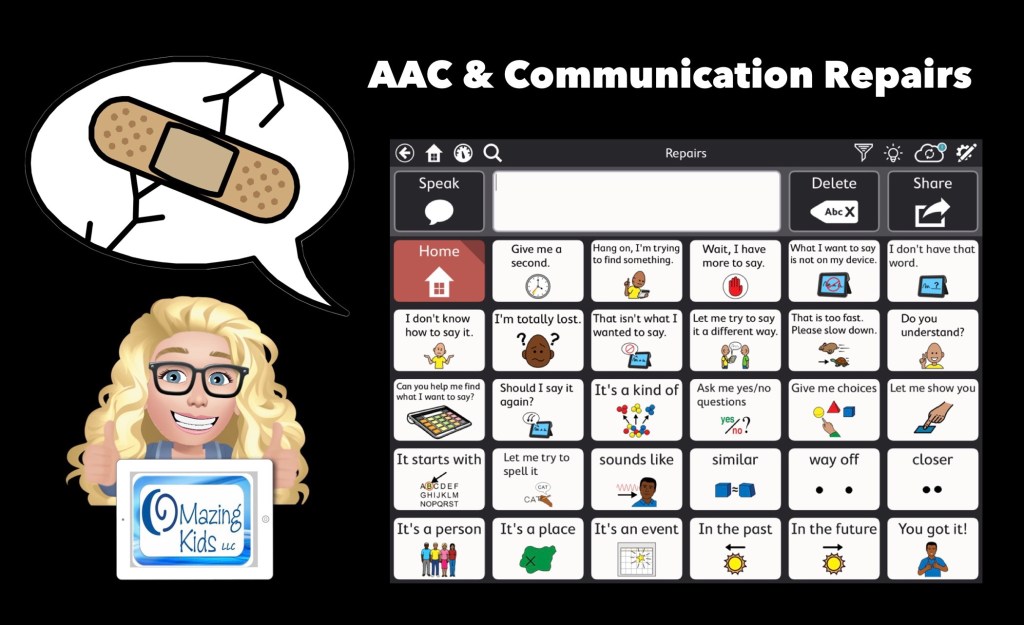
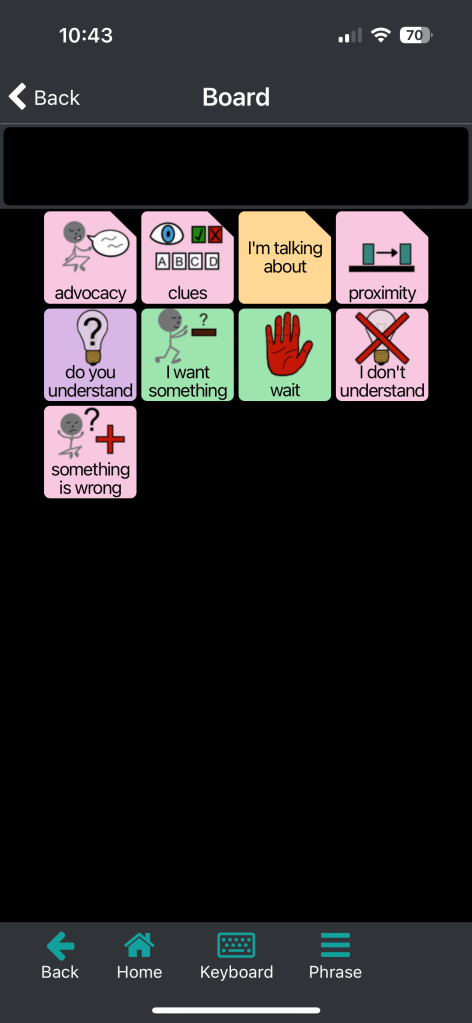
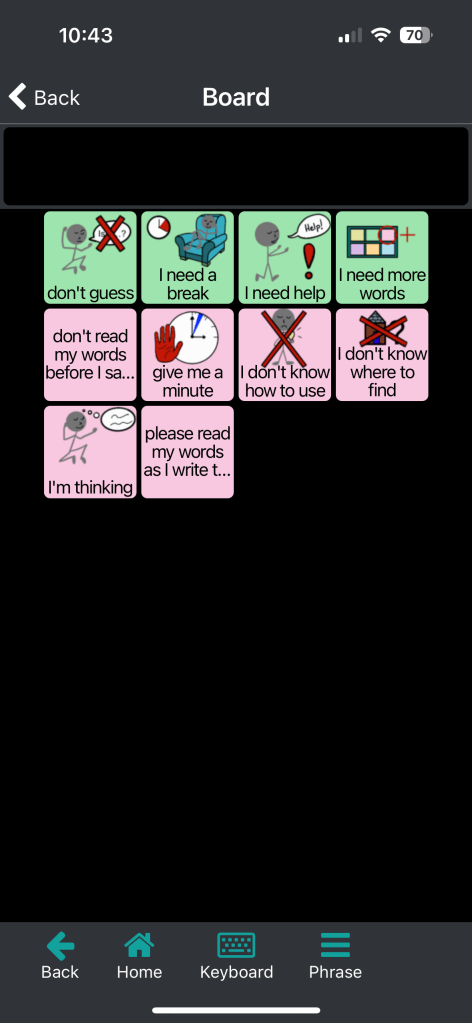
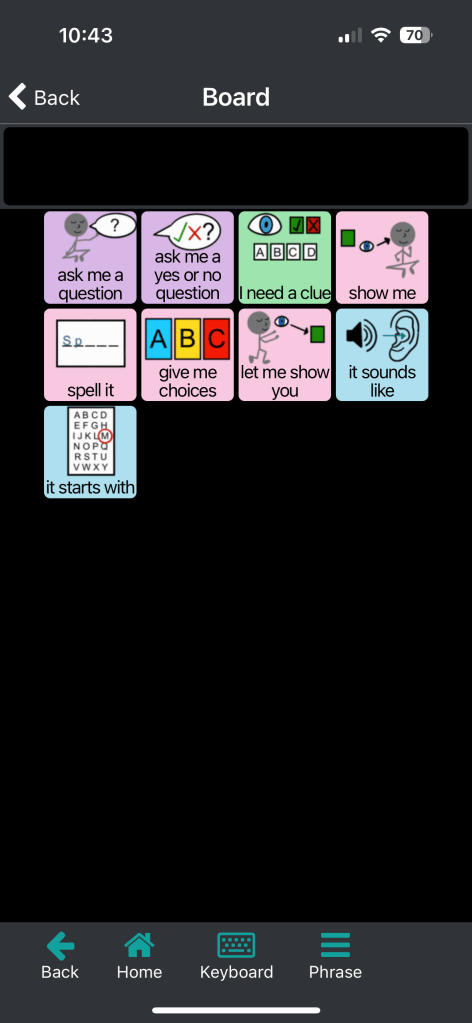
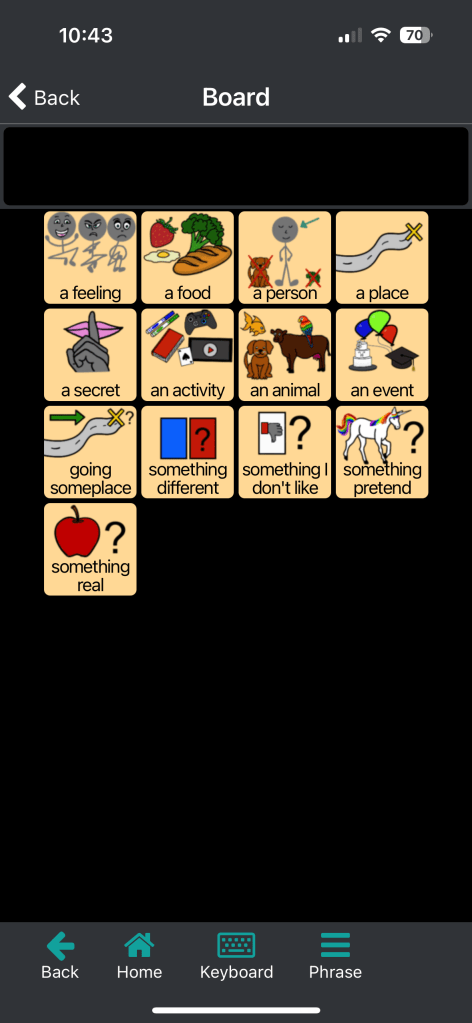
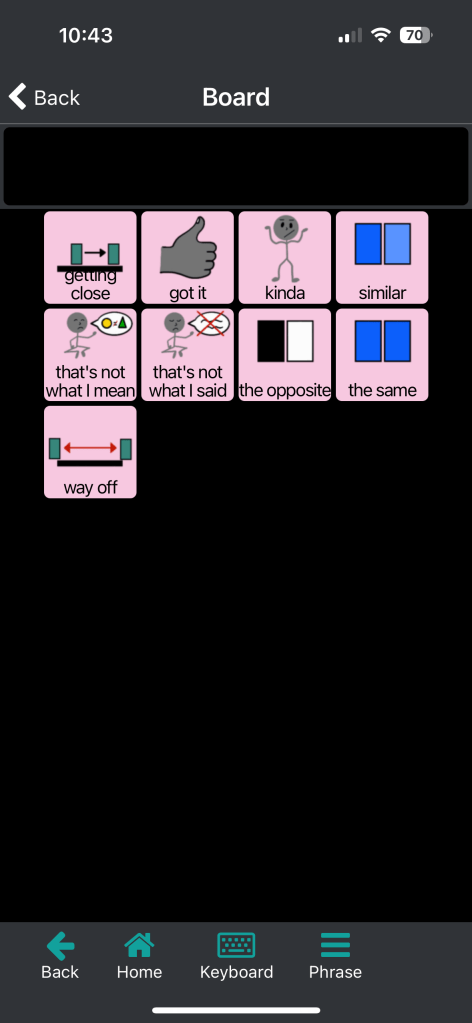
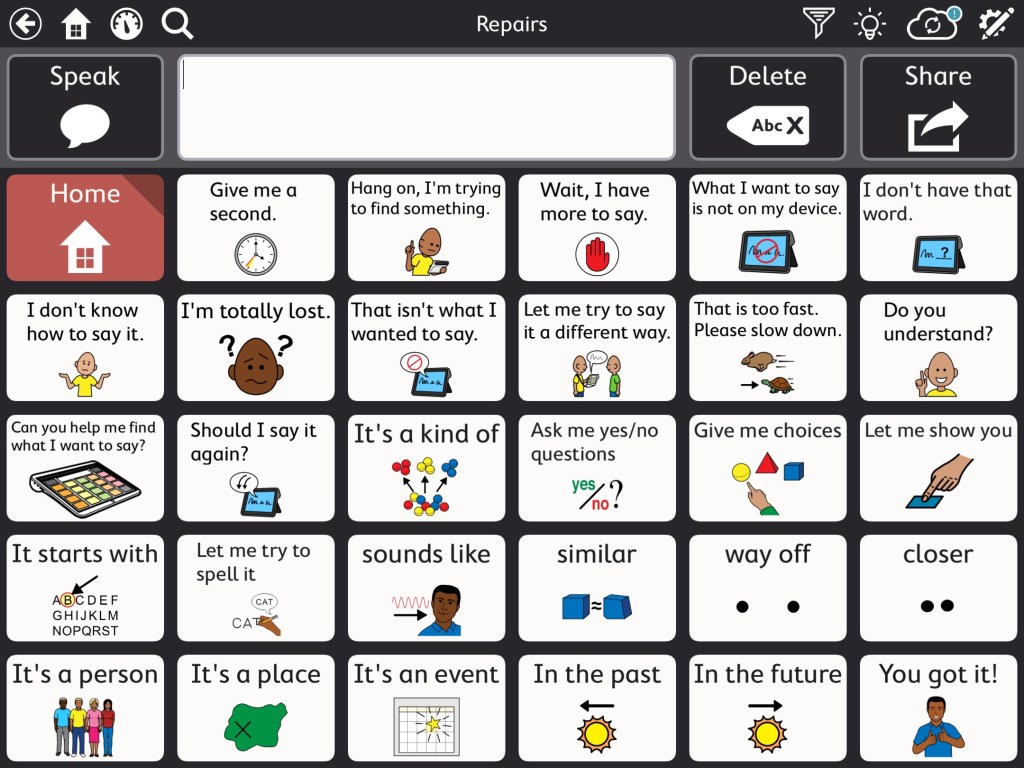
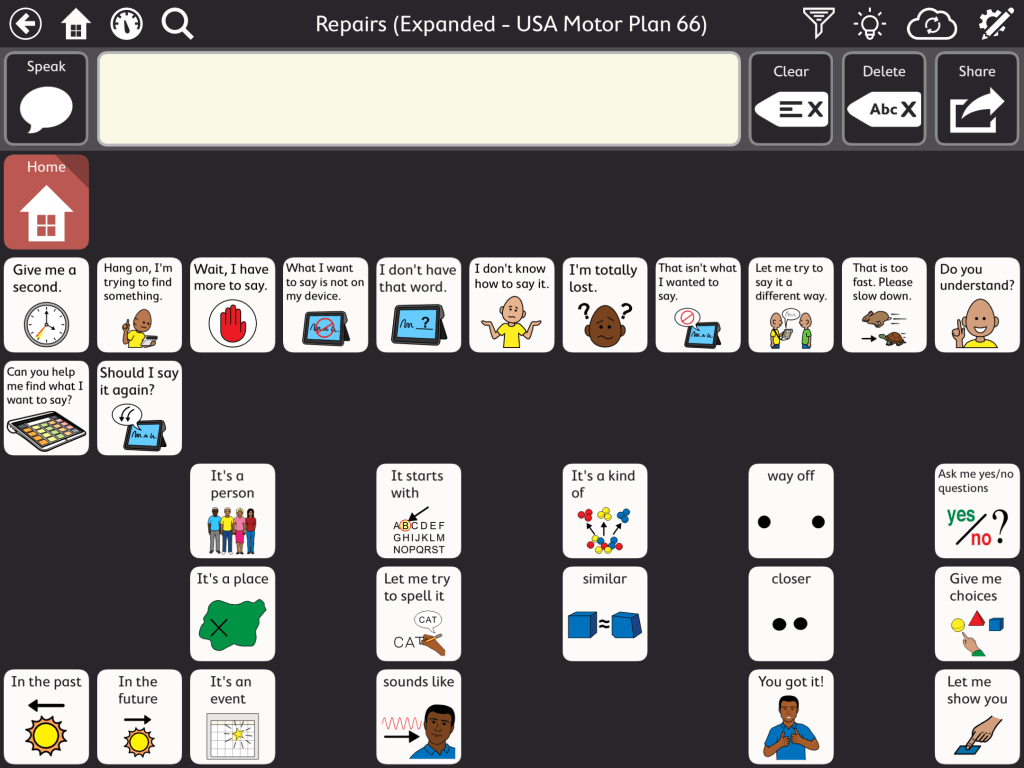
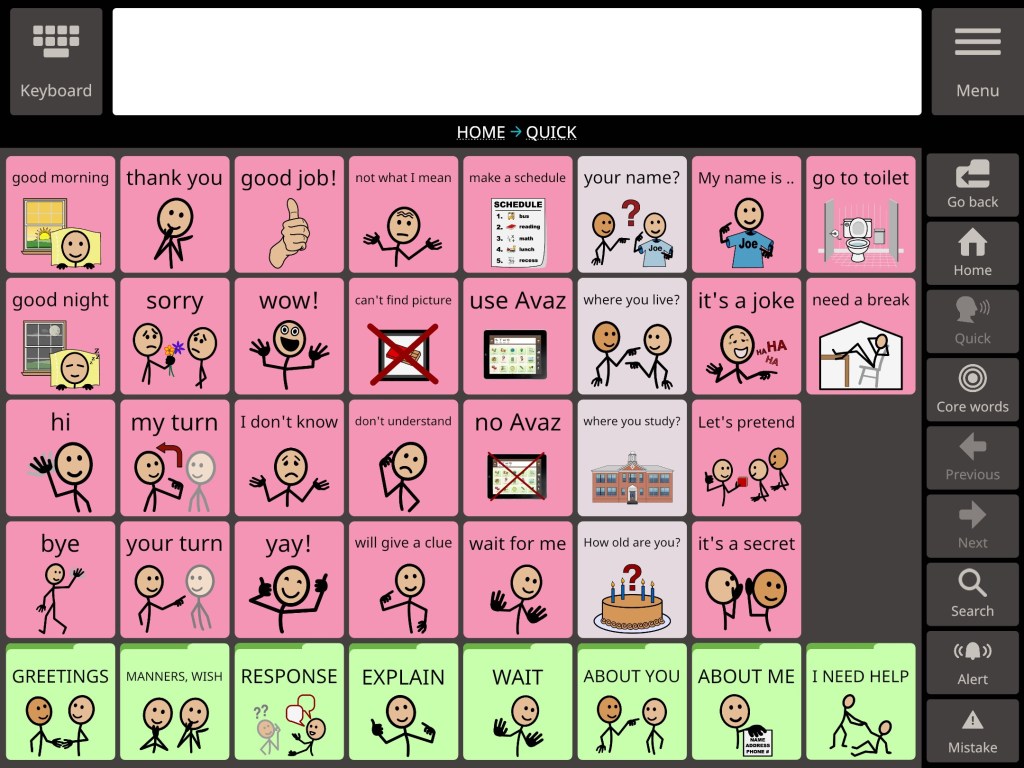
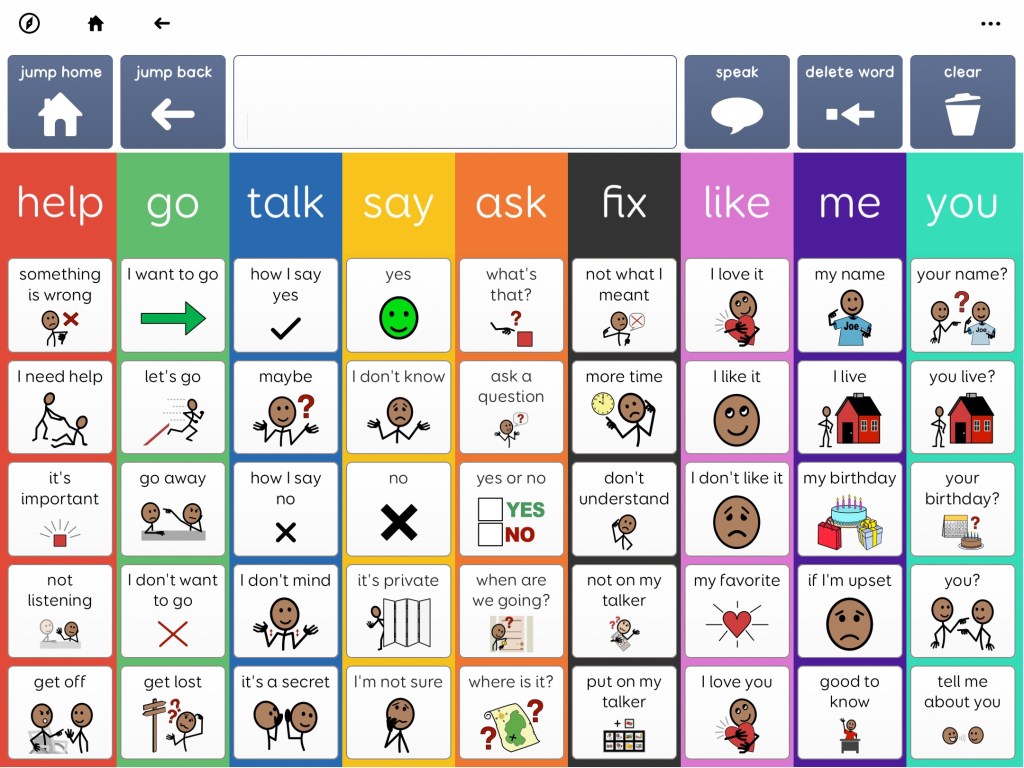
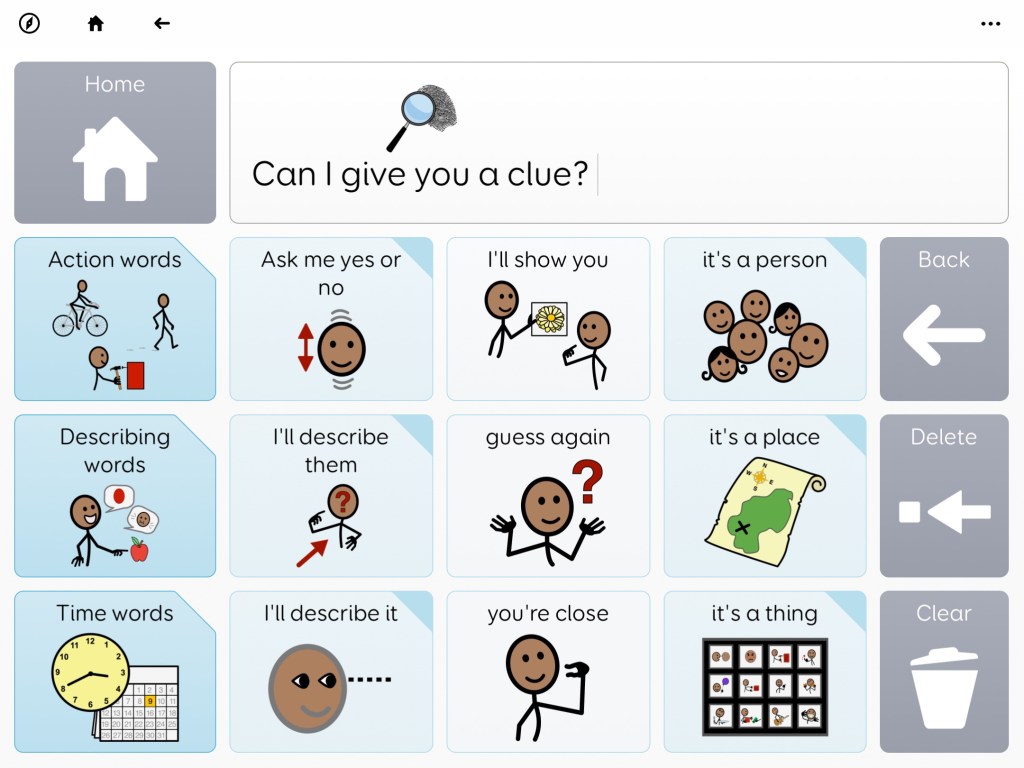
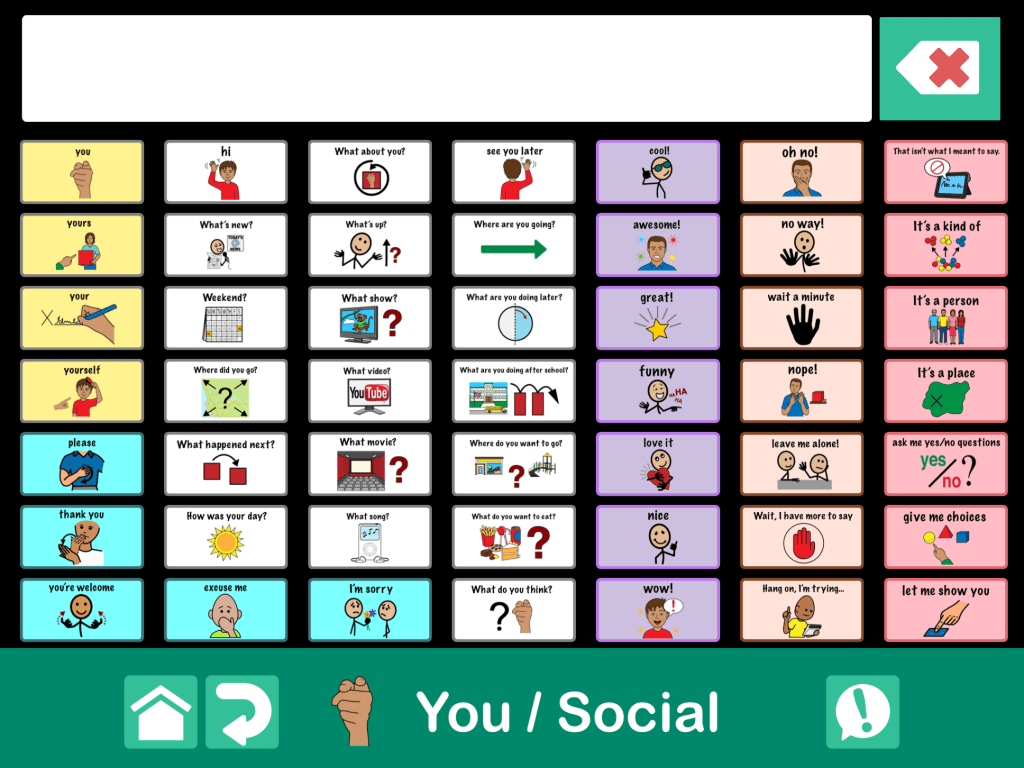
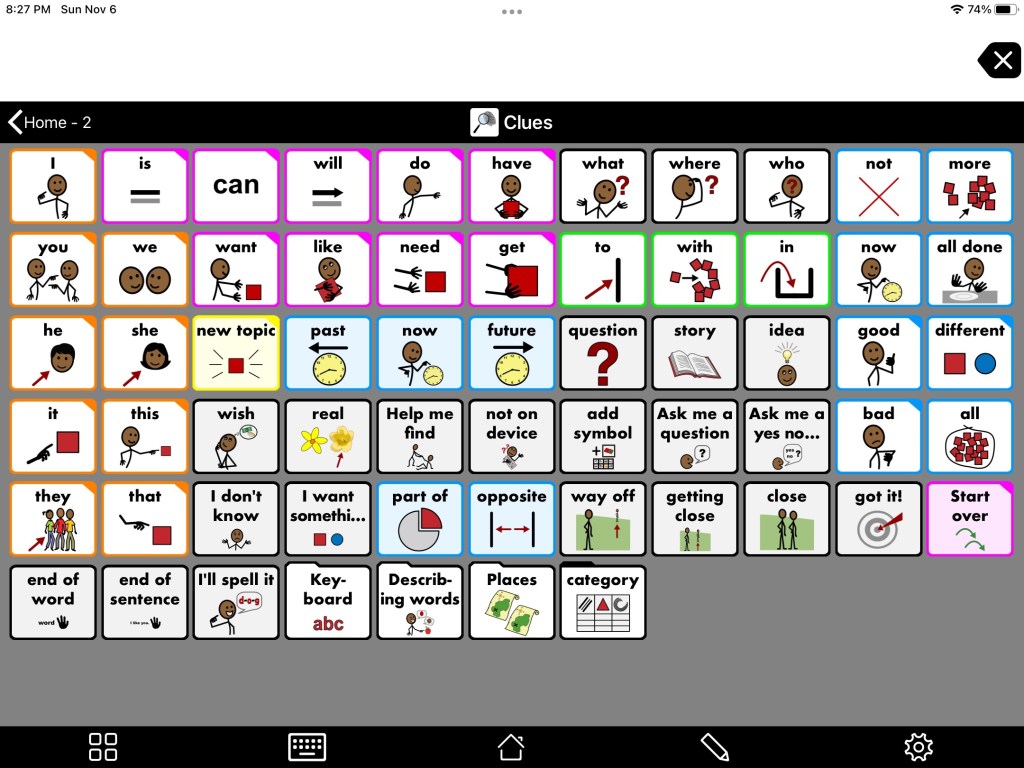
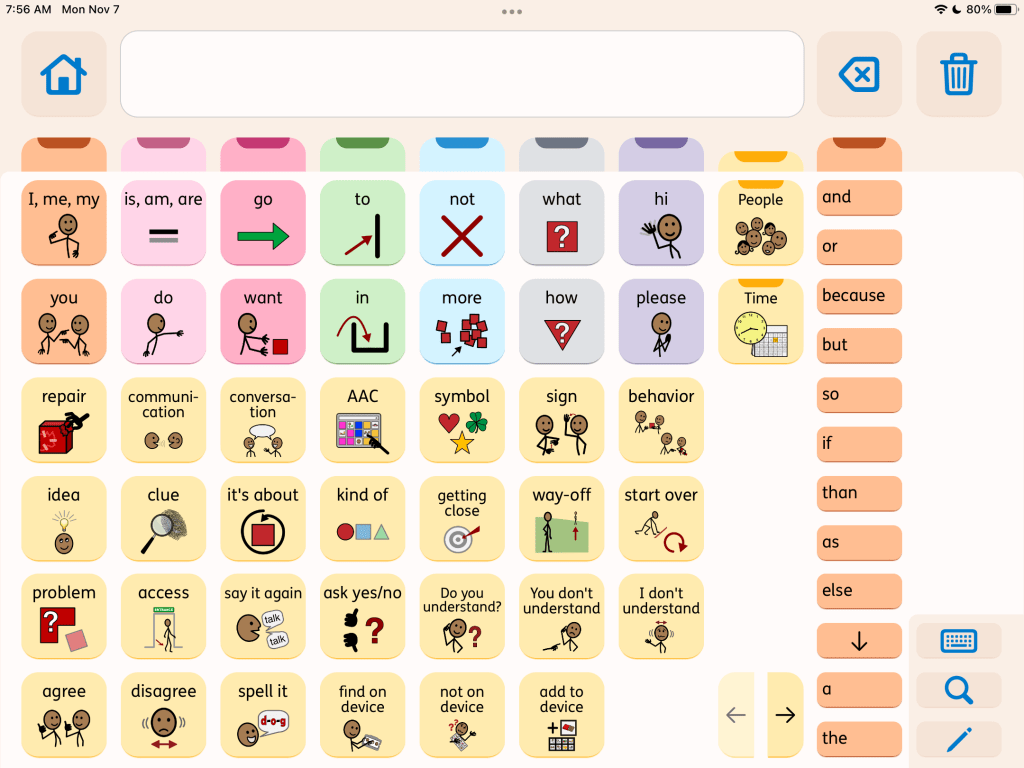
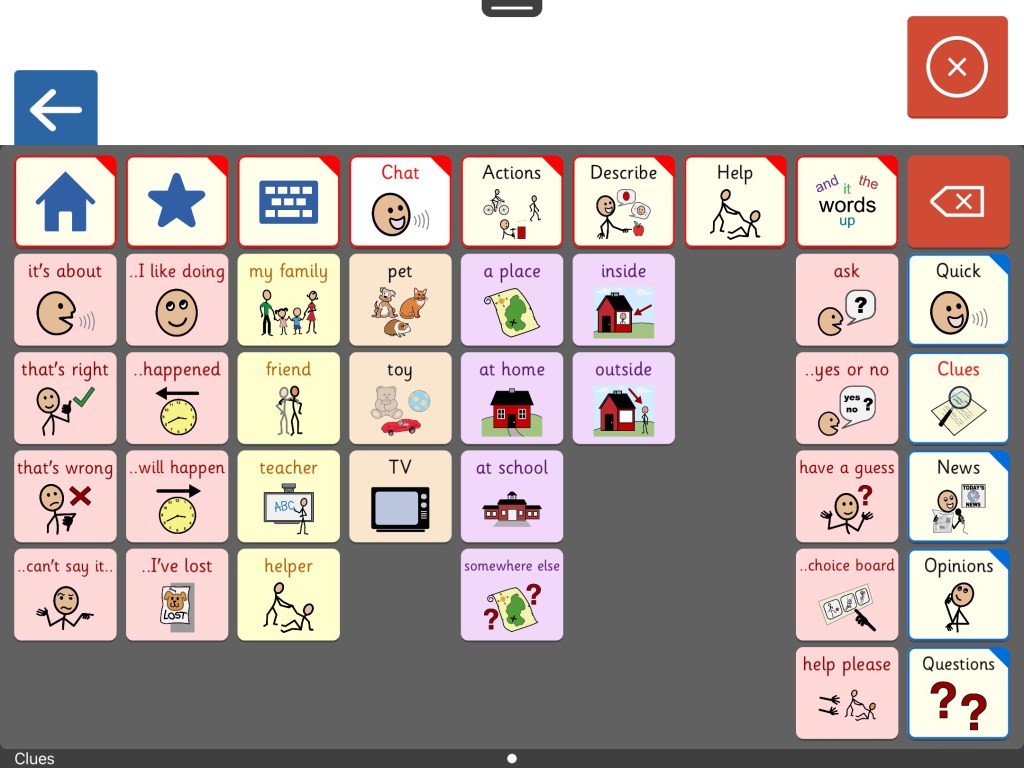
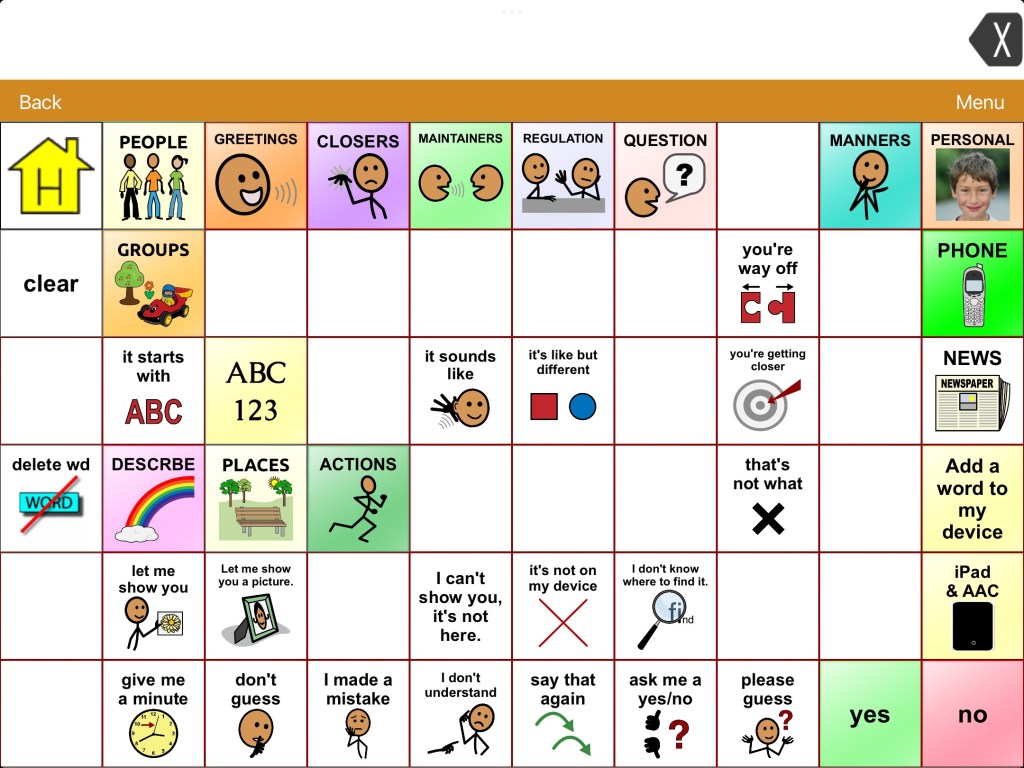
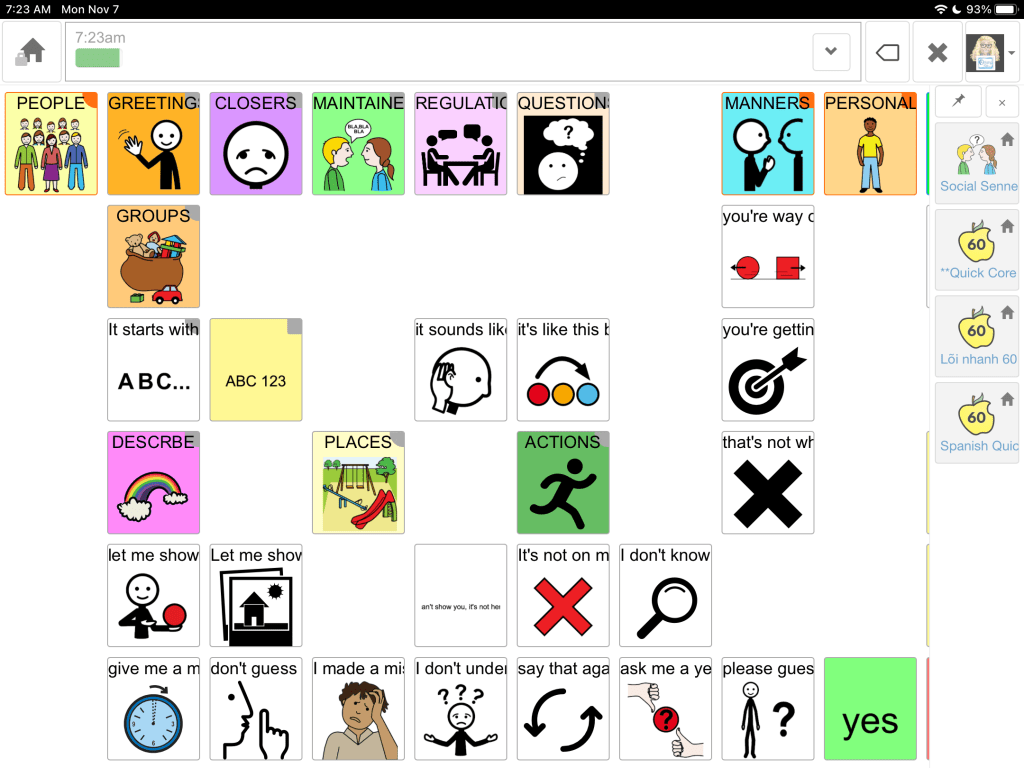
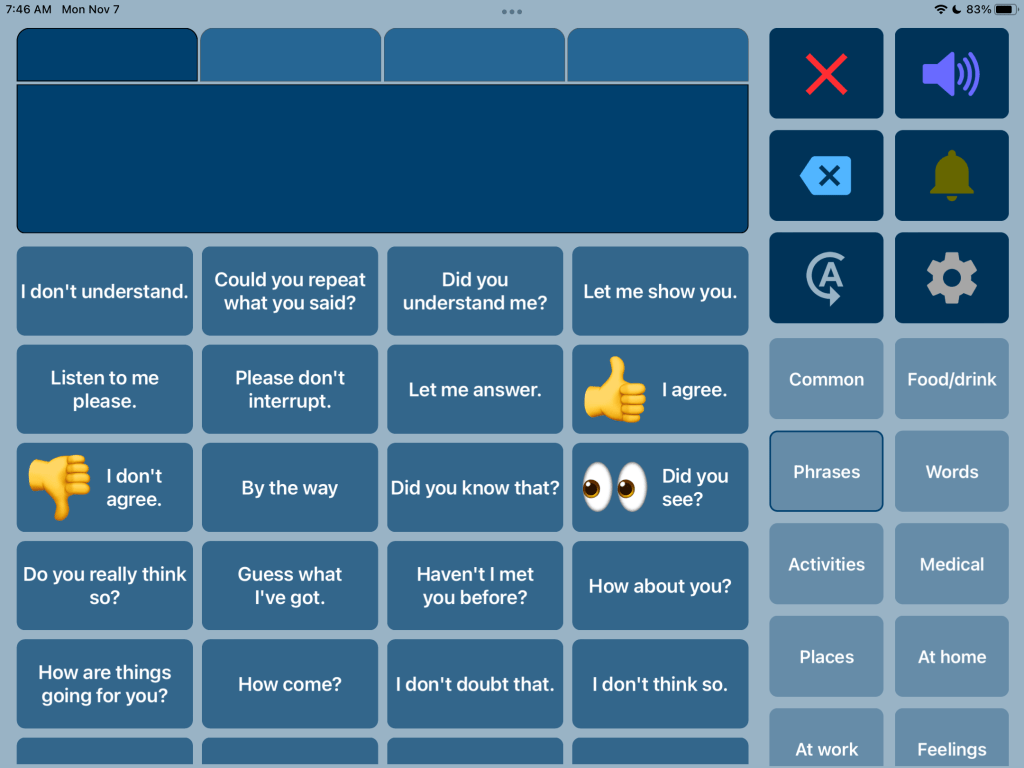
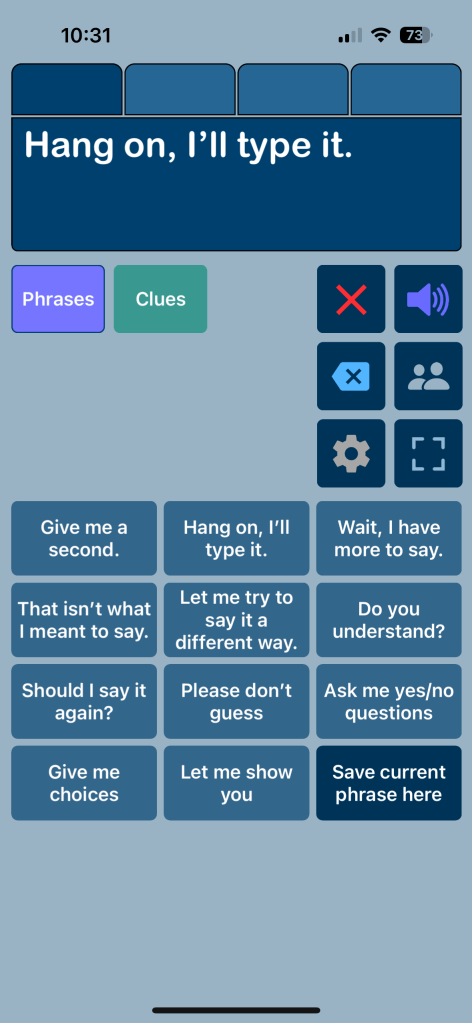
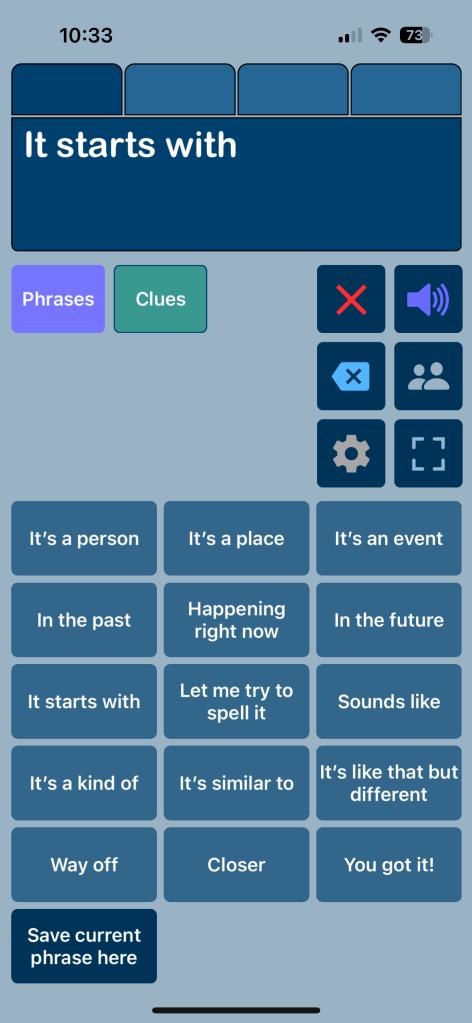
If you’re needing something more robust, quite a few AAC apps have this type of content or there is a way to import it. These screenshots are examples of “Communication Repairs” vocabulary. See caption under each pic for more info.
Info about the Senner-Baud social pages can be found on the Technology & Language Center, Inc. website: https://talcaac.com/add-on-social-pages/. They have “how to” videos that show how to import/add them to each app. It’s important to follow the exact steps in their videos for it to work properly.
Communication Repairs in Weave Chat AACAdvocacy CluesI’m talking aboutProximity
Weave Chat AAC is a totally free robust AAC app available on iOS, Android, and Amazon Fire. Here are screenshots of included vocabulary for communication repairs. It is totally customizable.
A communication repair page in the Motor Plan 30 pageset in TD Snap. I added more to it by copying and pasting buttons from the Aphasia pageset and some from the Senner-Baud social pages that I had imported into the Core First pageset.
And my Communication Repairs page in the USA Motor Plan 66 pageset in TD Snap.
The Quick page in Avaz AAC (40 pictures per screen grid size, most recent update with new interface)
A screenshot of the Messages page from Super Core 50 in Grid for iPad (or Grid 3 on Windows devices)
A screenshot from Voco Chat in Grid for iPad (or Grid 3 on Windows devices). This page is found under My Toolkit – Can I give you a clue.
This is a page within a fairly robust communication book that I built with the largest grid size (49 buttons, 7×7) in GoTalk Now Plus. It was influenced by this type of content in other apps. The “!” button has an eight button popup with quick words that can be accessed while on any page in the app.
Notes:
The free download link for the fairly robust Communication Book that I built is available by request for members of the GoTalk Now AAC & GoVisual Visual Scene Apps – Ideas and Sharing Facebook Group: https://bit.ly/GoTalkNowAACappGroup. Join the group and then head to this featured post where I shared the OneDrive download link: https://www.facebook.com/story.php?story_fbid=962573088901633&id=355075249651423. (Be sure to open in a browser outside of social media. If you run into issues try a different browser. I know for sure that it works in Safari.)
I have only created this Communication Book in English since that is my native language.
This Communication Book is way too large to upload to the GoTalk Now Online Gallery.
Please only download it if you have GoTalk Now or GoTalk Now Plus.
There is NOT a way to import a Communication Book into the free GoTalk Now Lite app or the inexpensive GoTalk Start app.
The Clues page from Proloquo2Go. On 7 x 11 grid in Crescendo Intermediate Core this page is found on Home 2 – Clues.
The Repair page in the subscription-based Proloquo + Proloquo Coach app.
The Clues page from Clicker Communicator AAC. This is found in Clicker Core 3 vocabulary – Chat – Clues.
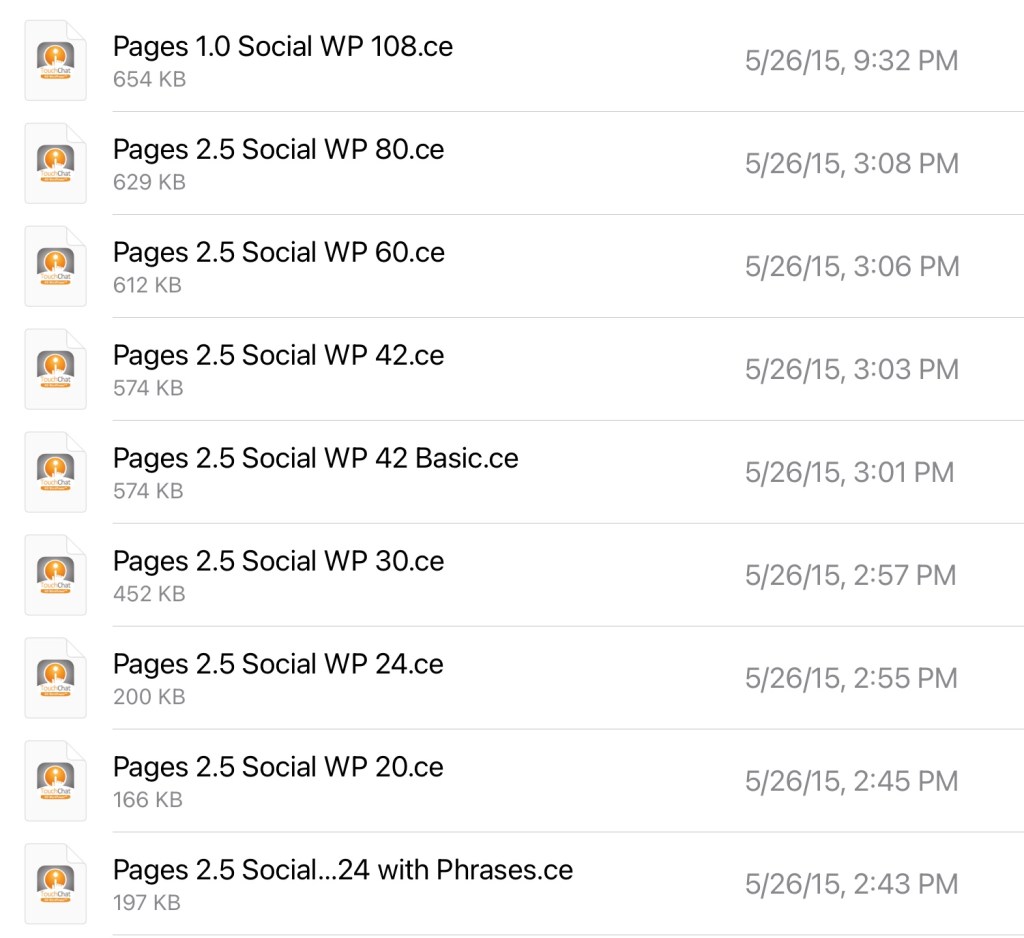
The Repairs page from the Senner-Baud social pages imported into the WordPower 60 Basic vocabulary in TouchChat with WordPower. The zipped file has these for nine different vocab file sizes.
The Repairs page from the Senner-Baud social pages imported and added to the Sidebar in Quick Core 60 in CoughDrop.
The Phrases area in Speech Assistant AAC. This very affordable text-based AAC app is easy to customize and allows an emoji, picture or symbol to be added to a button to help it stand out. I’ve rearranged some of the phrases to group them for conversational repair and added to it.
You can also build something very simple specifically for communication repairs in Speech Assistant AAC. These are screenshots from it on my iPhone.
I am sharing these as examples in case you were looking for apps that offer this type of content or are thinking of adding this type of vocabulary to an your AAC app.
As always, it’s best to include the AAC user in customizing their own system… including what they want added, where they want to add it, what symbols they want to use, etc…
AAC Feature Matching Resource Bundle (includes all three, save 10%): https://bit.ly/aacFeatureMatchingBundle. If you are looking to purchase resources for several staff / team members, take a look at the Multiple Licenses discount (saves 20%)
The power of truly embracing and incorporating individual interests into an AAC system and AAC implementation plus customizing for unique needs cannot be overstated.
It is a respectful neurodiversity affirming practice that
builds connections
fosters AAC ownership
resonates with them
allows for authentic communication
AAC systems and many AAC implementation strategies were designed with Analytic Language Learners in mind.
There are things that can be done to personalize an AAC user’s device that don’t involve changing any of the layout. I’ve seen way too many kids, teens and young adults who were deemed “unable” or “not ready” to use AAC or who showed little to no interest in using it until we involved them in choosing and in customizing an AAC system that resonated with them. What sparks that interest and joy is highly individualized but when you experience that it’s magical.
While we don’t yet have “scientific research” related to AAC for Gestalt Language Processors, we do have Clinical Expertise and Client/Patient/Caregiver Perspectives.
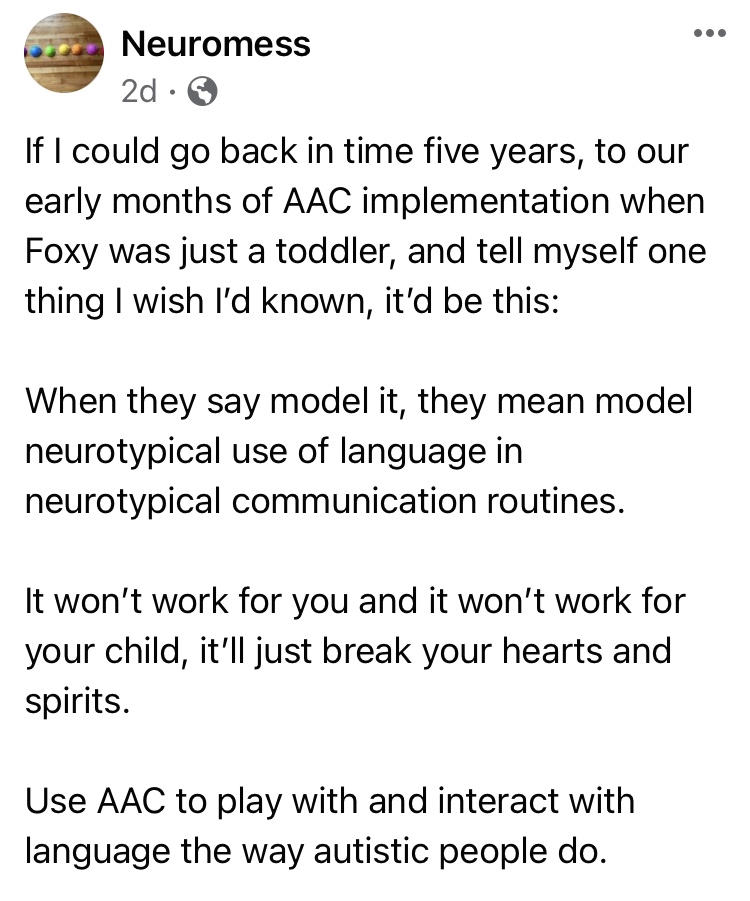
Combine good AAC practices (presume potential, form authentic connections, engage in fun child-led activities based on their unique interests, accommodate sensory needs, model AAC use without demands, etc.) with a Natural Language Acquisition approach.
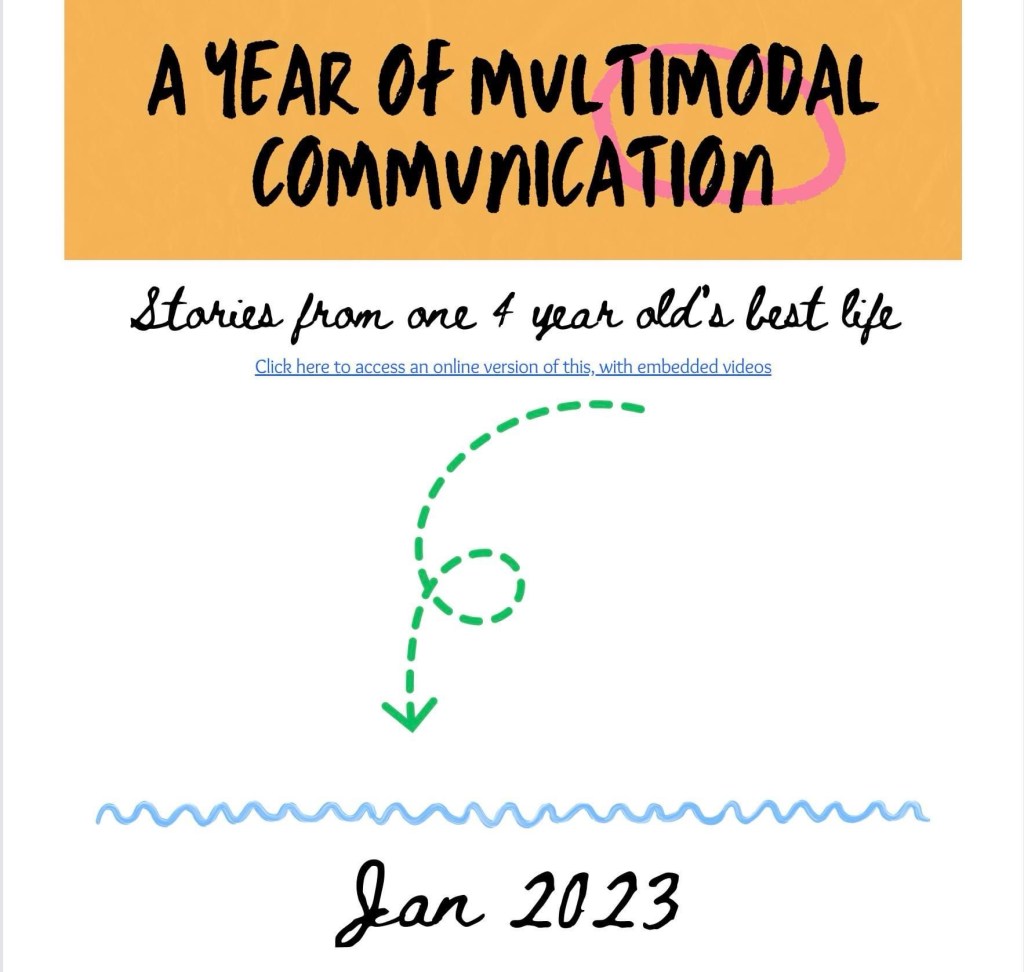
And read this The North Star and the Compass Facebook post with Canva links: A year in the life of one creative communicator (Speak for Yourself, Pictello, Spotify, Proloquo2Go as AAC). How do you truly follow a kid’s lead when they do unexpected things with their AAC?
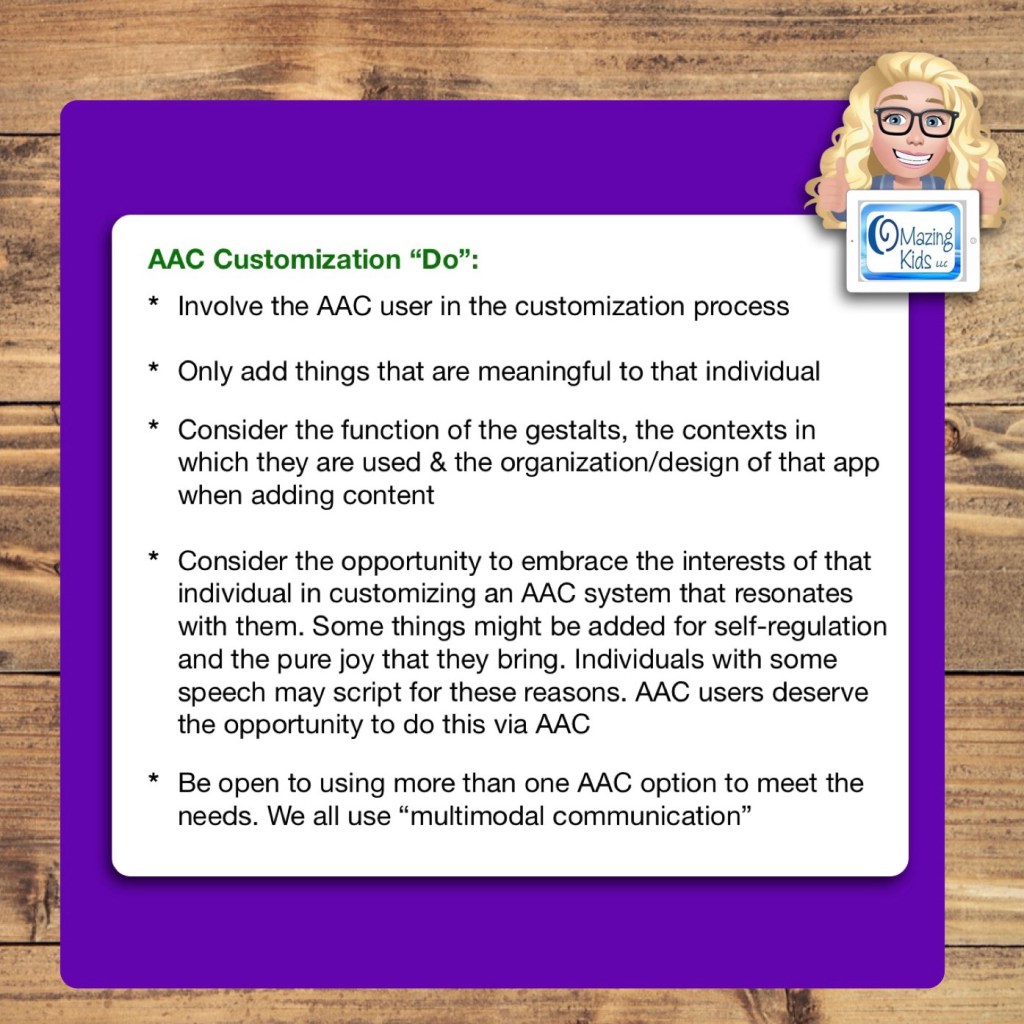
Only add things that are meaningful to that individual
Consider the function of the gestalts, the contexts in which they are used & the organization/design of that app when adding content
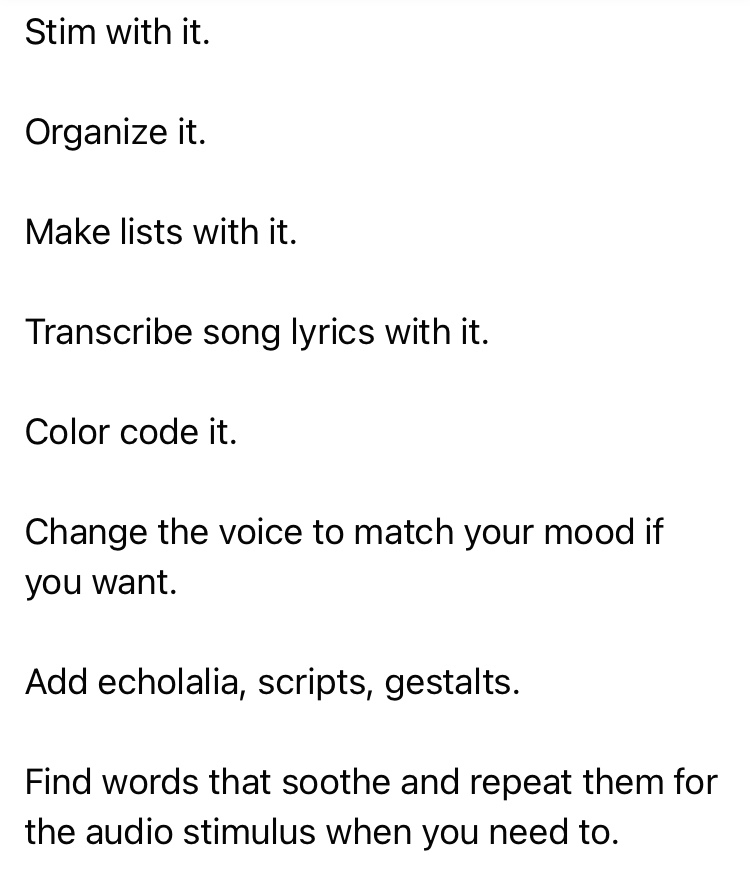
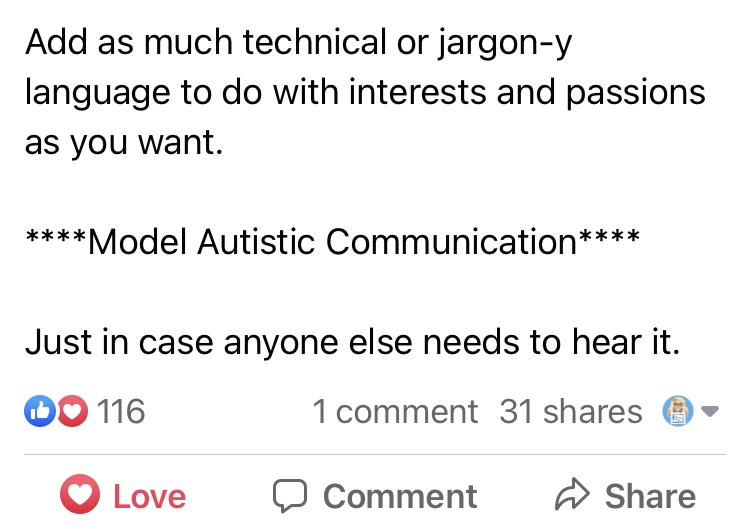
Consider the opportunity to embrace the interests of that individual in customizing an AAC system that resonates with them. Some things might be added for self-regulation and the pure joy that they bring. Individuals with some speech may script for these reasons. AAC users deserve the opportunity to do this via AAC
Be open to using more than one AAC option to meet the needs. We all use “multimodal communication”
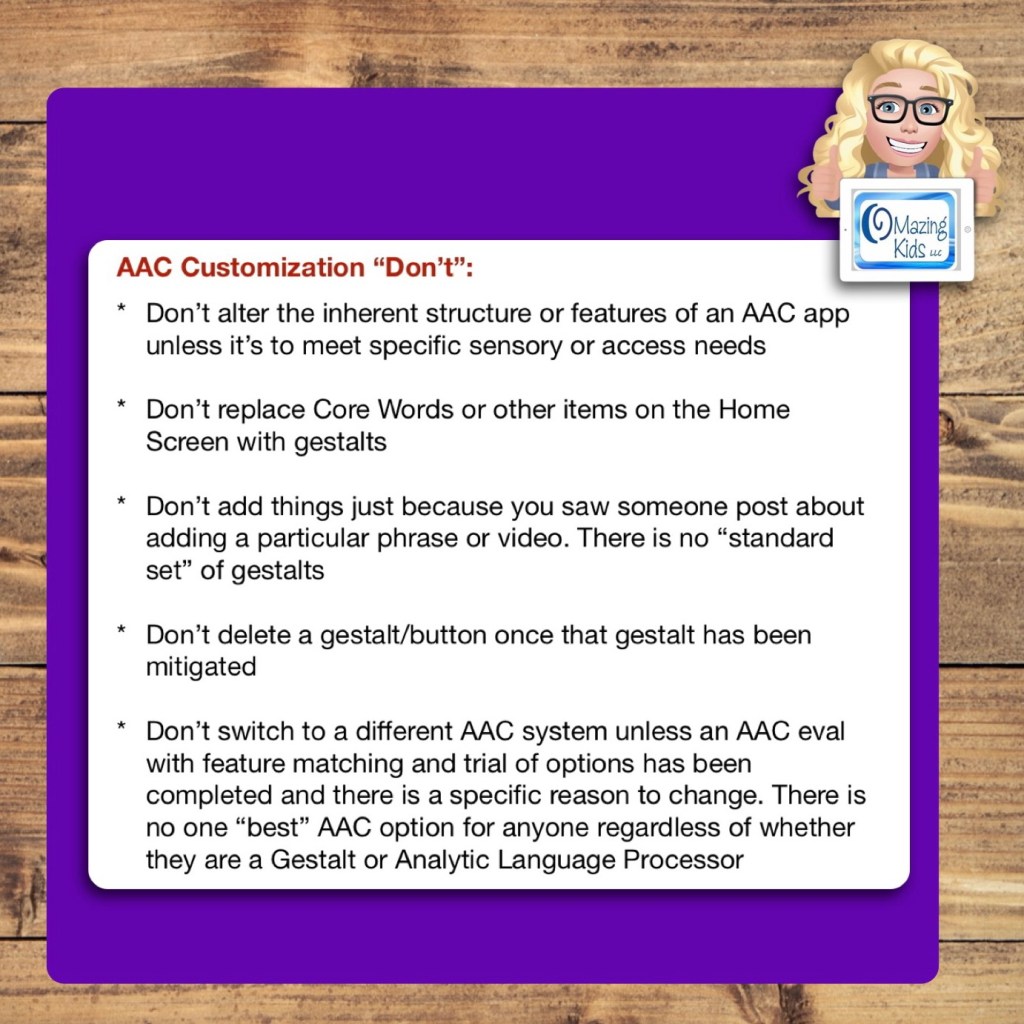
AAC Customization “Don’t”:
Don’t alter the inherent structure or features of an AAC app unless it’s to meet specific sensory or access needs
Don’t replace Core Words or other items on the Home Screen with gestalts
Don’t add things just because you saw someone post about adding a particular phrase or video. There is no “standard set” of gestalts
Don’t delete a gestalt/button once that gestalt has been mitigated
Don’t switch to a different AAC system unless an AAC eval with feature matching and trial of options has been completed and there is a specific reason to change. There is no one “best” AAC option for anyone regardless of whether they are a Gestalt or Analytic Language Processor
Want to learn more about AAC feature matching (comparing features and matching them to an individual’s needs)? Check out the three feature matching resources: https://bit.ly/3aacFeatureMatchingResources. The feature matching resource for the symbol-based AAC apps includes a free supplemental handout “Unique Features in Symbol-Based AAC Apps to Support Gestalt Language Processors”. It has info related to all 12 apps + additional info about features in 8 free and affordable symbol-based AAC apps (mainly iOS, some Android and a couple of Windows) priced $2.99 or less.
Looking for a customizable non-tech printable AAC flip book? See my resource “TD Snap: a visual guide to getting started”. It includes free Bonus Content: access to a 10 page printable AAC flip book specifically designed with Gestalt Language Processors in Stage 1 – Stage 2 of the Natural Language Acquisition (NLA) process in mind + the option to request an editable version in TD Snap. The free bonus handout includes instructions for printing, cutting out and assembling + a video): https://www.teacherspayteachers.com/Product/TD-Snap-a-visual-guide-to-getting-started-more-bonus-AAC-flipbook-7445593
Looking for in-depth AAC feature matching resources? See this blog post: https://bit.ly/5aacFeatureMatchingResources. That post also includes videos comparing AAC apps on various devices on various platforms.
AAC is as much an art as a science. There’s lots of trial and error. Lots of tweaking or combining things to meet unique needs. And user’s needs change over time. There’s no one “best” or “one size fits all” system, app or device. So it’s important to just dive in and start somewhere. Don’t let “perfect” be the enemy of good. It’s better to get something done imperfectly than to do nothing perfectly.
I love seeing videos and pictures of how others have customized AAC to meet unique needs. I think that’s why I’m active in so many different AAC related groups on Facebook. Those examples get my creativity flowing.
I don’t recall a time that I ever just used an AAC app or SGD just “as is”. I always personalized it.
I love to tinker with things and come up with creative solutions. I can tell you based on over 30 years of experience as an AAC SLP, there is no one “best”, “right” or “one size fits all” way. Not even for users with the same diagnoses. There are too many variables and above all the individual preferences of that user and their family.
Some older teens and young adults preferred to use more than one option and the freedom to pick what worked for them in that moment.
I also mash together options like using keyboard extension apps within AAC apps that allow access to those. That opens up a whole world of possibilities for adapted keyboards, calculator keyboards, whiteboard keyboards where the user can draw to communicate, etc.
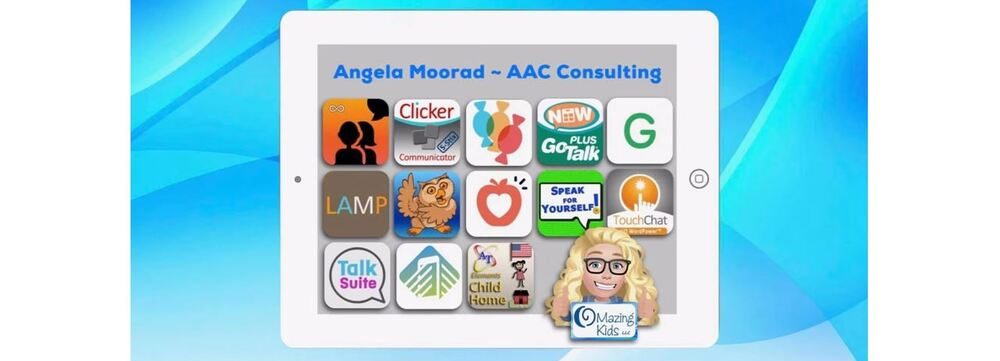
Want to learn more about the features in AAC apps in order to know what the possibilities might be? Check out the Feature Matching Chart for the Top 11 robust iOS symbol-based AAC apps:










 OMazing Kids AAC Consulting