Angela Moorad, MS, CCC-SLP. Over 36 years experience in AAC. OMazing Kids AAC and app consulting. Creator of several AAC Feature Matching resources (https://omazingkidsllc.com/omazing-kids-aac-resource-links/). Includes info about unique features to support Gestalt Language Processors
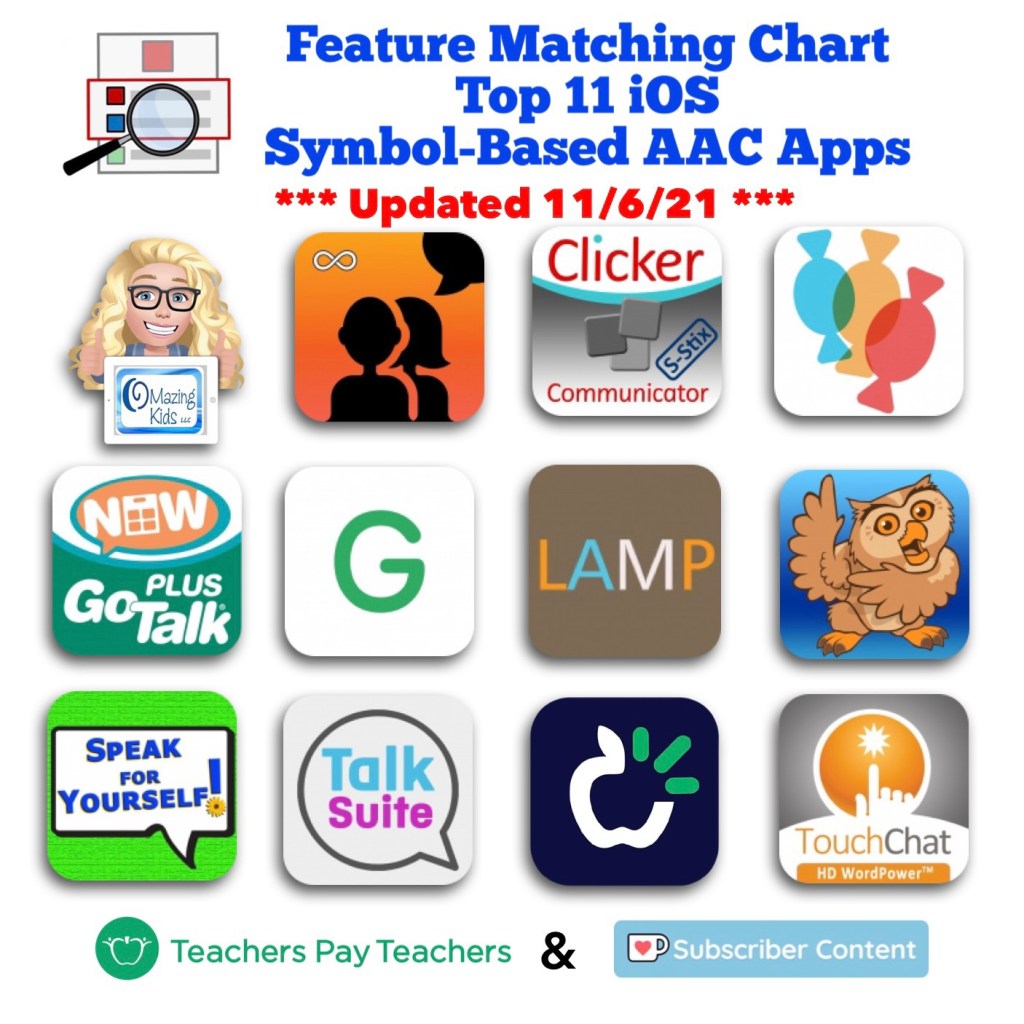
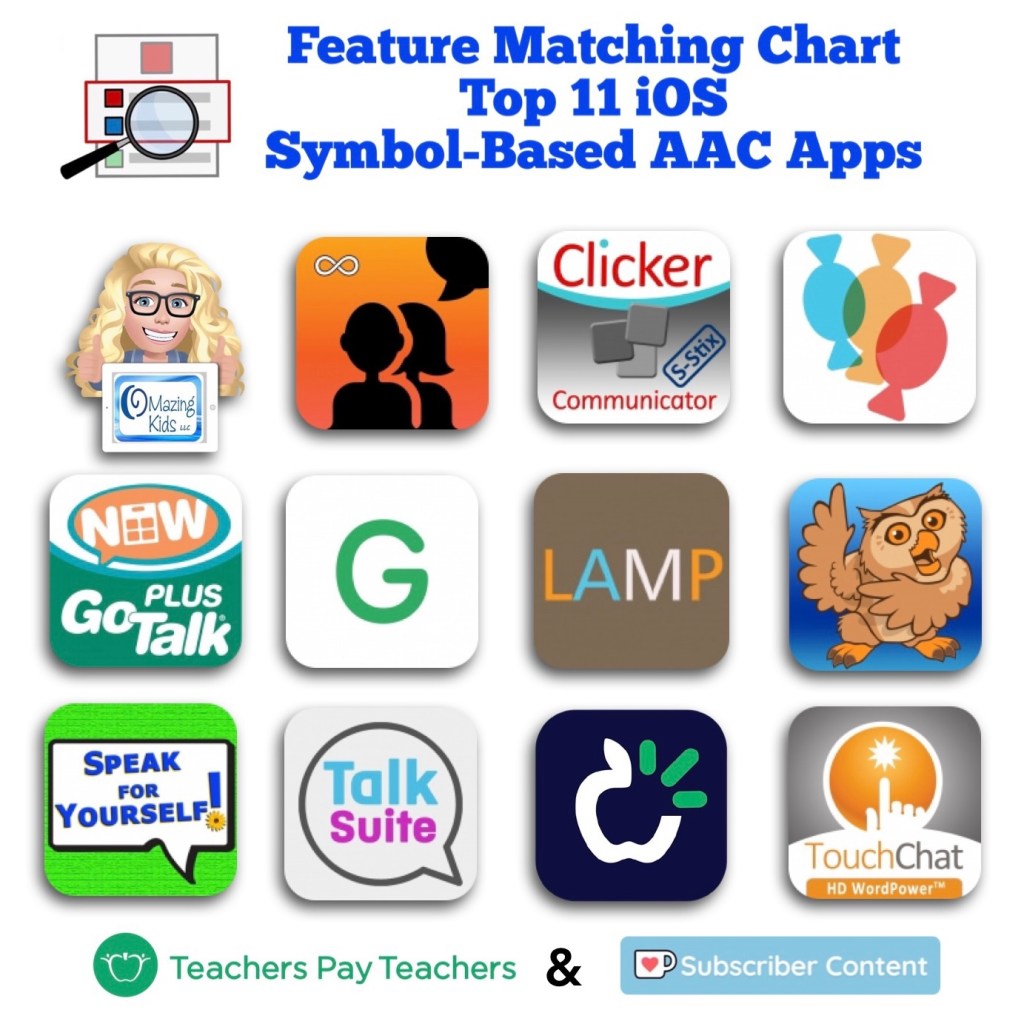
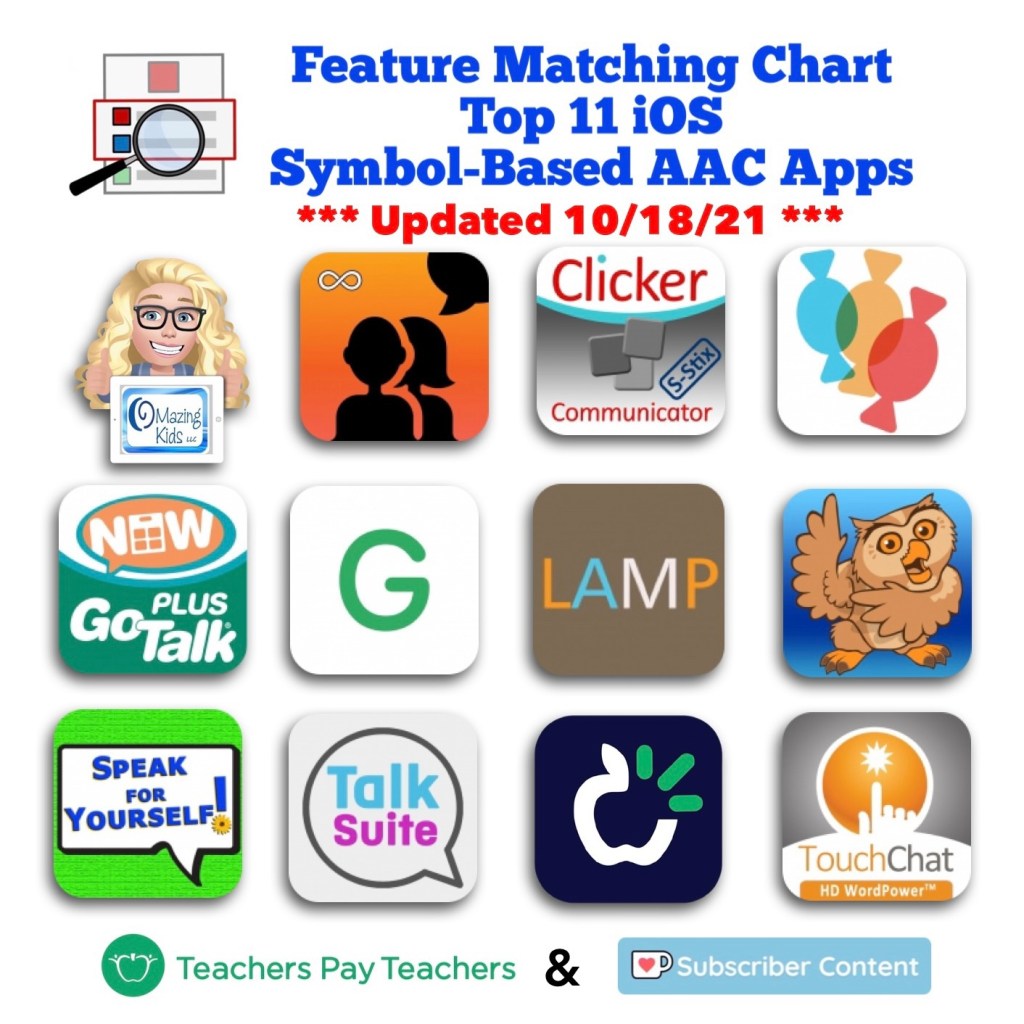
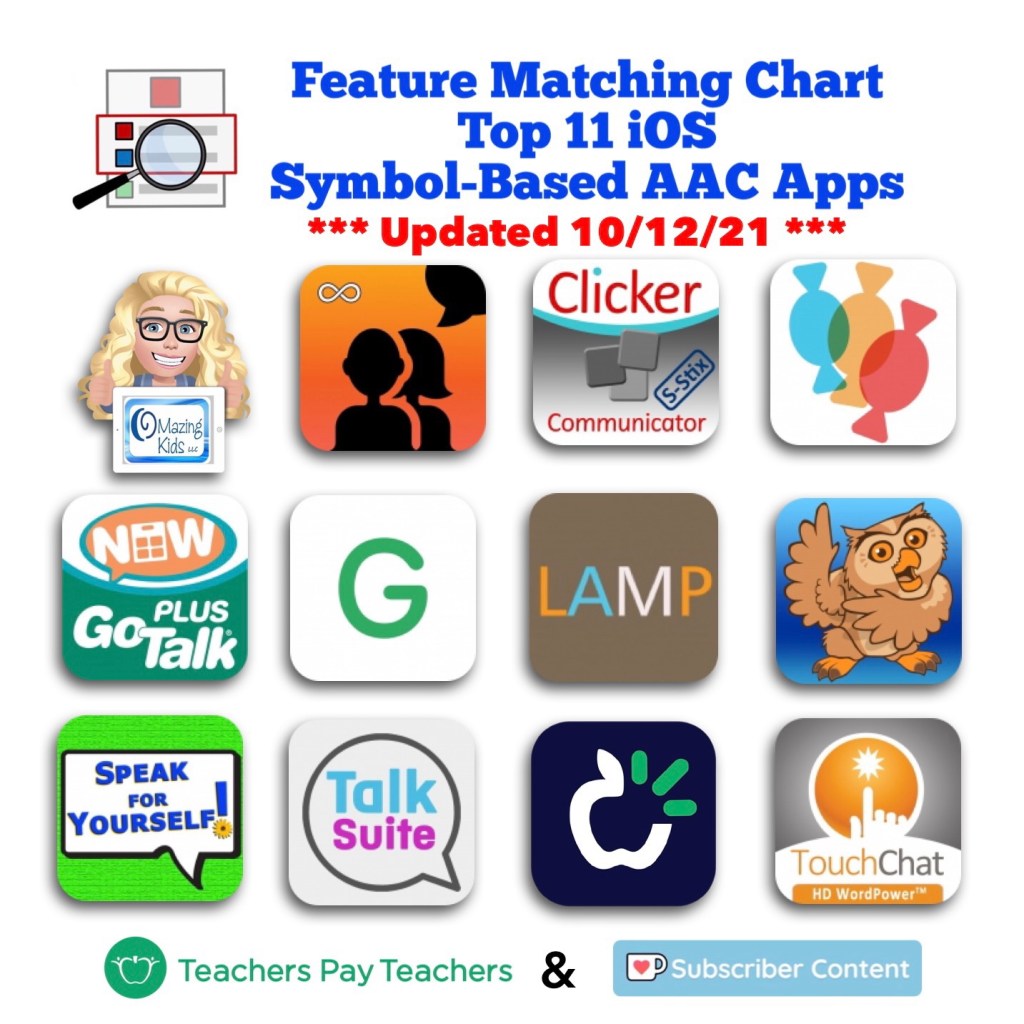
Updated Feature Matching Chart for the Top 11 iOS Symbol-Based AAC Apps (11/6/21). There is a designation on rows for features that may be helpful as folks are exploring ways to modify AAC for Gestalt Language Processors. The quickest way to find those is to view the PDF in the free Xodo PDF viewer (http://www.xodo.com…. Go to this on their new website: https://pdf.online/pdf-viewer) and then search “gestalt”.
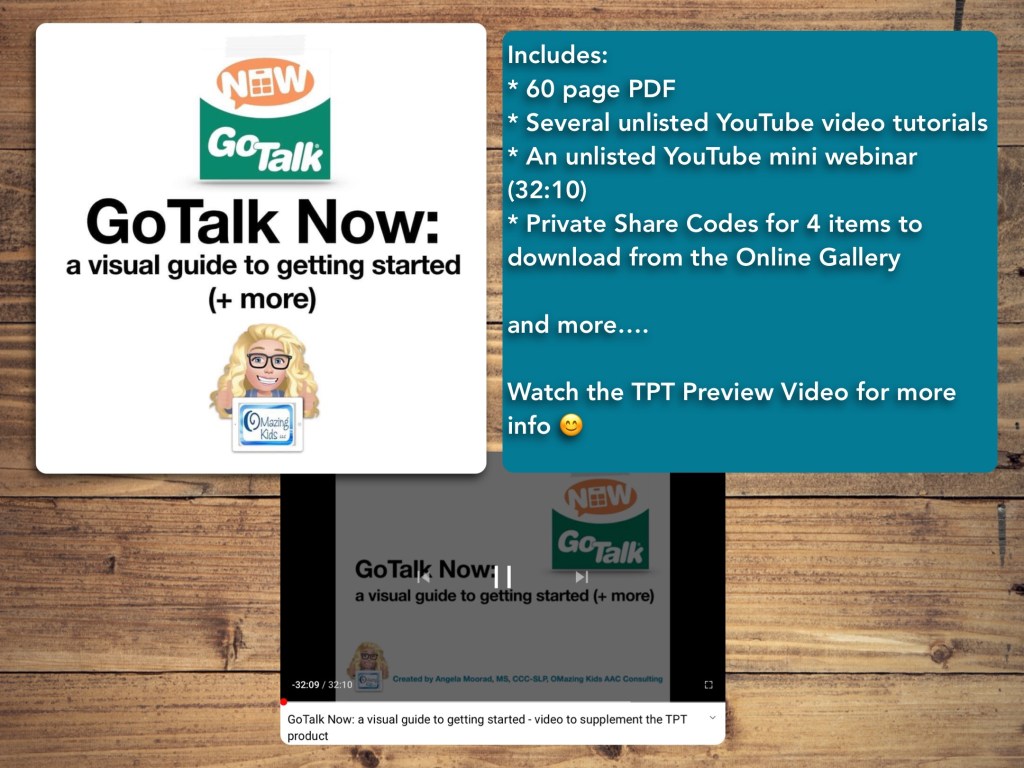
This resource has a 60 page PDF, access to several unlisted YouTube videos, exclusive Share Codes that will allow you to download 4 premade items from my private area on the Online Gallery, etc …
*** There is one topic per page with visuals ***
It is perfect for those who are brand new to the app and want screenshots for every step in the initial set up and also has more in-depth info for those who want to see examples of ways to use the app, info about switch scanning access, and more…
This AAC app has several features that could be helpful for Gestalt Language Processors.
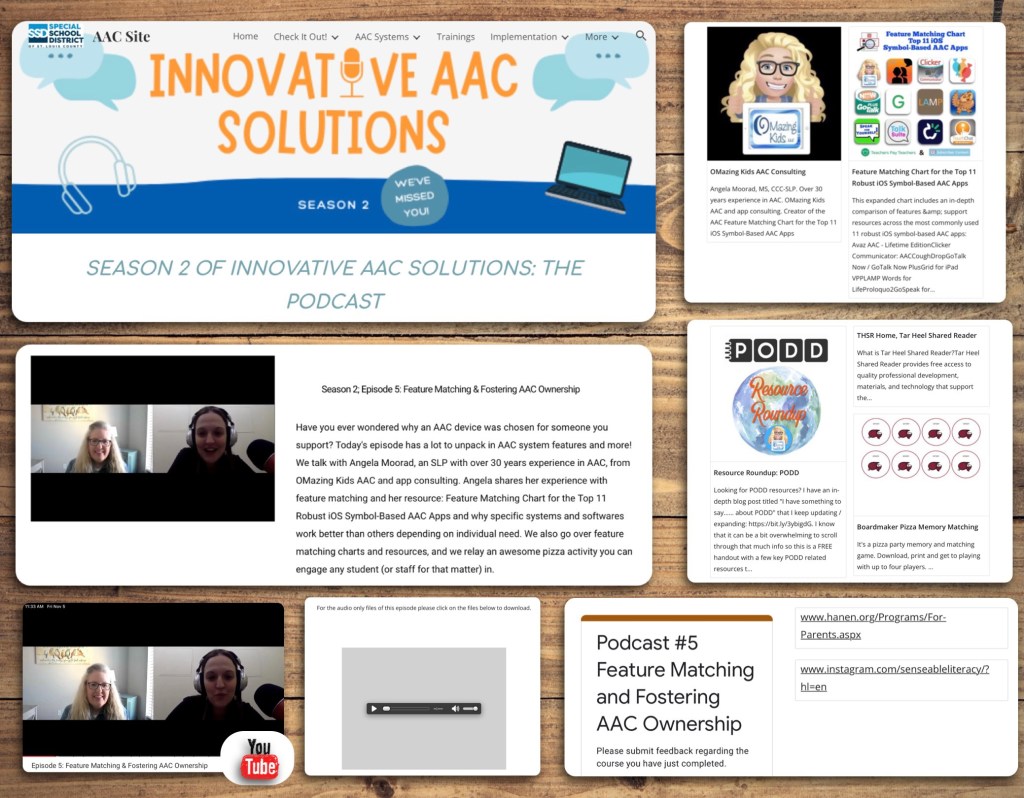
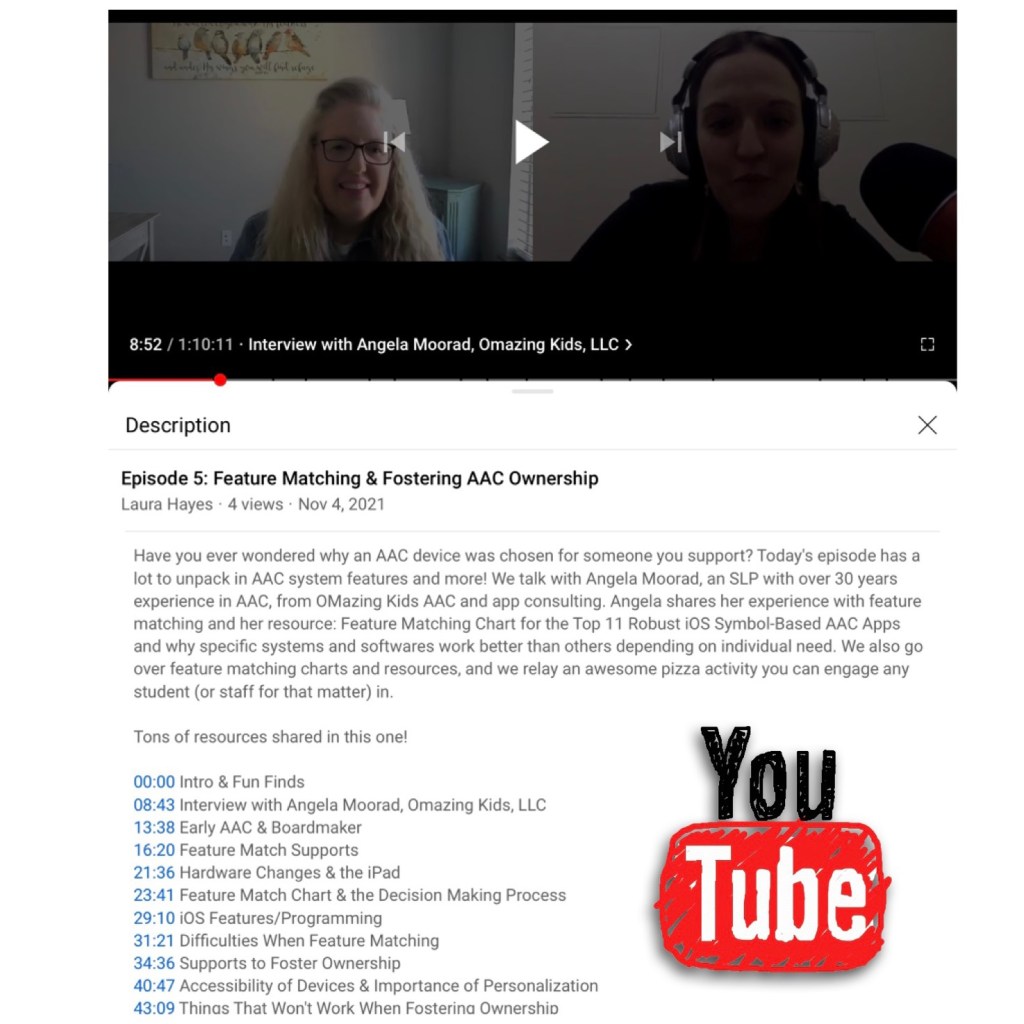
The podcast video is available there on their site or out on YouTube where it has time stamped sections and links to the resources (if viewing on a computer or the YouTube app… I have YouTube on my Roku TV and can’t see those type of details there): https://youtu.be/v4-xspAS9m4
My segment of the podcast can also be viewed on my YouTube channelwith time stamped sections:
07:35 – Feature Matching 25:54 – Fostering Ownership in AAC
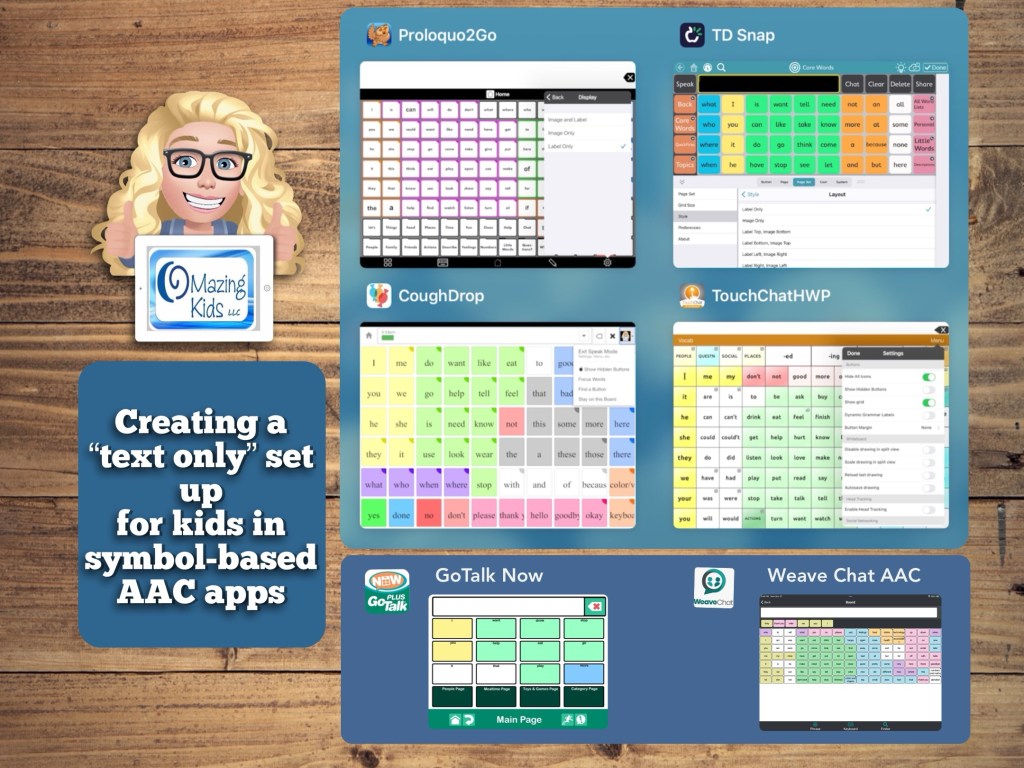
I’ve seen several posts recently from pediatric SLPs looking for text-based AAC options for pretty young children. I had several patients like that on my caseload who preferred not to have symbols but the true text-based AAC apps didn’t have the vocabulary or age-appropriate voices that they needed.
This video shows how you can adjust the settings in 4 symbol-based AAC apps to turn them into a text-based set up. There are time stamps so you can jump to each app.
Tip: Just to be safe sure to backup your vocab file / communication book / board set / pageset BEFORE toggling off the symbols. That way you have an easy way to go back if they don’t like it or something glitches.
The pros to doing this are having access to the age-appropriate vocabulary and age-appropriate voices.
All 4 of these apps have a keyboard area and 3 of them can access the iOS keyboard.
**** Important TouchChat Info (4/29/22): I just encountered a glitch with the TouchChat with WordPower app (version 2.36.0). I had toggled off “Show Icons” to demo a text only setup. When I tried to toggle back on the icons that toggle button would not work. I tried a Forced Restart but it didn’t resolve the issue. So I backed up all of my customized Vocab Files, deleted the app, reinstalled the app and imported all of my Vocab Files. I’ll be including this caution when folks ask me about using a text-only setup in this app until the app developer fixes the glitch.
Update about the TouchChat glitch (5/2/22): I heard back from TouchChat Support and they asked for a picture of all of my settings in the app since they hadn’t been able to replicate the issue. I had already deleted and reinstalled the TouchChat with WordPower app on my iPad. So I didn’t have any way to know what the combination of settings were that caused it or if it was an odd glitch that might have happened when I downloaded the most recent app update. Good news though… I just tried the Hide All Icons and now I’m not having the glitch anymore. So deleting and reinstalling the app seems to have resolved the issue.
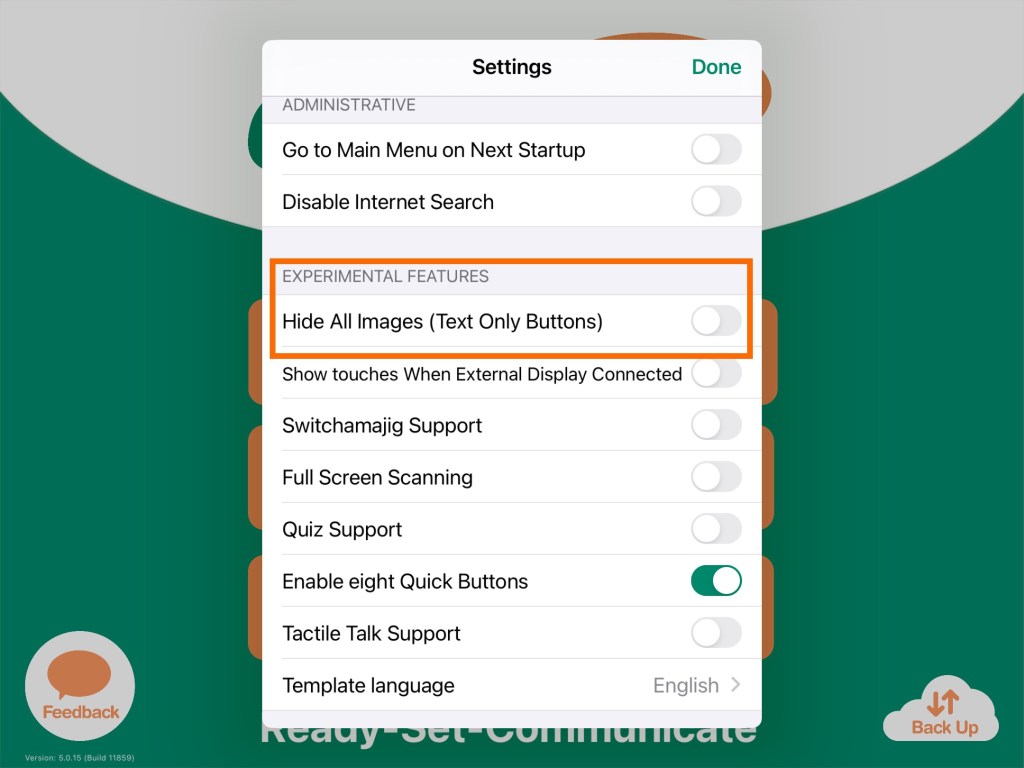
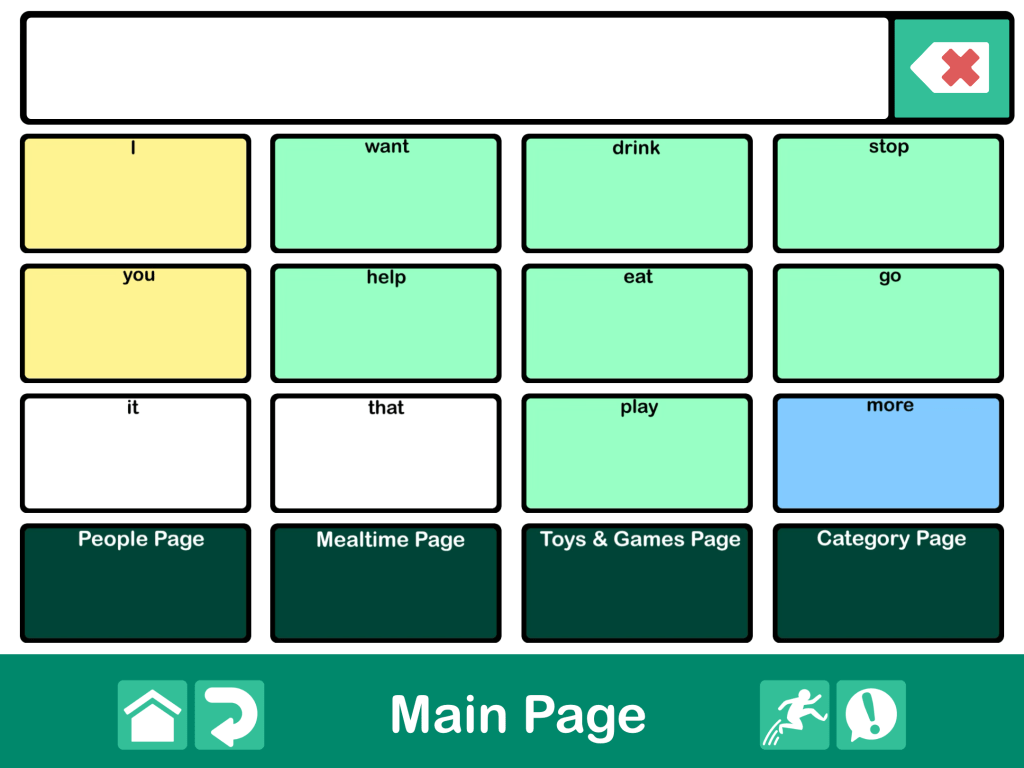
Update 4/25/22: There’s a setting in GoTalk Now to toggle on “Hide All Images” that creates a text only setup. The process can take awhile on larger Communication Books with numerous pages and larger grid sizes.
Update 11/27/23:
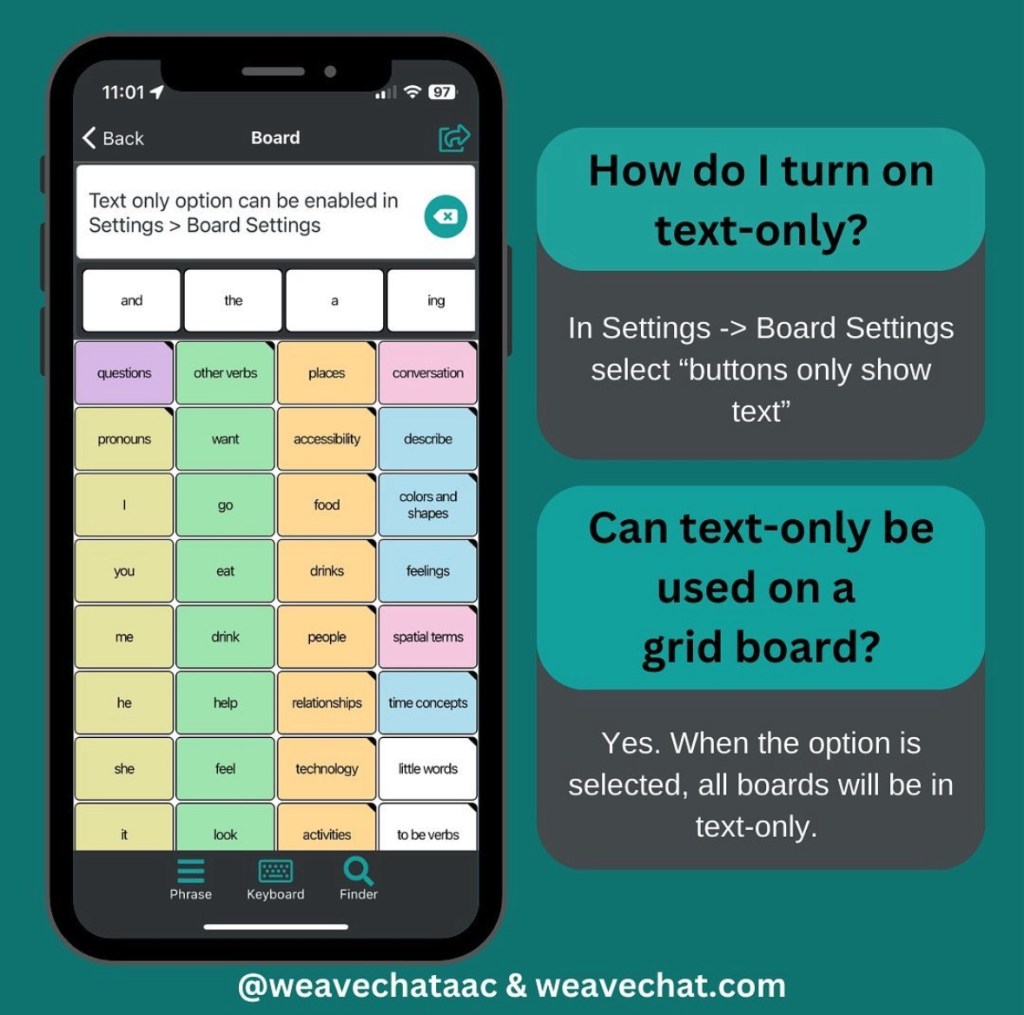
Weave Chat AAC is a totally free AAC app that recently added a setting to toggle off symbols to create a text-based option. They offer their app for iOS, Android and Amazon Fire. For in-depth info about the features see my Feature Matching Chart for Robust Android AAC Apps (Google Play & Amazon Fire): https://bit.ly/RobustAndroidAACappChart.
Of course you could also explore apps specifically designed for text-based AAC. I have several text-based AAC apps installed on my iPhone, iPad, Android phone, Android tablet, Amazon Fire tablet, Windows tablet and Chromebook. See my feature matching resources for details.
Looking for in-depth AAC feature matching resources? See this blog post: https://bit.ly/5aacFeatureMatchingResources. That post also includes videos comparing AAC apps on various devices on various platforms.
I don’t typically release an update for the AAC Feature Matching Chart more than once a month but there were a couple of links that needed to be fixed. I also expanded the info related to how SLPs & SLTs can get access to the LAMP Words for Life app. That particular app is distributed differently in countries outside of the USA and Canada. Links to the Liberator websites have been added. I also put a designation on rows for features that may be helpful as folks are exploring ways to modify AAC for Gestalt Language Processors. I’ve also added links to social media groups and pages related to those discussions.
Note: Ko-fi subscribers need to make sure you go out to a full browser after tapping on a link that I shared on Facebook or other social media. See this short video:
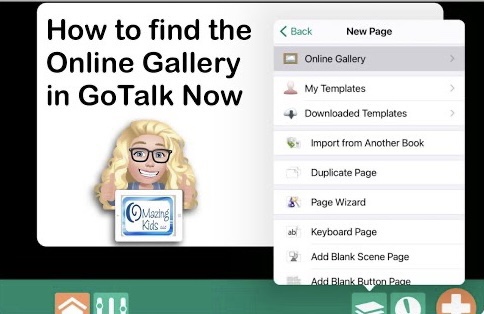
How to find the Online Gallery in the GoTalk Now or GoTalk Now Plus AAC apps
This is a screencast video showing how to find the Online Gallery in the GoTalk Now or GoTalk Now Plus AAC apps. This isn’t available when using the free Lite version or their Starter version of the app.
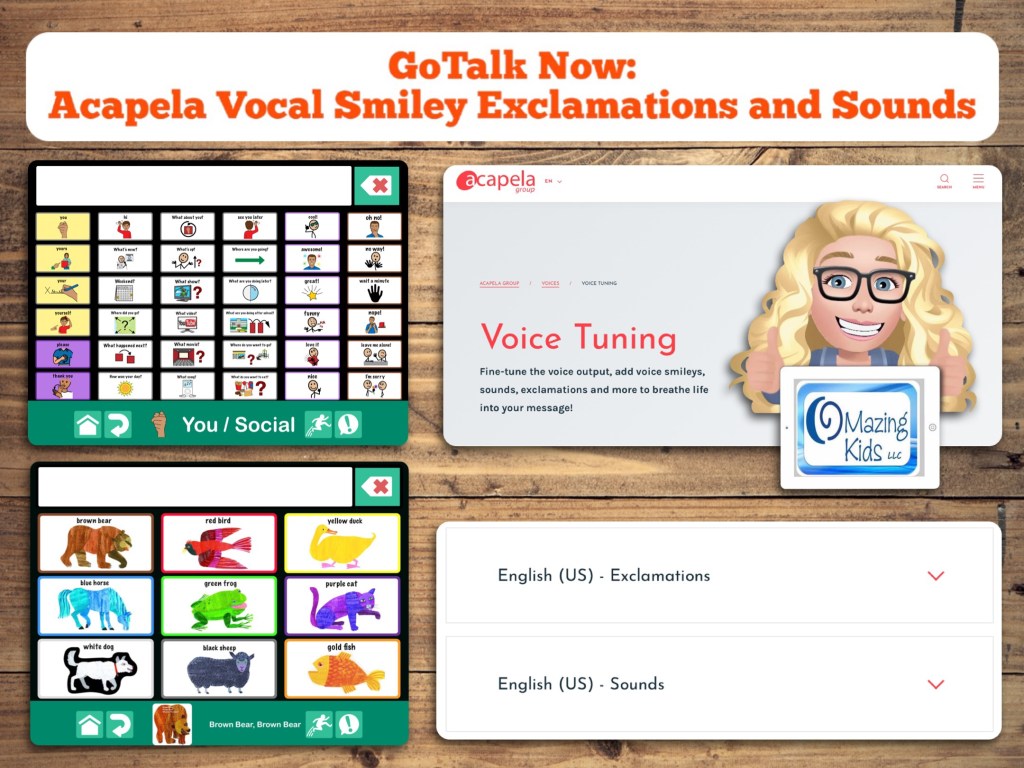
Update 4/14/23: How to add Acapela Vocal Smileys (expressions & sounds) to the LAMP Words for Life app on the iPad
Details about which AAC apps support use of the Acapela Vocal Smileys Expressions and Sounds can be found in my feature matching resources: https://bit.ly/5aacFeatureMatchingResources
 OMazing Kids AAC Consulting