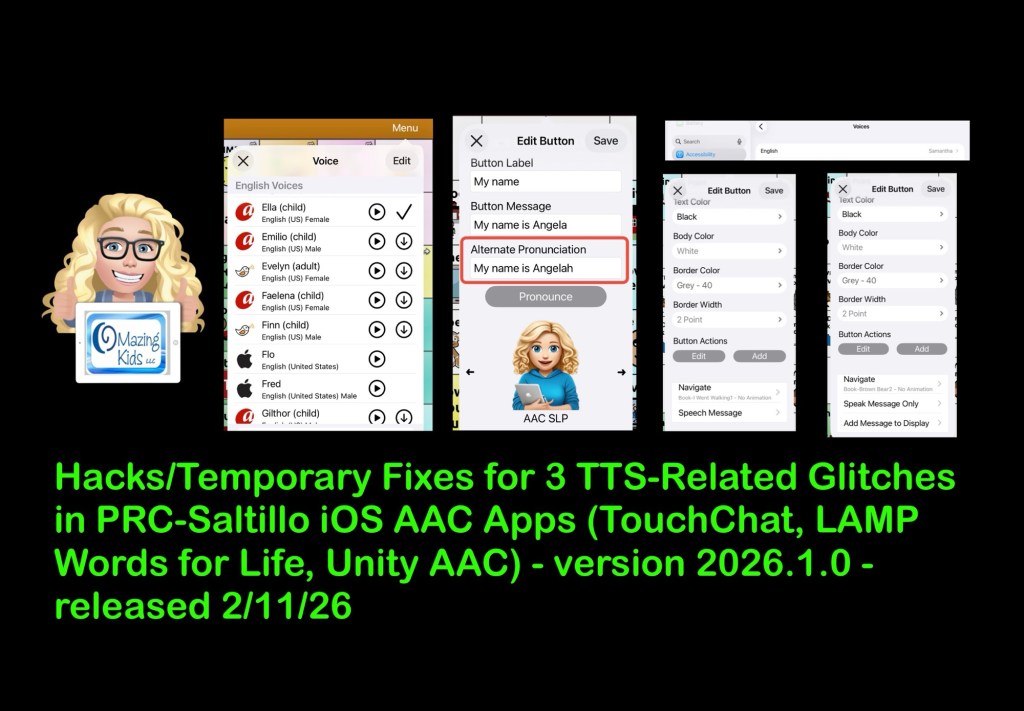
The NEW way to find languages, set voices & create a bilingual setup in the PRC-Saltillo AAC apps (LAMP Words for Life, TouchChat with WordPower, Dialogue AAC) after the 2.52.0 app update on February 10, 2025

I’ve seen numerous posts and comments from folks frustrated and confused by the change in the way that all of the PRC-Saltillo AAC apps (LAMP Words for Life, TouchChat with WordPower and Dialogue AAC) handle languages, voices and bilingual / multilingual vocab files.

I’m doing this roundup post of videos and tips to make it easier to share.


My video with tips:


Looking for info about this in Spanish? Check out this video from Halya Lenard, Bilingual AAC SLP (@speechieontheroad)⁠:


Official videos and resources from PRC-Saltillo…

PRC-Saltillo overview of the changes in the 2.52.0 app updates

Written announcement: https://www.prc-saltillo.com/articles/app-release-252?mode=view.

It’s important to read the PRC-Saltillo written announcements in addition to watching their videos. It often contains extra info not shown in the video. In this case the written post was the only way that I figured out why the Acapela and Almagu voices kept disappearing from the pick lists in the apps.

Their post says: “To give you the best voice experience, there will be voice limits. When setting up your files for multilingual use, you may choose:

  • Up to two Acapela voices
  • One Almagu voice
  • Unlimited Apple voices

When you reach the limit of a voice synthesizer, the options for that voice synthesizer will be hidden from the selection list until you unselect the maximum number.”

So after reading that I knew to change one of my voices to an Apple iOS voice in order to see the Acapela or Almagu appear in the pick list again. I have already provided feedback to the company that they should dim them instead of hiding them and provide some sort of popup info within the apps regarding this voice limit. I’m very well versed in problem solving and troubleshooting in AAC apps so if I was extremely frustrated and confused by this I can only imagine how many others will be.


Want to be notified when they make announcements like this?


LAMP Words for Life:

How to find and add languages to have Vocab file options added to the Vocab files area and how to set voices:

Written info: https://lampwflapp.com/support/support-articles/add-languages

.

Using the “Go to Vocabulary” button action to create a button in different vocab files to toggle between them:

Written info: https://lampwflapp.com/support/support-articles/link-vocabs-together

.

If you need them, the “legacySpanish/English and Canadian French/English bilingual vocab files are available for download on their website: https://lampwflapp.com/features/languages

.

LAMP Words for Life 2.52 bug update: https://lampwflapp.com/support/support-articles/bug-update-252. Nothing currently listed but I know that Highlight Spoken Word is not working with Acapela voices in this app too.


TouchChat with WordPower:

How to find and add languages to have Vocab file options added to the Vocab files area and how to set voices:

Written info: https://touchchatapp.com/support/add-languages

.

Using the “Go to Vocabulary” button action to create a button in different vocab files to toggle between them. This offers a much simpler way vs. creating Profiles. The only reason to mess with Profiles anymore would be if you needed to save particular different setups of settings.

Written info: https://touchchatapp.com/support/create-button-open-vocab-file

.

TouchChat 2.52 update announcement: https://touchchatapp.com/articles/app-release-252?mode=view

TouchChat 2.52 bug update: https://touchchatapp.com/support/bug-update-252. On 3/17/25 it lists:

  • TouchChat Discover upgrades may not show content
    • Workaround: Uninstall and reinstall the app. In the library menu, check Menu > Languages & Regions, ensure your preferred languages are in the list.
  • Highlight Spoken Word not working with Acapela voices
  • Auto Clear feature not working with Acapela voices
  • Acapela or Almagu voices are not visible in the menu
    • Workaround: There is a voice cap (Almagu: one voice; Acapela: two voices). If you have one of these voices selected and not seeing any additional Almagu or Acapela voices, select an Apple voice to see all your voice options.

Dialogue AAC:

I only found the 2.52 update PRC-Saltillo announcement linked above … not any specific videos or written info about how to add languages, select voices or link vocab files in the Dialogue AAC app. But the under hood architecture is very similar to the other two apps so the information above should help you sort any issues out.


Thankfully the 2.52.1 app updates for all 3 apps on March 6, 2025 appear to have resolved the major glitches caused by the 2.52.0 (app crashes, vocab builder lists appearing to be lost (actually hidden), some folks losing customized vocab files, etc…)

Hopefully over time folks will become accustomed to the new way these three apps handle languages, voices and creation of bilingual/multilingual setups.

To be honest I found it very confusing and frustrating too but once I figured out what the company had done I can see how this new design will provide the app architecture to support adding vocab files in more languages and providing more flexibility in how to link them for bilingual or multilingual use.

There are a few known remaining glitches caused by the 2.52.0 app updates. Hopefully those will be fixed soon.


✅ Be sure to like/follow OMazing Kids on Facebook. I tend to post most frequently there and often post about known issues in AAC apps. I also create short tutorial videos frequently and share some of those publicly on my YouTube channel. Some videos are unlisted if I create them for a very specific situation or to share with app developers to provide feedback about glitches I’m experiencing in their app(s). See my social media links below.


Have questions? The best way to reach me is via Facebook messaging over on my OMazing Kids page: https://www.facebook.com/OMazingKidsAAC/


👀 Looking for in-depth AAC feature matching resources? See this blog post: https://bit.ly/5aacFeatureMatchingResources. That post also includes videos comparing AAC apps on various devices on various platforms.


Looking for more AAC resources? Check out the Resource Links page my blog: https://omazingkidsllc.com/omazing-kids-aac-resource-links


Angela Moorad, MS, CCC-SLP, Founder of OMazing Kids, LLC, OMazing Kids AAC Consulting

• Teachers Pay Teachers Store: https://www.teacherspayteachers.com/Store/Omazing-Kids-Aac-Consulting

• YouTube: https://youtube.com/user/amoorad1

• Ko-Fi: https://ko-fi.com/omazingkidsaac

• OMazing Kids AAC Consulting Facebook Page: https://www.facebook.com/OMazingKidsAAC/

• AppPeeps Facebook Group: https://www.facebook.com/groups/OMazingKidsAppPeeps/

• GoTalk Now AAC & GoVisual Visual Scene Apps – Ideas and Sharing Facebook Group: https://bit.ly/GoTalkNowAACappGroup

• Instagram: https://www.instagram.com/omazingkidsaac

• Instagram Threads: https://www.threads.net/@omazingkidsaac

• X (formerly Twitter): https://www.x.com/amoorad

• Pinterest: http://pinterest.com/OMazingKids/

• Linktree: https://linktr.ee/amoorad1

• LinkedIn: https://www.linkedin.com/in/angelamooradomazingkidsaac

• Reddit: https://www.reddit.com/u/VintageVeraBradley/s/w3L1d8H5rk

• AppRaven AAC App Collections: https://bit.ly/AAConAppRaven

• Blog: https://omazingkidsllc.com / Resource Links page: https://omazingkidsllc.com/omazing-kids-aac-resource-links

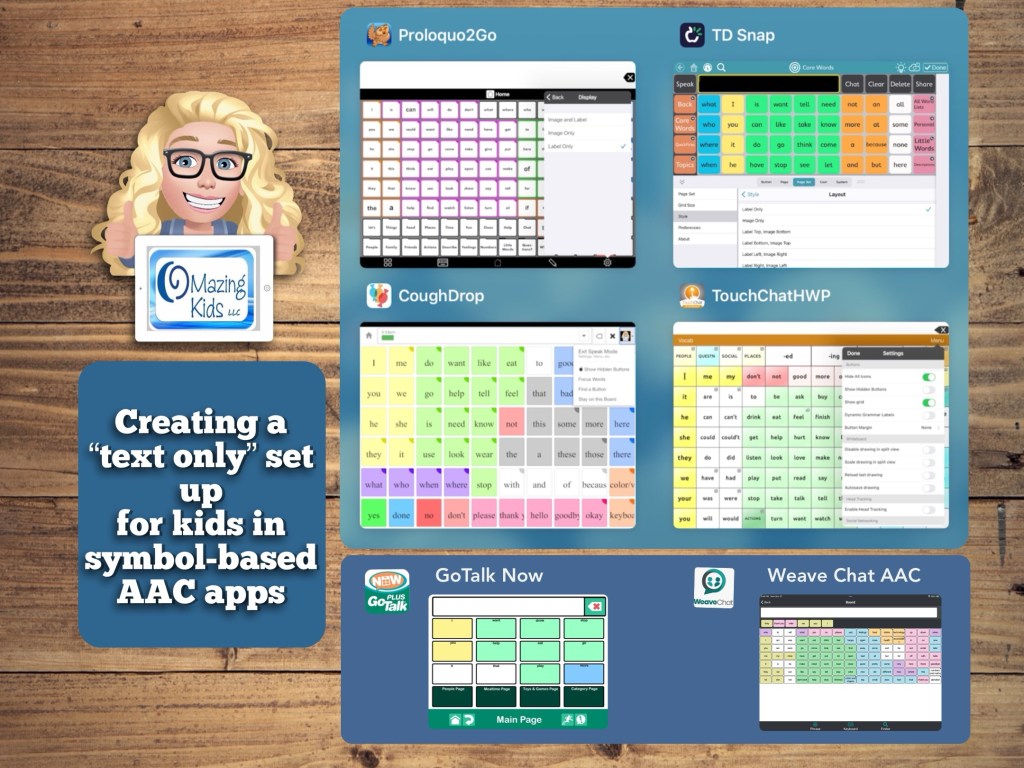
Creating a “text only” set up for kids in symbol-based AAC apps (updated 11/27/23)

I’ve seen several posts recently from pediatric SLPs looking for text-based AAC options for pretty young children. I had several patients like that on my caseload who preferred not to have symbols but the true text-based AAC apps didn’t have the vocabulary or age-appropriate voices that they needed.

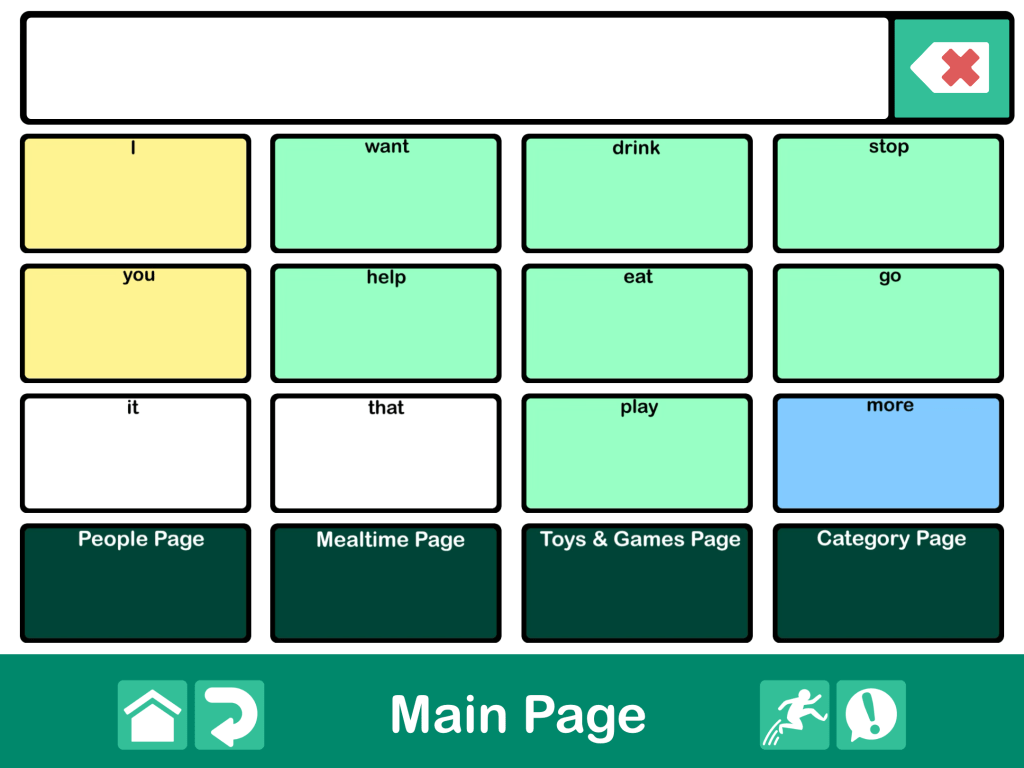
This video shows how you can adjust the settings in 4 symbol-based AAC apps to turn them into a text-based set up. There are time stamps so you can jump to each app.

Tip: Just to be safe sure to backup your vocab file / communication book / board set / pageset BEFORE toggling off the symbols. That way you have an easy way to go back if they don’t like it or something glitches.


0:00 Intro
0:45 – Proloquo2Go
1:21 – TouchChat with WordPower
1:52 – CoughDrop
2:36 – TD Snap


The pros to doing this are having access to the age-appropriate vocabulary and age-appropriate voices.

All 4 of these apps have a keyboard area and 3 of them can access the iOS keyboard.


**** Important TouchChat Info (4/29/22): I just encountered a glitch with the TouchChat with WordPower app (version 2.36.0). I had toggled off “Show Icons” to demo a text only setup. When I tried to toggle back on the icons that toggle button would not work. I tried a Forced Restart but it didn’t resolve the issue. So I backed up all of my customized Vocab Files, deleted the app, reinstalled the app and imported all of my Vocab Files. I’ll be including this caution when folks ask me about using a text-only setup in this app until the app developer fixes the glitch.

Update about the TouchChat glitch (5/2/22): I heard back from TouchChat Support and they asked for a picture of all of my settings in the app since they hadn’t been able to replicate the issue. I had already deleted and reinstalled the TouchChat with WordPower app on my iPad. So I didn’t have any way to know what the combination of settings were that caused it or if it was an odd glitch that might have happened when I downloaded the most recent app update. Good news though… I just tried the Hide All Icons and now I’m not having the glitch anymore. So deleting and reinstalling the app seems to have resolved the issue.


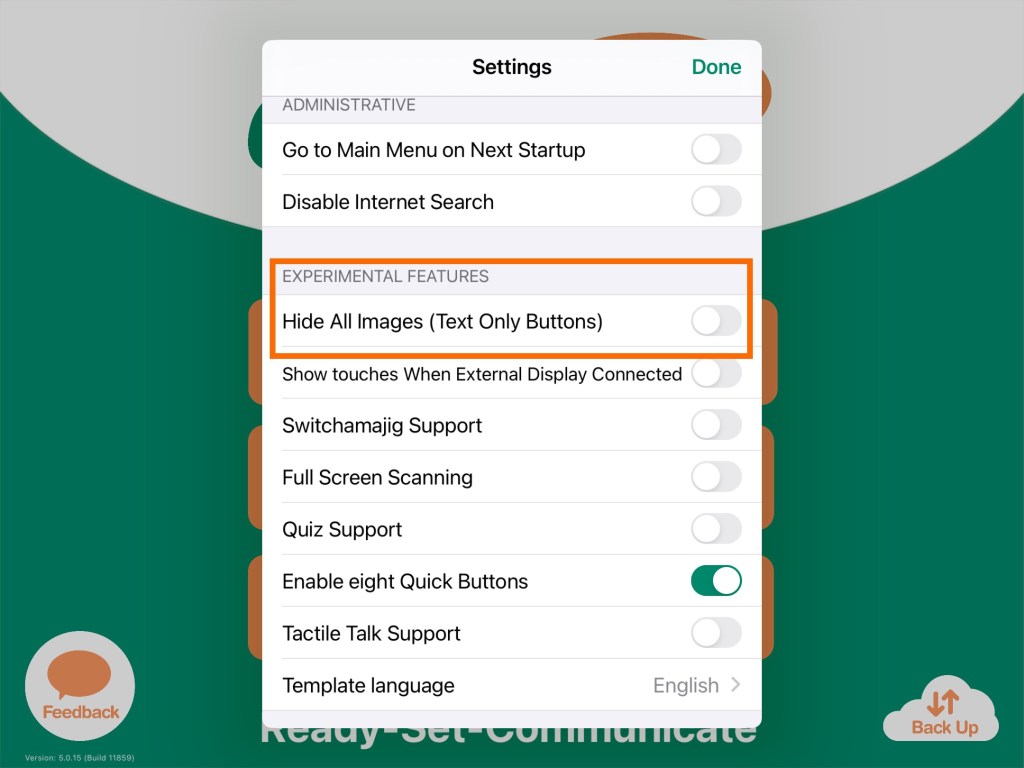
Update 4/25/22: There’s a setting in GoTalk Now to toggle on “Hide All Images” that creates a text only setup. The process can take awhile on larger Communication Books with numerous pages and larger grid sizes.


Update 11/27/23:

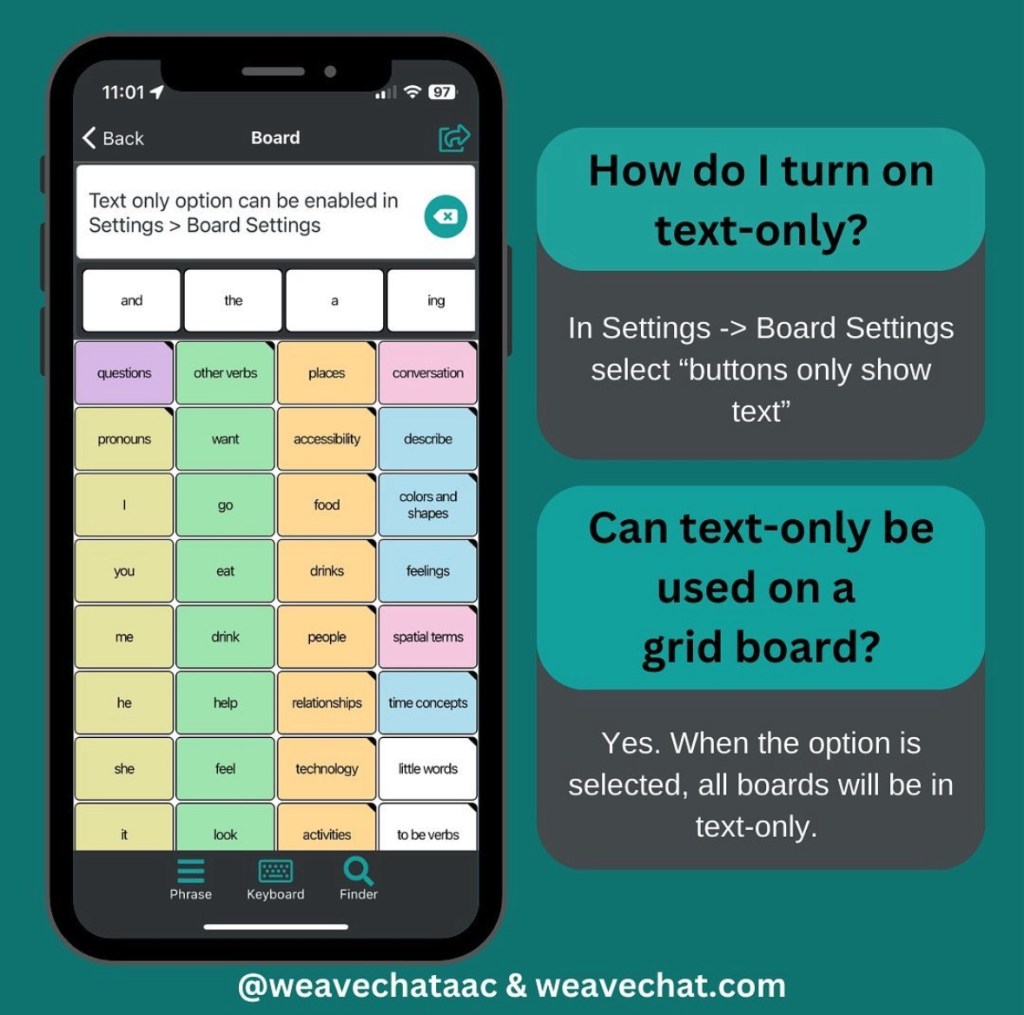
Weave Chat AAC is a totally free AAC app that recently added a setting to toggle off symbols to create a text-based option. They offer their app for iOS, Android and Amazon Fire. For in-depth info about the features see my Feature Matching Chart for Robust Android AAC Apps (Google Play & Amazon Fire): https://bit.ly/RobustAndroidAACappChart.

Website: https://www.weavechat.com


Of course you could also explore apps specifically designed for text-based AAC. I have several text-based AAC apps installed on my iPhone, iPad, Android phone, Android tablet, Amazon Fire tablet, Windows tablet and Chromebook. See my feature matching resources for details.

Looking for in-depth AAC feature matching resources? See this blog post: https://bit.ly/5aacFeatureMatchingResources. That post also includes videos comparing AAC apps on various devices on various platforms.


Looking for more AAC resources? Check out the Resource Links page here on my blog: https://omazingkidsllc.com/omazing-kids-aac-resource-links


Have a question? The best way to reach me is via Facebook messaging over on my OMazing Kids page: https://www.facebook.com/OMazingKidsAAC/


Angela Moorad, MS, CCC-SLP, Founder of OMazing Kids, LLC, OMazing Kids AAC Consulting

• Teachers Pay Teachers Store: https://www.teacherspayteachers.com/Store/Omazing-Kids-Aac-Consulting

• YouTube: https://youtube.com/user/amoorad1

• Ko-Fi: https://ko-fi.com/omazingkidsaac

• OMazing Kids AAC Consulting Facebook Page: https://www.facebook.com/OMazingKidsAAC/

• AppPeeps Facebook Group: https://www.facebook.com/groups/OMazingKidsAppPeeps/

• GoTalk Now AAC & GoVisual Visual Scene Apps – Ideas and Sharing Facebook Group: https://bit.ly/GoTalkNowAACappGroup

• Instagram: https://www.instagram.com/omazingkidsaac

• Twitter: https://www.twitter.com/amoorad

• Pinterest: http://pinterest.com/OMazingKids/

• Linktree: https://linktr.ee/amoorad1

• LinkedIn: https://www.linkedin.com/in/angelamooradomazingkidsaac

• Blog: https://omazingkidsllc.com / Resource Links page: https://omazingkidsllc.com/omazing-kids-aac-resource-links

TouchChat with WordPower: a visual guide to getting started (new TPT product)

This visual guide walks you through the initial set up and customization process for the TouchChat with WordPower AAC app.

*** There is one topic per page with visuals ***

It is perfect for those who are brand new to the app and want screenshots for every step in the initial set up, tips on choosing a vocabulary file and customization options to help buttons stand out.


Video overview:


Available for purchase on my TPT store: https://bit.ly/3rDRcT1


Want more specific details about this product?

It is a 40 page PDF that covers the following areas:

• Setting the course

• Presume Potential

• Multimodal Communication

• Involving the child to foster ownership

• Begin with the end in mind

• Core & Fringe Vocabulary

• Importance of having access to a keyboard area

• Tips for choosing a Vocabulary File

• The screen that will be seen during set up

• Screenshots and info about four robust vocab file options that are recommended

• How to copy a vocab file

• Providing the “opportunity” to try a robust vocab file

• Adjusting the settings to help the buttons stand out on the screen

• How to change the Symbol Skin Tone

• Choosing a voice

• Areas on the Home Screen

• How to find the “How To” manual within the app and on the TouchChat website

• TouchChat Users Group on Facebook

• Resources and free webinars on the TouchChat website

• Webinars specifically for parents/caregivers

• Resources on the Saltillo website

• TouchChat’s YouTube Channel

The last page of the PDF has the link to an unlisted YouTube video (11:08) that’s provided to supplement this resource

If you want links to be clickable, please view the PDF in the free Xodo app (https://www.xodo.com), Books/iBooks app or other PDF viewer.


Have questions? The best way to reach me with any questions is via messaging on the OMazing Kids Facebook page: https://www.facebook.com/OMazingKidsAAC/. That way messages don’t get lost among the spam in my e-mail.


Angela Moorad, MS, CCC-SLP, Founder of OMazing Kids, LLC, OMazing Kids AAC Consulting

Teachers Pay Teachers Store: https://www.teacherspayteachers.com/Store/Omazing-Kids-Aac-Consulting

YouTube: https://youtube.com/user/amoorad1

Ko-Fi: https://ko-fi.com/omazingkidsaac

Personal Professional Facebook Page (linked to OMazing Kids): https://www.facebook.com/angela.moorad (adding “friends” who have a direct role in AAC or Assistive Technology – AAC / AT app or product developers, AAC / AT consultants, SLPs who specialize in AAC, other professionals who specialize in AAC or AT, etc.)

OMazing Kids AAC Consulting Facebook Page: https://www.facebook.com/OMazingKidsAAC/

AppPeeps Facebook Group: https://www.facebook.com/groups/OMazingKidsAppPeeps/

Instagram: https://www.instagram.com/omazingkidsaac

Twitter: https://www.twitter.com/amoorad

Pinterest: http://pinterest.com/OMazingKids/

Linktree: https://linktr.ee/amoorad1

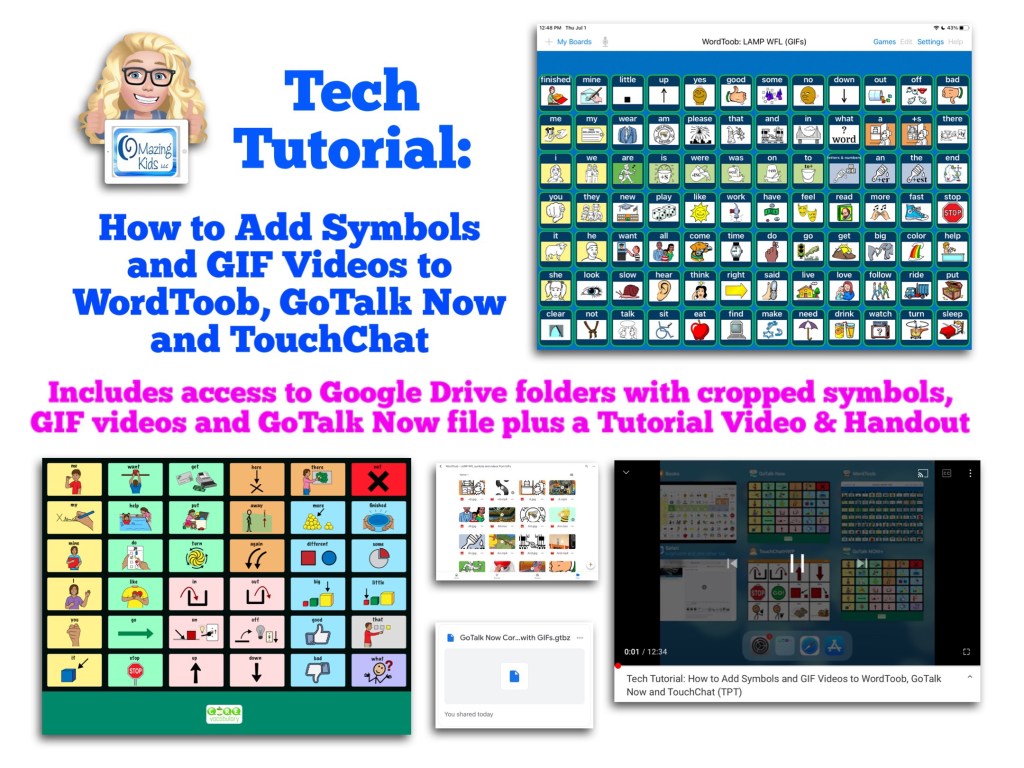
Tech Tutorial: How to Add Symbols and GIF Videos to WordToob, GoTalk Now and TouchChat (includes access to my Google Drive folders with cropped symbols, GIF videos & the GoTalk Now communication book file) – updated 12/1/22

Update 12/1/22:

I deactivated that resource on TPT. Despite having step by step instructions it was a bit too complicated and I was getting way too many questions about it. It was also a bit of a mess trying to share access to the Google Drive where I had stored the symbols and GIF videos.

I did upload the Core Board with GIFs that I made in GoTalk Now to the Private Sharing area in their Online Gallery. 

If you have either GoTalk Now or GoTalk Now Plus, feel free to message me on my OMazing Kids Facebook page: https://www.facebook.com/OMazingKidsAAC/. I’d be glad to share the code and you would be able to download that and the GIF videos are already embedded.

Please only request it if you have GoTalk Now or GoTalk Now Plus. Unfortunately the free GoTalk Now Lite or inexpensive GoTalk Start can’t access the Online Gallery or import a file.

———————————

Archived original post:

Quite a few folks asked how I did this after I posted about it on social media on 7/1/21.

YouTube:

Facebook: OMazing Kids page, also in the AAC for the SLP and AppPeeps groups

Instagram:

https://www.instagram.com/p/CQztIkHsJfo/?utm_medium=copy_link

So I decided to make this tutorial and offer it on my TPT store: *** deactivated this resource ***

Recurring subscribers on my Ko-fi site have free access to this resource as part of the subscription. See the post at https://ko-fi.com/post/Tech-Tutorial–includes-video-tutorial-files-wit-T6T557PXT


This tutorial package includes:

* A handout (3 page PDF)

* Access to a Tutorial Video (12:34, unlisted on YouTube) that shows the whole process for cropping symbols, finding GIFs, converting the GIFs to videos, how to save them, how to add those to buttons in WordToob, GoTalk Now and TouchChat, the pros and cons of each of those options, etc…

* Access to a secured Google Drive folder with all cropped symbols and GIFs converted to videos used to make the 84 button board in WordToob plus a few extra videos used in GoTalk Now and TouchChat

* Access to a secured Google Drive folder with the GoTalk Now Core Board with GIFs .gtbz file that can be imported into GoTalk Now or GoTalk Now Plus (plus info about how to get my hack for importing a single page book into the GoTalk Now Lite app)


Updated 12/18/21: You can use this website to turn a portion of a YouTube video into a GIF: https://gifs.com. Thanks to Sarah Gregory for this hack:


Have questions? The best way to reach me with any questions is via messaging on the OMazing Kids Facebook page: https://www.facebook.com/OMazingKidsAAC/. That way messages don’t get lost among the spam in my e-mail.


Angela Moorad, MS, CCC-SLP, Founder of OMazing Kids, LLC, OMazing Kids AAC Consulting

Teachers Pay Teachers Store: https://www.teacherspayteachers.com/Store/Omazing-Kids-Aac-Consulting

Ko-Fi: https://ko-fi.com/omazingkidsaac

Personal Professional Facebook Page (linked to OMazing Kids): https://www.facebook.com/angela.moorad (adding “friends” who have a direct role in AAC or Assistive Technology – AAC / AT app or product developers, AAC / AT consultants, SLPs who specialize in AAC, other professionals who specialize in AAC or AT, etc.)

OMazing Kids AAC Consulting Facebook Page: https://www.facebook.com/OMazingKidsAAC/

AppPeeps Facebook Group: https://www.facebook.com/groups/OMazingKidsAppPeeps/

Instagram: https://www.instagram.com/omazingkidsaac/

Twitter: https://www.twitter.com/amoorad

Pinterest: http://pinterest.com/OMazingKids/

Linktree: https://linktr.ee/amoorad1