Angela Moorad, MS, CCC-SLP. Over 36 years experience in AAC. OMazing Kids AAC and app consulting. Creator of several AAC Feature Matching resources (https://omazingkidsllc.com/omazing-kids-aac-resource-links/). Includes info about unique features to support Gestalt Language Processors
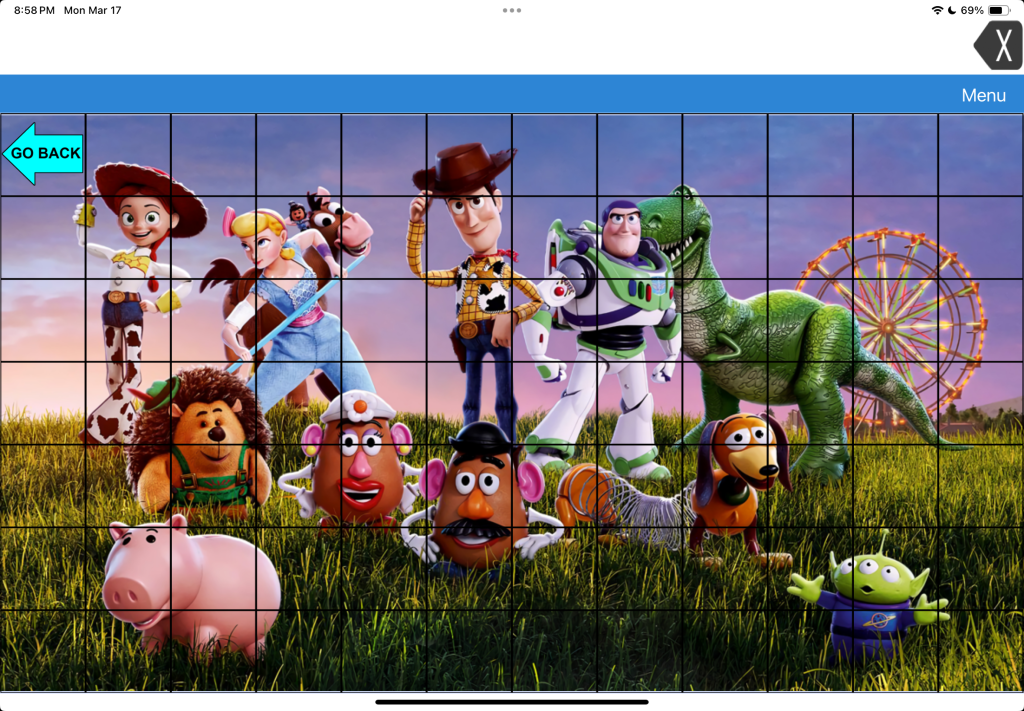
LAMP Words for Life doesn’t “officially” offer a way to add Visual Scenes like the company’s TouchChat app does. So this is an “off label” hack.
LAMP Words for Life doesn’t have any premade Visual Scene pages like TouchChat (both premade hybrid visual scenes and a way to create visual scenes with hotspots on a picture) and doesn’t have all of the same editing options (can’t resize individual buttons, can’t resize the grid).
But in LAMP Words for Life you canimport a photo onto a page background and create transparent buttons to be hot spots. Each of the buttons have to be set to Transparent in order for the background photo to be visible.
It’s a bit trickier to place the hotspots since you can’t resize the grid or the individual buttons.
These hotspot buttons could play recorded audio and could even use the Open Website button action to open a URL to a specific YouTube video. Or any other button action available.
If the individual is still learning the motor plans to individual words then I likely wouldn’t add phrase buttons on a Visual Scene in it.
But I might add character names or audio clips if that’s highly interesting to that individual.
I would only add something like this to LAMP if it’s something that will spark joy and interest in using it, the user wants it added and we would do it in a mindful way to not disrupt the integral design or motor plans in this app.
👀 Looking for in-depth AAC feature matching resources? See this blog post: https://bit.ly/5aacFeatureMatchingResources. That post also includes videos comparing AAC apps on various devices on various platforms.
I’ve seen numerous posts and comments from folks frustrated and confused by the change in the way that all of the PRC-Saltillo AAC apps (LAMP Words for Life, TouchChat with WordPower and Dialogue AAC) handle languages, voices and bilingual / multilingual vocab files.
I’m doing this roundup post of videos and tips to make it easier to share.
My video with tips:
Looking for info about this in Spanish? Check out this video from Halya Lenard, Bilingual AAC SLP (@speechieontheroad):
Official videos and resources from PRC-Saltillo…
PRC-Saltillo overview of the changes in the 2.52.0 app updates
It’s important to read the PRC-Saltillo written announcements in addition to watching their videos. It often contains extra info not shown in the video. In this case the written post was the only way that I figured out why the Acapela and Almagu voices kept disappearing from the pick lists in the apps.
Their post says: “To give you the best voice experience, there will be voice limits. When setting up your files for multilingual use, you may choose:
Up to two Acapela voices
One Almagu voice
Unlimited Apple voices
When you reach the limit of a voice synthesizer, the options for that voice synthesizer will be hidden from the selection list until you unselect the maximum number.”
So after reading that I knew to change one of my voices to an Apple iOS voice in order to see the Acapela or Almagu appear in the pick list again. I have already provided feedback to the company that they should dim them instead of hiding them and provide some sort of popup info within the apps regarding this voice limit. I’m very well versed in problem solving and troubleshooting in AAC apps so if I was extremely frustrated and confused by this I can only imagine how many others will be.
Want to be notified when they make announcements like this?
If you need them, the “legacy” Spanish/English and Canadian French/English bilingual vocab files are available for download on their website: https://lampwflapp.com/features/languages
Using the “Go to Vocabulary” button action to create a button in different vocab files to toggle between them. This offers a much simpler way vs. creating Profiles. The only reason to mess with Profiles anymore would be if you needed to save particular different setups of settings.
Workaround: Uninstall and reinstall the app. In the library menu, check Menu > Languages & Regions, ensure your preferred languages are in the list.
Highlight Spoken Word not working with Acapela voices
Auto Clear feature not working with Acapela voices
Acapela or Almagu voices are not visible in the menu
Workaround: There is a voice cap (Almagu: one voice; Acapela: two voices). If you have one of these voices selected and not seeing any additional Almagu or Acapela voices, select an Apple voice to see all your voice options.
Dialogue AAC:
I only found the 2.52 update PRC-Saltillo announcement linked above … not any specific videos or written info about how to add languages, select voices or link vocab files in the Dialogue AAC app. But the under hood architecture is very similar to the other two apps so the information above should help you sort any issues out.
Thankfully the 2.52.1 app updates for all 3 apps on March 6, 2025 appear to have resolved the major glitches caused by the 2.52.0 (app crashes, vocab builder lists appearing to be lost (actually hidden), some folks losing customized vocab files, etc…)
Hopefully over time folks will become accustomed to the new way these three apps handle languages, voices and creation of bilingual/multilingual setups.
To be honest I found it very confusing and frustrating too but once I figured out what the company had done I can see how this new design will provide the app architecture to support adding vocab files in more languages and providing more flexibility in how to link them for bilingual or multilingual use.
There are a few known remaining glitches caused by the 2.52.0 app updates. Hopefully those will be fixed soon.
✅ Be sure to like/follow OMazing Kids on Facebook. I tend to post most frequently there and often post about known issues in AAC apps. I also create short tutorial videos frequently and share some of those publicly on my YouTube channel. Some videos are unlisted if I create them for a very specific situation or to share with app developers to provide feedback about glitches I’m experiencing in their app(s). See my social media links below.
👀 Looking for in-depth AAC feature matching resources? See this blog post: https://bit.ly/5aacFeatureMatchingResources. That post also includes videos comparing AAC apps on various devices on various platforms.
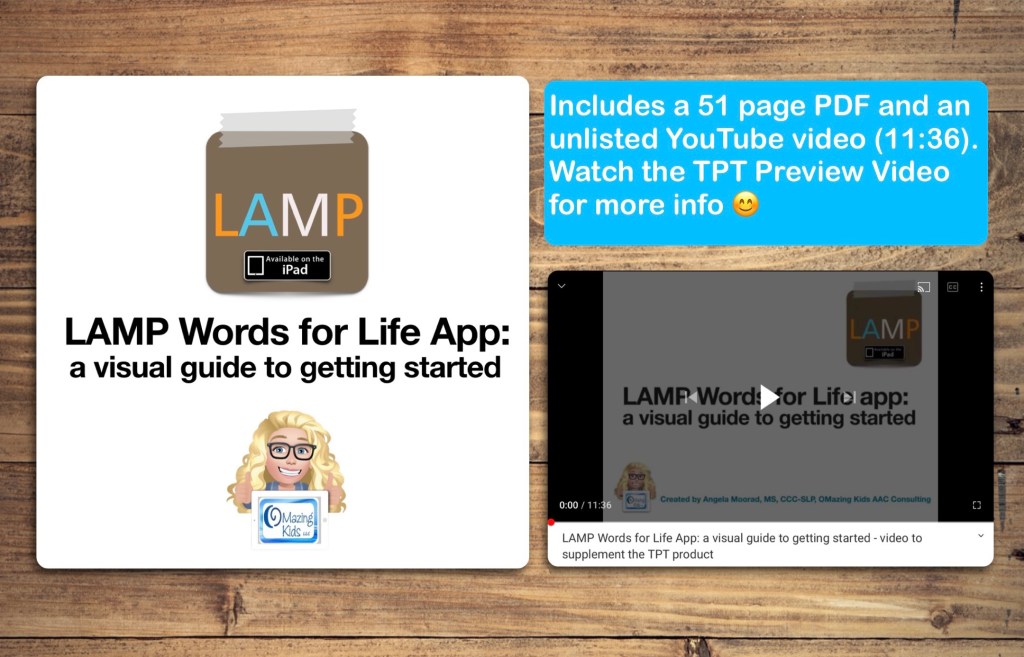
This visual guide walks you through the initial set up and customization process for the LAMP Words for Life AAC app on the iPad.
*** There is one topic per page with visuals ***
It is perfect for those who are brand new to the app and want screenshots for every step in the initial set up, tips on choosing a vocabulary file and customization options to help buttons stand out.
It is a 51 page PDF that covers the following areas:
Setting the course
Presume Potential
Multimodal Communication
Involving the child to foster ownership
Begin with the end in mind
Core & Fringe Vocabulary
Importance of having access to a keyboard area
Screenshots and info about the 1-Hit, Transition and Full Vocabulary options
The screen that will be seen during set up
How to copy a vocab file
Providing the “opportunity” to try a robust vocab file
Adjusting the settings to help the buttons stand out on the screen
How to change the Symbol Skin Tone
How to backup customized programming
Choosing a voice
Areas on the Home Screen
How to find the “How To” manual within the app and on the LAMP Words for Life website
Using Vocabulary Builder
Using Word Finder
LAMP Words for Life Users Group on Facebook
Resources and free webinars on the LAMP Words for Life website
Webinars specifically for parents/caregivers
Resources on the PRC website
The Center for AAC & Autism’s YouTube playlist specifically about programming on the iPad (which is different than programming it on an Accent device)
The PRC YouTube channel
The last page has the link to an unlisted YouTube video (11:36) that’s provided to supplement this resource
If you want links to be clickable, please view the PDF in the free Xodo app (https://www.xodo.com), Books/iBooks app or other PDF viewer.
Have questions? The best way to reach me with any questions is via messaging on the OMazing Kids Facebook page: https://www.facebook.com/OMazingKidsAAC/. That way messages don’t get lost among the spam in my e-mail.
Personal Professional Facebook Page (linked to OMazing Kids): https://www.facebook.com/angela.moorad (adding “friends” who have a direct role in AAC or Assistive Technology – AAC / AT app or product developers, AAC / AT consultants, SLPs who specialize in AAC, other professionals who specialize in AAC or AT, etc.)
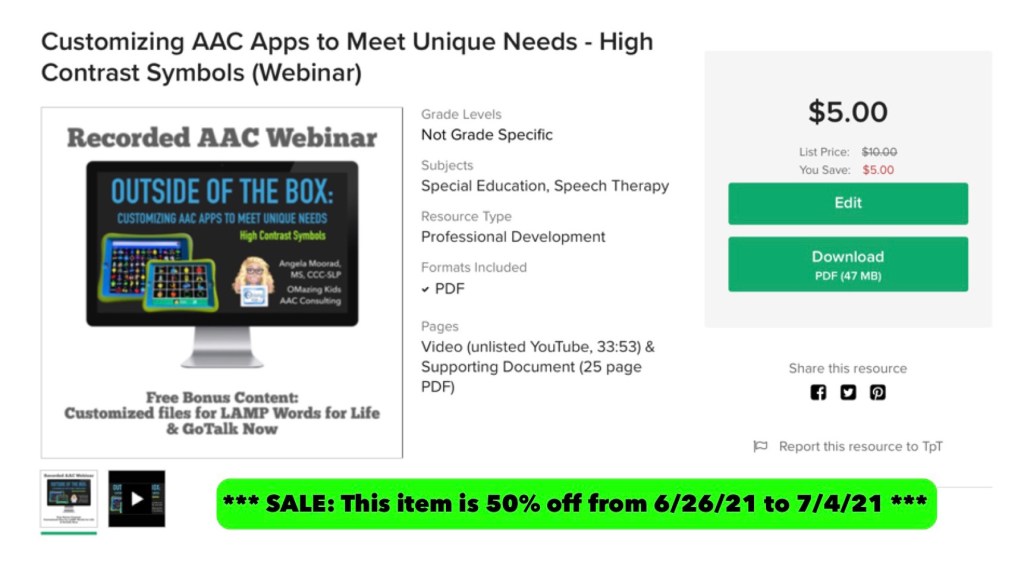
*** SALE: This item is 50% off from 6/26/21 to 7/4/21 ***
Customizing AAC Apps to Meet Unique Needs – High Contrast Symbols (Webinar)
This recorded webinar covers:
19 ways that AAC apps can be modified with an extra focus on High Contrast Symbols
Reasons for making modifications
Detailed info about 7 iOS AAC apps that include High Contrast Symbols or have them available via extra purchase or by editing buttons
A comparison of High Contrast Symbols vs. using iOS Accessibility Invert Colors
A Case Study of how the GoTalk Now Lite app was customized to be used as a stepping stone to a robust AAC option
Learn how I edited the entire LAMP Words for Life AAC app over a six month period to use High Contrast symbols on a black background. Includes a handout with info about how to find those symbols in the app and the Settings and Pronunciation Exceptions that I used
How this modified LAMP Words for Life Vocab file is different than using LAMP Words for Life – VI on an Accent Speech Generating Device
How you can receive a copy of my modified files for GoTalk Now and LAMP Words for Life as optional free bonus content
What’s included with the purchase of this product:
Recorded Webinar Video (33:53), viewable on the unlisted YouTube link provided in the Supporting Document
Supporting Document (25 page PDF): Link to the unlisted YouTube video, Slides Handout (2 slides per page), How to Find LAMP Words for Life High Contrast Symbols in the iPad App & a Quiz). The Slides Handout portion of the PDF is best viewed the free Xodo app or Books app on an iPad (or similar PDF reader) vs. printing it due to the black background. The free Xodo app can be used on any platform and computers. The links are out on their website: https://www.xodo.com/
Optional Free Bonus Content (see description on TPT for more info):
Vocab File for LAMP WFL FULL – High Contrast [original motor plans (NOT LAMP VI), edited to use High Contrast Symbols, added additional vocabulary]
Communication Book file for GoTalk Now – modified to be similar to LAMP WFL, High Contrast Symbols, pages for videos, toys and snacks
Have questions? The best way to reach me with any questions is via messaging on the OMazing Kids Facebook page: https://www.facebook.com/OMazingKidsAAC/. That way messages don’t get lost among the spam in my e-mail.
Personal Professional Facebook Page (linked to OMazing Kids): https://www.facebook.com/angela.moorad (adding “friends” who have a direct role in AAC or Assistive Technology – AAC / AT app or product developers, AAC / AT consultants, SLPs who specialize in AAC, other professionals who specialize in AAC or AT, etc.)
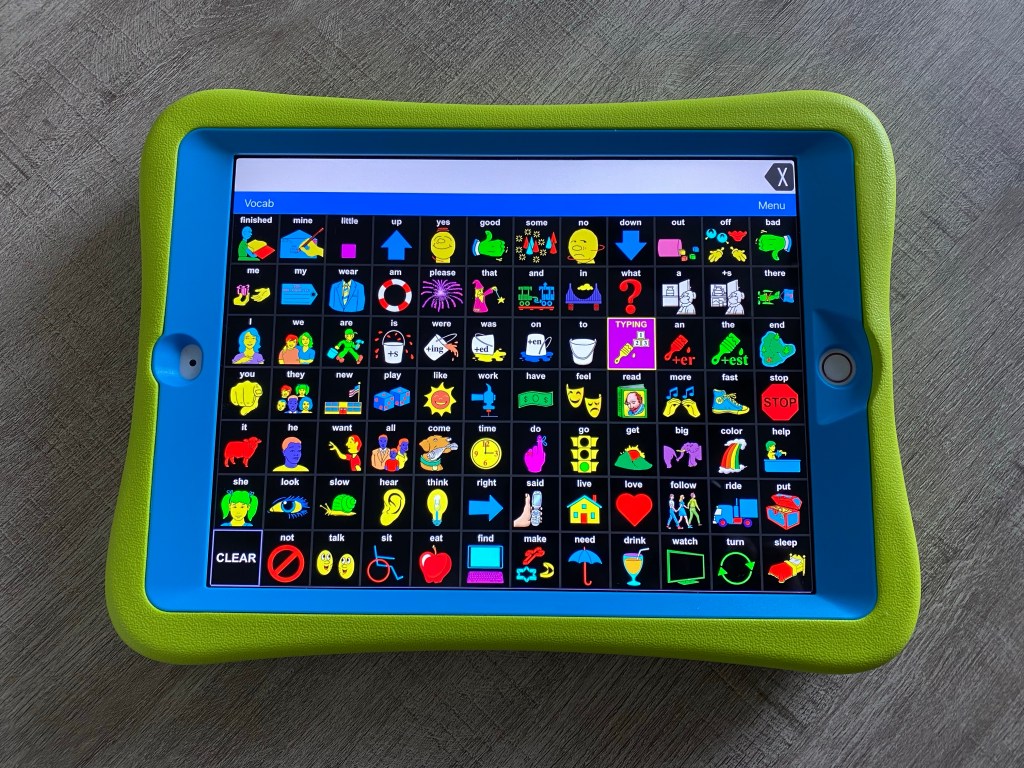
This is what the LAMP Words for Life app looks like on my iPad modified to use High Contrast symbols:
Want to know more? Check out this short recorded webinar on my Teachers Pay Teachers store: https://bit.ly/2Rd430G
Have questions? The best way to reach me with any questions is via messaging on the OMazing Kids Facebook page: https://www.facebook.com/OMazingKidsAAC/. That way messages don’t get lost among the spam in my e-mail.
Personal Professional Facebook Page (linked to OMazing Kids): https://www.facebook.com/angela.moorad (adding “friends” who have a direct role in AAC or Assistive Technology – AAC / AT app or product developers, AAC / AT consultants, SLPs who specialize in AAC, other professionals who specialize in AAC or AT, etc.)
There was a post in the AAC for SLP Facebook group today where a member asked the following question:
“Hi all! I’m not sure there is even an answer for this question, but I’m going to go for it anyway. 😉 Is there one symbol set that is most widely used? I am only familiar with SymbolStix and PCS. To be specific, I’m not looking for people’s preferences… I am truly just interested on any data/study that demonstrate(s) which is most widely used.😊“
I hadn’t ever seen a list or data/study that had this exact info. To truly know which symbol set is most widely used for high tech AAC you’d need to have data regarding sales of SGDs, sales of AAC apps, sales of symbol sets via in-app purchases and data regarding their actual use. My guess is this is going to vary greatly across the world and influenced by both the language(s) needed by a particular AAC user and the opinions of SLPs / SLTs about certain apps or SGDs.
To truly know which symbol set is most widely used for paper-based AAC you’d need to have data regarding sales and subscriptions and then a way to determine actual use for AAC vs. all the other possible uses for those symbols.
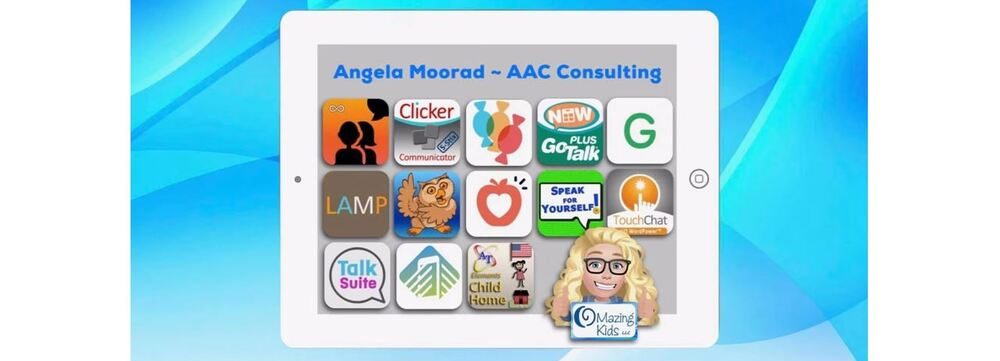
But it sparked my curiosity about what symbol sets are either included or available via in-app purchase in iOS AAC apps. So I looked through my vast AAC app collection and came up with the following list of symbol sets.
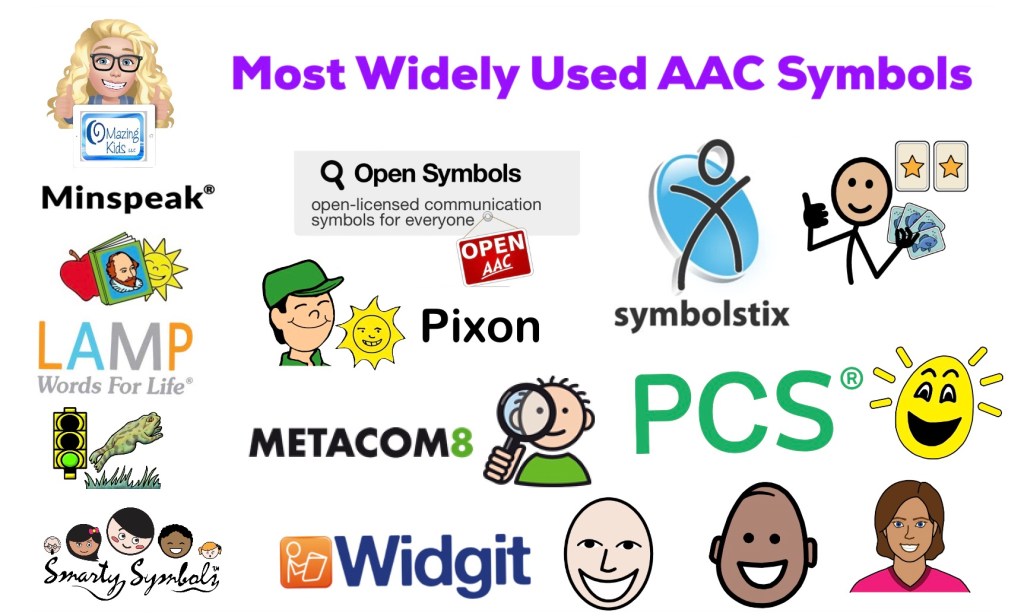
Based on the data that I collected, SymbolStix appears to be the most widely used (used in the most apps, available in 8 of the top 13+ iOS symbol-based AAC apps – denoted by (*) in the lists below & available in traditional SGDs)
PCS symbols are commonly used (available in 6 of the top 13+ iOS symbol-based AAC apps – denoted by (*) in the lists below). Especially if you factor in paper-based AAC systems like PODD and their use in traditional SGDs)
Widgit is more commonly used in the UK than the USA (available in 3 of the top 13+ iOS symbol-based AAC apps – denoted by (*) in the lists below & traditional SGDs)
Minspeak symbols (and the closely associated symbols used in LAMP Words for Life) are only used in particular SGDs and the LAMP WFL and Unity apps but those are widely used.
1. aacorn+ (updated 11/21/22: no longer available)
2. Alexicom
3. Avaz (*)
4. Bridge Communication
5. Clicker Communicator (*)
6. CoughDrop (can add-on)
7. Flexspeak (*)
8. GoTalk Now / GoTalk Now Plus (*)
9. Grid 3 on SmartBox SGDs (also available on other SGDs)
10. Grid for iPad (*)
11. Grid Player
12. Proloquo2Go (*)
13. Proloquo + Proloquo Coach (see this free handout for info about how this new subscription-based options differs from Proloquo2Go: https://bit.ly/3uOlm86)
14. simPODD
15. So Much 2 Say
16. Sono Flex (11/11/25: this app is no longer available for purchase)
17. Talk Tablet
18. TouchChat with WordPower (*), also available on PRC-Saltillo SGDs
PCS:
1. Chatable (11/11/25: this app is no longer available for purchase)
2. Clicker Communicator (*)
3. CoughDrop (can add-on)
4. GoTalk Now (as in-app purchase) (*)
5. Grid 3 on SmartBox SGDs (also available on other SGDs)
6. Grid for iPad (*)
7. TD Snap (formerly known as Snap Core First) (also available on Windows devices and Tobii Dynavox SGDs) (*)
8. TouchChat with WordPower (as in-app purchase) (*), also available on Saltillo SGDs
Widgit (used frequently in the UK):
1. Clicker Communicator (*)
2. GoTalk Now / GoTalk Now Plus (as in-app purchase) (*)
3. Grid 3 on SmartBox SGDs (also available on other SGDs)
13. Speech Assistant AAC (11/21/22: offers the option to add a Mulberry Symbol, emoji or photo to a phrase button)
14. SymboTalk
CrickPix:
1. Clicker Communicator (*)
GoTalk Image Library:
1. GoTalk Now / GoTalk Now Plus (*)
LessonPix:
1. CoughDrop (can sync with your LessonPix account).
LessonPix is also widely used to make printed AAC options.
MetaCom (used fairly frequently in Germany)
1. GoTalk Now / GoTalk Now Plus (as in-app purchase) (*)
2. Grid 3 & Grid for iPad (via in app purchase in certain countries)
2. MetaTalkUS
3. TD Snap (formerly known as Snap Core First (as extra subscription or purchase) (*)
Minspeak:
1. Unity on Accent SGDs or the Unity iOS app
Multi-Meaning symbols derived from Minspeak & Unity:
1. LAMP Words for Life (*), also on Accent SGDs
Persona:
1. Talk Suite Pro
Pics for PECS:
1. PECS IV+
Pixon (also related to Minspeak/ Unity):
1. TouchChat with WordPower (as in-app purchase) (*), also available on Saltillo SGDs
Smarty Symbols:
1. ASD AAC Bestie Communicator
2. Expressive
3. Speak for Yourself (*)
4. Quick Talk AAC
Smarty Symbols are also widely used to make printed AAC options, in products on Teachers Pay Teachers and in a few non-AAC apps.
There are other AAC apps and SGDs that have their own unique symbols:
1. Alela Pro
2. CardTalk
3. CoreVoice
4. EESpeech
5. Fast AAC
6. Flexspeak
7. Fluent AAC
8. Grace 4
9. Jellow
10. Lingraphica (apps and their SGDs)
11. My First AAC
12. Niki Talk
13. PAROL Mini
14. PictoMaker
15. SoundingBoard
16. Talking Mats
17. Talk to Me
18. Top Taps Speaks
19. Twinkl Symbols for AAC
20. Verbal Me
21. Visuals2Go
22. Voice4u
23. Wayword
24. Weave Chat
This website has a nice catalog of all (or at least most) of the various symbol sets. Most are not widely used. I think it’s interesting to read the history behind how/why symbols were developed: https://talksense.weebly.com/symbol-what.html
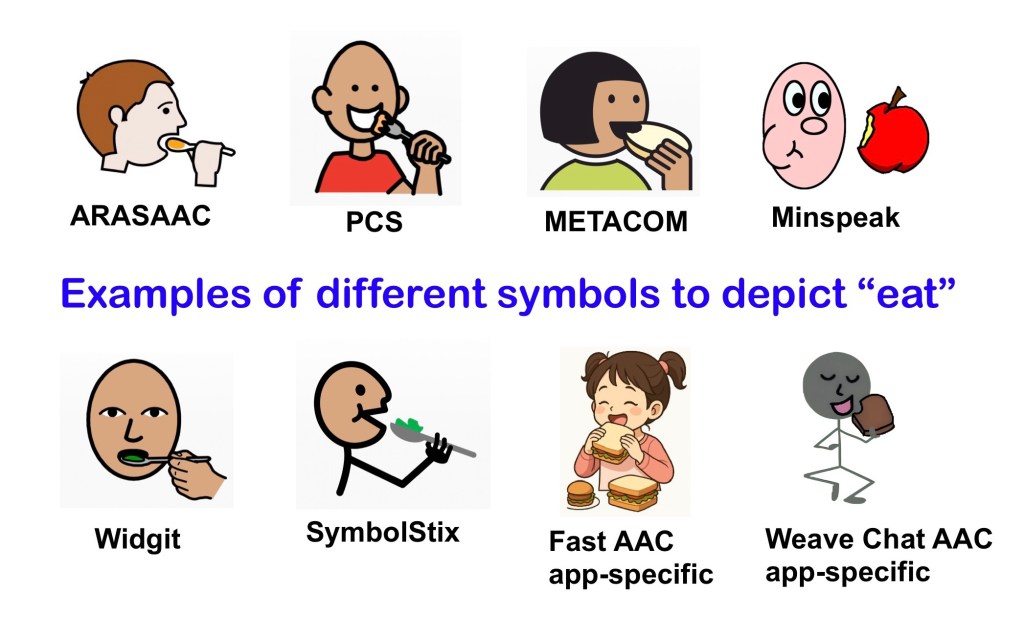
It’s important to keep in mind… Symbol sets are like any other feature in AAC. There isn’t any “one size fits all” and to my knowledge there isn’t any research supporting the idea that any particular symbol set is superior to another. This is especially true when considering symbols that meet specific needs, user preferences, culturally relevant, etc…
See this quote from PrAACtical AAC: “There is no empirical evidence that one type of symbol is superior to another for all AAC clients, but there may certainly be differences for a specific individual. That’s why it is a best practice to evaluate the kind of symbol to use as part of an AAC assessment rather than picking one at random or using one based on our own convenience.”
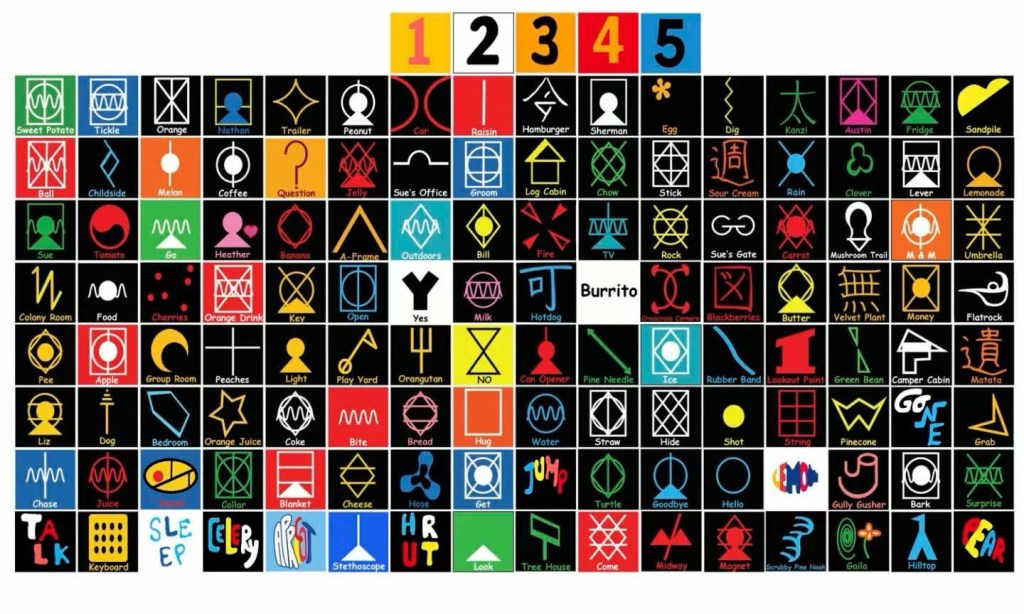
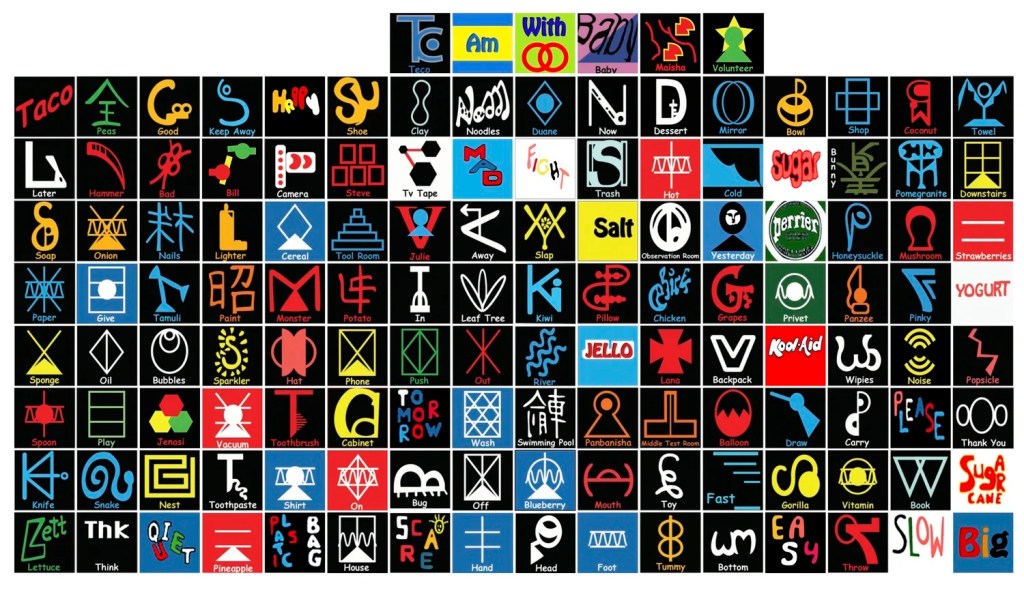
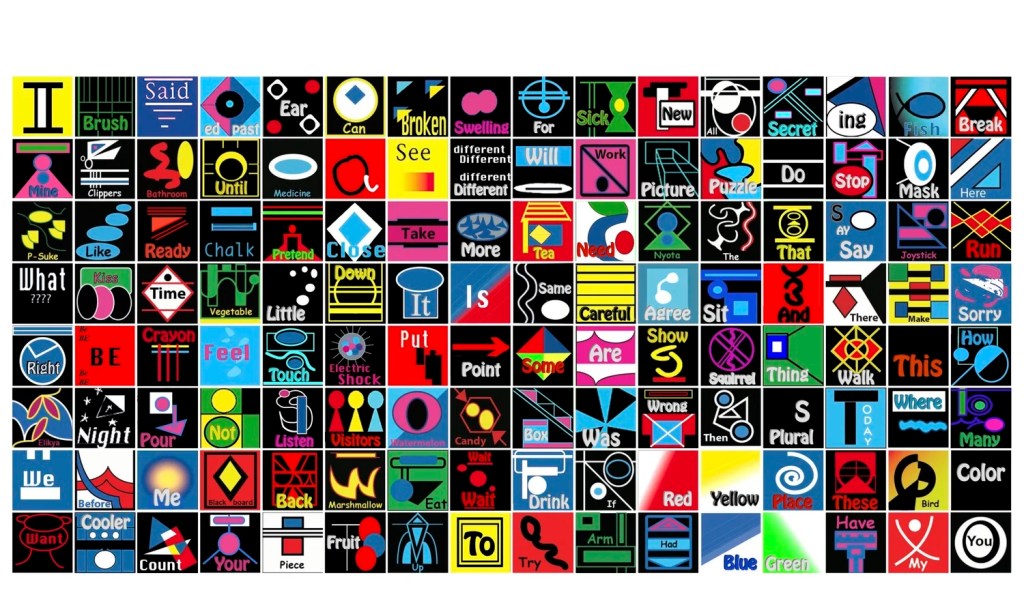
3/14/26: Mind blowing to learn about Yerkish lexigram / logograms designed for primates. It appears in the movie “Primate” but I don’t recognize the app interface:
• AAC Feature Matching Resource Bundle (includes all three, save 10%): https://bit.ly/aacFeatureMatchingBundle. If you are looking to purchase resources for several staff / team members, take a look at the Multiple Licenses discount (saves 20%)
• Affordable and Free AAC apps & AAC-Related Apps (iOS, Android, Amazon Fire, Windows & a few web-based options): https://bit.ly/BasicAffordableAACchart
Have a question? The best way to reach me with any questions is via messaging on the OMazing Kids Facebook page: https://www.facebook.com/OMazingKidsAAC/. That way AAC related messages don’t get lost among the spam in my e-mail



 OMazing Kids AAC Consulting